



Table of Contents
- 1 Basic Requirements to Create a Directory Website with Bricks
- 2 Install Directorist Latest Version- Create a Directory Website with Bricks
- 3 Install a Free Directory Theme-Create a Directory Website with Bricks
- 4 Install Bricks Builder Theme
- 5 Install AddonsKit for Bricks
- 6 Create Categories, tags, or Locations
- 7 Create a Home Page for Your Business Directory Website
- 8 Create a Listings Page on the Directory Website
- 9 Final Thoughts
How to Create a Directory Website with Bricks
-

- Directory Niche Tutorials WordPress
- 5 mins read
Have you ever wondered how businesses like Yelp or Zillow became go-to platforms in their industries? Did you know that directory websites are among the most scalable and profitable online ventures, with some earning millions annually?
If you’ve ever dreamed of creating a website where users can discover the best local restaurants, find job opportunities, or book travel services—all while earning revenue from listings or ads—then building a directory website is your golden opportunity.
But here’s the challenge: creating a directory website from scratch can feel overwhelming, especially if you’re not a coding expert. That’s where Bricks Builder comes to the rescue. Known for its unparalleled speed, drag-and-drop flexibility, and SEO optimization, Bricks makes it possible to craft stunning, high-performing directory websites without technical headaches.
In this guide, you’ll learn how to leverage Bricks Builder to create a directory website that not only looks amazing but also works seamlessly for users and businesses alike.
So, without further ado, let’s dig deeper.
Basic Requirements to Create a Directory Website with Bricks
- WordPress (Latest Version): The World’s most popular CMS system, helping build a feature-rich website with ease.
- A Domain Name: Choose a unique and relevant domain to represent your directory niche. You can buy domains from Namecheap, Hostinger, etc.
- Reliable Hosting: Opt for secure and high-performing hosting to keep your site fast and accessible. Sites like Hostinger, Bluehost, etc can help you out.
- A Free Directory Plugin – Directorist: Leverage powerful features like AI-powered directory creation, unlimited custom fields, advanced search, and monetization without spending a dime.
- A Free Directory Theme: Pair your setup with a free theme like OneListing, Best Listing, or Pixetiq to kickstart your directory without breaking the bank.
- Bricks Builder: Helps you create a stunning website with ease.
- AddonsKit for Bricks: Empowers users to elevate their directory sites with advanced design features and intuitive functionalities.
Install Directorist Latest Version- Create a Directory Website with Bricks
To install Directorist, go to your WordPress admin dashboard, navigate to Plugins > Add New
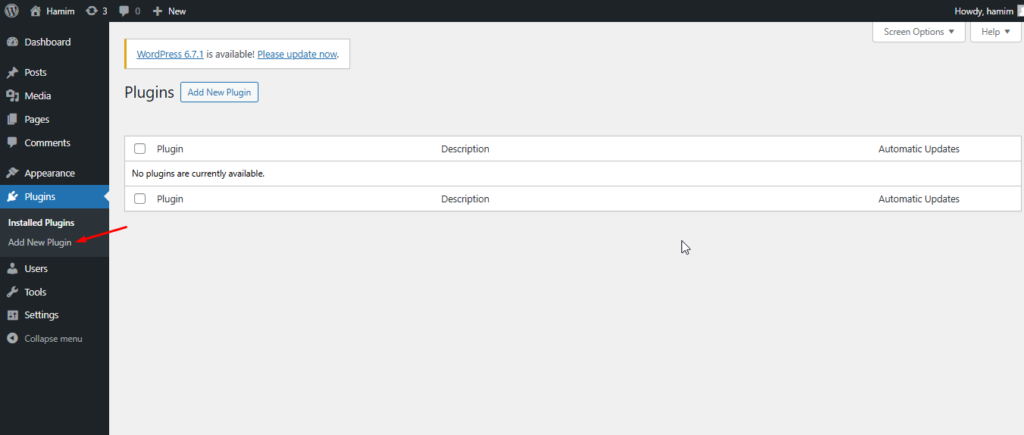
Search the plugin with ‘Directorist‘ keyword.
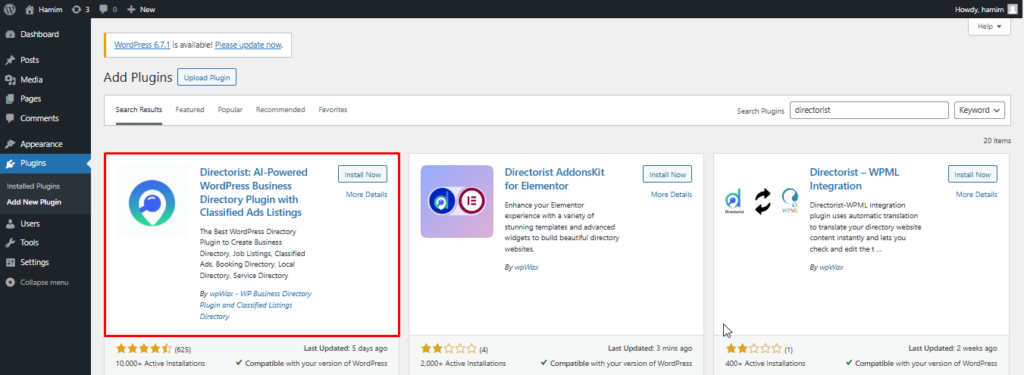
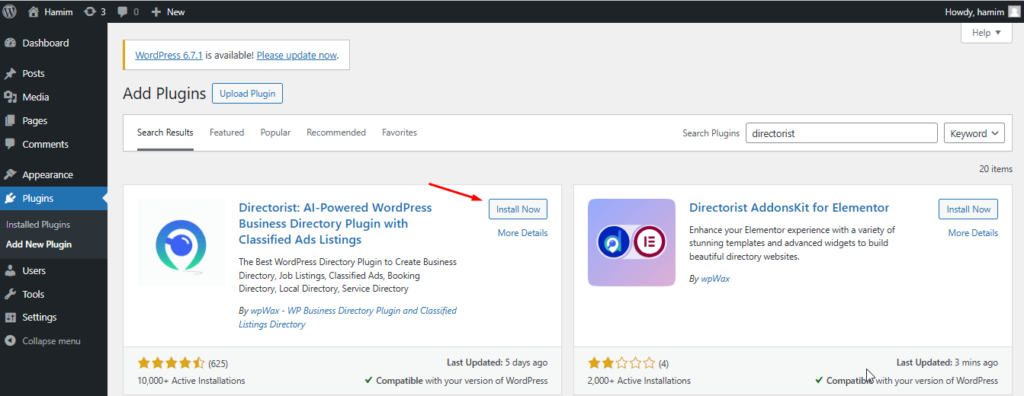
Tap the “Install Now” button
Now, Activate the plugin.
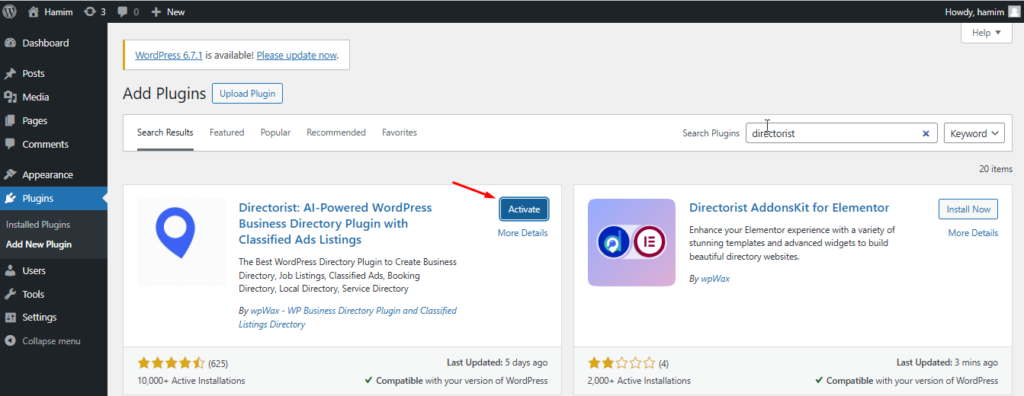
Finally, activate and configure the setup wizard to begin with a fresh setup. We recommend you visit our easy-to-understand official documentation to ensure a seamless configuration tailored to your preferences.
Install a Free Directory Theme-Create a Directory Website with Bricks
Luckily, Directorist is compatible with all WordPress themes so you can use any theme you want. Here, we can use Pixetiq, our brand-new theme. Most interestingly, the theme is fully compatible with Directorist functionalities.
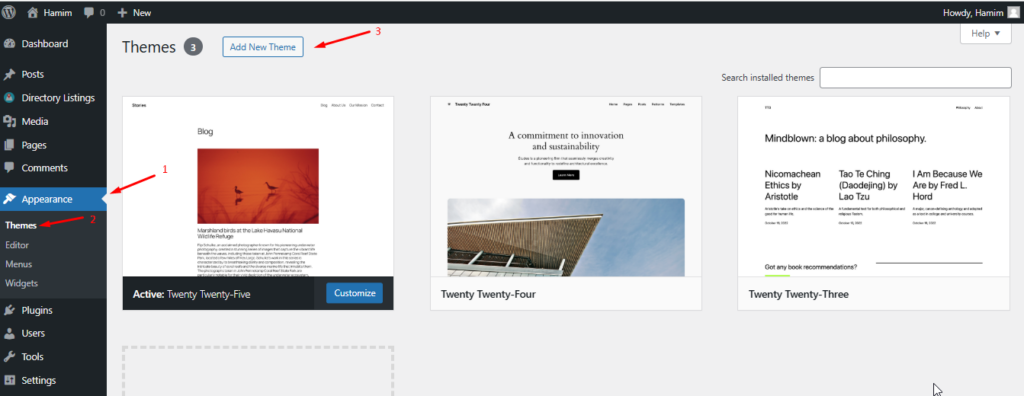
To install Pixetiq, navigate to your WordPress admin dashboard, go to Appearance > Themes > Add New option.
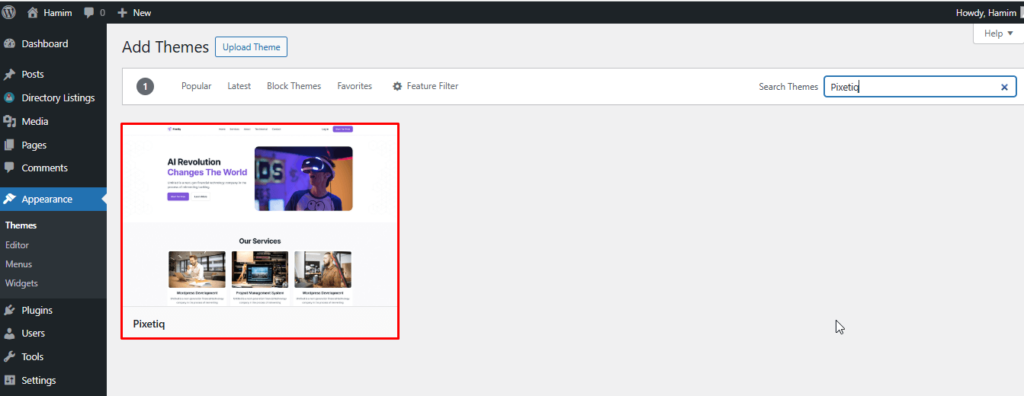
Search for the keyword ‘Pixetiq‘
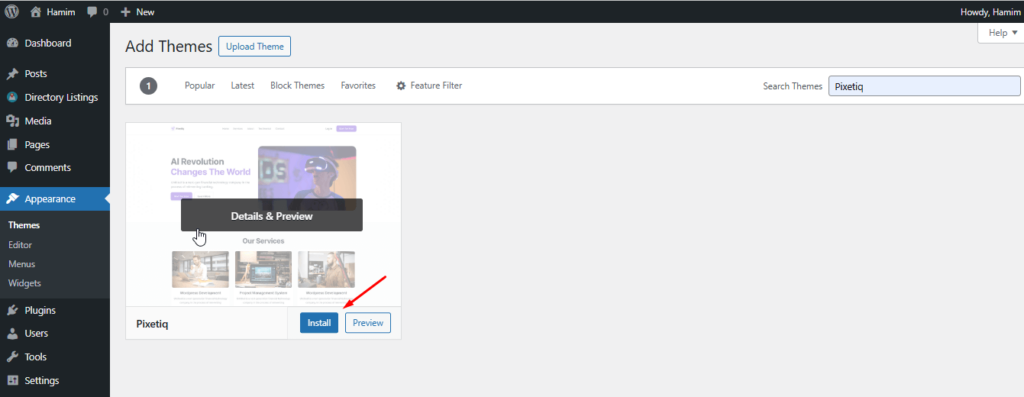
Next, click the Install button.
Finally, Activate the Pixetiq theme.
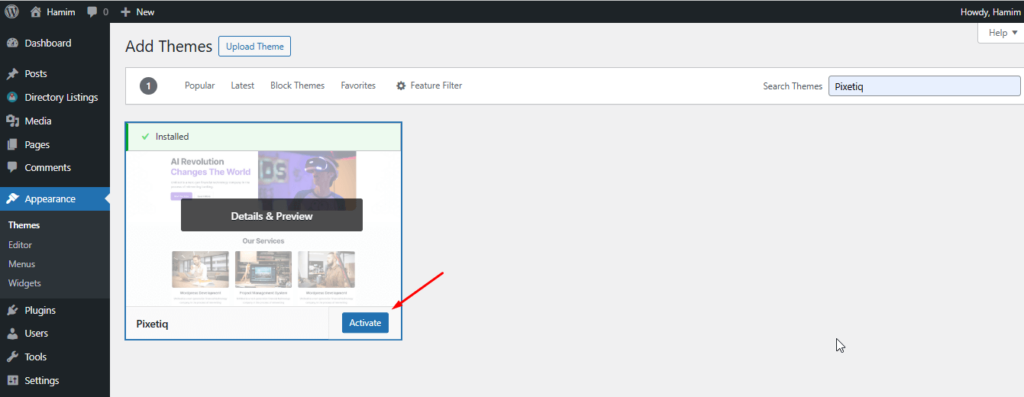
So, You’ve completed setting up the overall theme.
Install Bricks Builder Theme
As Bricks is a premium tool, you need to purchase its license to get things done. You can head over to its website to choose a plan.
Now, assuming you have already purchased a license key for Bricks. To install Bricks,
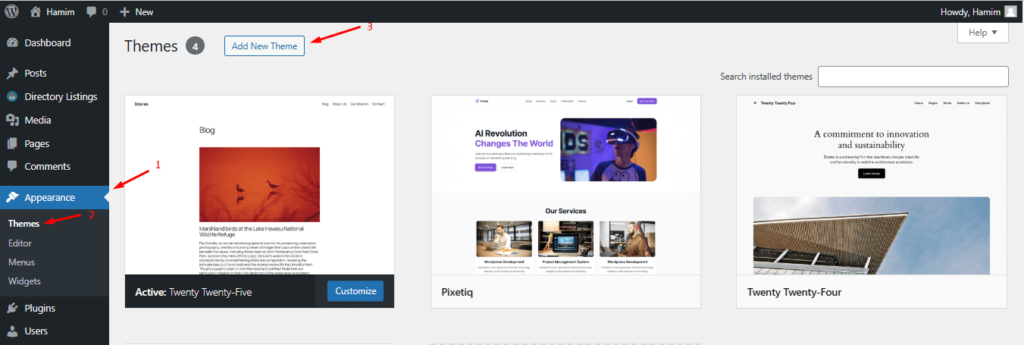
Go to Appearance > Themes > Add New Theme
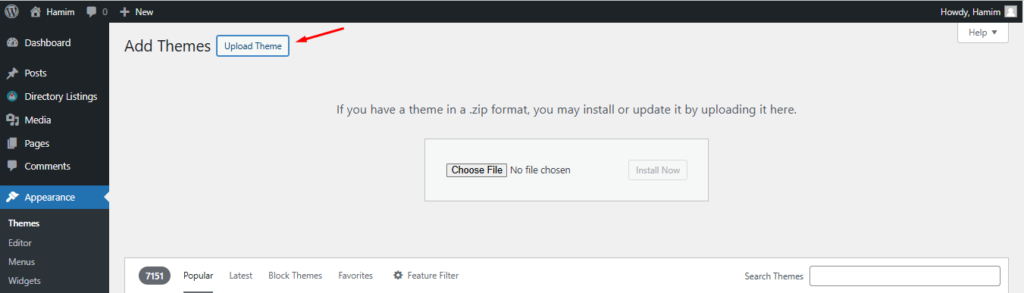
Upload theme
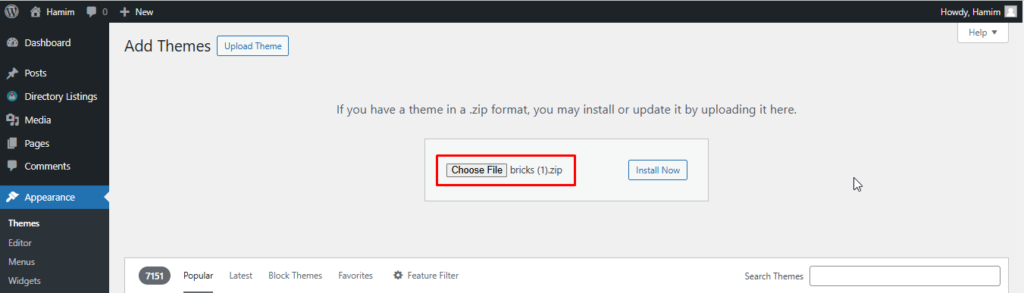
Next, Choose File
Hit the Install Now button
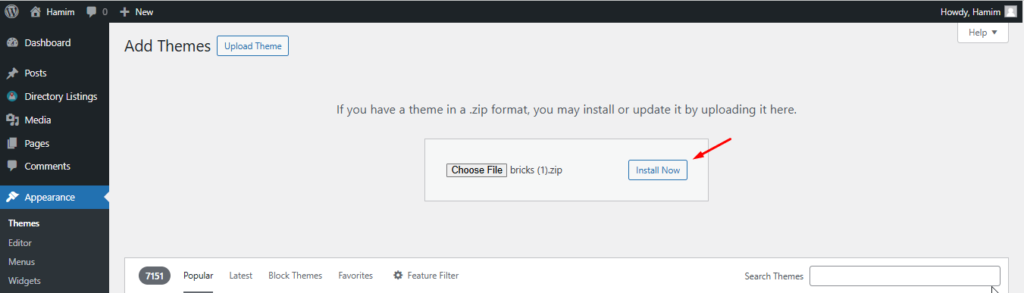
You have successfully installed Bricks on your WordPress site.
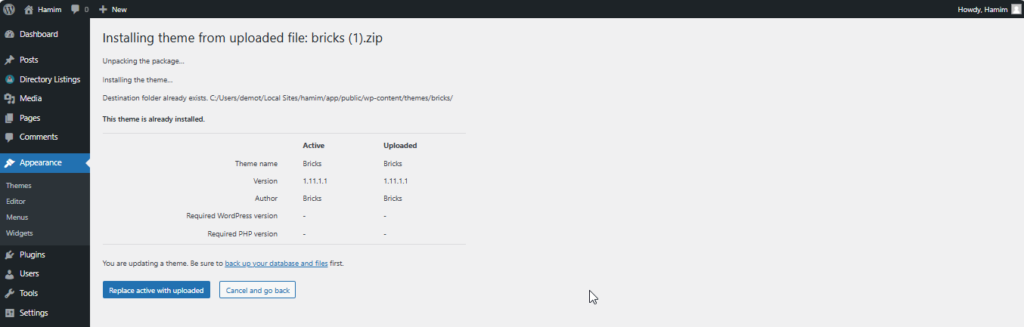
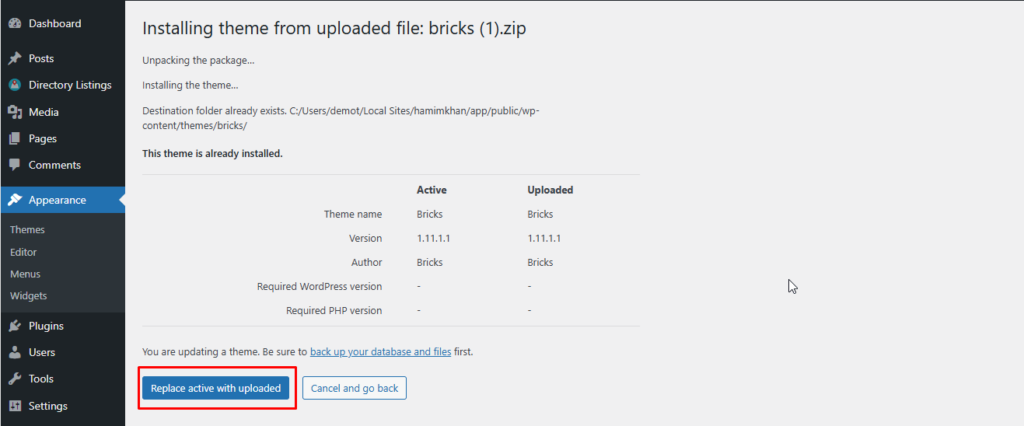
Now, press Replace active with uploaded button.
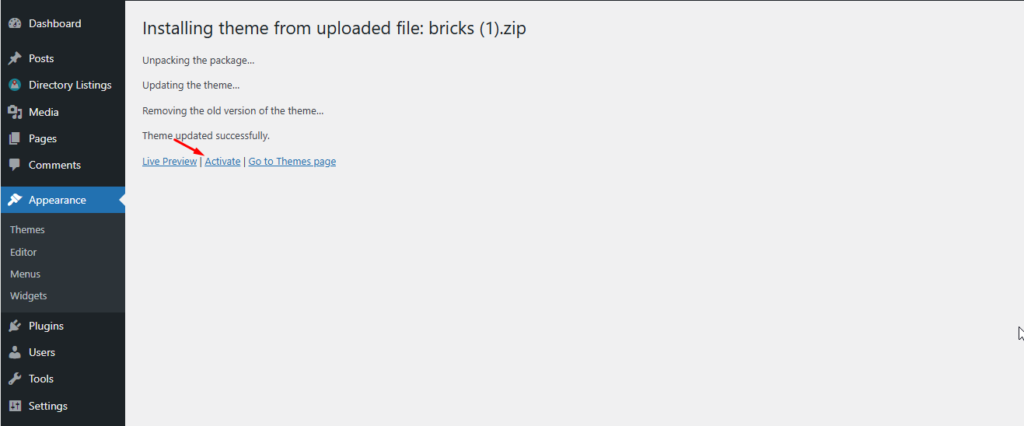
Finally, Activate the theme.
Install AddonsKit for Bricks
To install AddonsKit for Bricks, you first need to purchase a valid license.
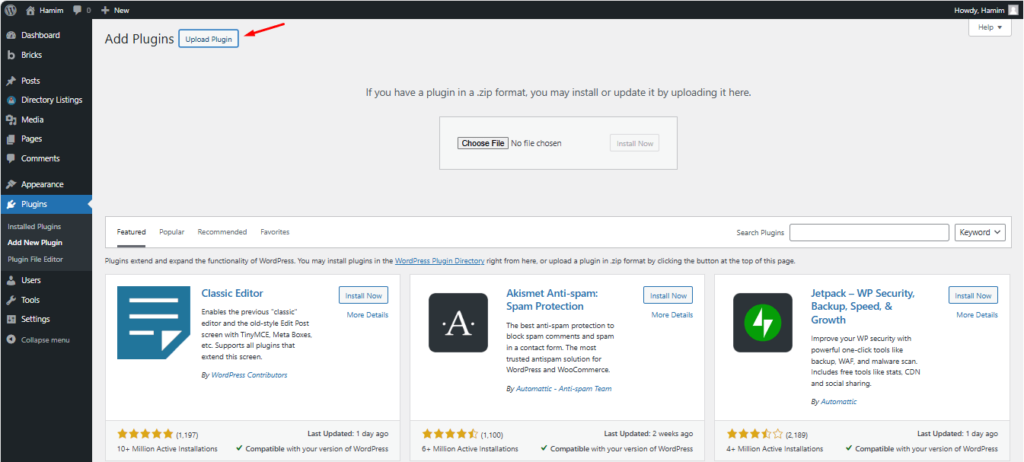
Once done, then navigate to Plugins > Add New
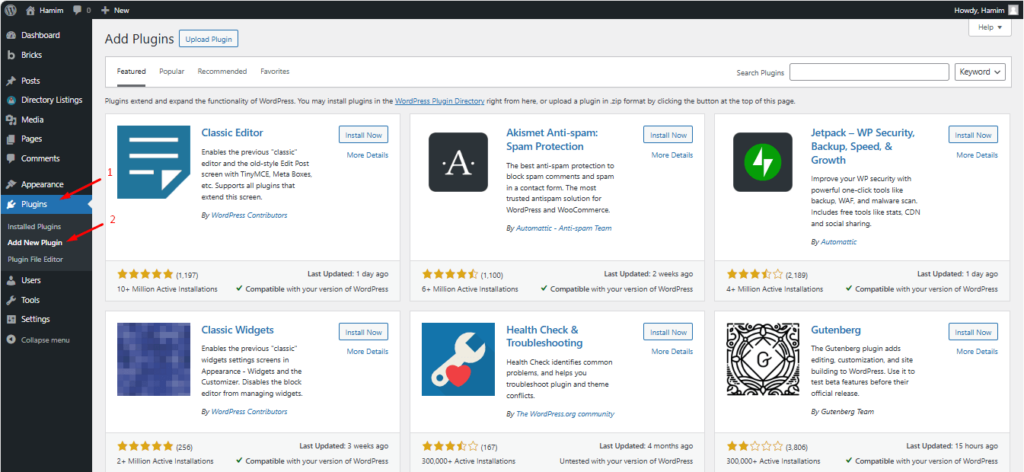
Upload Plugin
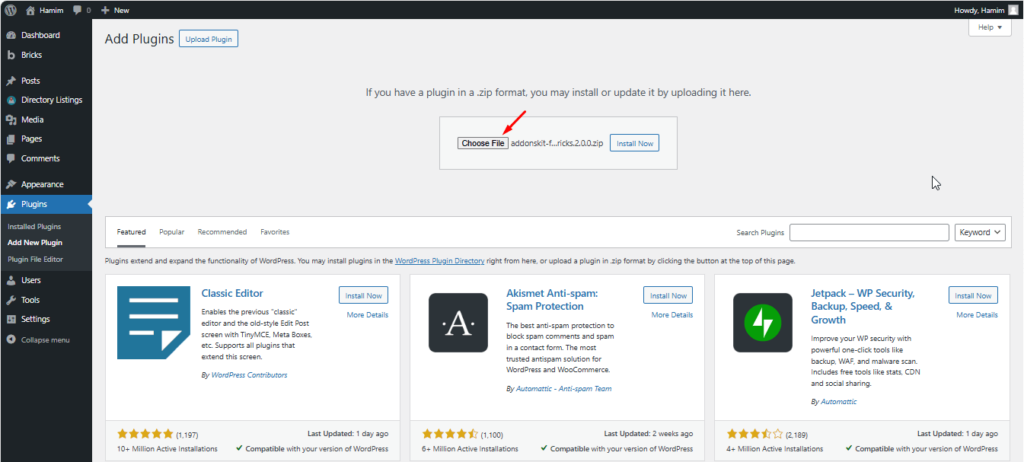
Now, click on the Choose File option.
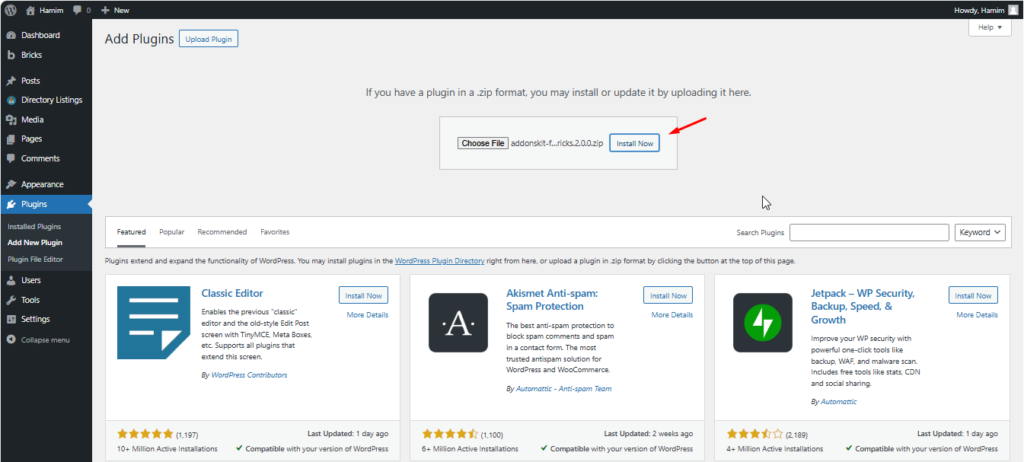
Hit the Install Now button.
Finally, Activate the plugin.
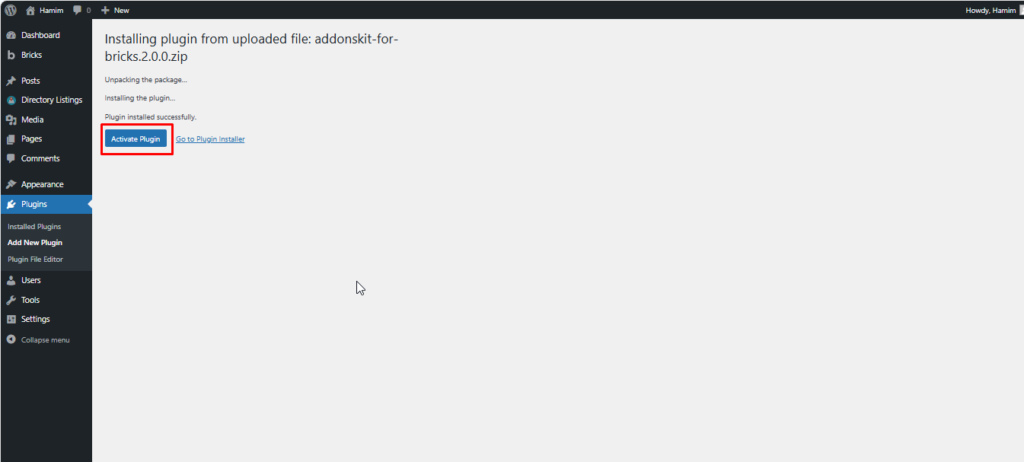
You have successfully activated the AddonsKit for Bricks on your WordPress site.
- Create Categories
Navigate to Directorist > Categories and add the relevant categories for your directory (e.g., Restaurants, Real Estate, Travel).
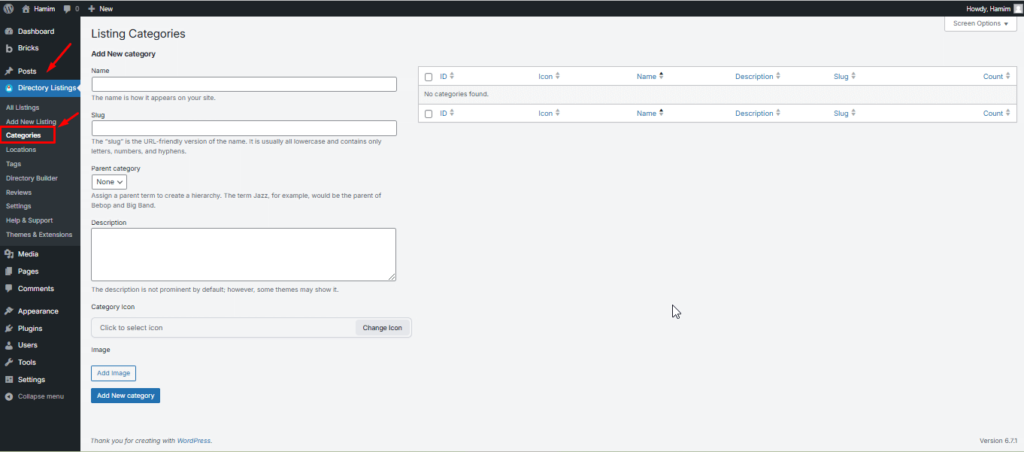
P. S: You can set the description, category icon, and image.
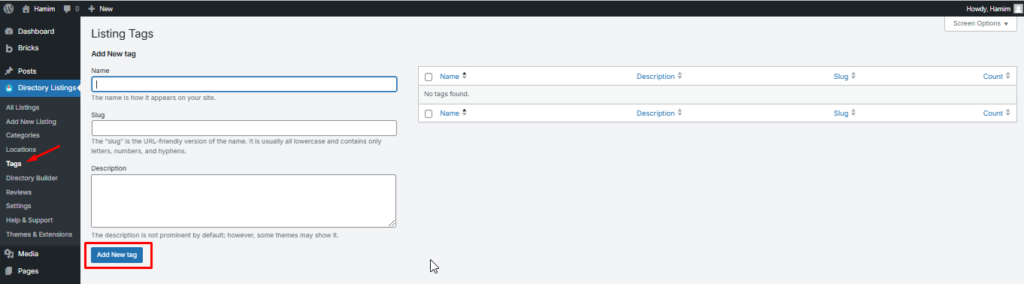
- Create Tags
Head over to Directorist > Tags and add the relevant Tags for your directory.
- Create Locations
Go to Directorist > Locations and add the desired locations for your directory website.
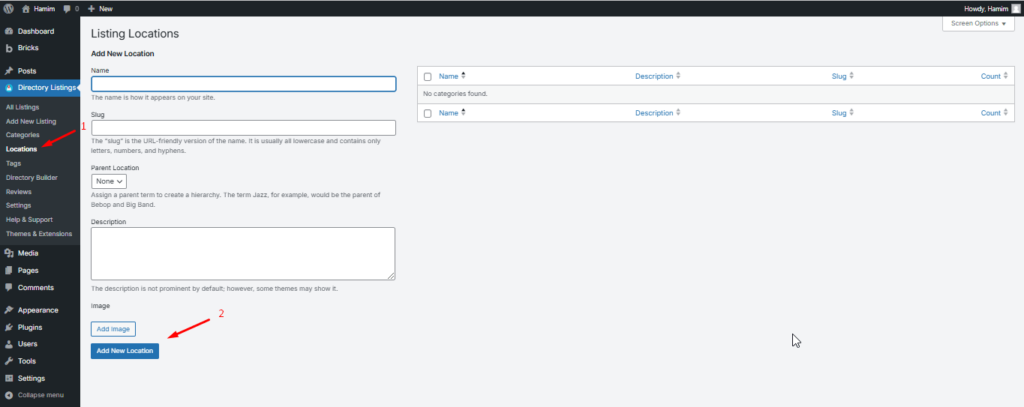
P. S: You can add the description and image as well.
Create a Home Page for Your Business Directory Website
Now, you need to create a homepage for your directory website.
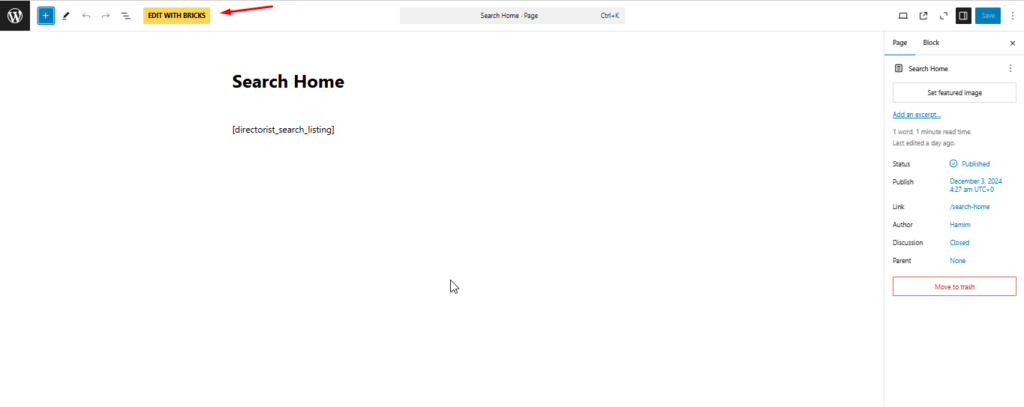
To create a homepage, navigate to WP Admin Dashboard > Pages > Home.
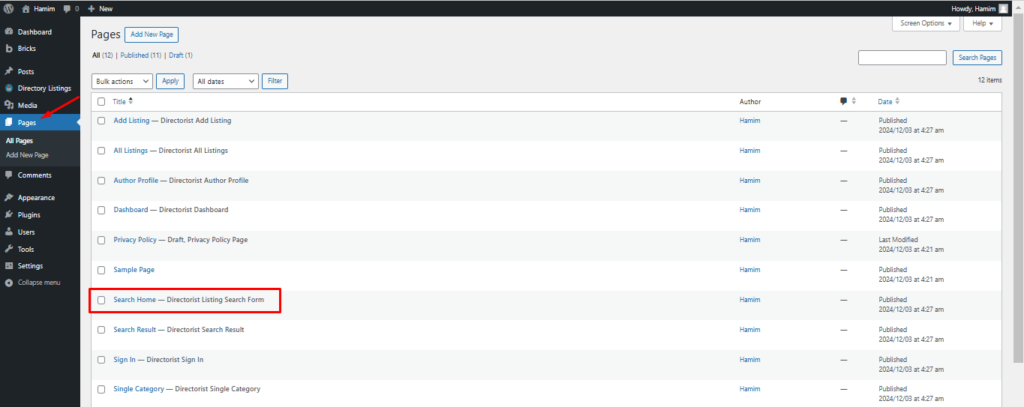
Then, EDIT WITH BRICKS
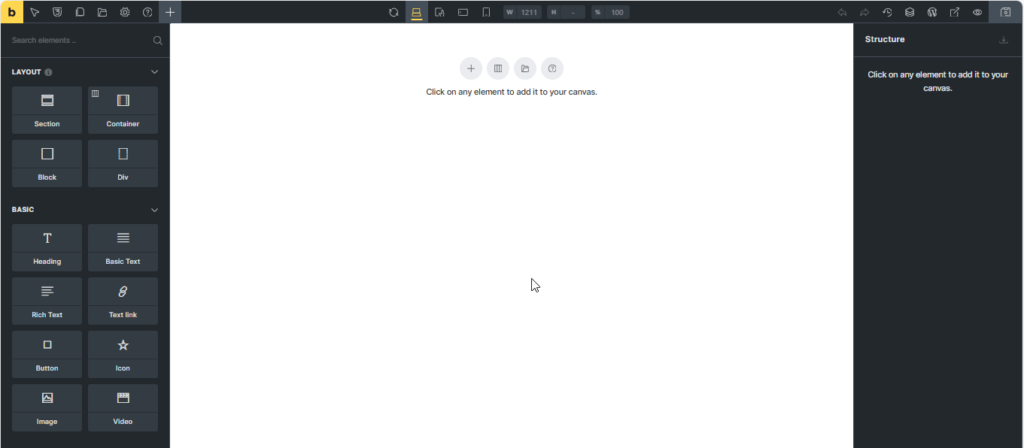
Now, you should see the following edit panel where you can find the Directorist widgets. You don’t have to code anything because everything is already around here.
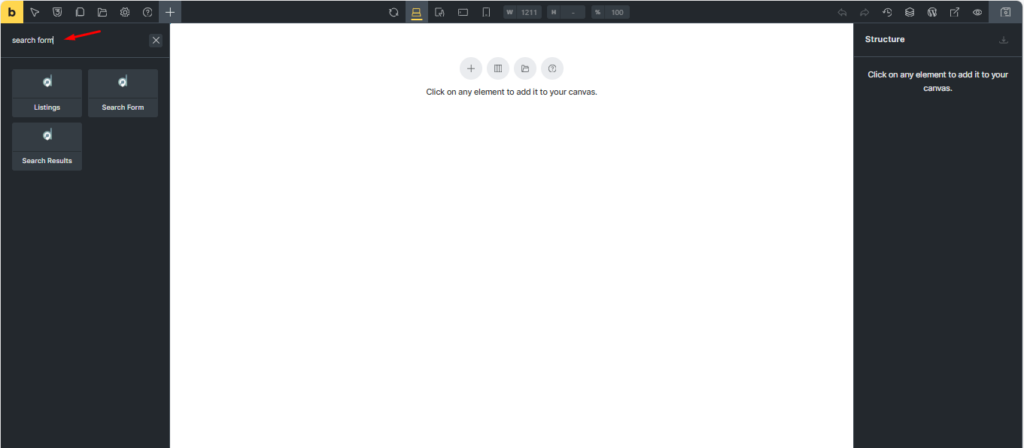
For example, you can search for the keyword Search Form in the search bar.
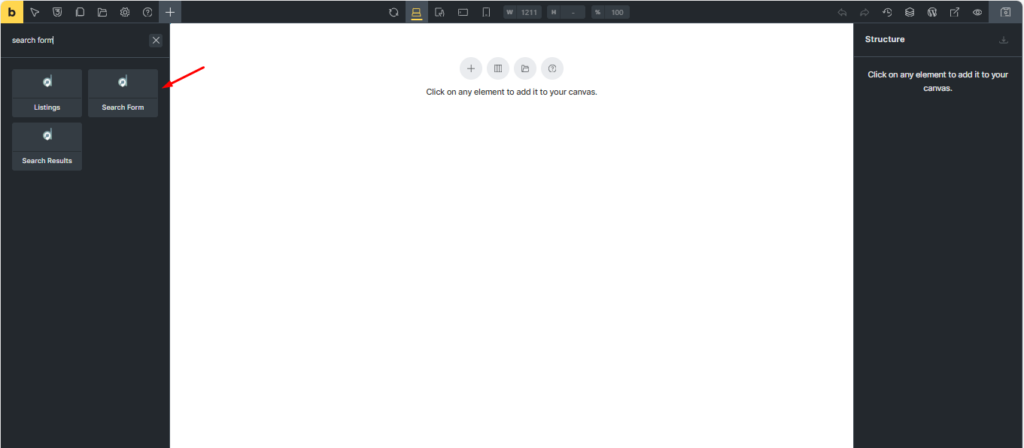
Now, click on the Search Form option.
Finally, Hit the Save button.
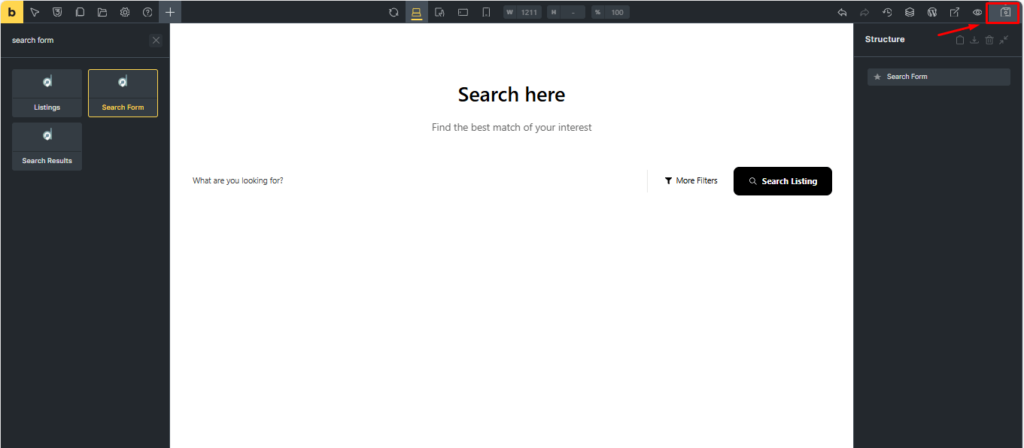
You have successfully created a home page with Search Form component.
Create a Listings Page on the Directory Website
The “All Listings” page displays all your listings, regardless of location, category, or tag. To set it up, simply edit the page with the Bricks Builder like before and add the Listings component. Finally, Save it.
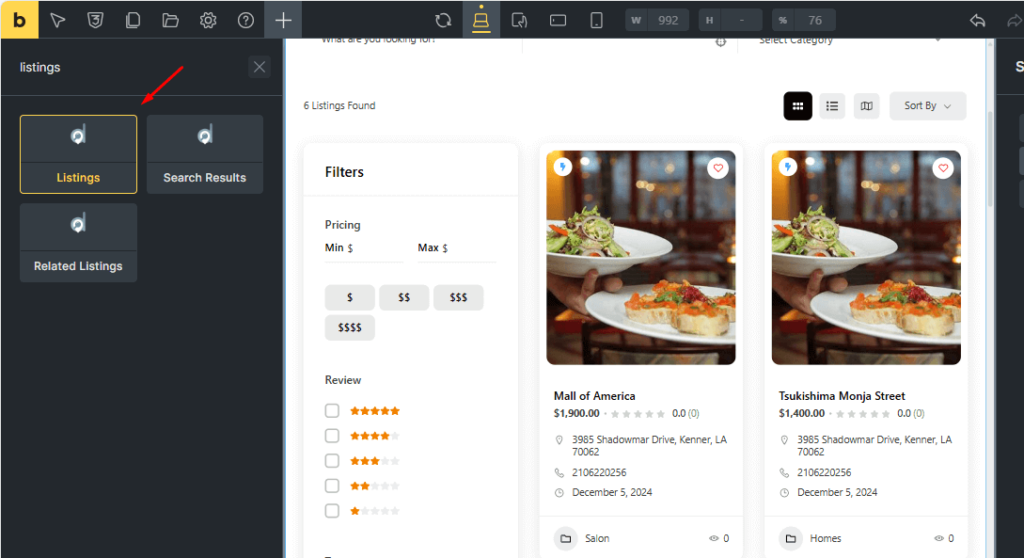
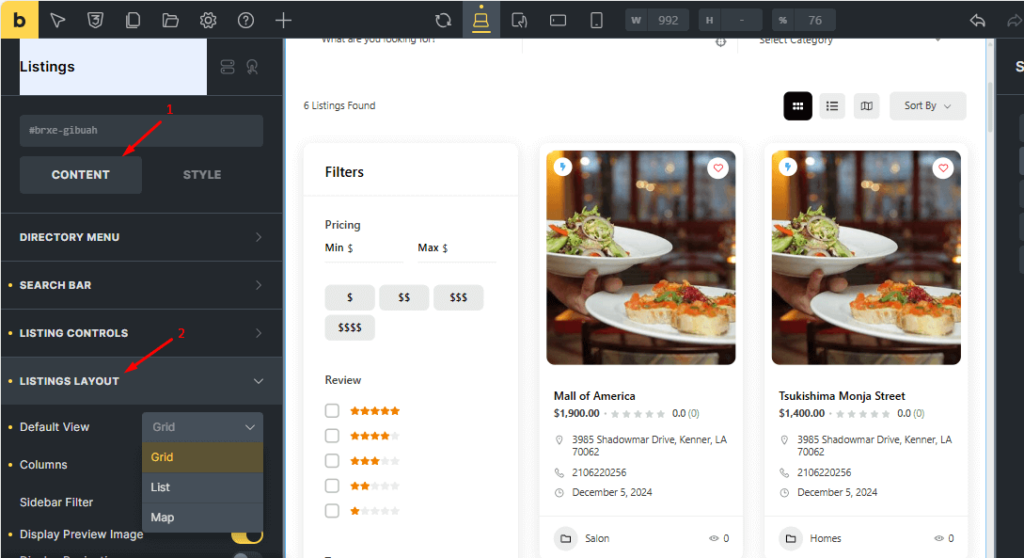
Additionally, you can arrange the listings in different views just to enhance the user experience.
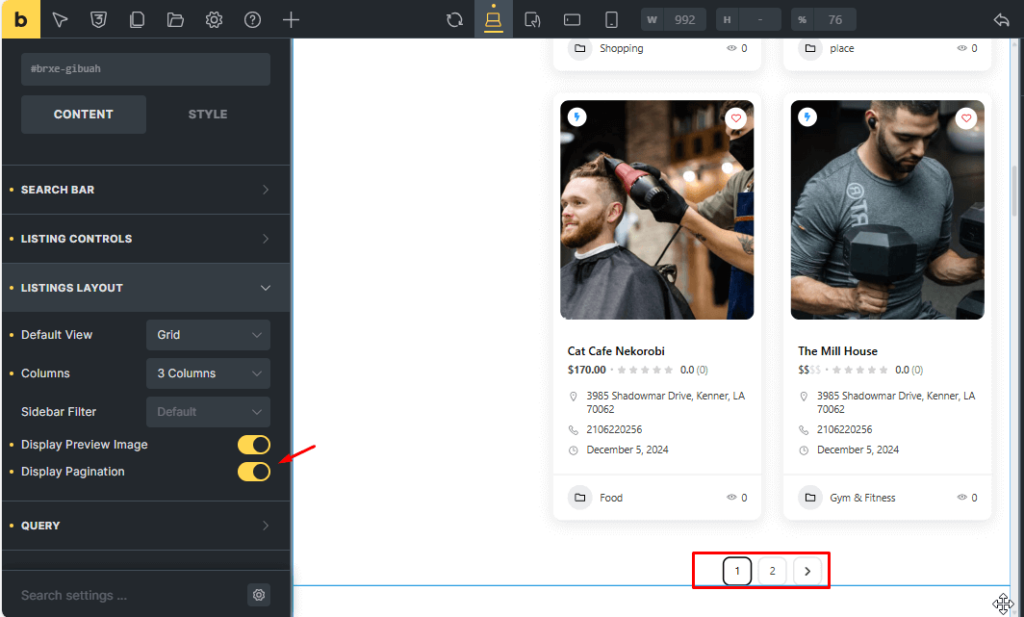
Moreover, your visitors might want to see the pagination or breadcrumbs for all listings. You can toggle on the Display Pagination.
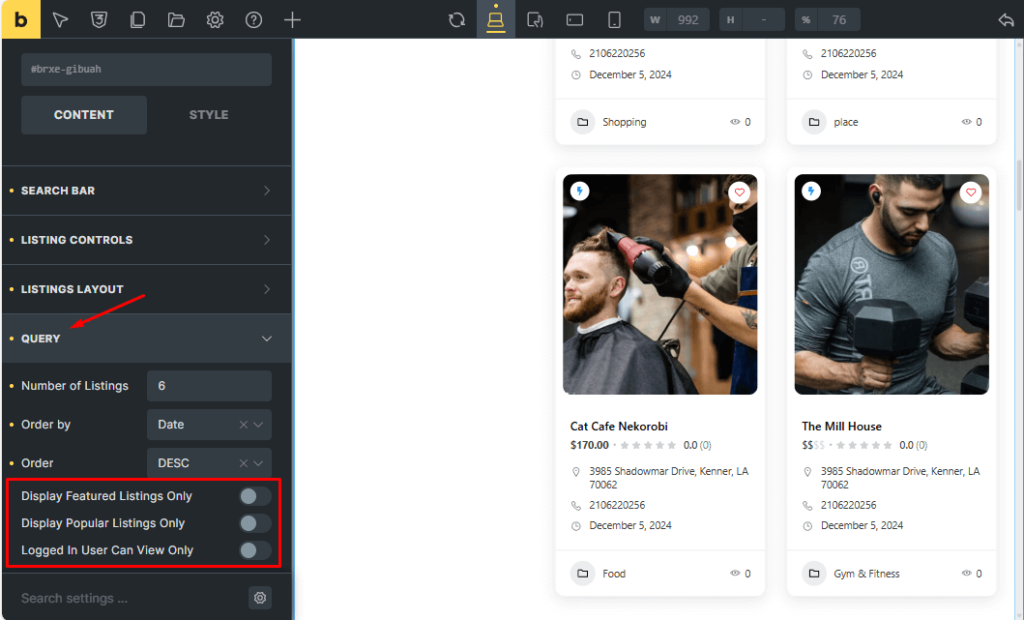
Also, you can set the listings based on your preference. For example, you can only display featured listings, you can restrict your listings as well. And, this is the cool feature of Bricks and Directorist integration.
Remember to click the ‘Save’ button before leaving the editor panel.
Well done! You’ve successfully built your business directory website using Bricks.
Final Thoughts
Creating a directory website with Bricks Builder is not just easy—it’s empowering, thanks to the seamless integration of Directorist. With a host of versatile components at your disposal, you can craft a feature-rich and visually stunning directory that stands out in your niche.
The possibilities are limitless, giving you full control and scalability to build a platform that grows with your vision. Want to take it a step further? The directory builder unlocks advanced performance and customization options, allowing you to fine-tune every element to perfection.
We’ve kept this guide simple, but the power to go deeper is always within your reach. And remember, you’re never alone in the process—if you hit a snag, drop us a comment, and we’ll ensure you get back on track. Now’s the time to bring your directory idea to life.
Let’s make it happen—happy WordPressing!

Md. Hamim Khan
Md Hamim Khan is the Content and SEO Manager at Directorist, where he creates engaging content that helps improve online visibility. When he’s not at work, he loves playing cricket and enjoys chatting with friends, family, and colleagues.

Leave a Reply
You must be logged in to post a comment.