


Table of Contents
- 1 What Gets Imported
- 2 Use Cases: What Kind of Directories Benefit Most
- 3 From Import to Revenue: The Claim-and-Convert Pipeline
- 4 What to Do After Import: A Quality Review Process
- 5 Best Practices for Import Listings from Google Maps
- 6 Beginner Workflow: Getting Your First 50 Listings Live
- 7 Advanced Workflow: Scaling and Maintaining an Existing Directory
- 8 Getting Started
How to Launch a Directory Faster by Importing Listings from Google Maps
-

- Extensions Tips & Tricks
- 11 mins read
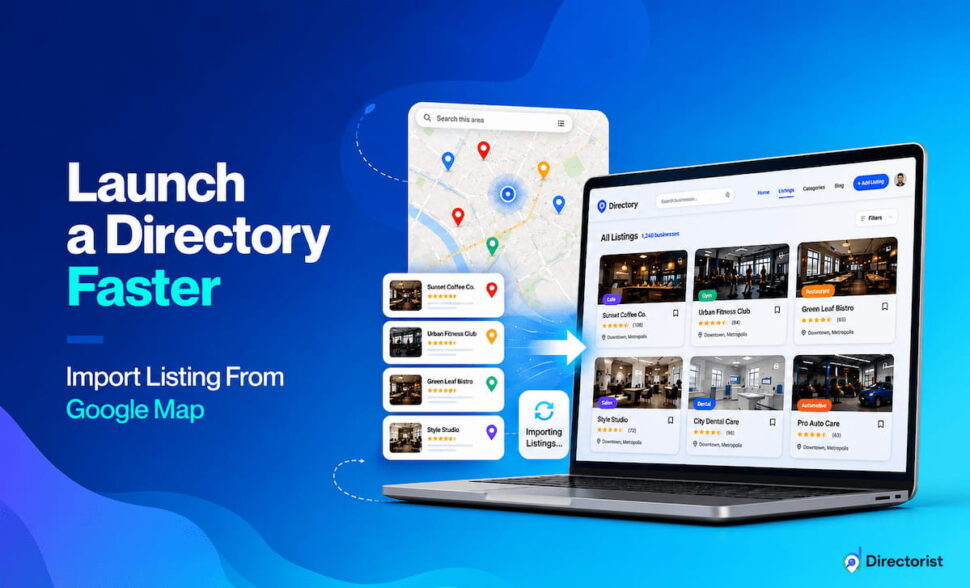
The hardest part of launching a directory website is not picking a niche, configuring a plugin, or designing a layout. It is having enough listings on day one that visitors find something worth staying for.
A thin directory creates a bad first impression that compounds. Visitors leave within seconds. Business owners you pitch look at an empty category page and decide it is not worth their money. The classic chicken-and-egg problem takes hold: you need listings to attract visitors, and visitors to attract paying listing owners. Most new directories stall here and never recover.
One of the fastest ways to break that cycle is to build your initial inventory yourself – before you launch, before you run any outreach, and before you spend a dollar on ads. You can do it manually or import listings from Google Maps. The later one will save you time and effort while making sure that maximum information are collected accurately from public sources.
The Directorist Listing Importer is a premium extension that pulls real local business data from various public sources including Google Maps directly into your WordPress directory. Business names, addresses, phone numbers, websites, photos, star ratings, and Google reviews can all be imported in bulk and mapped to your existing listing fields – without manually copying a single entry.
This article covers what you can import, how to use it across different directory types, how to turn imported listings into revenue, and what to do after the import to make sure the data is actually worth publishing.
What Gets Imported
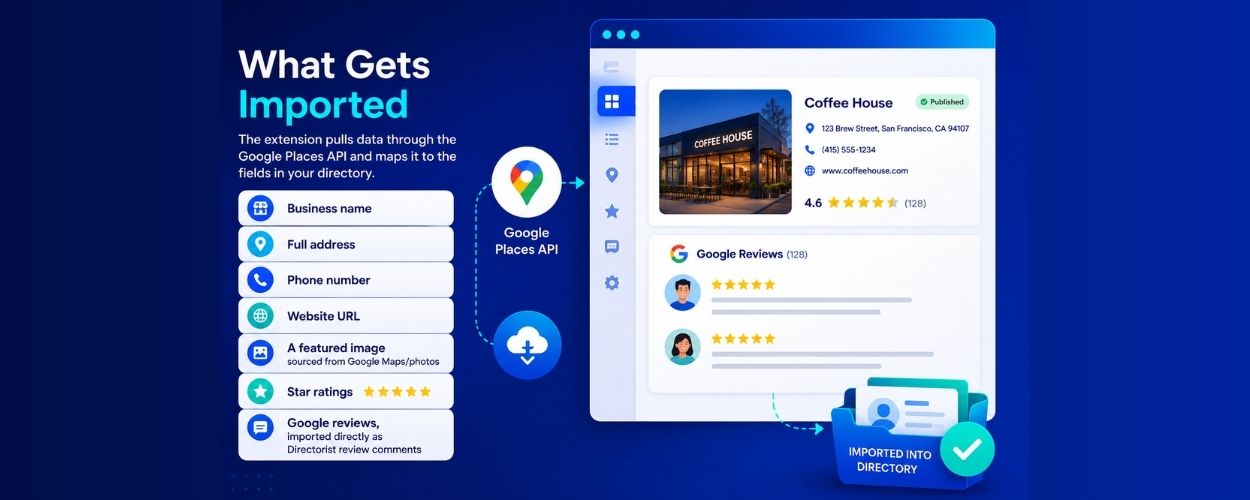
The extension pulls data through the Google Places API, add listings to directory website automatically and maps it to the fields in your Directorist fields. Depending on what Google has on record for each business, an import can include:
- Business name
- Full address
- Phone number
- Website URL
- A featured image sourced from Google Maps/photos
- Star ratings
- Google reviews, imported directly as Directorist review comments
That last point is worth pausing on. Reviews are one of the hardest things to generate on a new directory. Visitors trust listings with social proof; they skip past ones without it. Importing existing Google reviews gives every listing immediate credibility – the kind that would otherwise take months of organic activity to build.
Data completeness varies by business. Established businesses in populated areas tend to have thorough Google profiles. Newer businesses, businesses in rural areas, or businesses that have not actively managed their Google presence may have gaps. This is expected, and it is why the importer puts listings into a review queue rather than publishing them automatically.
The full technical setup including the API key configuration, import settings, field mapping – all is covered in the Directorist Listing Importer documentation. What follows is about strategy: how to use the extension to build a directory that actually works.
Use Cases: What Kind of Directories Benefit Most

Using the Google Places API, directories can import certain types of listings that are ideally local businesses, restaurants, hospitals, daycare, school and colleges etc. So if you’re working with any of these niches, the Directorist Google Business Importer extension can help you launch faster. See more detailed use cases below.
1. Restaurant and food directories
A restaurant directory lives or dies on coverage. A visitor searching for “best Thai restaurants in [city]” expects options to compare – not two listings and a note to check back later. Running a focused import with keywords like “Thai restaurant,” “sushi,” or “vegan cafe” in your target area builds that coverage quickly. You end up with real business names, real addresses, real photos, and real ratings – exactly what a first-time visitor needs to trust the directory enough to use it.
Once you’re done with import listings from Google Maps, you can organize results into subcategories (cuisine type, neighborhood, price range), improve descriptions with local knowledge, and reach out to business owners to claim their listing and add booking links or special offers.
2. Healthcare and professional service directories
A dentist directory, a clinic finder, or a local legal services directory needs accurate contact information above everything else. One wrong phone number on a healthcare listing destroys user trust. Running imports for specific service types such as “dentist,” “pediatric dentist,” “orthodontist” and then keeping every listing in Pending Review until you have verified the address and phone number gives you coverage with controlled quality.
Healthcare directories also benefit particularly from imported reviews. A dentist with 120 Google reviews imported into your directory is immediately more compelling than a blank profile. Although due to Google Reviews import policies, you can only import a few. But those will also benefit it as you’ll not be starting from ground.
3. Local services directories
Plumbers, electricians, cleaning companies, HVAC contractors, and similar tradespeople are frequently searched at the local level and are underrepresented on quality vertical directories. Running imports by trade type and neighborhood such as “plumber, Brooklyn” and “plumber, Queens” as separate searches, lets you build systematic coverage across a city or region faster than any manual approach.
For local services, the import creates the foundation. The real value comes when you follow up with those businesses and offer them a claimed, paid listing with a contact form, featured placement, and a listing owner dashboard showing how many enquiries they are receiving.
4. City and neighborhood guides
A hyperlocal directory covering one neighborhood – restaurants, salons, gyms, independent retailers, all can be meaningfully populated in a single afternoon. Importing across several business categories for one specific area gives you the breadth that makes a neighborhood guide genuinely useful to residents.
This type of directory is also well-suited to cold outreach after import: you have a list of every business in the neighborhood, their contact details, and a working directory page for each of them. That makes the pitch to upgrade to a paid listing far easier than starting from nothing.
5. Agency client projects
Delivering a directory website to a client with no listings is a difficult handover. Even if the configuration is perfect, an empty directory does not demonstrate value. Importing a relevant set of local listings before delivery gives the client a working, realistic preview of the directory at scale and reduces the onboarding burden after launch.
The client can see how their categories look, how the search experience feels, and what a real listing page contains before a single business owner has submitted anything. Client gets to launch local business directory faster, test setup quickly and fix all issues before outreach.
From Import to Revenue: The Claim-and-Convert Pipeline

Importing listings is not just a content strategy or tool to launch local business directory faster. In fact, it is the first step in a workflow that can generate consistent revenue. The logic works like this:
Step 1: Import and publish quality listings
Use the importer to build a base of verified, published listings across your key categories. These listings exist on your directory before you contact anyone. You already have a leverage as your directory has authentic information, verified reviews and real photos.
Step 2: Reach out to the businesses you have listed
Contact each business owner – by email, LinkedIn, or phone and let them know they already have a listing on your directory. Share the URL of their listing page. Include any early performance data you have: “Your listing has been viewed X times this week.”
Step 3: Invite them to claim their listing
With the Directorist Claim Listings extension, business owners can take ownership of their imported listing, verify their details, add their own description, upload photos, and manage their profile from the frontend dashboard. This step converts a passive imported entry into an actively managed listing and it is a natural moment to introduce paid options.
Step 4: Offer an upgrade
Once a business owner has claimed their listing, the upgrade ask is much smaller than it would be cold. They are already on your platform. They can see their listing. The pitch becomes: “For $X per month, you get featured placement, a contact form, and analytics showing how many people viewed and clicked your profile.”
This pipeline works because it flips the standard directory sales problem. Instead of asking a business to pay to be listed somewhere they have never seen, you are asking them to upgrade a listing that already exists. The friction is lower and conversion rate is higher.
For this to work, the listings you publish need to be accurate and complete. A business owner who finds their imported listing with a wrong address or an outdated phone number will not pay for an upgrade. Rather they will lose confidence in the directory. Quality control at the import stage is not optional; it is what makes the revenue pipeline viable.
What to Do After Import: A Quality Review Process
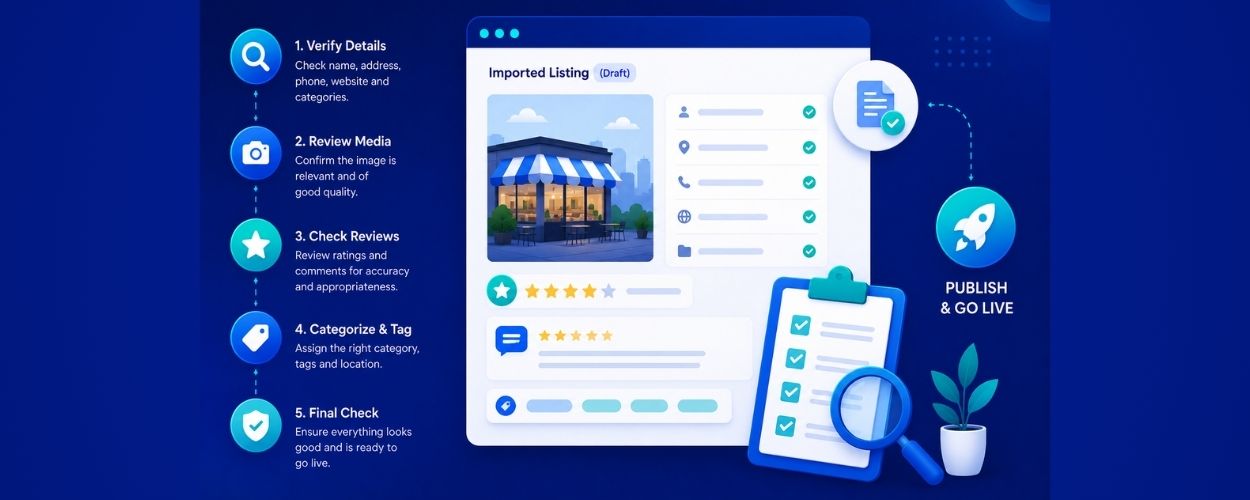
The importer creates drafts. What you do with those drafts determines whether your directory is worth using. Here is a practical review process for each imported listing before publishing:
1. Check that the business still exists
Google data is not always current or updated. A quick search or a visit to the website URL confirms whether the business is still operating. Publishing listings for closed businesses is one of the fastest ways to lose user trust. Plus, your visitors landing on external links and bouncing may impact your directory SEO.
2. Verify the address and phone number
Cross-reference with the business’s own website if one is listed. For healthcare and legal directories especially, accuracy here is non-negotiable. All it takes is 1 minute per listings but you make sure that the information is valid and also sell-able, especially if you want to enable booking and appointments through your platform.
3. Rewrite the description if needed
Imported descriptions are often generic or pulled from Google’s auto-generated summary. A description written with your directory’s audience in mind and with local knowledge performs better for SEO and gives the listing more credibility. Various generative AI tools can help speed this up if you are rewriting at volume.
4. Check the category assignment
The importer assigns listings to the Directorist category you selected at the time of import. Review whether each listing actually belongs there, or whether it fits better in a subcategory. Small step to improve search results for your visitors.
5. Decide whether to keep imported reviews
Reviews add immediate trust, but they are a snapshot of what Google had at the time of import, not a live sync. New reviews on Google will not automatically appear in your directory. Be ready to explain this to listing owners who claim their profile and notice that more recent reviews are missing. Plus due to Google Places API restriction, the reviews vs rating mismatch also requires a disclaimer.
6. Replace or supplement photos where needed
Google photos are useful as a starting point, but some are low quality, outdated, or not representative of the business. For high-priority listings in visual categories like restaurants or hotels, sourcing better images is worth the time.
A useful rule for deciding what to publish
Ask yourself whether you would be comfortable showing this listing page to a paying business owner as an example of what their profile looks like on your directory. That standard will filter out the listings that would otherwise undermine your credibility.
Best Practices for Import Listings from Google Maps
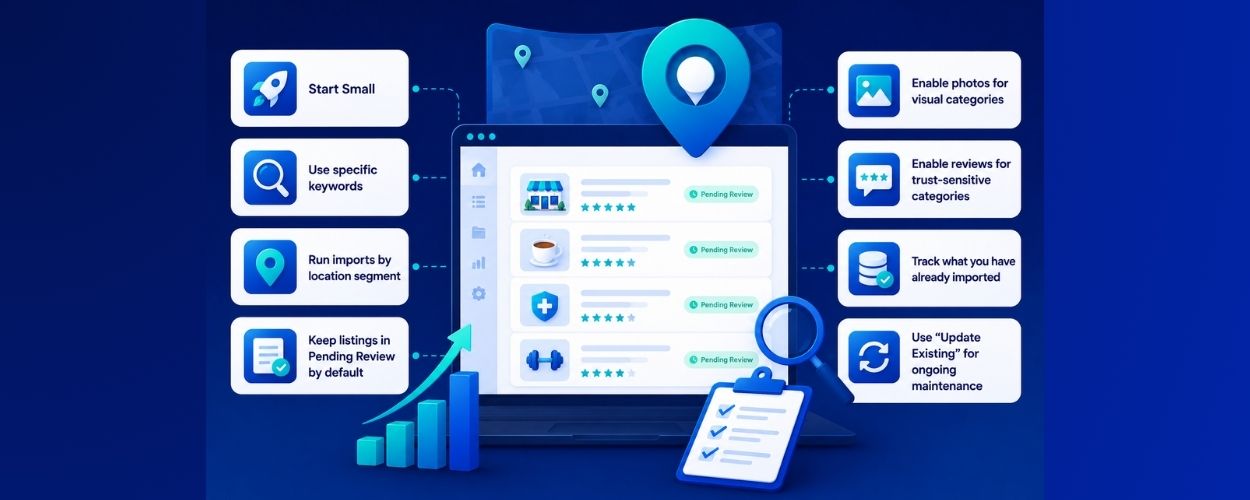
Follow the best practices if you want to import and build better without friction.
Start Small
Run your first import with 10 to 20 listings in one category. Keep the radius closer to your location so that you can find closest listing only that you can personally recognize and verify by skimming. Small import lets you check that the field mapping looks correct and that the listing pages display as expected before scaling up.
Use specific keywords
“Italian restaurant” returns more relevant results than “restaurant.” “Emergency plumber” returns more useful results than “plumber.” The more specific the keyword, the less sorting you have to do after import.
Run imports by location segment
For a city directory, import by neighborhood rather than the whole city at once. Smaller batches are easier to review and give you more control over which areas are covered first.
Keep listings in Pending Review by default
This is the most important setting for new directory owners. Nothing goes live until you have checked it. Publish in batches once you are confident in the quality. If you want to ensure quality of your directory, auto publishing imported listings would be a suicidal step.
Enable photos for visual categories
Restaurants, hotels, retail shops, and salons benefit significantly from photos. Service businesses such as plumbers, accountants, lawyers etc. benefit less. Match the setting to the category.
Enable reviews for trust-sensitive categories
Healthcare, legal, and hospitality directories benefit most from imported reviews. For categories where trust is less of a deciding factor, reviews are optional.
Track what you have already imported
The importer keeps a history of previous searches. Use it to avoid running the same search twice as you expand into new categories or locations.
Use “Update Existing” for ongoing maintenance
If you imported listings several months ago, running the same search with “Update Existing” enabled refreshes the data for previously imported businesses. This keeps contact information and ratings current without manual record-by-record edits.
Beginner Workflow: Getting Your First 50 Listings Live
If you are launching your first directory and want a practical starting point:
- Create your main categories in Directorist before running any imports. The importer assigns listings to existing categories, so the structure needs to be in place first.
- Configure your Google Places API key following the documentation.
- Run a first import: one keyword, one location, 10 to 20 listings, status set to Pending Review.
- Review each listing: verify the address, confirm the business is still operating, and decide whether the description needs rewriting.
- Publish the listings that meet your quality standard.
- Repeat for the next category or location.
Aim for 50 to 100 published listings before you start any outreach or promotion. That number is enough to make the directory feel active and give visitors something to browse and compare.
Advanced Workflow: Scaling and Maintaining an Existing Directory
If you are already running a directory and want to use the importer to expand or refresh coverage:
- Identify which categories or locations have thin coverage – fewer than 10 to 15 listings, or listings that have not been updated in over a year.
- Run targeted imports for those gaps using specific keywords that match the category.
- Combine newly imported listings with a claim outreach campaign: contact the business owners, share their listing URL, and offer them a path to claim and upgrade.
The importer works as a repeatable process, not a one-time setup task. Directory owners who build it into their regular workflow – expanding into new categories, refreshing stale data, following up imports with outreach – tend to keep their listing inventory current without the manual overhead that would otherwise make it unsustainable.
Getting Started
The Directorist Google Business Importer is a premium extension. If you already have a Directorist bundle subscription (annual or lifetime), you’ve access to it within your subscription. Head over to your dashboard and download the extension or navigate to Themes and Extensions from your Directorist plugin to activate it.
Full setup instructions, including API key configuration and import settings, are in the documentation.
If you are building a local or niche business directory and want to move from an empty site to a searchable, credible directory before your first listing owner submits anything, this is the most direct way to do it. The import gives you the inventory. The review process gives you the quality. The claim-and-convert pipeline turns that foundation into revenue.

S. M. Navid Anjum
Digital Marketing enthusiast who loves to write technical reviews and trendy contents. Currently working with WordPress Plugin Marketing and growth. Open to collaboration and co-marketing opportunities with any SaaS and plugins.


Leave a Reply
You must be logged in to post a comment.