Rental Booking is designed for listings where customers need to book a property, vehicle, equipment, or space for a specific date—such as vacation rentals, car rentals, tools, venues, or holiday cottages. This setup allows listing owners to manage daily availability, weekend pricing, and custom rates.
Rental Booking Settings #
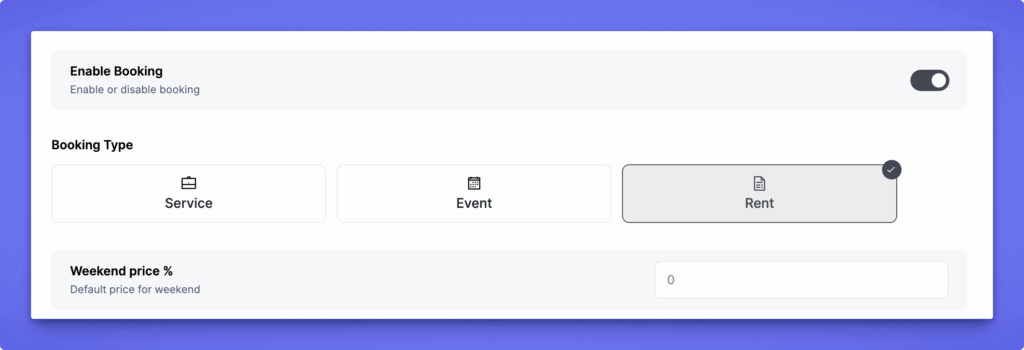
Enable Booking #
Turn this on to activate rental booking for the listing.
Booking Type #
Select Rent to unlock all rental-specific configuration options.
Weekend Price #
Enter the exact price you want to charge for weekends.
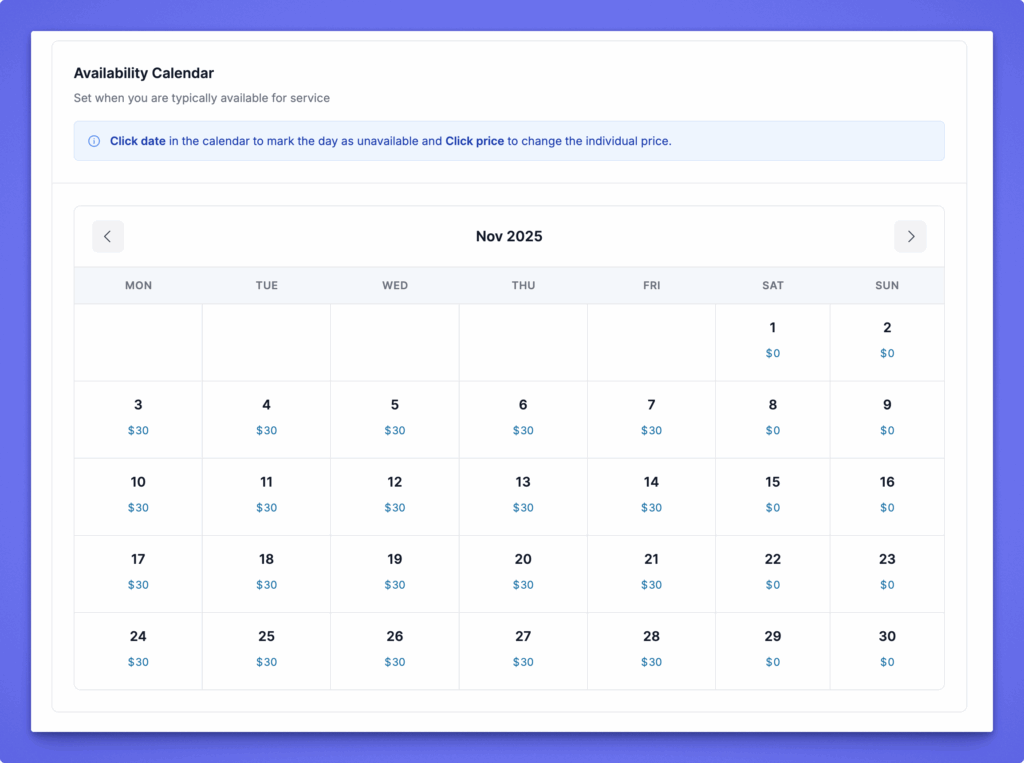
Availability Calendar #
This calendar allows listing owners to control daily availability and pricing.
- Click a date to mark it as Unavailable
(useful when the rental is already booked or not offered on certain days). - Click the displayed price to set a custom price for that specific day
(helpful for peak days, holidays, or promotional pricing).
The calendar automatically shows each day’s price and reflects weekend pricing rules unless overridden manually.
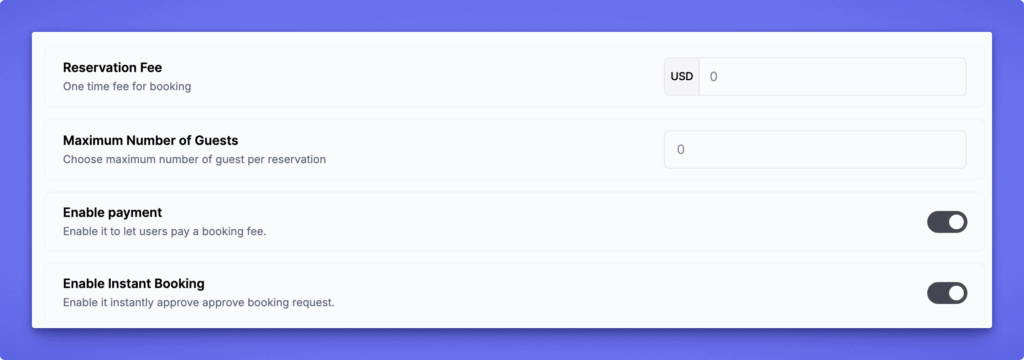
Reservation Fee #
Set a fixed one-time fee that customers must pay when making a booking (e.g., USD 20). This is optional and can be set to 0 if no fee is required.
Maximum Number of Guests #
Specify the maximum number of people allowed per booking. For example, if your service supports only 3 people per session, set this value to 3.
Enable Payment #
Turn this on to allow users to pay for the booking directly. When disabled, bookings will be request-only without payment collection.
Enable Instant Booking #
Enable this if you want bookings to be automatically approved without admin or listing owner review. When disabled, bookings require manual approval.
Refund System #
Turn on the refund system if you want to allow refund requests for booked services.
You can define:
- Refund policy description (example text is shown in the field).
- Refund days – how many days after payment a refund can be requested.
- Refund amount (%) – percentage of the booking amount that will be refunded.
- Add multiple refund rules if needed.
Users will see these rules during booking.

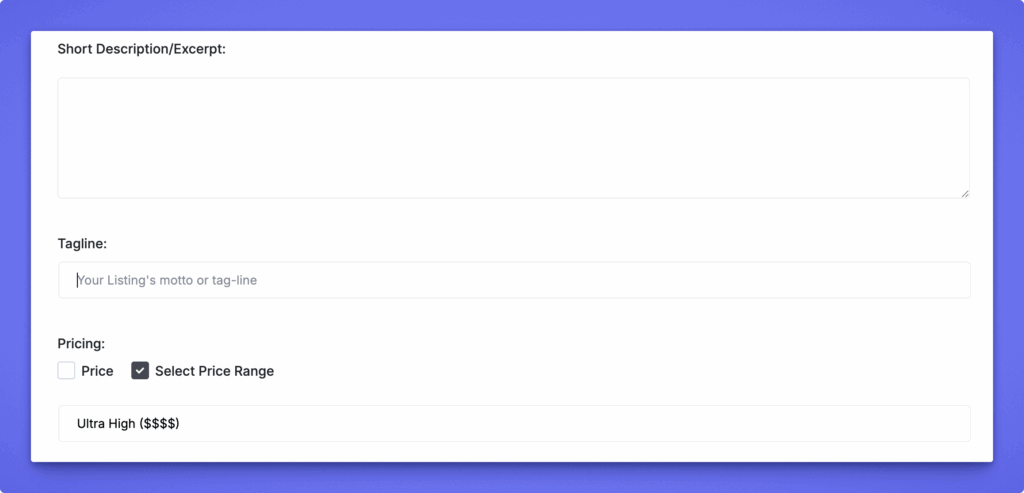
Additional Listing Fields #
Below the booking fields, you will find:
- Short Description/Excerpt – A brief summary of the service.
- Tagline – A short motto or catchphrase for the listing.
- Pricing – Set a single price or enable price range options.
These fields help customers understand the service better and compare listings.
How to Book a Rental Service #
Users can book a rental by selecting their desired date range, choosing the number of guests, and reviewing the booking preview. The system automatically calculates the total cost based on daily prices, weekend rates, and any custom pricing set in the availability calendar.
- Select the date range
Choose the start and end dates for the rental period. - Select the number of guests
Pick how many people will be included in the booking.
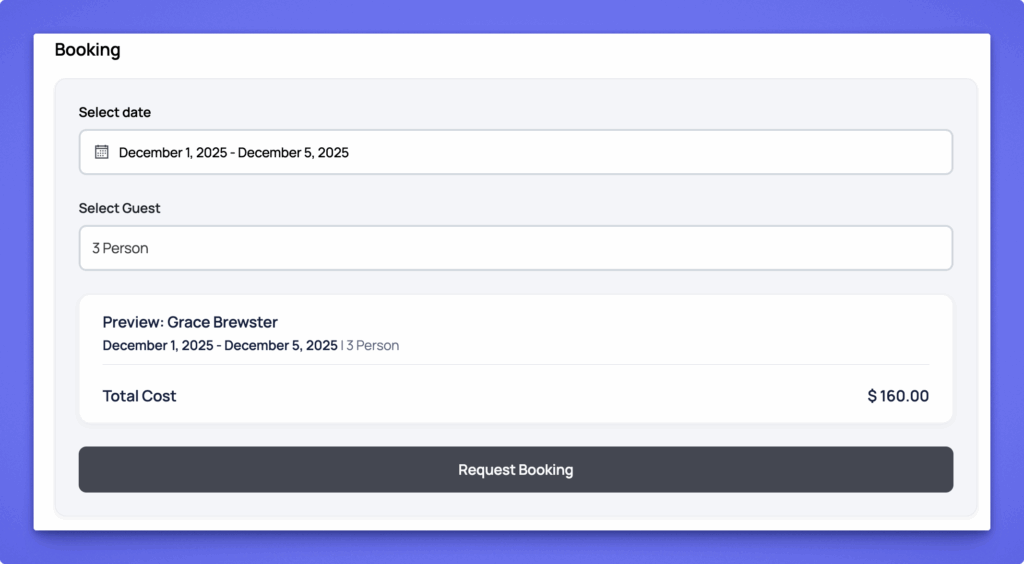
Review and confirm the booking
After clicking Request Booking, the user is taken to the Review & Confirm Booking page. They enter their personal details (name, email, phone), add optional notes, and review the booking summary showing the selected date, time, duration, and total cost.
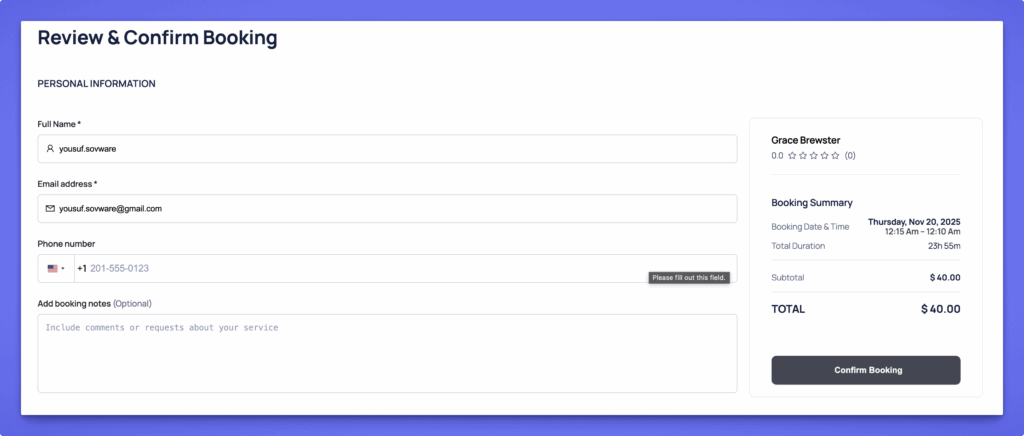
Submit the final confirmation
The user clicks Confirm Booking to complete the reservation. Based on your settings, the booking is either confirmed instantly or sent for manual approval.
Approval and status
- If Instant Booking is enabled, the booking is confirmed immediately.
- If not, the booking goes into a pending state until the listing owner or admin approves it from the dashboard.
How Listing Owners Manage Bookings #
Listing owners can manage every booking request from Dashboard → All Bookings. Bookings are organized into Approved, Pending, Cancelled, and Refund Request tabs, making it easy to navigate.
In the Pending tab, each booking card displays key information:
- Customer name and contact
- Booking date and time
- Request date
- Any booking notes
Listing owners can take quick actions using the buttons on the right:
- Approve Order to confirm the booking
- Reject to decline the request
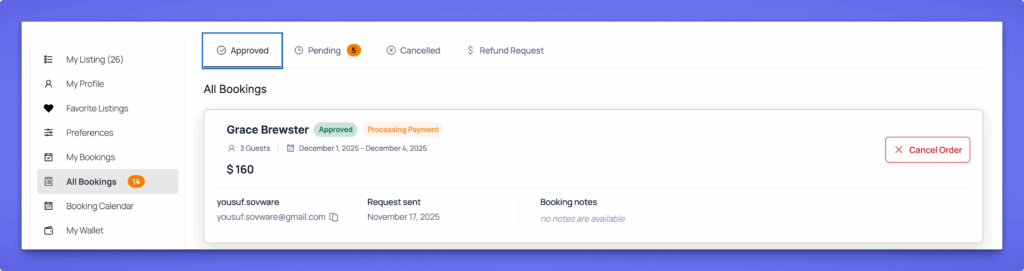
Once an action is taken, the booking automatically moves to the appropriate status tab, keeping everything organized and easy to track.


