Configuring the PayPal Payment Gateway #
The PayPal Payment Gateway extension lets your directory accept payments through PayPal, for one-time listing fees, featured upgrades, or Pricing Plans purchases, including recurring subscriptions. As of version 3.0.0, the gateway connects to PayPal through its REST API using Client ID and Secret credentials, rather than a single business email. This guide walks through getting those credentials, activating the gateway, registering the webhook, and where orders show up afterward.
Prerequisites #
Before setting up the gateway, make sure your checkout pages are configured. Directorist needs these pages set correctly so it knows where to send a user during and after checkout. If you haven’t set them up yet, complete the setup process form Directorist > Settings > Site & Pages > Pages, then continue here.

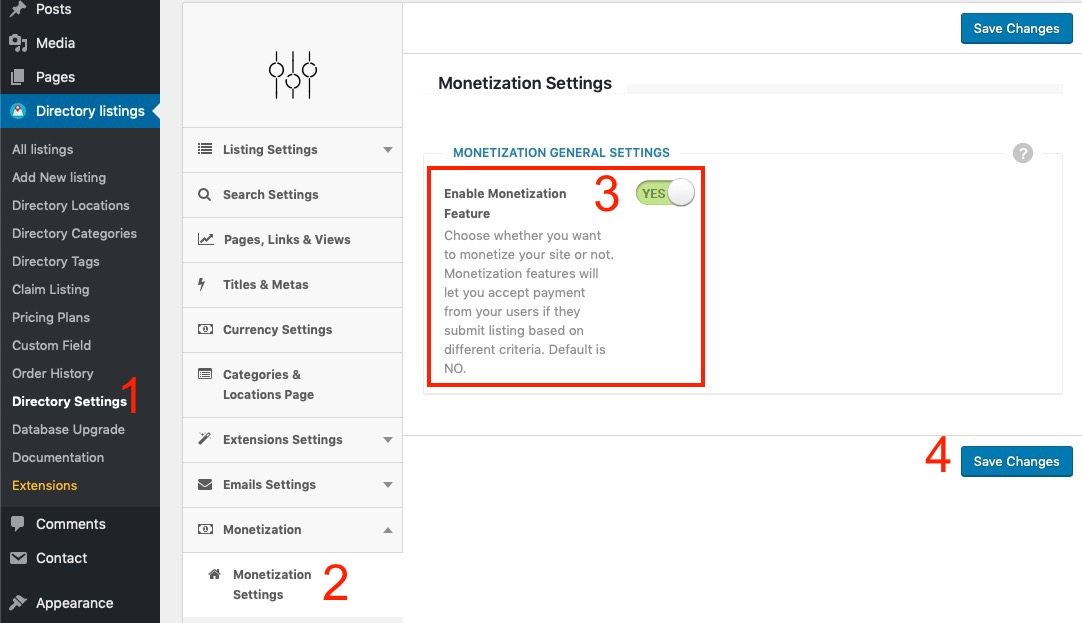
You also need Monetization turned on, since the gateway only appears on the checkout page when monetization is active.
Path: WP Admin → Directorist → Settings → Monetization → Featured Listings → Enable Monetization
- Go to Monetization Settings.
- Set Enable Monetization Feature to Yes.
- Save your changes.

Install & Activate PayPal Extension #
You can install the extension from your WP dashboard by login into your account or can install by upload the zip file. Both installation process are giving below as follows:-
WP Dashboard → Directorist → Themes & Extenstions → Find “Directorist – PayPal Payment Gateway” → Install & Activate.

Step 1 – Activate PayPal in Gateway Settings #
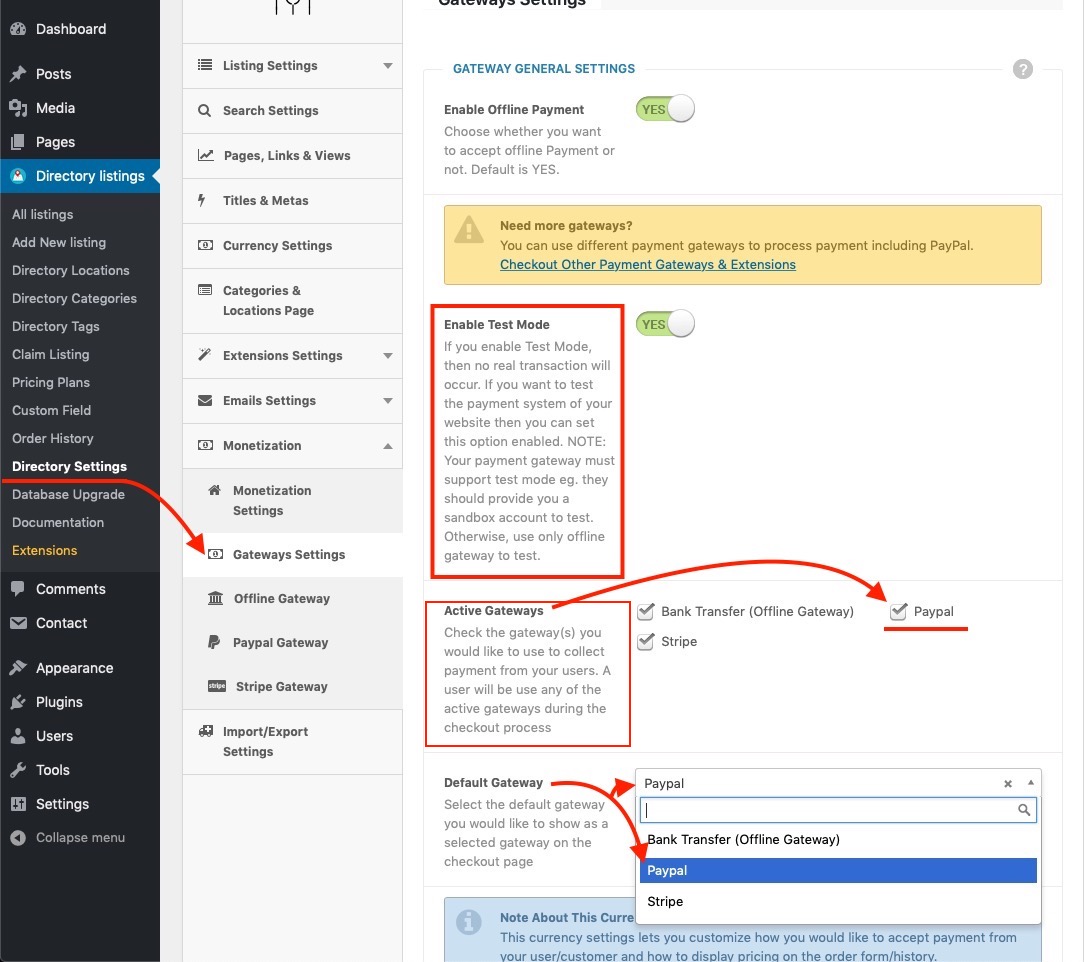
Path: WP Admin → Directorist → Settings → Monetization → Payment Gateway → Active PayPal

- Open the Gateway Settings tab.
- Under Active Gateways, check PayPal Gateway. This makes PayPal available as a payment option on the checkout page.
- (Optional) To make PayPal the pre-selected option at checkout, choose PayPal Gateway from the Default Gateway dropdown.
- Click Save.
Your site also needs to be reachable over a public HTTPS address. Webhook registration will fail on localhost or other non-public addresses.
Get Your PayPal API Credentials #
- Log in to the PayPal Developer Dashboard.
- Create or open an app to get a Client ID and Secret.
- Do this once for Sandbox (for testing) and once for Live (for real payments).
Configure the PayPal Gateway Tab #
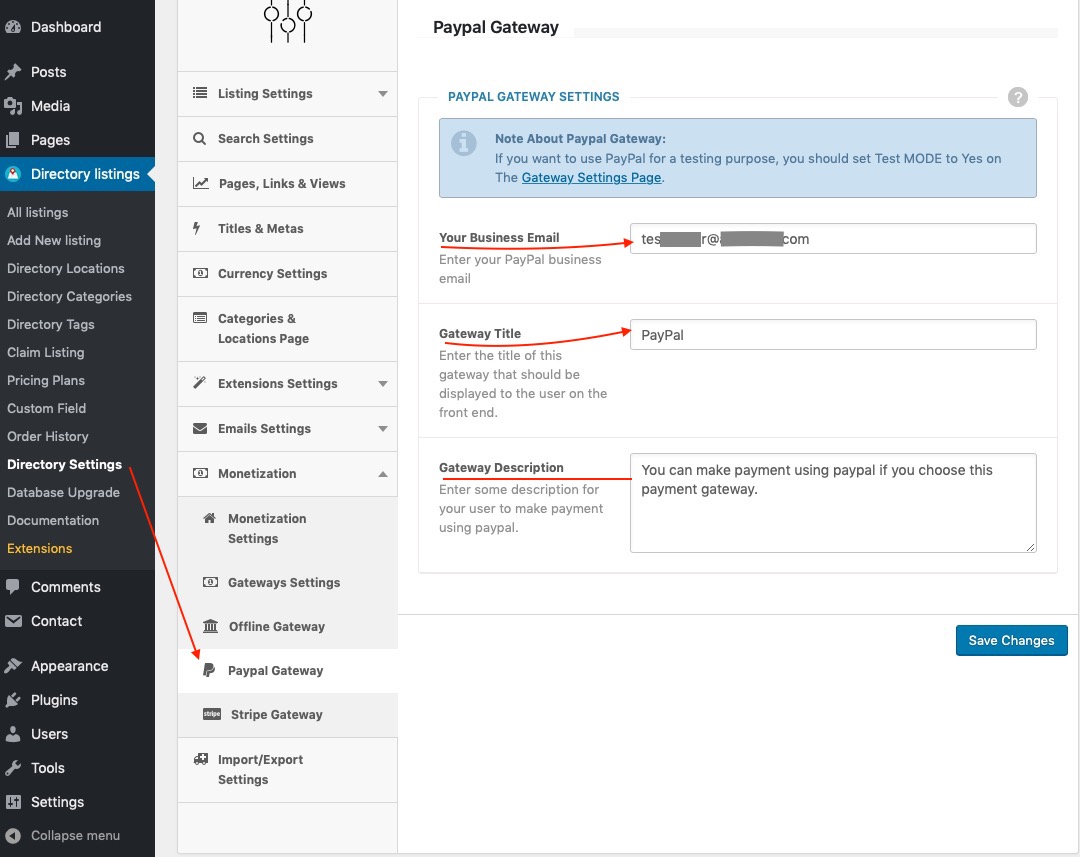
Path: WP Admin → Directorist→ Directorist Settings → Monetization Settings → PayPal Gateway
- Open the PayPal Gateway tab.
- To test the integration before going live, set Enable Test Mode to Yes. While test mode is on, Directorist uses your Sandbox credentials and no live transactions are processed. Set it back to No before collecting real payments, which switches Directorist to your Live credentials.
- Enter the text you want buyers to see at checkout in Gateway Title. This defaults to PayPal.
- Enter a short explanation for buyers in Gateway Description. This defaults to “Pay securely using your PayPal account.”
- Enter the credentials from Step 1:
- Live Client ID and Live Secret for real payments.
- Sandbox Client ID and Sandbox Secret for testing.
- Click Save.
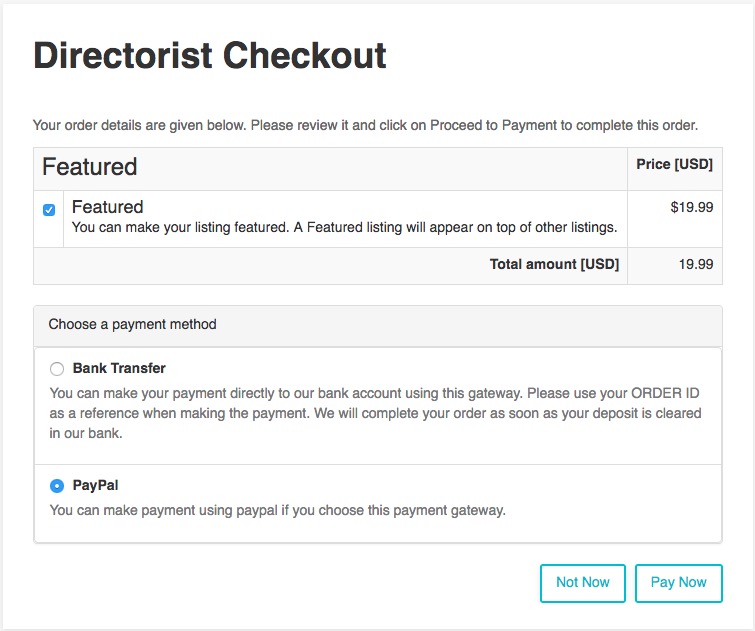
Once saved, PayPal appears as a payment option on the checkout page using the title and description you set here.
Register the Webhook #
The webhook is how PayPal tells your directory that a payment or subscription event happened (completed, denied, activated, cancelled, and so on). Without it, orders won’t update automatically.
- Still on the PayPal Gateway tab, find Live Webhook and Sandbox Webhook.
- Click Register Live Webhook to register the webhook for real payments, and Register Sandbox Webhook to register it for testing. Register whichever mode you’re currently using (matching Enable Test Mode).
- If you need to remove a registered webhook later, click Unregister Live Webhook or Unregister Sandbox Webhook, which appears in place of the register button once a webhook is registered.
If a webhook isn’t registered for the mode you’re currently using, Directorist shows an admin notice reminding you to register it, with a link straight to this settings tab.
Managing Orders #
Every purchase made through PayPal, whether it’s a featured listing upgrade or a Pricing Plans purchase, creates an order in Directorist. Once a buyer approves the payment on PayPal, they’re redirected back to your directory, and the order updates to paid as soon as PayPal’s webhook confirms the transaction.
Recurring Plan/Package Payments #
Recurring payments for a plan or package work through the PayPal gateway using PayPal Subscriptions. This requires the Directorist Pricing Plans extension (version 3.9.9 or later) with a plan that has subscription billing enabled. If that plan also has a trial period enabled, the buyer’s first cycle can start without an upfront charge; PayPal then bills them automatically at the end of each plan term after that, with no manual renewal step needed from the buyer or from you. Canceling a subscription’s package in Directorist also cancels it on the PayPal side.