BFCM Alert! Drop 1 just landed. See what’s new. Drop 2 lands in 00d 00h 00m Explore Drop 1 →
Skip to content
  • Why Directorist
    Explore
    All Features Everything the plugin can do Solutions Directories you can build Integrations Plugins that work with Directorist Try Demo Click through real demo directories
    See the proof
    Comparison How we stack up against others Client Showcase Real sites built with Directorist
    Directorist AI
    Build your directory with AI

    Describe the directory you want and let AI build it for you.

    Try Directorist AI
  • Products
    Extensions

    Add powerful features

    Themes

    Ready-to-launch designs

    Templates

    Build pages faster

    Mobile App

    Native app for your directory

  • Resources
    Get help
    Documentation Product guides and how-tos Support Centre Get help from our team Contact Us Sales and general questions
    Learn
    Directorist Academy Courses on directory building Blog Tips, trends and growth ideas What's New Latest releases and fixes
    Company
    About Us Roadmap
    Hire us
    Custom Work, Handled

    Need a new build, custom feature, integration, fix, or ongoing maintenance? Tell us.

    See How It Works View Our Work
  • Pricing
  • Hire Us
Sign In Try For Free
  • Why Directorist
    Explore
    All Features Everything the plugin can do Solutions Directories you can build Integrations Plugins that work with Directorist Try Demo Click through real demo directories
    See the proof
    Comparison How we stack up against others Client Showcase Real sites built with Directorist
    Directorist AI
    Build your directory with AI

    Describe the directory you want and let AI build it for you.

    Try Directorist AI
  • Products
    Extensions

    Add powerful features

    Themes

    Ready-to-launch designs

    Templates

    Build pages faster

    Mobile App

    Native app for your directory

  • Resources
    Get help
    Documentation Product guides and how-tos Support Centre Get help from our team Contact Us Sales and general questions
    Learn
    Directorist Academy Courses on directory building Blog Tips, trends and growth ideas What's New Latest releases and fixes
    Company
    About Us Roadmap
    Hire us
    Custom Work, Handled

    Need a new build, custom feature, integration, fix, or ongoing maintenance? Tell us.

    See How It Works View Our Work
  • Pricing
  • Hire Us
Sign In Get Directorist

Directorist Core

  • Directorist MCP
    • Getting Started with Directorist MCP
  • Directorist Settings
    • Directorist Settings Panel (General)
    • Directorist Settings Panel (Search)
    • Directorist Settings Panel (Users & Accounts)
    • Directorist Settings Panel (Monetization)
    • Directorist Settings Panel (Notifications)
    • Directorist Settings Panel (Site & pages)
    • Directorist Settings Panel (Extensions)
    • Directorist Settings Panel (Appearance)
    • Directorist Settings Panel (Import / Export)
  • Listings Management
    • Listing Rejection Flow
    • Adding a Listing
    • General Listing Settings
    • Guest Listing Submission
    • All Listing Settings
    • Single Listing Settings
    • Category & Location
    • Map Setting
    • Badges Setting
    • Review Setting
  • Directory Builder
    • Overview
    • Multiple Directories
    • Create with AI
    • General tab
    • Add Listing Form
    • Conditional Logic
    • Single Page Layout
    • FormGent Integration
    • All Listing Layout
    • Search Form
  • Monetization
    • Monetization Overview
    • Configurations
    • Managing Orders
  • Search and Filter Settings
    • Nearby Sort
    • Search Page
    • Advanced Filter Widget
    • Search Result Page
    • Advanced Search and Filter
  • Customization
    • Customize Appearance
    • Email Customization
    • Registration and Login
    • Author Page
  • Advanced Settings
    • Maintenance
    • Schema Markup
    • Search Engine Optimization (SEO)
  • Shortcodes Library
    • Using Shortcodes in WordPress
    • Directorist Shortcodes
    • Add Listing Form
    • All Listings Page
    • Single Category Page
    • Single Location Page
    • Tags Page
    • All Locations Page
    • Search Listings
    • Payment & Checkout Page
    • All Categories Page
    • Search Results
    • Login and Registration
    • User Dashboard
    • Author Profile
    • Search Results
  • Getting Started
    • Plugin Dashboard
    • Getting Started
    • Installation & Activation
    • Directorist Setup Wizard
    • Directorist Membership (Themes & Extensions)
    • Setting Up the Required Pages
    • Managing Categories
    • Managing Location
    • Manage Tags
    • Terms and Conditions Setup
    • Import and Export

Extensions

  • Directorist Events
  • Installation
  • Activate/Renew License
  • Directorist Pay Per Lead
  • Directorist Gutenberg Integration
  • M-Pesa Payment Gateway
  • Paystack Payment Gateway
  • Mark as Sold
  • Directorist Ads Manager
  • Setting Up Directorist Live Chat
  • Directorist Coupons
  • Directorist – BuddyPress Integration
  • Setting Up Directory Linking
  • Job Manager
  • AddonsKit for Bricks
  • Mailchimp Integration
  • Directorist Announcement
  • Directorist Notifications Pro
  • Directorist Analytics
  • Directorist AI Search
  • Multi Directory Linking
  • Listing Importer
  • WooCommerce Pricing Plans
  • Business Hours
  • Universal Search
  • Search Alert
  • Advanced Review
  • PayPal Payment Gateway
  • Stripe Payment Gateway
  • Authorize.net Payment Gateway
  • Listings Slider & Carousel Listing
  • WPML – Translation Guide
  • Listings with Map
  • Digital Marketplace
  • Job Manager
  • Claim Listing
  • Coupon
  • Image Gallery
  • Listing FAQs
  • Compare Listings
  • Directorist Mobile App 2.0
  • Booking
    • Installation & Configuration
    • Google Calendar Integration
    • Service Booking
    • Rental System
    • Event Booking
  • Pricing Plans
    • Directorist Pricing Plans Shortcode Guide
    • Migration Guide
    • Plan Creation and Full Workflow
    • Multiple Pricing Plans: Setup & How It Works
  • Divi Integration
    • Designing Single Listing Page with Divi
    • Designing All Listing Page with Divi
    • Getting Started with Divi Integration Extension
  • Elementor Integration
    • Getting Started with Directorist Elementor Integration

Themes

  • dTour Theme
  • Importing dTour Templates
  • Getting Started with Theme
  • Quick Installation & Demo Import
  • Full Theme Setup & Customization

Tutorials

  • How to Build and Grow an Investors Directory
  • How to Make Money from Your Business Directory
  • How to Use Data to Build a Smarter and More Profitable Directory 
  • How to Build a Free University Directory
  • How to Translate Your Directory Theme and Plugin with Poedit
  • How to Create a Medical Directory Website
  • How to Make Your Directorist Website Multilingual

Developers Doc

  • Template Override
  • Action Hooks
  • Filter Hooks
  • API Reference
View Categories
  • Home
  • Docs
  • Extensions
  • Divi Integration
  • Designing All Listing Page with Divi

Designing All Listing Page with Divi

The All Listings page is the one your visitors use most, it’s where they search, filter, and browse everything in your directory. This article walks through building that page’s design with real Divi modules, starting from either the page Directorist already created for you, or a blank one.

If you haven’t read Getting Started with Divi Integration Extension yet, read that first. It covers why the page you already have is running on a shortcode, not a Divi design, and why that matters.

Step 1: Choose Your Starting Point #

Option A – Edit the existing page. #
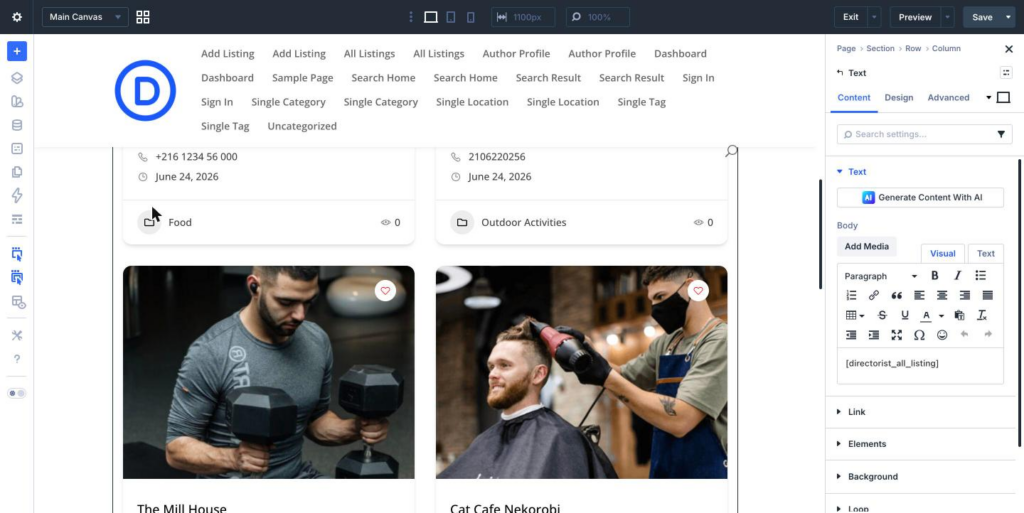
Open the All Listings page from Setup Wizard, switch it to the Divi Builder, delete the Text module holding the [directorist_all_listing] shortcode, and insert the Listing Loop module where it was.

Option B – Start from a blank page. #

Create a new WordPress page, name it All Listings (New) and open the Divi Visual Builder, and build the archive yourself.
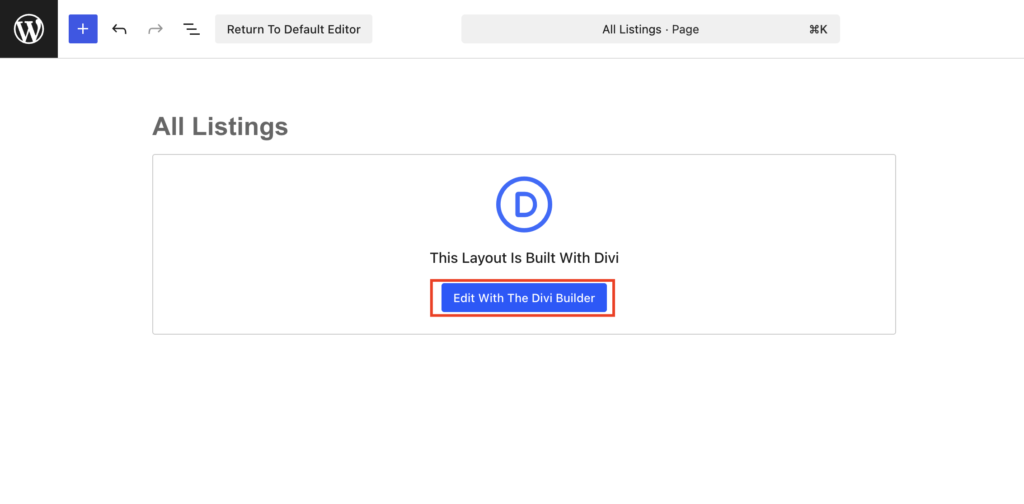
Either way, the end result is the same structure. This article follows Option A, since it’s what most people will actually do.

Step 2: Understand the Listing Loop #
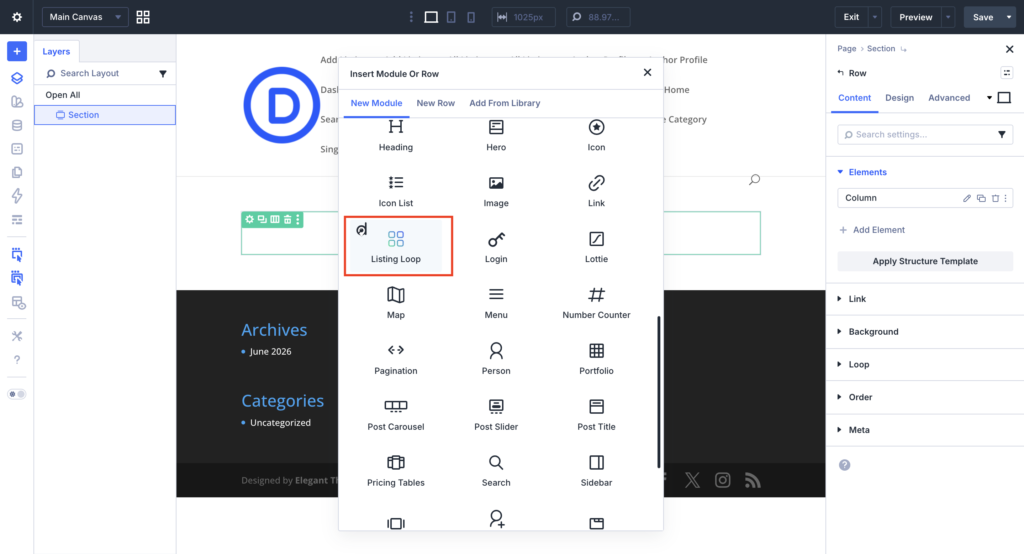
The Listing Loop is the foundation of the whole page. It runs the listing query and makes the results available to everything placed inside it.

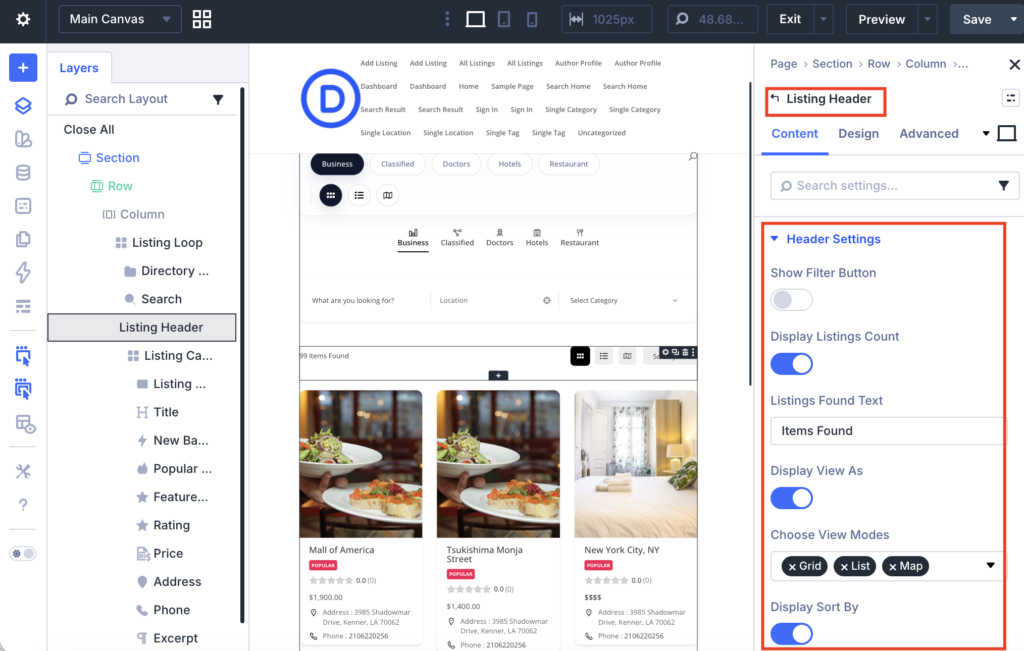
As soon as you add it, the loop renders with its default internal pieces already in place:

  • Directory Type – tabs for switching between directory types, useful if you run more than one.
  • Search – keyword, location, and category fields.
  • Listing Header – the bar showing result count, view switcher (grid, list, map), and sort dropdown.
  • Listing Card Template – controls what each individual listing card looks like.
  • Pagination – numbered pages or infinite scroll.
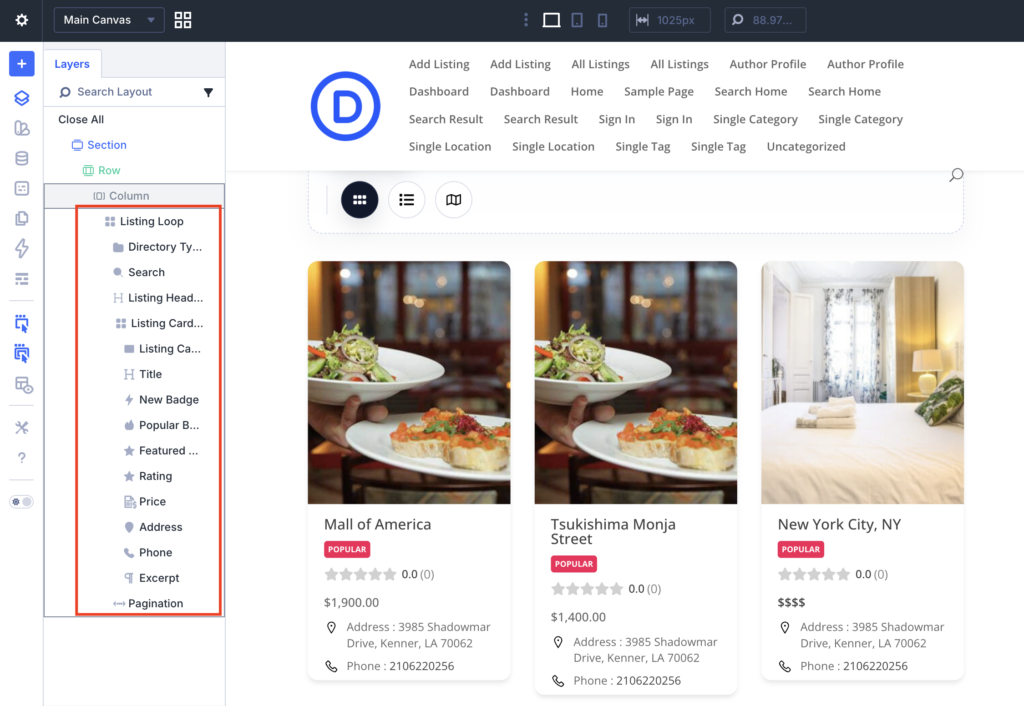
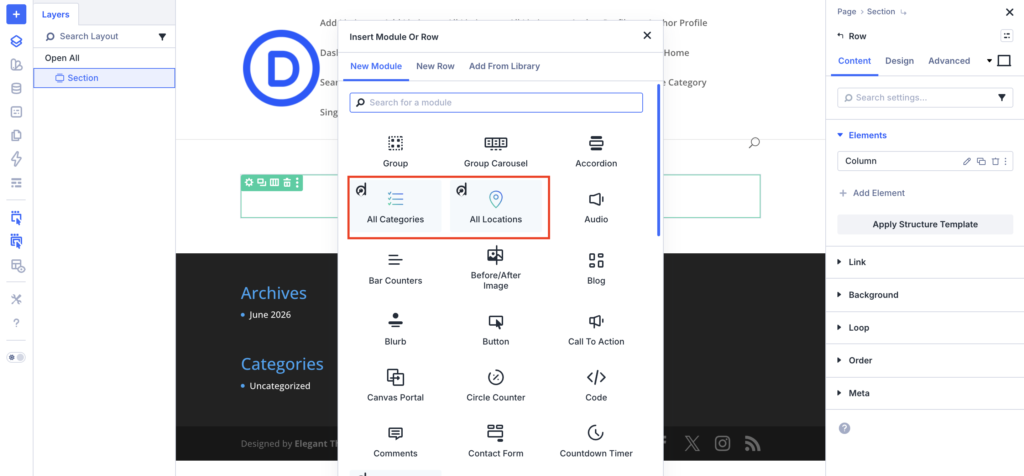
Directory Type is also a separate module you can place above or next to the Listing Loop, it also exists as a piece inside it. Search, Listing Header, and Pagination, they’re built to live inside the Loop, not as standalone modules elsewhere on the page. Only two archive modules are different, All Categories and All Locations can be placed anywhere on any page, independent of the Listing Loop entirely.
Step 3: Configure the Loop #
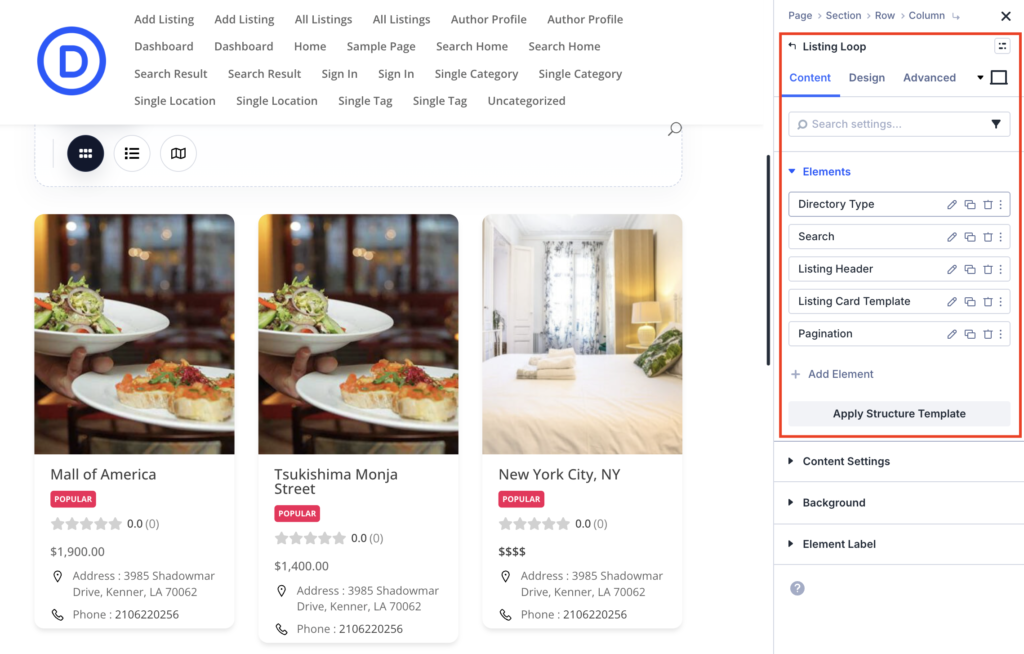
Select the Listing Loop itself and check its Content tab settings:

SettingWhat It Does
Directory TypesFilters the archive to selected directory types. Leave empty to show all.
Select Default DirectorySets which directory type loads first on multi-directory sites.
Default ViewSets the initial view — grid, list, or map.
Listings Per PageControls how many listings appear at once.
Pagination TypeNumbered pagination or infinite scroll.
Featured Only / Popular OnlyRestricts the archive to featured or popular listings.
Logged In OnlyRestricts listings to logged-in visitors.
Category / Location / TagPre-filters by taxonomy, useful for a focused landing page.

Step 4: Design the Listing Header #

Select Listing Header. In its Content tab, turn individual pieces on or off: the result count text, the view switcher, the sort dropdown. If you only want a grid view with no map or list toggle, turn those off here. Then use the Design tab to match the header’s typography and spacing to the rest of your site.

Step 5: Design the Listing Card Template #
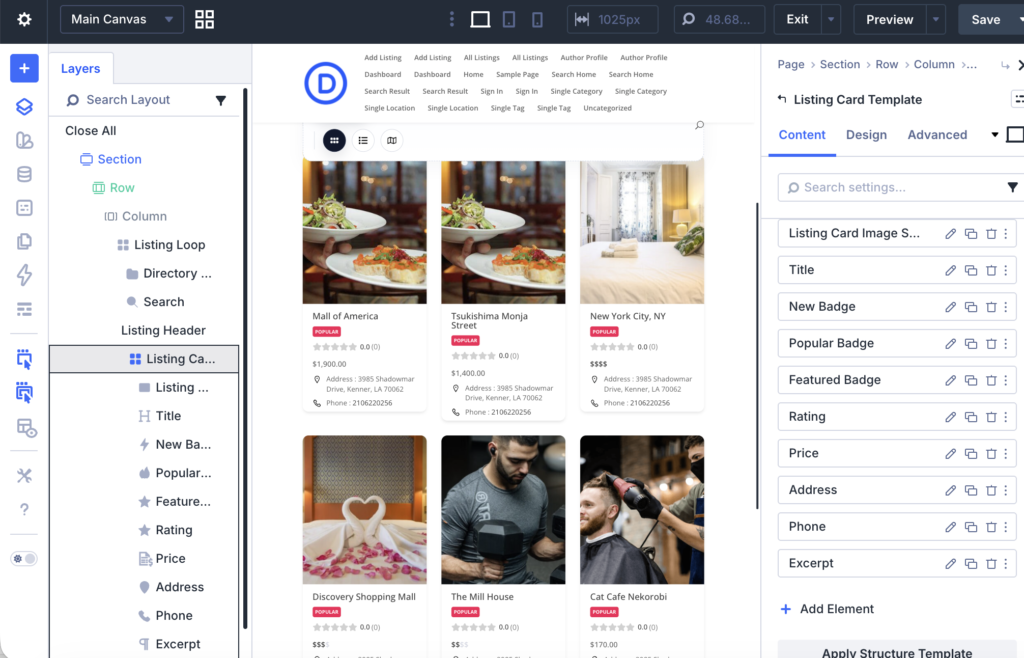
This is where most of the actual design work happens. Select Listing Card Template and open the layer panel underneath it. You’ll see individual field modules already placed: Title, Rating, Price, Address, Phone, badges, and more, depending on what the default layout included.

Each of these is independently selectable and stylable, same Content, Design, and Advanced tabs as any other Divi module.
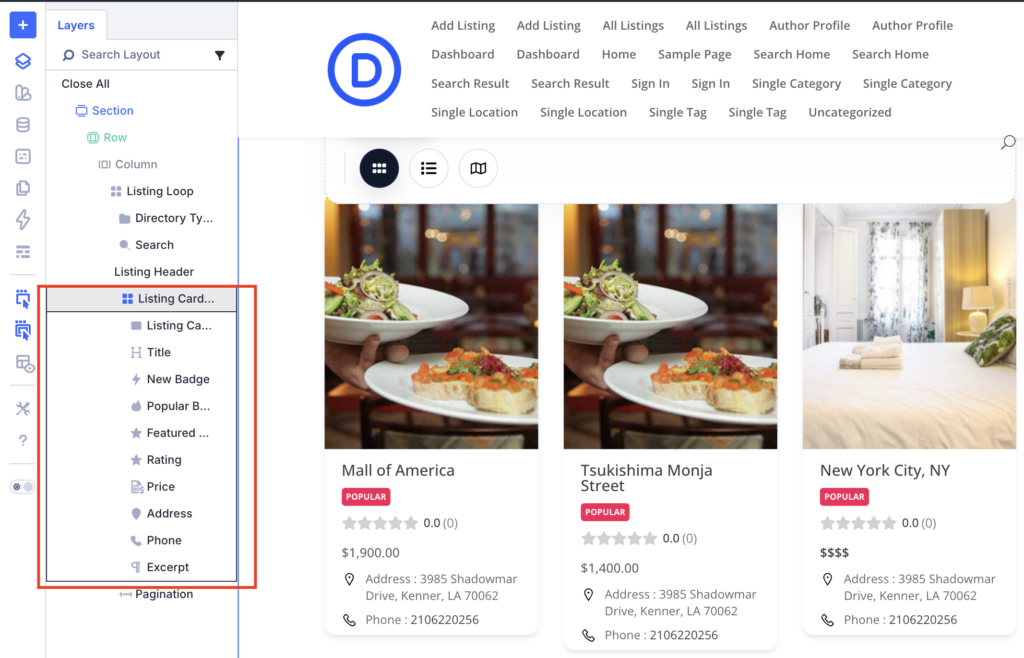
One rule to know before you start rearranging things: field modules stay inside the card. You can reorder Title, Rating, Price, and the rest within the Listing Card Template, but you can’t drag one out to sit directly under the Listing Loop on its own. A Title module has no listing to pull data from unless it’s inside a card (or the Map or Related Listings module), so Divi won’t let it exist outside that structure. If a module “won’t move” the way you expect, that’s why.

Adding More Fields #
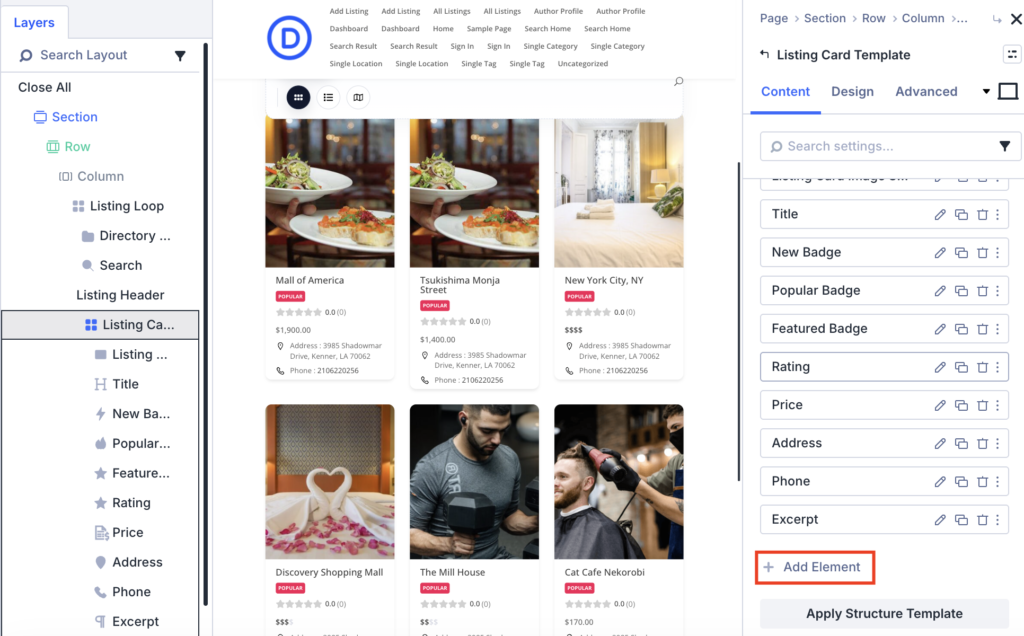
Click Add Element on the Listing Card Template, and the list you get isn’t fixed. It’s pulled directly from the directory type you’re designing for, including any custom fields you’ve added. A few fields are left out because they don’t make sense inside a card layout (a full embedded map, for instance), but almost everything else shows up here automatically.
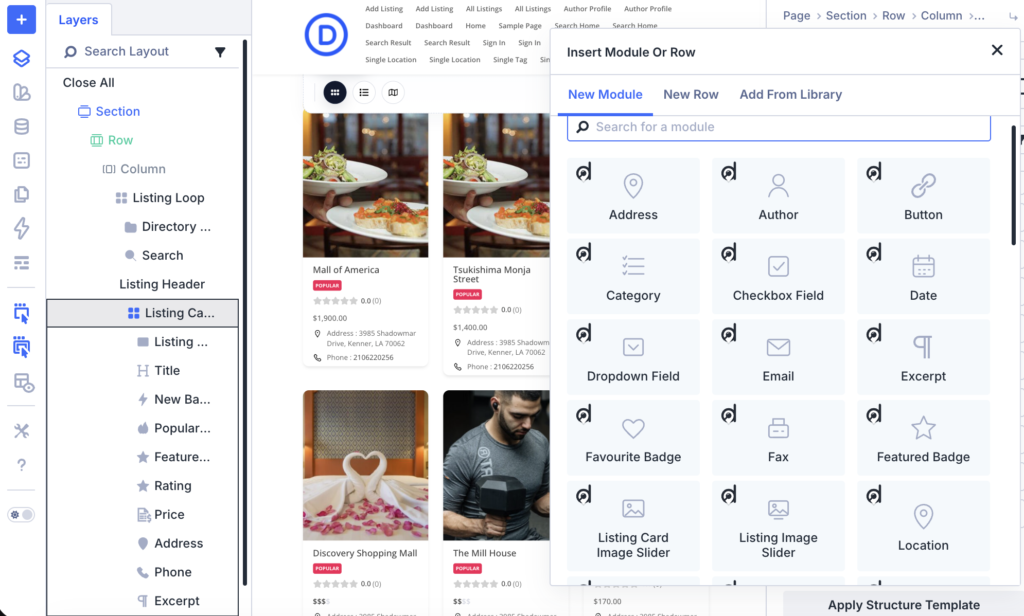
If you’re building a restaurant directory, that might mean adding Cuisine Type or Price Range. If it’s real estate, maybe Bedrooms or Square Footage. Add whatever matters for your directory, then style each one until the card looks the way you want.

Step 6: Handle Missing Data Gracefully #

Not every listing will have every field filled in. If a listing owner never added a phone number, you don’t want an empty line breaking the card’s layout.
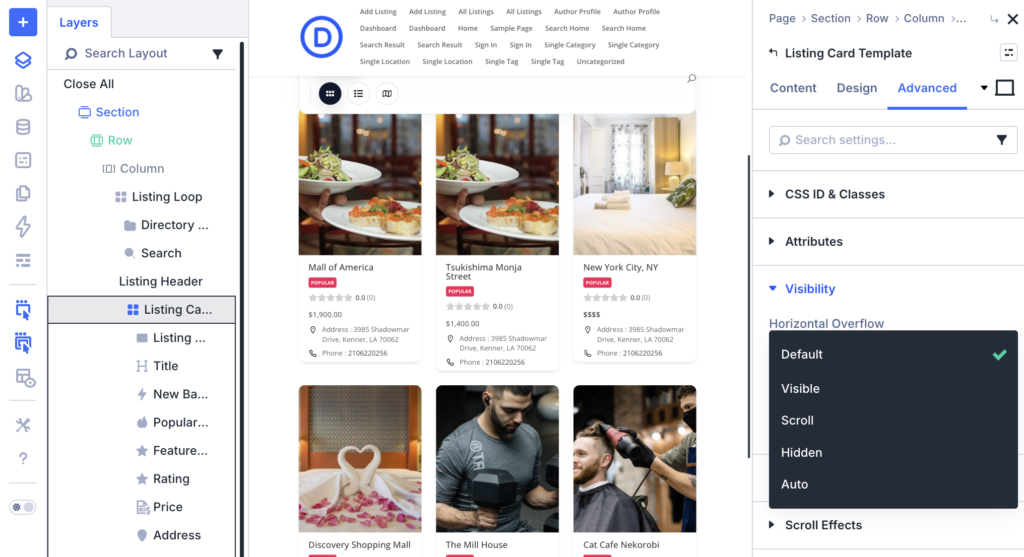
On any field module, open the Advanced tab, find Conditions, and set it to hide the module when the field has no saved value. Do this for optional fields like phone, email, or social links, so cards adjust automatically per listing.

Step 7: Save and Verify #

Save your changes, then check the real page on the frontend, not just the builder preview:

  1. Listings appear on the page.
  2. Directory type switching works, if you have more than one type.
  3. Search and filters return correct results.
  4. Grid, list, and map views all display correctly, if you enabled more than one.
  5. Sort dropdown works.
  6. Pagination or infinite scroll works.
  7. Mobile layout looks right, check Divi’s responsive preview and a real device.

Common Issues #

Listings don’t appear. Check for published listings, an active filter with no matches, or Featured/Popular Only enabled with nothing qualifying.

A custom field doesn’t show a value. Confirm the field belongs to the directory type you’re designing for, and that you’re testing with a real listing, not the builder’s placeholder preview.

Search or filters don’t update. The archive uses AJAX for search and filtering. If results don’t refresh, clear page and browser cache, and confirm all archive modules (Search, Listing Header, Listing Card Template, Pagination) are still inside the same Listing Loop. Moving one outside the loop breaks the connection between them.

What’s Next #

Designing Single Listing Page with Divi covers building the page a visitor sees when they open one specific listing, using the Divi Theme Builder instead of the Visual Builder.

Divi, Divi 5
What are your Feelings

Share This Article :

  • Facebook
  • X
  • LinkedIn
  • Pinterest
Still stuck? How can we help?

How can we help?

Updated on Jul 9, 2026 3:48 pm
Designing Single Listing Page with DiviGetting Started with Divi Integration Extension
Table of Contents
  • Step 1: Choose Your Starting Point
    • Option A - Edit the existing page.
    • Option B - Start from a blank page.
  • Step 2: Understand the Listing Loop
  • Step 3: Configure the Loop
  • Step 4: Design the Listing Header
  • Step 5: Design the Listing Card Template
    • Adding More Fields
  • Step 6: Handle Missing Data Gracefully
  • Step 7: Save and Verify
  • Common Issues
  • What's Next
Directorist Directorist

Product

  • Features
  • Solutions
  • Extensions
  • Integrations
  • Mobile App
  • Roadmap

Popular

  • OneListing (Free)
  • dClassified
  • dRestaurant
  • dRealestate
  • All Themes
  • Templates

Services

  • Done For You
  • Custom Development
  • Portfolio
  • Contact Sales

Resources

  • Documentation
  • Blog
  • Directorist Academy
  • Directory Ideas
  • What's New

Quick Links

  • About Us
  • Client Showcase
  • Support Policy
  • Refund Policy
  • Affiliate Program

Keep Updated

Subscribe to our email newsletter to receive updates.

Subscribe to our newsletter
© Directorist 2026 A product of
Also by wpWax FormGent HelpGent
  • Privacy Policy
  • Terms & Conditions
We use cookies to ensure the best browsing experience.