 Up to 35% Off!

Search #
The Search section controls the search form visitors use to find listings and the results page they land on after searching. It has two tabs: Search form and Search results.
Path: WP Admin → Directorist → Settings → Search
1. Search form #
The Search form tab controls the search bar that visitors use as the starting point for finding listings — its heading text, button labels, filter controls, and the popular categories section beneath it.
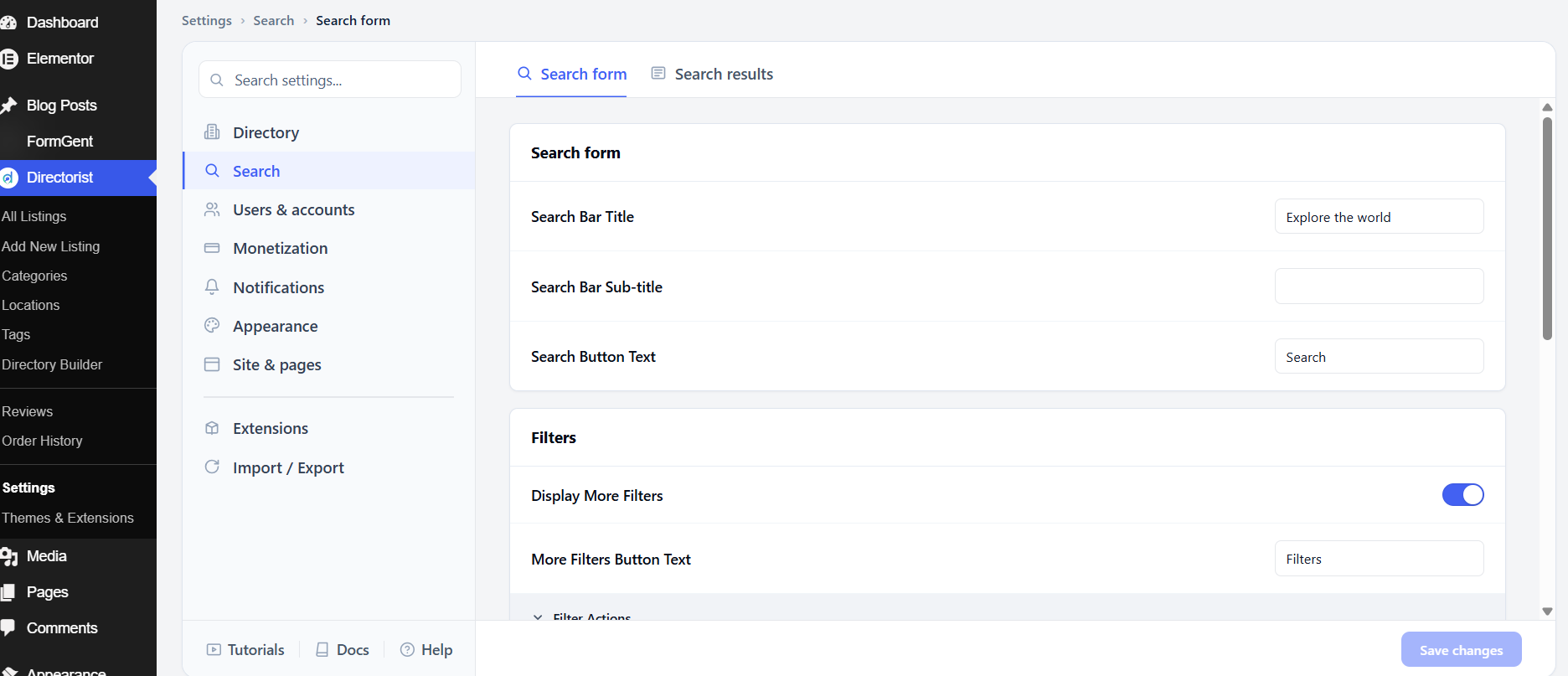
Search Bar Title is the heading displayed above the search bar. The default is Explore the world. Change it to something specific to your directory — for example, Find a local business or Search available properties.
Search Bar Sub-title is an optional line of text below the title. It is empty by default. Use it to add a short instruction or tagline, such as Search by name, category, or location.
Search Button Text is the label on the submit button. The default is Search.
Filters
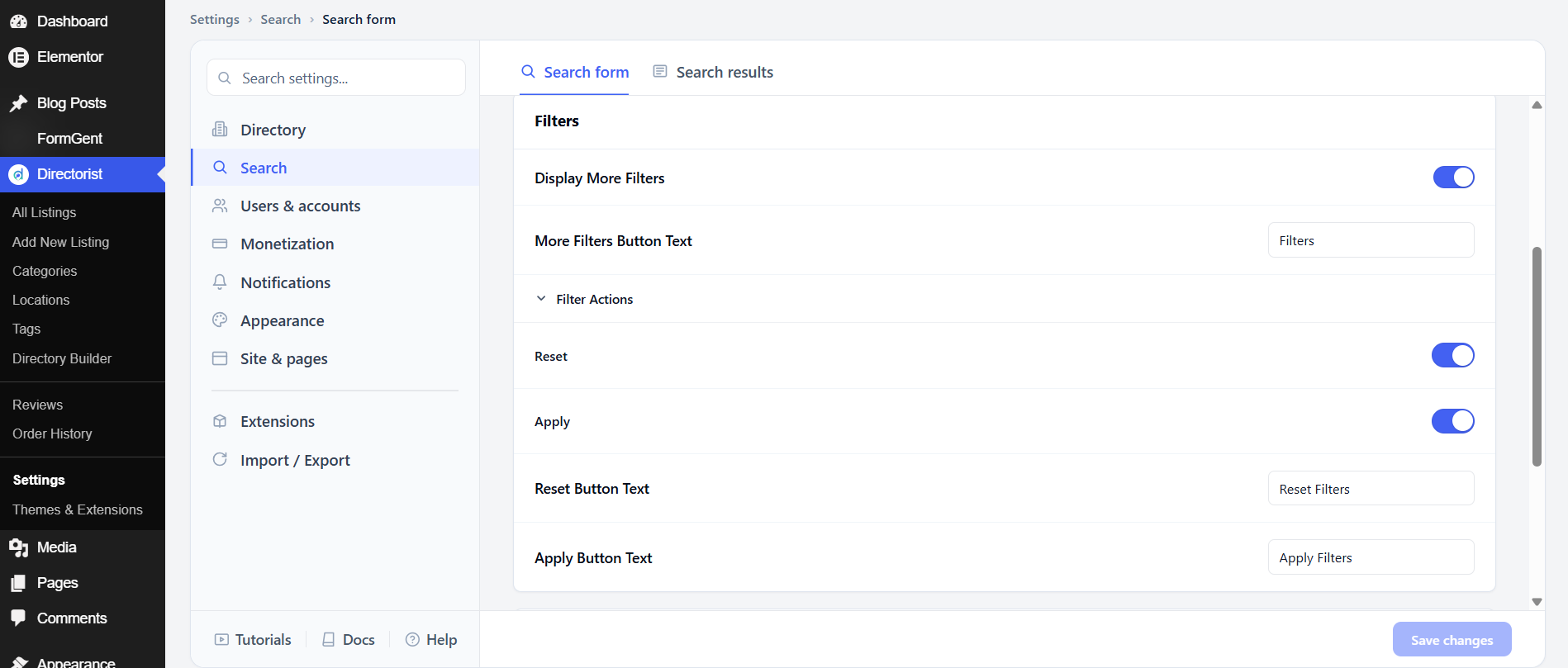
Display More Filters shows a button below the main search bar that expands a panel of additional filter fields. This is on by default. Turn it off if you want a simpler search experience with no advanced filters.
More Filters Button Text is the label on that button. The default is Filters.
Inside the expanded filter panel, there are two action buttons. Filter Actions → Reset shows a button to clear all filter selections (on by default, labeled Reset Filters). Filter Actions → Apply shows a button to run the search with the selected filters (on by default, labeled Apply Filters). You can rename both buttons using the Reset Button Text and Apply Button Text fields.
Popular categories
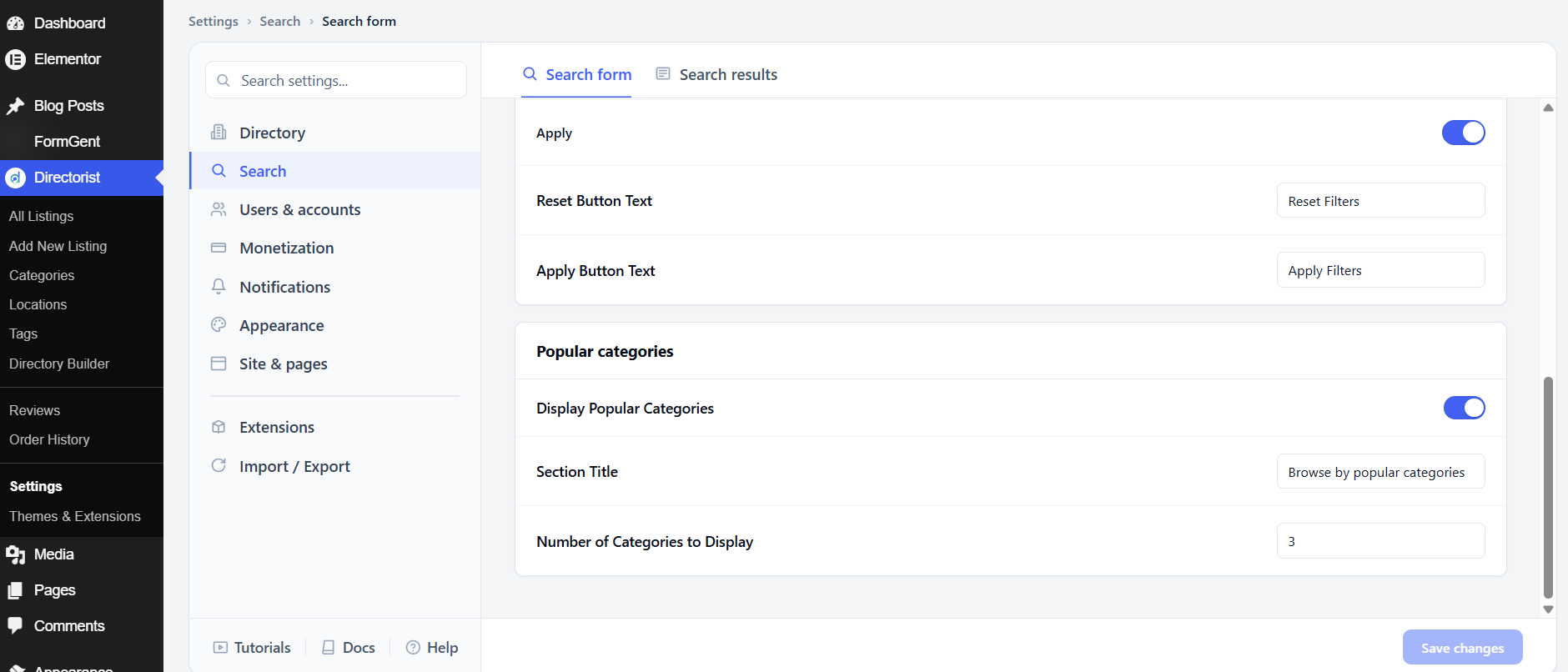
Display Popular Categories shows a section of category cards below the search bar. This is on by default. It helps new visitors quickly browse by topic without typing a search.
Section Title is the heading above the category cards. The default is Browse by popular categories.
Number of Categories to Display controls how many category cards appear. The default is 3. Increase this to show more options, or decrease it to keep the page uncluttered.
After adjusting these settings, click Save changes.
2. Search results #
The Search results tab controls the page visitors land on after running a search — its layout, how many results appear per page, and which views and sort options are available.
Results layout
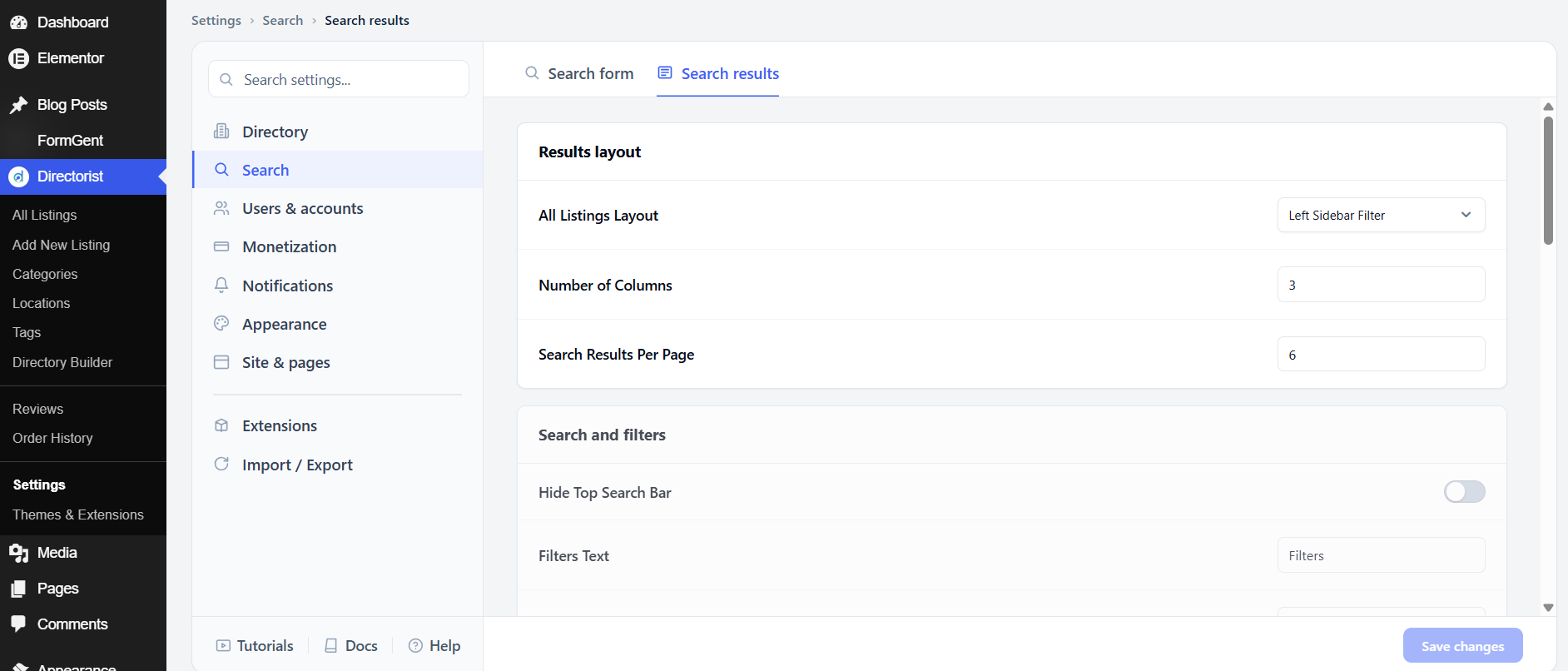
All Listings Layout sets the sidebar position on the results page. The default is Left Sidebar Filter. Change this if your design calls for a different sidebar placement.
Number of Columns sets how many result cards appear side by side in grid view. The default is 3.
Search Results Per Page controls how many results appear before pagination. The default is 6.
Search and filters
Hide Top Search Bar removes the search bar from the top of the results page. This is off by default. Keep it visible so users can refine their search without navigating away. Turn it off if you want a cleaner results page where all filtering happens through the sidebar.
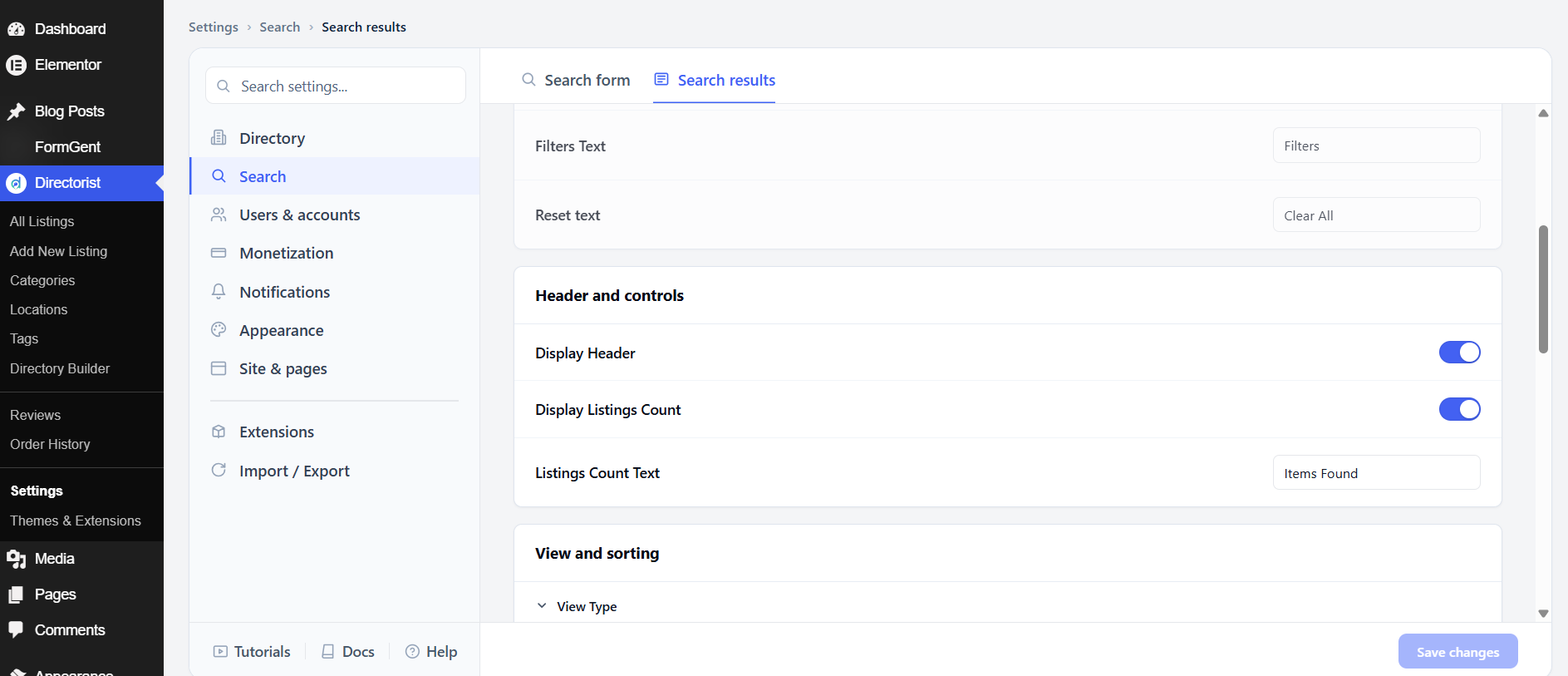
Filters Text is the label on the filters button. The default is Filters. Reset text is the label on the clear-all link. The default is Clear All.
Header and controls
Display Header shows the header row above results, which contains the view toggle and sort dropdown. This is on by default.
Display Listings Count shows the total number of matching results – for example, “12 Items Found.” This is on by default. Listings Count Text sets the label after the number; the default is Items Found.
View and sorting
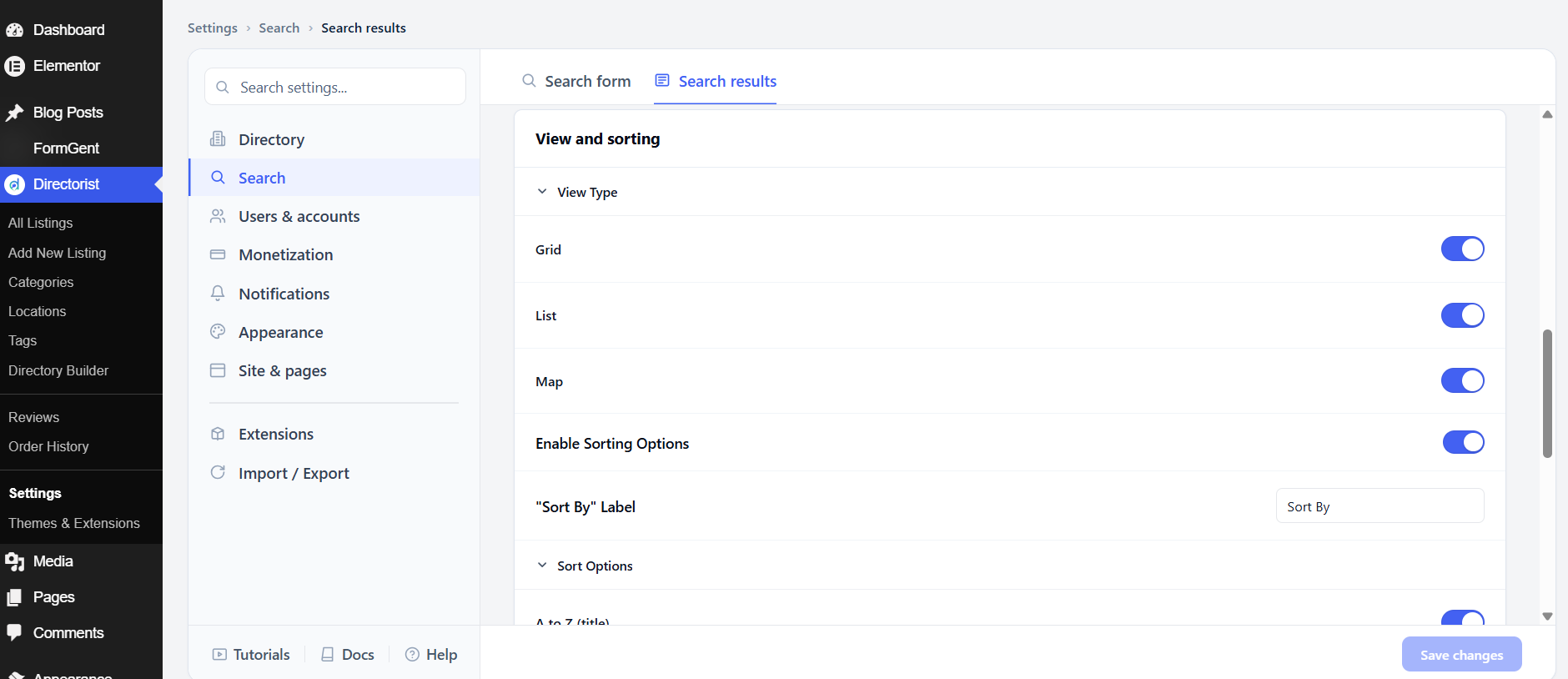
Grid, List, and Map views are all available on the results page by default. Turn off any view mode you don’t want visitors to use.
Enable Sorting Options shows a sort dropdown so users can reorder results. This is on by default. The “Sort By” Label sets what the dropdown is called; the default is Sort By.
The sort options available are: A to Z, Z to A, Latest listings, Oldest listings, Popular listings, Price (low to high), Price (high to low), and Random listings – all on by default. Nearby (sorted by distance from the visitor) is off by default.
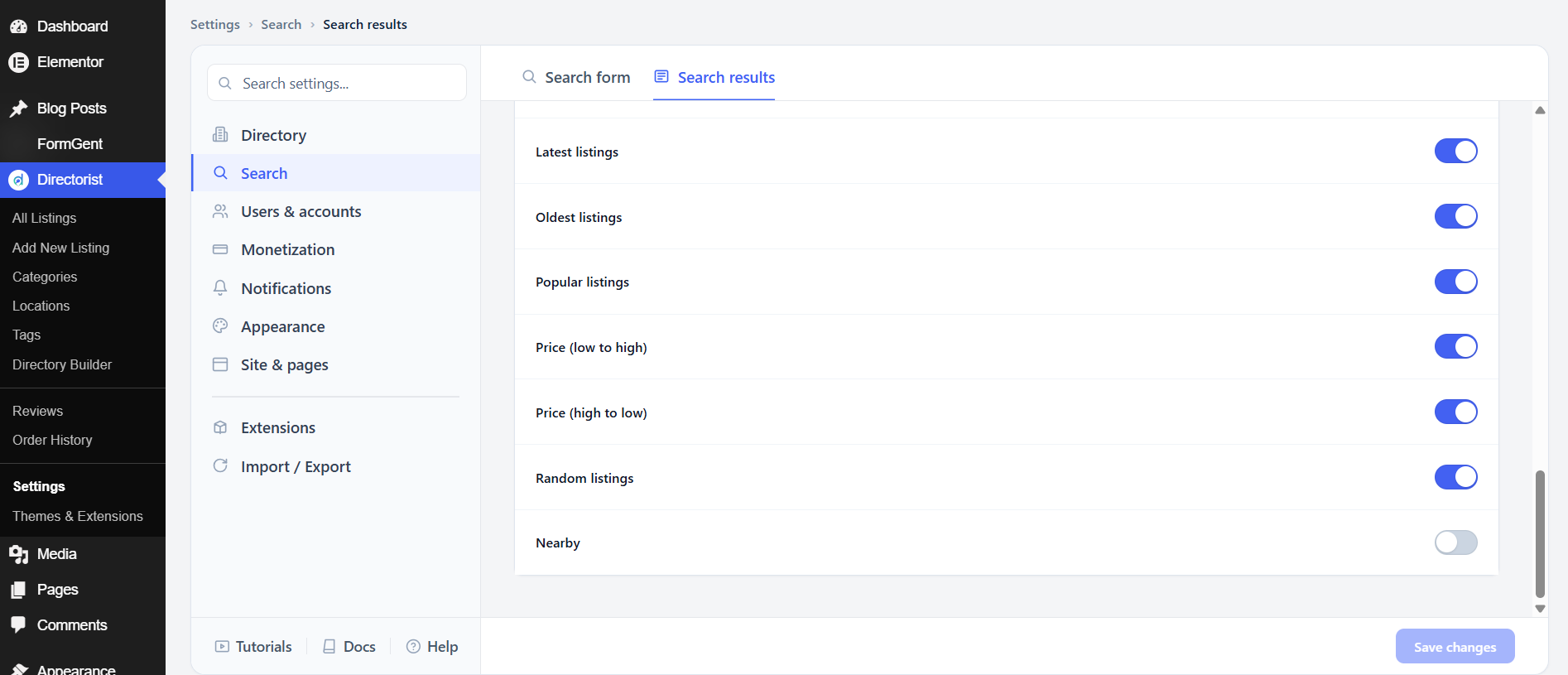
Turn off sort options that don’t make sense for your content. For example, turn off Price (low to high) and Price (high to low) if your listings don’t have a price field.
After adjusting these settings, click Save changes.


