 Up to 35% Off!

If you already build sites in Divi, this extension lets you design every part of your Directorist directory the same way you design everything else, using real Divi modules, not shortcodes stuck inside a text block.
This article covers what you need before you start, how to install the extension, and the one thing most people get wrong on day one: mistaking the page Directorist already built for you for the finished Divi design.
Before You Start #
Make sure these are in place first:
| Requirement | Details |
|---|---|
| WordPress | 6.9 or higher |
| PHP | 7.4 or higher |
| Directorist | Required. The integration will not load without it. |
| Divi | The Divi theme, a Divi child theme, or the Divi Builder plugin. |
| Divi version | Built for Divi 5. |
Before installing the integration, get your directory itself in working order:
- Create at least one directory type.
- Add listing categories and locations if your directory uses them.
- Publish a few test listings, real ones, not blank placeholders, so you can see actual data while you design.
- Set up any custom fields you want to show in your Divi layouts.
- Activate any other Directorist extensions you’re using, such as Booking, Claim Listing, FAQ, or Job Manager. Some Divi modules only appear once their matching extension is active.
Install and Activate #
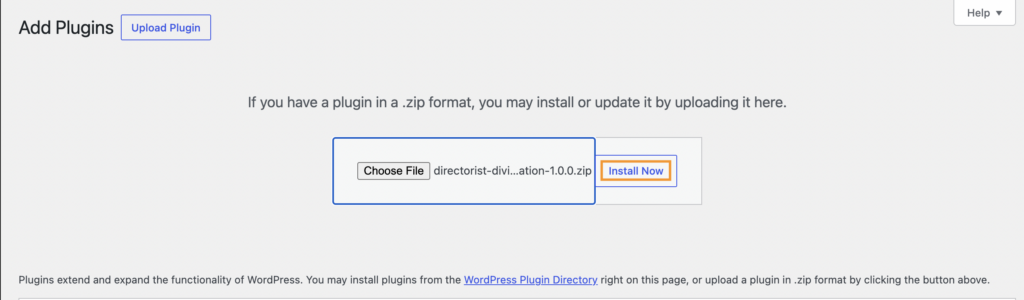
- Go to Plugins → Add New.
- Upload the Directorist Divi Builder Integration ZIP file.
- Click Install Now, then Activate.
- Confirm Directorist and Divi are both active too.
If either one is missing, WordPress shows an admin notice telling you exactly which plugin to install. Activate it, then reload the page. There’s no separate settings screen for the integration itself, no API keys, no configuration step. Once all three plugins are active, the Directorist modules simply appear inside the Divi builder.
Where You’re Actually Starting From #
Here’s the part that trips people up. If this is a new project, you probably ran the Directorist Setup Wizard already. That wizard creates your core pages automatically: Add Listing, All Listings, Search Result, Single Listing, and more. It does this whether or not Divi is installed.
Open your All Listings page right now and you’ll likely see something that already works: search, filters, and listings all rendering correctly. But if you open that page in the editor, here’s what you’ll actually find.
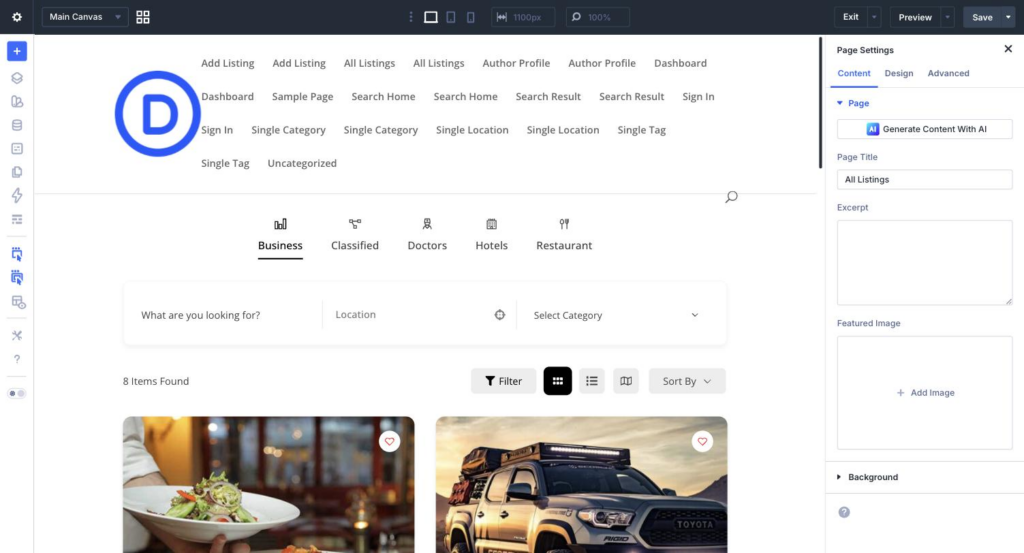
That shortcode works. It renders the listings fine. But it’s not something Divi can design. You can’t move the search bar, restyle a card, or hide an empty field, because from Divi’s point of view, it’s just a block of static text output. None of the Content, Design, or Advanced tabs you’re used to on every other Divi element apply to it.
If you leave the page exactly as Setup Wizard made it, you get a working directory. Not a designed one.
Two Ways to Build #
The real Divi integration gives you two different toolsets, depending on what kind of page you’re designing.
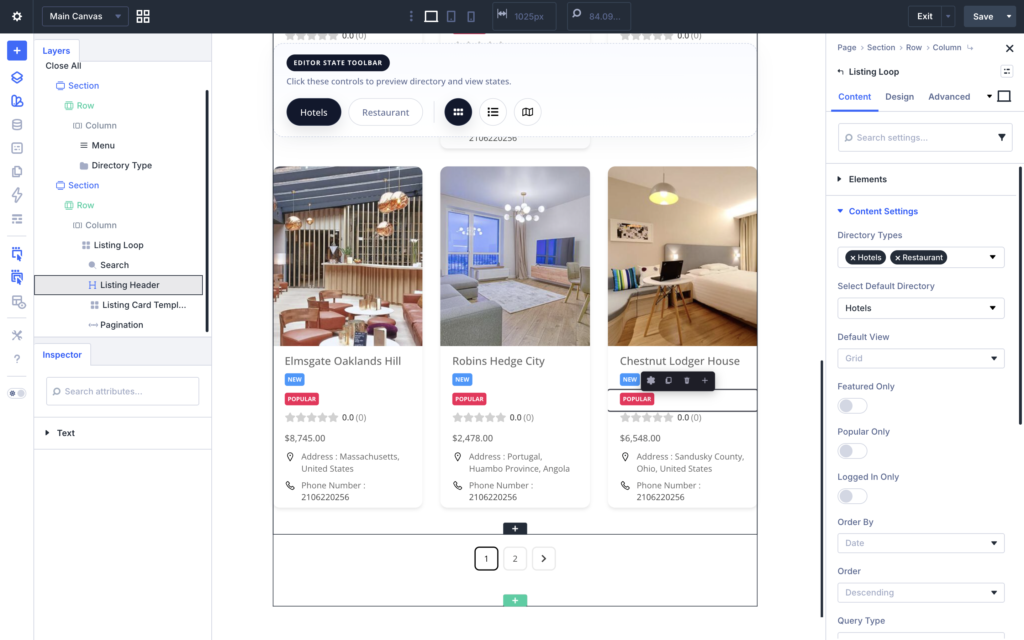
Divi Visual Builder – for the All Listings page (and any other archive-style page: category pages, location pages). You place archive modules like Listing Loop directly onto a regular WordPress page.
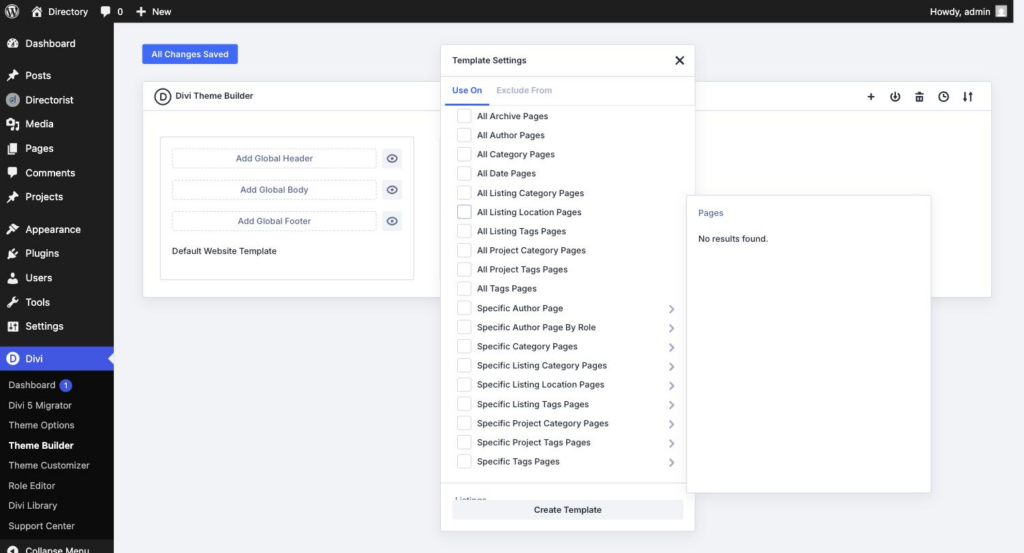
Divi Theme Builder – for Single Listing pages. You build a template once, assign it to your listings using conditions, and it applies automatically to every listing that matches.
And within the Visual Builder path specifically, you have two entry points:
- Edit the page Directorist already created. Open the All Listings page, switch it to the Divi Builder, remove the Text module holding the shortcode, and insert the Listing Loop module in its place. This is the path most people will use, since the page and its content already exist.
- Start from a blank page. Create a new WordPress page yourself and build the archive from scratch with Divi modules. Useful if you want a page structure separate from what Setup Wizard generated, or you’re an agency building a custom site layout.
Both paths land you in the same place: a page built from real, styleable Divi modules instead of a shortcode.
What’s Next #
- Designing All Listing Page with Divi covers editing or building the archive page in full: the Listing Loop, its internal structure, and every field module available for your listing cards.
- Designing Single Listing Page with Divi covers the Theme Builder path for individual listing pages.
Each Directorist module works the same way every other Divi module does: Content tab, Design tab, Advanced tab, full typography, spacing, borders, conditions, and responsive controls. Nothing about designing with Directorist modules is different from designing with any other part of Divi, once you know where to find them.


