BFCM Alert! Drop 1 just landed. See what’s new. Drop 2 lands in 00d 00h 00m Explore Drop 1 →
Skip to content
  • Why Directorist
    Explore
    All Features Everything the plugin can do Solutions Directories you can build Integrations Plugins that work with Directorist Try Demo Click through real demo directories
    See the proof
    Comparison How we stack up against others Client Showcase Real sites built with Directorist
    Directorist AI
    Build your directory with AI

    Describe the directory you want and let AI build it for you.

    Try Directorist AI
  • Products
    Extensions

    Add powerful features

    Themes

    Ready-to-launch designs

    Templates

    Build pages faster

    Mobile App

    Native app for your directory

  • Resources
    Get help
    Documentation Product guides and how-tos Support Centre Get help from our team Contact Us Sales and general questions
    Learn
    Directorist Academy Courses on directory building Blog Tips, trends and growth ideas What's New Latest releases and fixes
    Company
    About Us Roadmap
    Hire us
    Custom Work, Handled

    Need a new build, custom feature, integration, fix, or ongoing maintenance? Tell us.

    See How It Works View Our Work
  • Pricing
  • Hire Us
Sign In Try For Free
  • Why Directorist
    Explore
    All Features Everything the plugin can do Solutions Directories you can build Integrations Plugins that work with Directorist Try Demo Click through real demo directories
    See the proof
    Comparison How we stack up against others Client Showcase Real sites built with Directorist
    Directorist AI
    Build your directory with AI

    Describe the directory you want and let AI build it for you.

    Try Directorist AI
  • Products
    Extensions

    Add powerful features

    Themes

    Ready-to-launch designs

    Templates

    Build pages faster

    Mobile App

    Native app for your directory

  • Resources
    Get help
    Documentation Product guides and how-tos Support Centre Get help from our team Contact Us Sales and general questions
    Learn
    Directorist Academy Courses on directory building Blog Tips, trends and growth ideas What's New Latest releases and fixes
    Company
    About Us Roadmap
    Hire us
    Custom Work, Handled

    Need a new build, custom feature, integration, fix, or ongoing maintenance? Tell us.

    See How It Works View Our Work
  • Pricing
  • Hire Us
Sign In Get Directorist

Directorist Core

  • Directorist MCP
    • Getting Started with Directorist MCP
  • Directorist Settings
    • Directorist Settings Panel (General)
    • Directorist Settings Panel (Search)
    • Directorist Settings Panel (Users & Accounts)
    • Directorist Settings Panel (Monetization)
    • Directorist Settings Panel (Notifications)
    • Directorist Settings Panel (Site & pages)
    • Directorist Settings Panel (Extensions)
    • Directorist Settings Panel (Appearance)
    • Directorist Settings Panel (Import / Export)
  • Listings Management
    • Listing Rejection Flow
    • Adding a Listing
    • General Listing Settings
    • Guest Listing Submission
    • All Listing Settings
    • Single Listing Settings
    • Category & Location
    • Map Setting
    • Badges Setting
    • Review Setting
  • Directory Builder
    • Overview
    • Multiple Directories
    • Create with AI
    • General tab
    • Add Listing Form
    • Conditional Logic
    • Single Page Layout
    • FormGent Integration
    • All Listing Layout
    • Search Form
  • Monetization
    • Monetization Overview
    • Configurations
    • Managing Orders
  • Search and Filter Settings
    • Nearby Sort
    • Search Page
    • Advanced Filter Widget
    • Search Result Page
    • Advanced Search and Filter
  • Customization
    • Customize Appearance
    • Email Customization
    • Registration and Login
    • Author Page
  • Advanced Settings
    • Maintenance
    • Schema Markup
    • Search Engine Optimization (SEO)
  • Shortcodes Library
    • Using Shortcodes in WordPress
    • Directorist Shortcodes
    • Add Listing Form
    • All Listings Page
    • Single Category Page
    • Single Location Page
    • Tags Page
    • All Locations Page
    • Search Listings
    • Payment & Checkout Page
    • All Categories Page
    • Search Results
    • Login and Registration
    • User Dashboard
    • Author Profile
    • Search Results
  • Getting Started
    • Plugin Dashboard
    • Getting Started
    • Installation & Activation
    • Directorist Setup Wizard
    • Directorist Membership (Themes & Extensions)
    • Setting Up the Required Pages
    • Managing Categories
    • Managing Location
    • Manage Tags
    • Terms and Conditions Setup
    • Import and Export

Extensions

  • Directorist Events
  • Installation
  • Activate/Renew License
  • Directorist Pay Per Lead
  • Directorist Gutenberg Integration
  • M-Pesa Payment Gateway
  • Paystack Payment Gateway
  • Mark as Sold
  • Directorist Ads Manager
  • Setting Up Directorist Live Chat
  • Directorist Coupons
  • Directorist – BuddyPress Integration
  • Setting Up Directory Linking
  • Job Manager
  • AddonsKit for Bricks
  • Mailchimp Integration
  • Directorist Announcement
  • Directorist Notifications Pro
  • Directorist Analytics
  • Directorist AI Search
  • Multi Directory Linking
  • Listing Importer
  • WooCommerce Pricing Plans
  • Business Hours
  • Universal Search
  • Search Alert
  • Advanced Review
  • PayPal Payment Gateway
  • Stripe Payment Gateway
  • Authorize.net Payment Gateway
  • Listings Slider & Carousel Listing
  • WPML – Translation Guide
  • Listings with Map
  • Digital Marketplace
  • Job Manager
  • Claim Listing
  • Coupon
  • Image Gallery
  • Listing FAQs
  • Compare Listings
  • Directorist Mobile App 2.0
  • Booking
    • Installation & Configuration
    • Google Calendar Integration
    • Service Booking
    • Rental System
    • Event Booking
  • Pricing Plans
    • Directorist Pricing Plans Shortcode Guide
    • Migration Guide
    • Plan Creation and Full Workflow
    • Multiple Pricing Plans: Setup & How It Works
  • Divi Integration
    • Designing Single Listing Page with Divi
    • Designing All Listing Page with Divi
    • Getting Started with Divi Integration Extension
  • Elementor Integration
    • Getting Started with Directorist Elementor Integration

Themes

  • dTour Theme
  • Importing dTour Templates
  • Getting Started with Theme
  • Quick Installation & Demo Import
  • Full Theme Setup & Customization

Tutorials

  • How to Build and Grow an Investors Directory
  • How to Make Money from Your Business Directory
  • How to Use Data to Build a Smarter and More Profitable Directory 
  • How to Build a Free University Directory
  • How to Translate Your Directory Theme and Plugin with Poedit
  • How to Create a Medical Directory Website
  • How to Make Your Directorist Website Multilingual

Developers Doc

  • Template Override
  • Action Hooks
  • Filter Hooks
  • API Reference
View Categories
  • Home
  • Docs
  • Extensions
  • Authorize.net Payment Gateway

Authorize.net Payment Gateway

The Authorize.net extension lets your directory accept card payments through Authorize.net’s hosted payment page, for one-time listing fees, featured upgrades, or Pricing Plans purchases, including recurring subscriptions with optional free trials. This guide walks through getting your Authorize.net credentials, activating the gateway, registering the webhook, and where orders show up afterward.

Prerequisites #

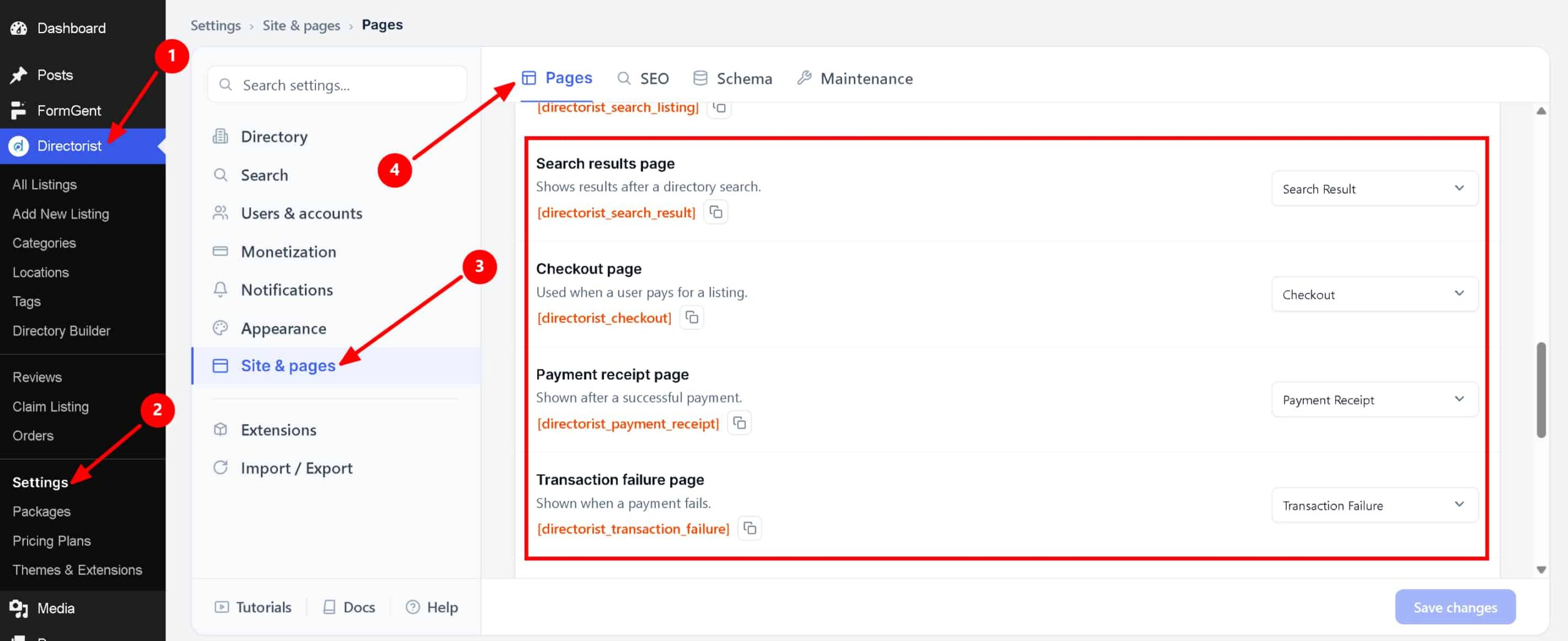
Before setting up the gateway, make sure your checkout pages are configured. Directorist needs these pages set correctly so it knows where to send a user during and after checkout. If you haven’t set them up yet,  If you haven’t set them up yet, complete the setup process form Directorist > Settings > Site & Pages > Pages, then continue here.
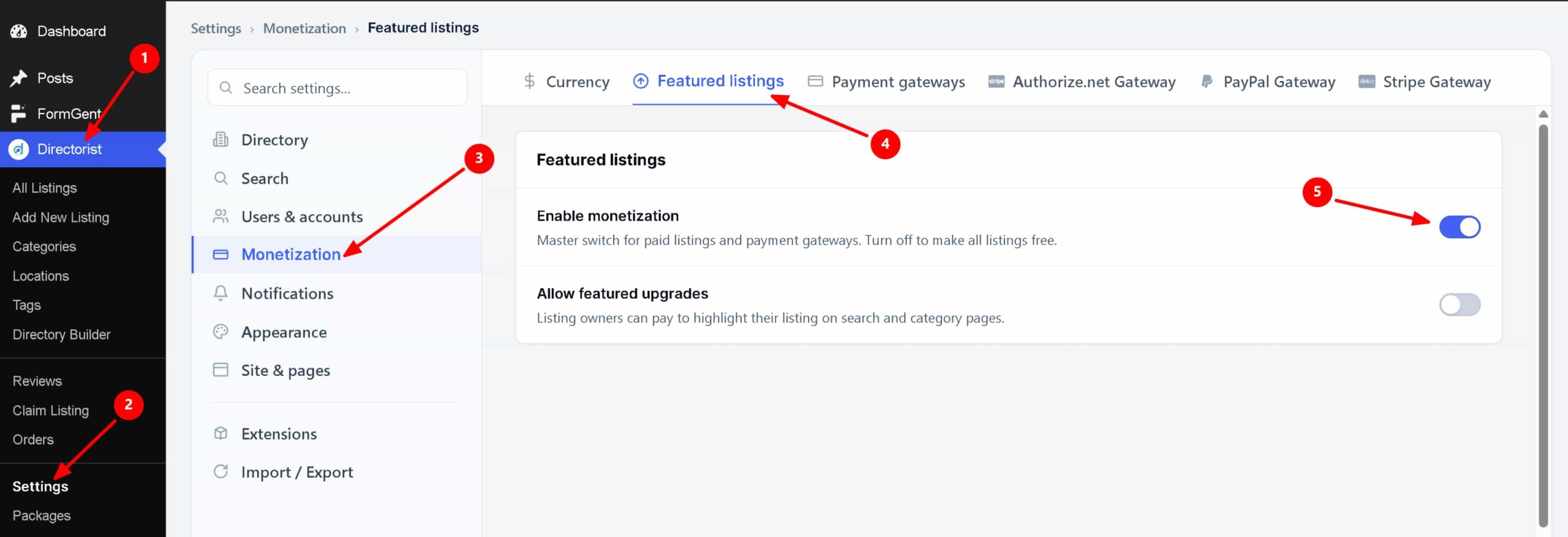
You also need Monetization turned on, since the gateway only appears on the checkout page when monetization is active.

Path: WP Admin → Directorist Listings → Directorist Settings → Monetization Settings

  1. Go to Monetization Settings.
  2. Set Enable Monetization Feature to Yes.
  3. Save your changes.

Webhook registration has two extra requirements: your site must be reachable over a public HTTPS address (no localhost), and pretty permalinks must be enabled in WP Admin → Settings → Permalinks. Registration fails if the webhook URL contains a query string, which is what happens automatically when permalinks are set to the plain “days and name”-less default.

Step 1 – Get Your Authorize.net Credentials #

  1. Log in to your Authorize.net account.
  2. Get your API Login ID and Transaction Key. Note that Directorist’s own settings page links to sandbox.authorize.net for this, so use whichever of your Authorize.net accounts (sandbox or production) matches the mode you’re configuring.
  3. Separately, get your Signature Key from your Authorize.net account. This key is only used to verify that incoming webhook events genuinely came from Authorize.net.

Unlike some gateways, Authorize.net only has one API Login ID and Transaction Key field, not separate live and sandbox pairs. Enter the credentials that match whichever environment Enable Test Mode currently points to, and swap them if you switch environments.

Step 2 – Activate Authorize.net in Gateway Settings #

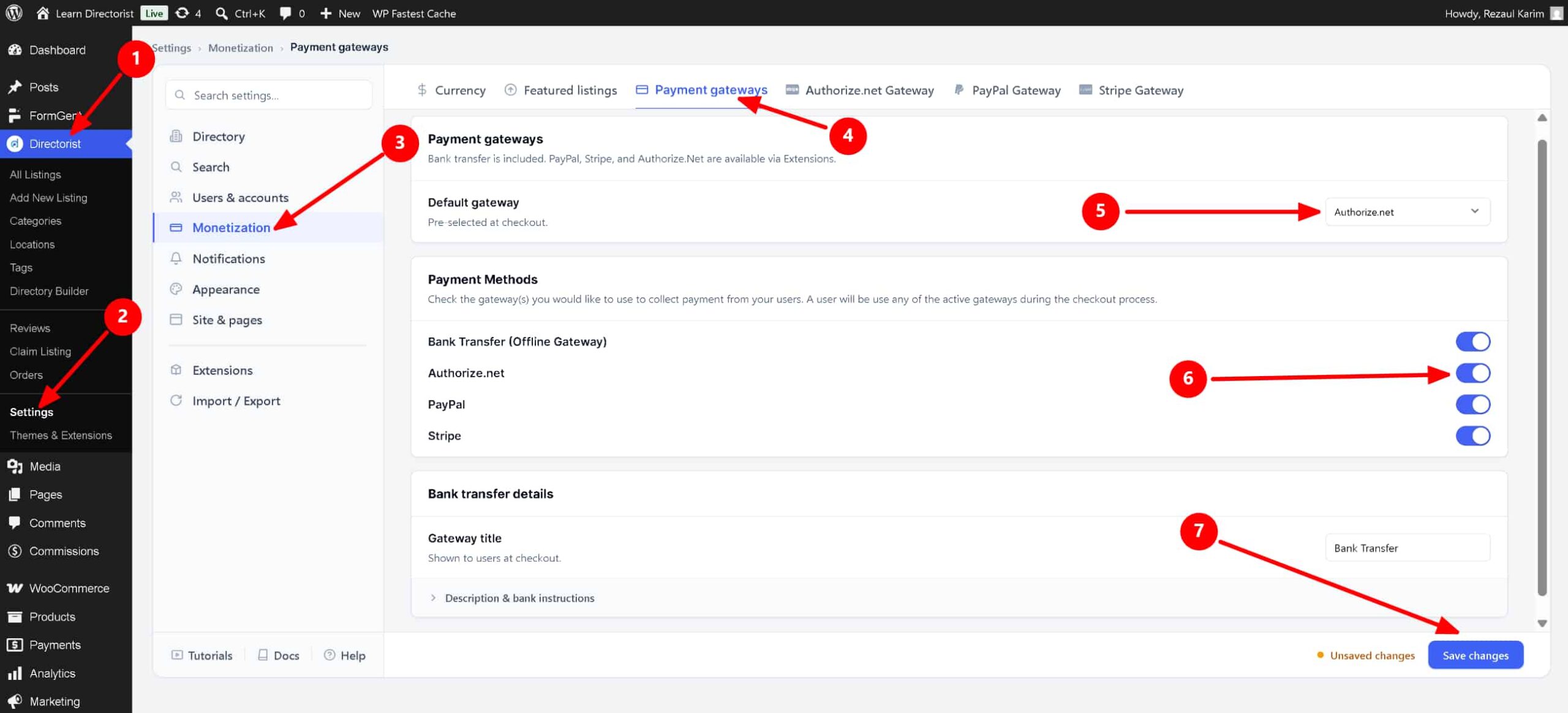
Path: WP Admin → Directorist Listings → Directorist Settings → Monetization Settings → Gateway Settings

  1. Open the Gateway Settings tab.
  2. Under Active Gateways, check Authorize.net Gateway. This makes Authorize.net available as a payment option on the checkout page.
  3. (Optional) To make Authorize.net the pre-selected option at checkout, choose Authorize.net Gateway from the Default Gateway dropdown.
  4. Click Save.

Step 3 – Configure the Authorize.net Gateway Tab #

Path: WP Admin → Directorist Listings → Directorist Settings → Monetization Settings → Authorize.net Gateway

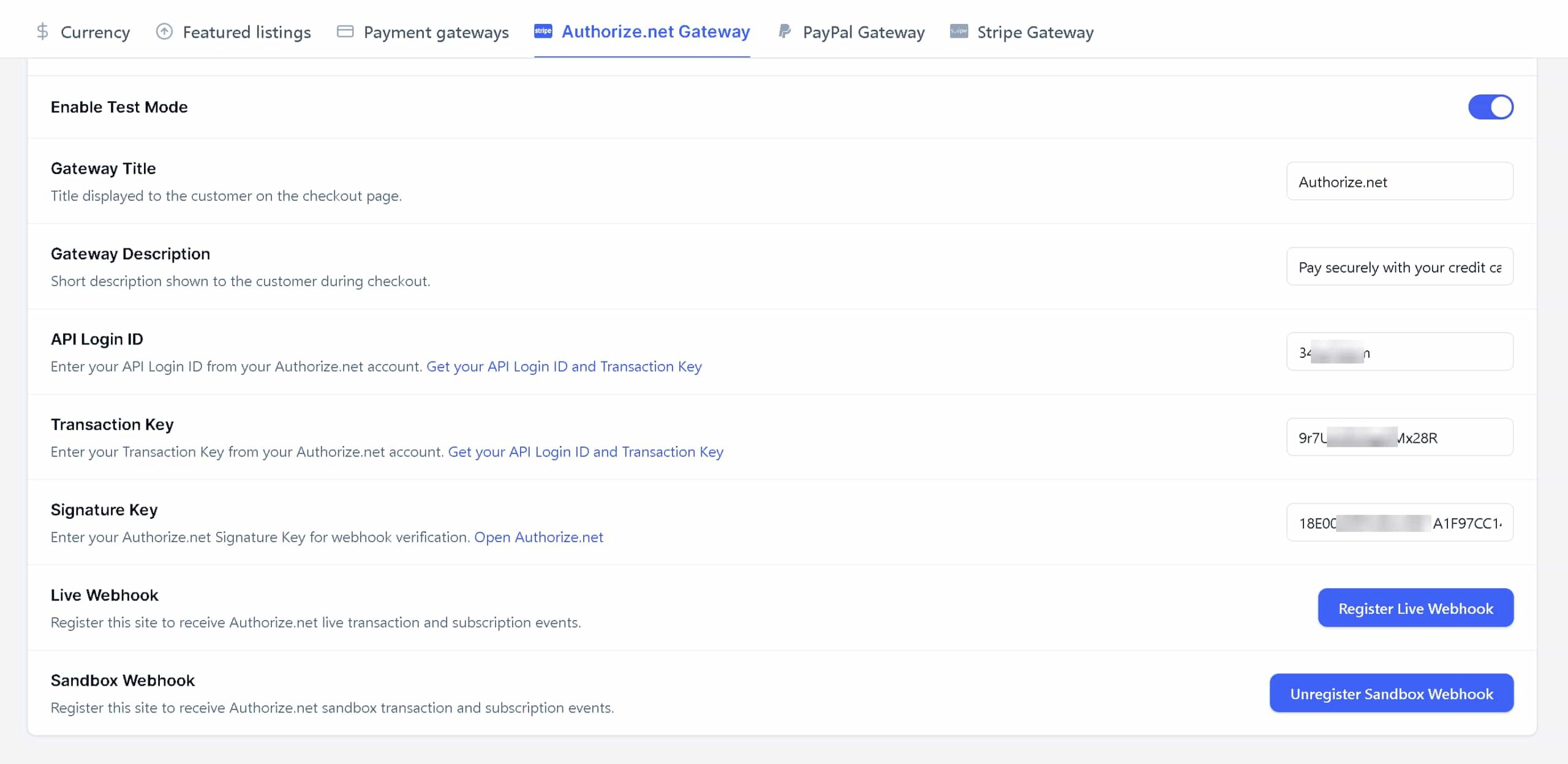
  1. Open the Authorize.net Gateway tab.
  2. To test the integration before going live, set Enable Test Mode to Yes. While test mode is on, Directorist sends transactions to Authorize.net’s sandbox API and no live transactions are processed. Set it back to No before collecting real payments, which switches Directorist to Authorize.net’s production API.
  3. Enter the text you want buyers to see at checkout in Gateway Title. This defaults to Authorize.net.
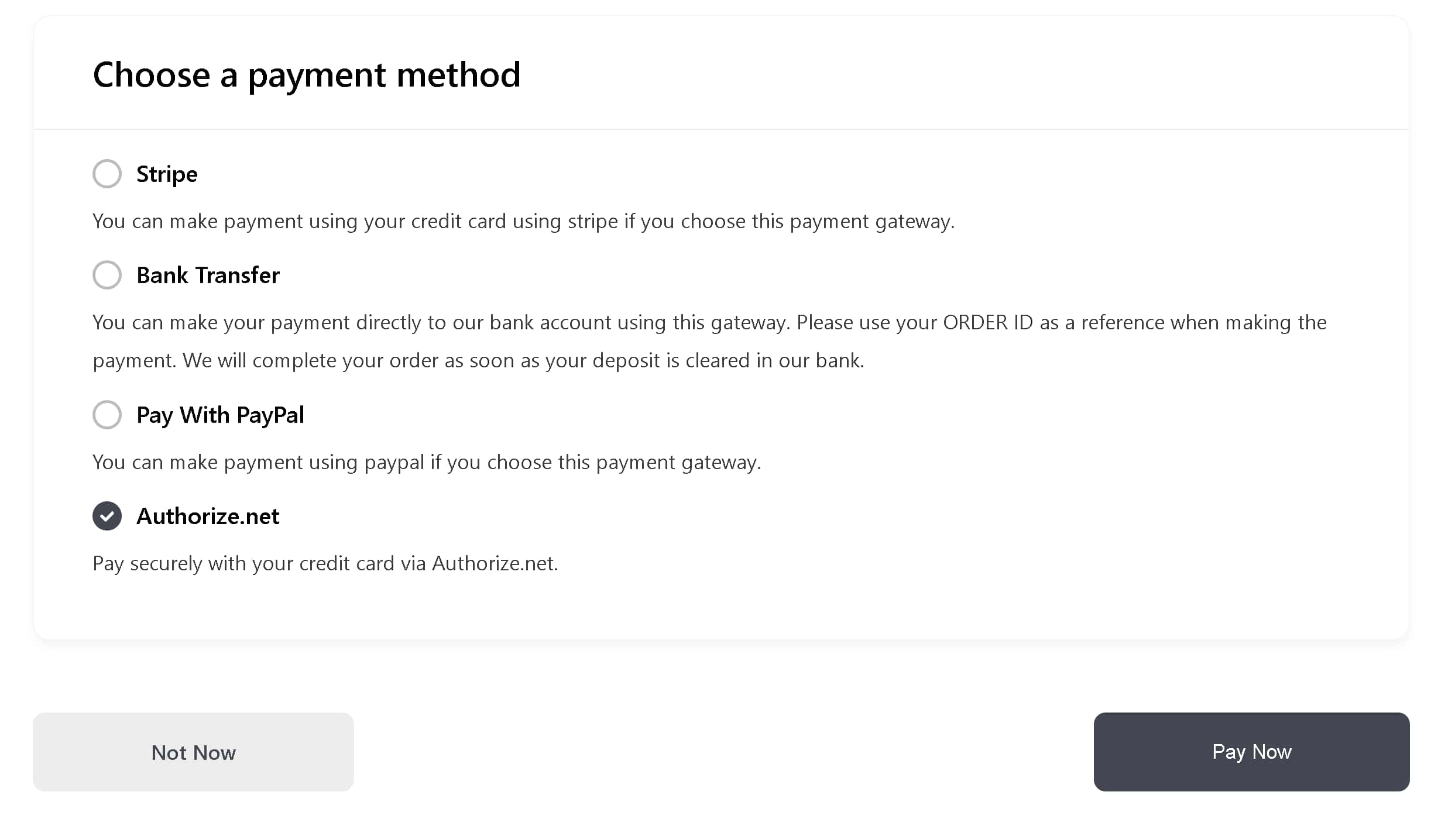
  4. Enter a short explanation for buyers in Gateway Description. This defaults to “Pay securely with your credit card via Authorize.net.”
  5. Enter API Login ID and Transaction Key from Step 1.
  6. Enter Signature Key from Step 1.
  7. Click Save.

Once saved, Authorize.net appears as a payment option on the checkout page using the title and description you set here. Choosing it sends the buyer to Authorize.net’s hosted payment page to enter their card details, then back to your directory once payment completes.
Step 4 – Register the Webhook #

The webhook is how Authorize.net tells your directory that a transaction or subscription event happened (payment captured, authorized, held for fraud review, voided, or a subscription created, updated, cancelled, suspended, or terminated). Without it, orders won’t update automatically.

  1. Still on the Authorize.net Gateway tab, find Live Webhook and Sandbox Webhook.
  2. Click Register Live Webhook to register the webhook for real transactions, and Register Sandbox Webhook to register it for testing. Register whichever mode you’re currently using (matching Enable Test Mode).
  3. If you need to remove a registered webhook later, click Unregister Live Webhook or Unregister Sandbox Webhook, which appears in place of the register button once a webhook is registered.

If a webhook isn’t registered for the mode you’re currently using, Directorist shows an admin notice reminding you to register it, with a link straight to this settings tab.

Managing Orders #

Every purchase made through Authorize.net, whether it’s a featured listing upgrade or a Pricing Plans purchase, creates an order in Directorist. Once a buyer completes payment on Authorize.net’s hosted page, they’re redirected back to your directory, and the order updates to paid as soon as Authorize.net’s webhook confirms the transaction. For the full walkthrough of finding, reviewing, and managing these orders, see the Managing Orders guide.

Recurring Plan/Package Payments #

Recurring payments for a plan or package work through Authorize.net using its recurring billing and customer profile features. This requires the Directorist Pricing Plans extension (version 3.9.9 or later) with a plan that has subscription billing enabled. If that plan also has a trial period enabled, the buyer’s first billing date is set to when the trial ends rather than immediately, so their card isn’t charged the regular amount until the trial is over. Authorize.net then bills them automatically at the end of each plan term after that, with no manual renewal step needed from the buyer or from you.

Payment Gateway
What are your Feelings

Share This Article :

  • Facebook
  • X
  • LinkedIn
  • Pinterest
Still stuck? How can we help?

How can we help?

Updated on Oct 28, 2026 8:39 am
Stripe Payment GatewayListings Slider & Carousel Listing
Table of Contents
  • Prerequisites
  • Step 1 – Get Your Authorize.net Credentials
  • Step 2 – Activate Authorize.net in Gateway Settings
  • Step 3 – Configure the Authorize.net Gateway Tab
  • Step 4 – Register the Webhook
  • Managing Orders
  • Recurring Plan/Package Payments
Directorist Directorist

Product

  • Features
  • Solutions
  • Extensions
  • Integrations
  • Mobile App
  • Roadmap

Popular

  • OneListing (Free)
  • dClassified
  • dRestaurant
  • dRealestate
  • All Themes
  • Templates

Services

  • Done For You
  • Custom Development
  • Portfolio
  • Contact Sales

Resources

  • Documentation
  • Blog
  • Directorist Academy
  • Directory Ideas
  • What's New

Quick Links

  • About Us
  • Client Showcase
  • Support Policy
  • Refund Policy
  • Affiliate Program

Keep Updated

Subscribe to our email newsletter to receive updates.

Subscribe to our newsletter
© Directorist 2026 A product of
Also by wpWax FormGent HelpGent
  • Privacy Policy
  • Terms & Conditions
We use cookies to ensure the best browsing experience.