

How to Access Directorist Premium Membership #
To unlock advanced features like premium themes and extensions, there are two simple ways to access them:
From Your WordPress Dashboard (Recommended) #
This is the easiest and most convenient way:
- Go to WP Dashboard > Directory Listings > Themes & Extensions.
- Now connect with your Directorist.com account credentials
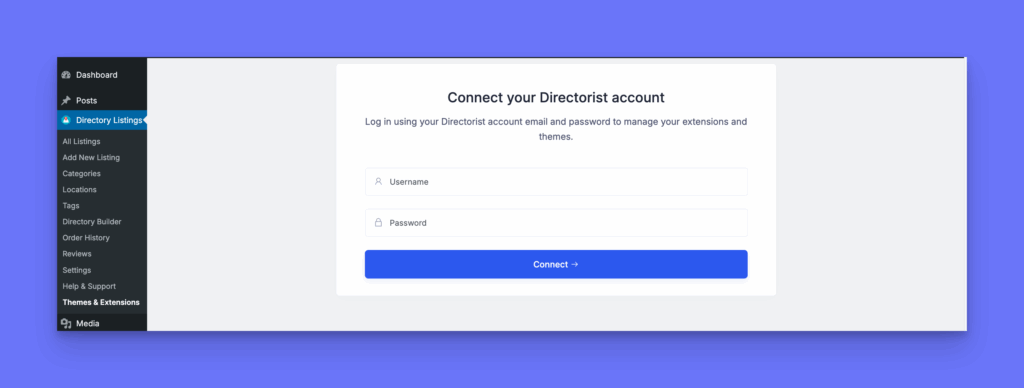
- Once connected, you can browse, install, and update premium themes and extensions right from your dashboard.
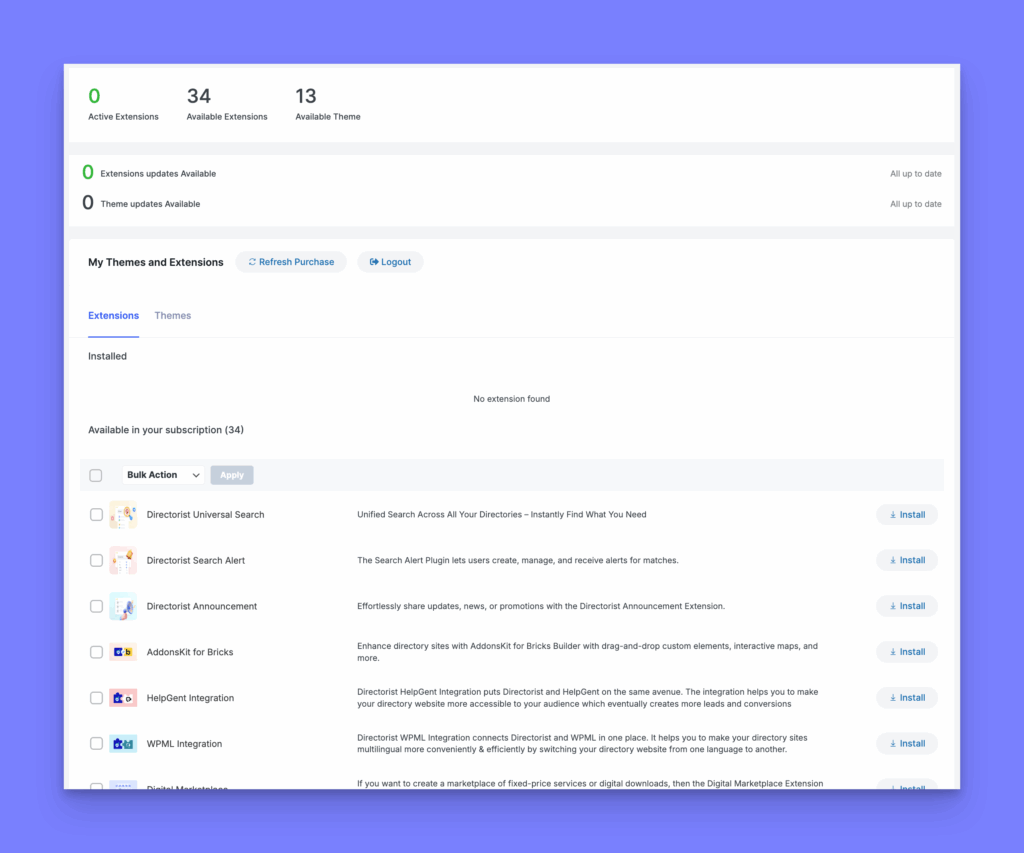
Manual Download from Directorist.com #
You can also manually install your purchased items:
- Log in to your Directorist account.
- Download the themes and extensions files from here.
Themes:
Directorist offers 14+ professionally designed premium themes, each tailored for specific industries and directory niches such as:
- OneListing (free)
- OneListing Pro(Business directory theme)
- dClassified
- dRealEstate
- dRestaurant
- dService
- dHotels
- dDoctors
- dLawyers
- dPlace
- dJobs
- dCar
- dList
- …and more!


