Holiday Revenue Starts Now. Save Up to 30%!

Build now. Be Ready for year-end demand.

OFFER ENDS IN

  • 00DAYS
  • 00HRS
  • 00MIN
  • 00SEC
Get Holiday-Ready →
Skip to content
  • Why Directorist
    Explore
    All Features Everything the plugin can do Solutions Directories you can build Integrations Plugins that work with Directorist Try Demo Click through real demo directories
    See the proof
    Comparison How we stack up against others Client Showcase Real sites built with Directorist
    Directorist AI
    Build your directory with AI

    Describe the directory you want and let AI build it for you.

    Try Directorist AI
  • Products
    Extensions

    Add powerful features

    Themes

    Ready-to-launch designs

    Templates

    Build pages faster

    Mobile App

    Native app for your directory

  • Resources
    Get help
    Documentation Product guides and how-tos Support Centre Get help from our team Contact Us Sales and general questions
    Learn
    Directorist Academy Courses on directory building Blog Tips, trends and growth ideas What's New Latest releases and fixes
    Company
    About Us Roadmap
    Hire us
    Custom Work, Handled

    Need a new build, custom feature, integration, fix, or ongoing maintenance? Tell us.

    See How It Works View Our Work
  • Pricing
  • Hire Us
Sign In Try For Free
Directorist
  • Why Directorist
    Explore
    All Features Everything the plugin can do Solutions Directories you can build Integrations Plugins that work with Directorist Try Demo Click through real demo directories
    See the proof
    Comparison How we stack up against others Client Showcase Real sites built with Directorist
    Directorist AI
    Build your directory with AI

    Describe the directory you want and let AI build it for you.

    Try Directorist AI
  • Products
    Extensions

    Add powerful features

    Themes

    Ready-to-launch designs

    Templates

    Build pages faster

    Mobile App

    Native app for your directory

  • Resources
    Get help
    Documentation Product guides and how-tos Support Centre Get help from our team Contact Us Sales and general questions
    Learn
    Directorist Academy Courses on directory building Blog Tips, trends and growth ideas What's New Latest releases and fixes
    Company
    About Us Roadmap
    Hire us
    Custom Work, Handled

    Need a new build, custom feature, integration, fix, or ongoing maintenance? Tell us.

    See How It Works View Our Work
  • Pricing
  • Hire Us
Sign In Get Directorist

Directorist Core

  • Directorist Settings
    • Directorist Settings Panel (General)
    • Directorist Settings Panel (Search)
    • Directorist Settings Panel (Users & Accounts)
    • Directorist Settings Panel (Monetization)
    • Directorist Settings Panel (Notifications)
    • Directorist Settings Panel (Site & pages)
    • Directorist Settings Panel (Extensions)
    • Directorist Settings Panel (Appearance)
    • Directorist Settings Panel (Import / Export)
  • Listings Management
    • Listing Rejection Flow
    • Adding a Listing
    • General Listing Settings
    • Guest Listing Submission
    • All Listing Settings
    • Single Listing Settings
    • Category & Location
    • Map Setting
    • Badges Setting
    • Review Setting
  • Directory Builder
    • Overview
    • Multiple Directories
    • Create with AI
    • General tab
    • Add Listing Form
    • Conditional Logic
    • Single Page Layout
    • FormGent Integration
    • All Listing Layout
    • Search Form
  • Monetization
    • Monetization Overview
    • Configurations
    • Managing Orders
  • Search and Filter Settings
    • Nearby Sort
    • Search Page
    • Advanced Filter Widget
    • Search Result Page
    • Advanced Search and Filter
  • Customization
    • Customize Appearance
    • Email Customization
    • Registration and Login
    • Author Page
  • Advanced Settings
    • Maintenance
    • Schema Markup
    • Search Engine Optimization (SEO)
  • Shortcodes Library
    • Using Shortcodes in WordPress
    • Directorist Shortcodes
    • Add Listing Form
    • All Listings Page
    • Single Category Page
    • Single Location Page
    • Tags Page
    • All Locations Page
    • Search Listings
    • Payment & Checkout Page
    • All Categories Page
    • Search Results
    • Login and Registration
    • User Dashboard
    • Author Profile
    • Search Results
  • Getting Started
    • Plugin Dashboard
    • Getting Started
    • Installation & Activation
    • Directorist Setup Wizard
    • Directorist Membership (Themes & Extensions)
    • Setting Up the Required Pages
    • Managing Categories
    • Managing Location
    • Manage Tags
    • Terms and Conditions Setup
    • Import and Export

Extensions

  • Installation
  • Activate/Renew License
  • Directorist Pay Per Lead
  • Directorist Gutenberg Integration
  • M-Pesa Payment Gateway
  • Mark as Sold
  • Directorist Ads Manager
  • Setting Up Directorist Live Chat
  • Directorist Coupons
  • Directorist – BuddyPress Integration
  • Setting Up Directory Linking
  • Job Manager
  • AddonsKit for Bricks
  • Mailchimp Integration
  • Directorist Announcement
  • Directorist Notifications Pro
  • Directorist Analytics
  • Directorist AI Search
  • Multi Directory Linking
  • Listing Importer
  • WooCommerce Pricing Plans
  • Business Hours
  • Universal Search
  • Search Alert
  • Advanced Review
  • PayPal Payment Gateway
  • Stripe Payment Gateway
  • Configuring the Authorize.net Payment Gateway
  • Listings Slider & Carousel Listing
  • WPML – Translation Guide
  • Listings with Map
  • Digital Marketplace
  • Job Manager
  • Claim Listing
  • Coupon
  • Image Gallery
  • Listing FAQs
  • Compare Listings
  • Directorist Mobile App 2.0
  • Divi Integration
    • Designing Single Listing Page with Divi
    • Designing All Listing Page with Divi
    • Getting Started with Divi Integration Extension
  • Booking
    • Installation & Configuration
    • Google Calendar Integration
    • Service Booking
    • Rental System
    • Event Booking
  • Pricing Plans
    • Directorist Pricing Plans Shortcode Guide
    • Migration Guide
    • Plan Creation and Full Workflow
    • Multiple Pricing Plans: Setup & How It Works
  • Elementor Integration
    • Getting Started with Directorist Elementor Integration

Themes

  • Getting Started with Theme
  • Quick Installation & Demo Import
  • Full Theme Setup & Customization

Tutorials

  • How to Build and Grow an Investors Directory
  • How to Make Money from Your Business Directory
  • How to Use Data to Build a Smarter and More Profitable Directory 
  • How to Build a Free University Directory
  • How to Translate Your Directory Theme and Plugin with Poedit
  • How to Create a Medical Directory Website
  • How to Make Your Directorist Website Multilingual

Developers Doc

  • Template Override
  • Action Hooks
  • Filter Hooks
  • API Reference
View Categories
  • Home
  • Docs
  • Extensions
  • Booking
  • Event Booking

Event Booking

The Event Booking option allows listing owners to sell or reserve tickets for events directly from their directory listings. This setup is ideal for industries like conferences, workshops, classes, community events, and any business that needs to manage ticket availability and booking limits.


Enable Booking #

Turn this on to activate booking for the event listing.

Booking Type #

Select Event as the booking type to display all event-specific fields.

Available Tickets #

Set the total number of tickets available for this event. This is the overall ticket capacity for the listing.

Display Available Tickets #

Enable this toggle to show the remaining number of tickets on the frontend event page.

  • When enabled, users will see the live ticket count (e.g., “50 Tickets Available”).

Tickets Allowed Per Booking #

Define how many tickets a single user can book in one reservation.
For example, setting this to 5 means a user can book up to five tickets at once.

Refund System #

Turn on the refund system if you want to allow refund requests for booked services.

You can define:

  • Refund policy description (example text is shown in the field).
  • Refund days – how many days after payment a refund can be requested.
  • Refund amount (%) – percentage of the booking amount that will be refunded.
  • Add multiple refund rules if needed.

Users will see these rules during booking.

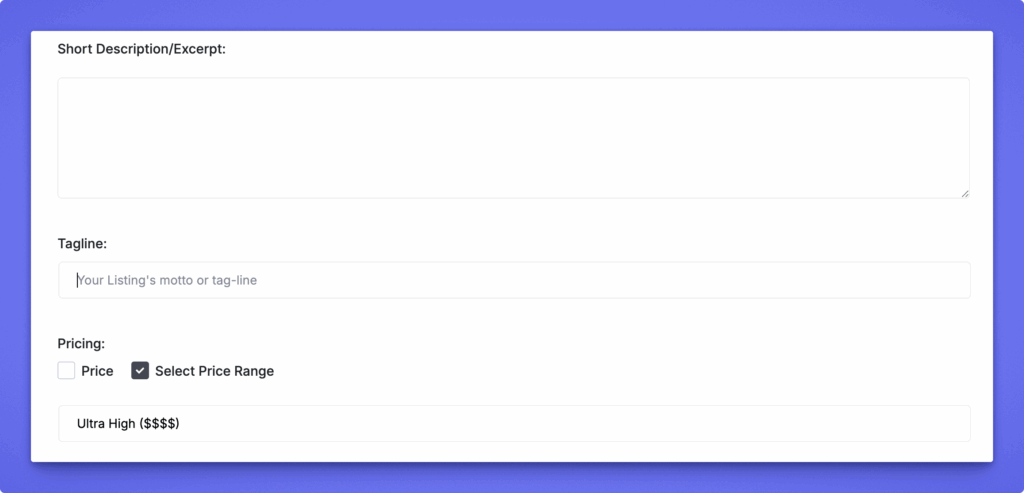
Additional Listing Fields #

Below the booking fields, you will find:

  • Short Description/Excerpt – A brief summary of the service.
  • Tagline – A short motto or catchphrase for the listing.
  • Pricing – Set a single price or enable price range options.

These fields help customers understand the service better and compare listings.

How to Book an Event #

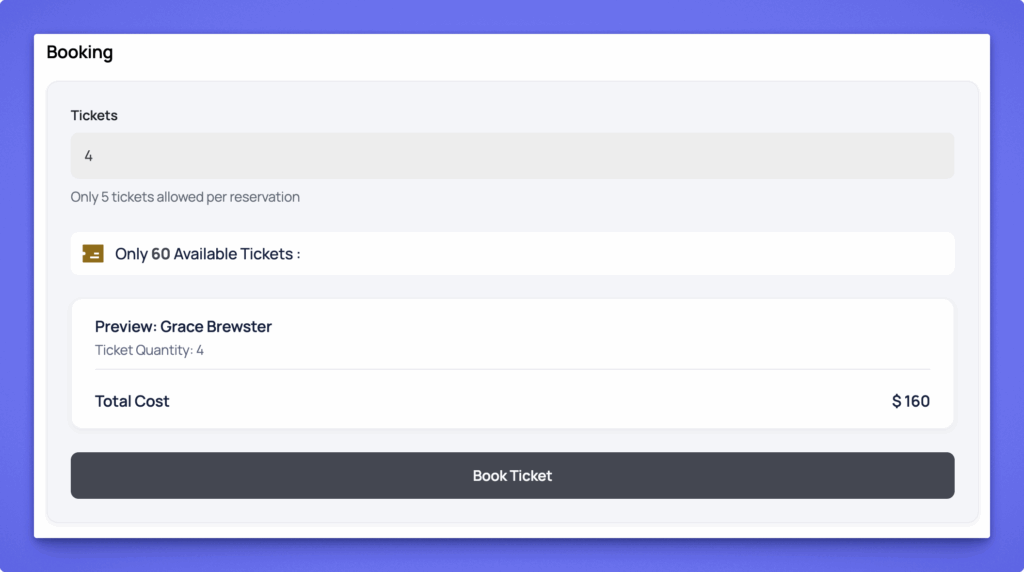
Users can book an event by selecting the number of tickets they want, reviewing the total cost, and clicking Book Ticket to complete the reservation.

  1. Enter Ticket Quantity
    Choose how many tickets you want to book. The system will show the maximum number allowed per reservation.
  2. Check Ticket Availability
    If enabled, you’ll see how many tickets are still available for the event.
  3. Book Ticket
    Click Book Ticket to move forward to the confirmation or payment step and complete your reservation.
Review and confirm the booking

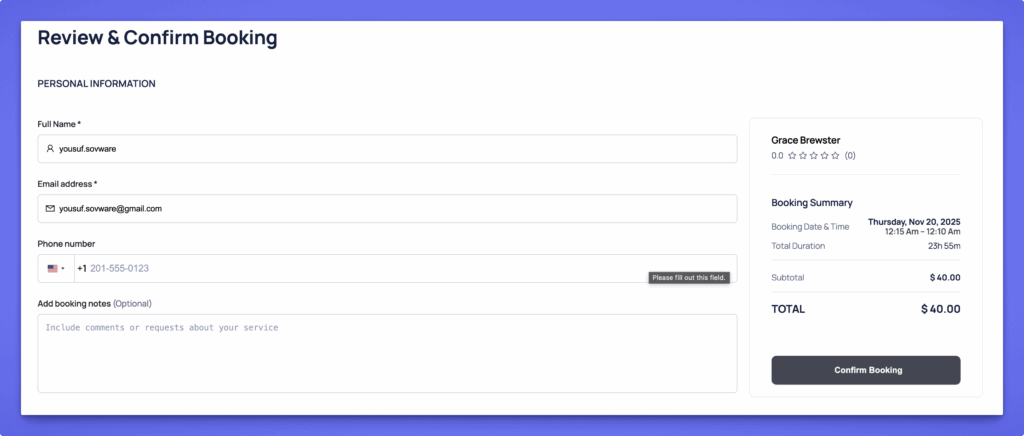
After clicking Request Booking, the user is taken to the Review & Confirm Booking page. They enter their personal details (name, email, phone), add optional notes, and review the booking summary showing the selected date, time, duration, and total cost.
Submit the final confirmation

The user clicks Confirm Booking to complete the reservation. Based on your settings, the booking is either confirmed instantly or sent for manual approval.

Approval and status

  • If Instant Booking is enabled, the booking is confirmed immediately.
  • If not, the booking goes into a pending state until the listing owner or admin approves it from the dashboard.

How Listing Owners Manage Bookings #

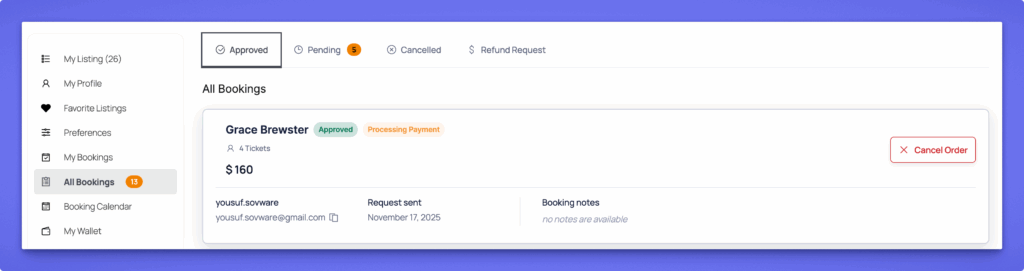
Listing owners can manage every booking request from Dashboard → All Bookings. Bookings are organized into Approved, Pending, Cancelled, and Refund Request tabs, making it easy to navigate.

In the Pending tab, each booking card displays key information:

  • Customer name and contact
  • Booking date and time
  • Request date
  • Any booking notes

Listing owners can take quick actions using the buttons on the right:

  • Approve Order to confirm the booking
  • Reject to decline the request

Once an action is taken, the booking automatically moves to the appropriate status tab, keeping everything organized and easy to track.

What are your Feelings

Share This Article :

  • Facebook
  • X
  • LinkedIn
  • Pinterest
Still stuck? How can we help?

How can we help?

Updated on Nov 17, 2025 3:02 pm
Rental SystemInstallation & Configuration
Table of Contents
  • Enable Booking
  • Booking Type
  • Available Tickets
  • Display Available Tickets
  • Tickets Allowed Per Booking
  • Refund System
  • Additional Listing Fields
  • How to Book an Event
  • How Listing Owners Manage Bookings
Directorist Directorist

Directorist

  • Integrations
  • Extensions
  • Mobile App
  • Roadmap
  • Features
  • Client Showcase

Themes

  • OneListing (FREE)
  • dClassified
  • dRestaurant
  • dRealestate
  • More

Quick Links

  • Custom Development
  • Documentation
  • Directory Ideas
  • Affiliate Program
  • Support Policy
  • Refund Policy
  • Done For You

Products

  • FormGent
  • HelpGent
  • Legal Page
  • Logo Showcase
  • More

Keep Updated

Subscribe to our email newsletter to receive updates.

Subscribe to our newsletter
A Product of
© Directorist 2026. All rights reserved.
  • Privacy Policy
  • Terms & Conditions
We use cookies to ensure the best browsing experience.