Holiday Revenue Starts Now. Save Up to 30%!

Build now. Be Ready for year-end demand.

OFFER ENDS IN

  • 00DAYS
  • 00HRS
  • 00MIN
  • 00SEC
Get Holiday-Ready →
Skip to content
  • Why Directorist
    Explore
    All Features Everything the plugin can do Solutions Directories you can build Integrations Plugins that work with Directorist Try Demo Click through real demo directories
    See the proof
    Comparison How we stack up against others Client Showcase Real sites built with Directorist
    Directorist AI
    Build your directory with AI

    Describe the directory you want and let AI build it for you.

    Try Directorist AI
  • Products
    Extensions

    Add powerful features

    Themes

    Ready-to-launch designs

    Templates

    Build pages faster

    Mobile App

    Native app for your directory

  • Resources
    Get help
    Documentation Product guides and how-tos Support Centre Get help from our team Contact Us Sales and general questions
    Learn
    Directorist Academy Courses on directory building Blog Tips, trends and growth ideas What's New Latest releases and fixes
    Company
    About Us Roadmap
    Hire us
    Custom Work, Handled

    Need a new build, custom feature, integration, fix, or ongoing maintenance? Tell us.

    See How It Works View Our Work
  • Pricing
  • Hire Us
Sign In Try For Free
Directorist
  • Why Directorist
    Explore
    All Features Everything the plugin can do Solutions Directories you can build Integrations Plugins that work with Directorist Try Demo Click through real demo directories
    See the proof
    Comparison How we stack up against others Client Showcase Real sites built with Directorist
    Directorist AI
    Build your directory with AI

    Describe the directory you want and let AI build it for you.

    Try Directorist AI
  • Products
    Extensions

    Add powerful features

    Themes

    Ready-to-launch designs

    Templates

    Build pages faster

    Mobile App

    Native app for your directory

  • Resources
    Get help
    Documentation Product guides and how-tos Support Centre Get help from our team Contact Us Sales and general questions
    Learn
    Directorist Academy Courses on directory building Blog Tips, trends and growth ideas What's New Latest releases and fixes
    Company
    About Us Roadmap
    Hire us
    Custom Work, Handled

    Need a new build, custom feature, integration, fix, or ongoing maintenance? Tell us.

    See How It Works View Our Work
  • Pricing
  • Hire Us
Sign In Get Directorist

Directorist Core

  • Directorist Settings
    • Directorist Settings Panel (General)
    • Directorist Settings Panel (Search)
    • Directorist Settings Panel (Users & Accounts)
    • Directorist Settings Panel (Monetization)
    • Directorist Settings Panel (Notifications)
    • Directorist Settings Panel (Site & pages)
    • Directorist Settings Panel (Extensions)
    • Directorist Settings Panel (Appearance)
    • Directorist Settings Panel (Import / Export)
  • Listings Management
    • Listing Rejection Flow
    • Adding a Listing
    • General Listing Settings
    • Guest Listing Submission
    • All Listing Settings
    • Single Listing Settings
    • Category & Location
    • Map Setting
    • Badges Setting
    • Review Setting
  • Directory Builder
    • Overview
    • Multiple Directories
    • Create with AI
    • General tab
    • Add Listing Form
    • Conditional Logic
    • Single Page Layout
    • FormGent Integration
    • All Listing Layout
    • Search Form
  • Monetization
    • Monetization Overview
    • Configurations
    • Managing Orders
  • Search and Filter Settings
    • Nearby Sort
    • Search Page
    • Advanced Filter Widget
    • Search Result Page
    • Advanced Search and Filter
  • Customization
    • Customize Appearance
    • Email Customization
    • Registration and Login
    • Author Page
  • Advanced Settings
    • Maintenance
    • Schema Markup
    • Search Engine Optimization (SEO)
  • Shortcodes Library
    • Using Shortcodes in WordPress
    • Directorist Shortcodes
    • Add Listing Form
    • All Listings Page
    • Single Category Page
    • Single Location Page
    • Tags Page
    • All Locations Page
    • Search Listings
    • Payment & Checkout Page
    • All Categories Page
    • Search Results
    • Login and Registration
    • User Dashboard
    • Author Profile
    • Search Results
  • Getting Started
    • Plugin Dashboard
    • Getting Started
    • Installation & Activation
    • Directorist Setup Wizard
    • Directorist Membership (Themes & Extensions)
    • Setting Up the Required Pages
    • Managing Categories
    • Managing Location
    • Manage Tags
    • Terms and Conditions Setup
    • Import and Export

Extensions

  • Installation
  • Activate/Renew License
  • Directorist Pay Per Lead
  • Directorist Gutenberg Integration
  • M-Pesa Payment Gateway
  • Mark as Sold
  • Directorist Ads Manager
  • Setting Up Directorist Live Chat
  • Directorist Coupons
  • Directorist – BuddyPress Integration
  • Setting Up Directory Linking
  • Job Manager
  • AddonsKit for Bricks
  • Mailchimp Integration
  • Directorist Announcement
  • Directorist Notifications Pro
  • Directorist Analytics
  • Directorist AI Search
  • Multi Directory Linking
  • Listing Importer
  • WooCommerce Pricing Plans
  • Business Hours
  • Universal Search
  • Search Alert
  • Advanced Review
  • PayPal Payment Gateway
  • Stripe Payment Gateway
  • Configuring the Authorize.net Payment Gateway
  • Listings Slider & Carousel Listing
  • WPML – Translation Guide
  • Listings with Map
  • Digital Marketplace
  • Job Manager
  • Claim Listing
  • Coupon
  • Image Gallery
  • Listing FAQs
  • Compare Listings
  • Directorist Mobile App 2.0
  • Divi Integration
    • Designing Single Listing Page with Divi
    • Designing All Listing Page with Divi
    • Getting Started with Divi Integration Extension
  • Booking
    • Installation & Configuration
    • Google Calendar Integration
    • Service Booking
    • Rental System
    • Event Booking
  • Pricing Plans
    • Directorist Pricing Plans Shortcode Guide
    • Migration Guide
    • Plan Creation and Full Workflow
    • Multiple Pricing Plans: Setup & How It Works
  • Elementor Integration
    • Getting Started with Directorist Elementor Integration

Themes

  • Getting Started with Theme
  • Quick Installation & Demo Import
  • Full Theme Setup & Customization

Tutorials

  • How to Build and Grow an Investors Directory
  • How to Make Money from Your Business Directory
  • How to Use Data to Build a Smarter and More Profitable Directory 
  • How to Build a Free University Directory
  • How to Translate Your Directory Theme and Plugin with Poedit
  • How to Create a Medical Directory Website
  • How to Make Your Directorist Website Multilingual

Developers Doc

  • Template Override
  • Action Hooks
  • Filter Hooks
  • API Reference
View Categories
  • Home
  • Docs
  • Extensions
  • Digital Marketplace

Digital Marketplace

Overview #

Digital Marketplace extension connects Directorist with WooCommerce. This extension is useful for a user who wants to create a marketplace and earn commission on every listing sold. Plus, you can set the admin commission rate. What’s more, you can choose a minimum payout amount to hold author funds until their total payout amount matches or exceeds the amount you’ve set. The Digital Marketplace extension prevents the file upload field and connects it to the WooCommerce checkout to turn all listings into downloadable digital products. And, with each listing downloaded by users, the admin & the listing owner/vendor will get the concession.

Key Features #

  1. Create unlimited tiers and extras with different prices.
  2. Add commission for each order- Admin will receive that commission.
  3. Add minimum payout amount- Vendors can only request payout if the available balance reaches that minimum payout amount.
  4. Add availability stock for the digital download.
  5. Set an hourly price for the digital download.
  6. Admin can define multiple payout methods- Vendors can request payout using the preferred payout method.
  7. Vendors can check Total orders, Total amount, Total Sold, Payout history, and earnings with the current status in a very simple and pretty cool interface.
  8. Admin can limit the download amount for each file under each order.
  9. Buyers have a download list with the remaining download amount.

Required Plugins

  1. Directorist
  2. WooCommerce

Installation & Configuration #

  1. Navigate to Directorist > Themes & Extensions
  2. Find“Directorist – Digital Marketplace” andclick Install and then Activate.

Now you should set up the Digital Marketplace Settings.

Just navigate to Directorist > Settings > Extensions > Digital Marketplace Then, you will find a few settings options for Digital Marketplace Extension. (See screenshot below)
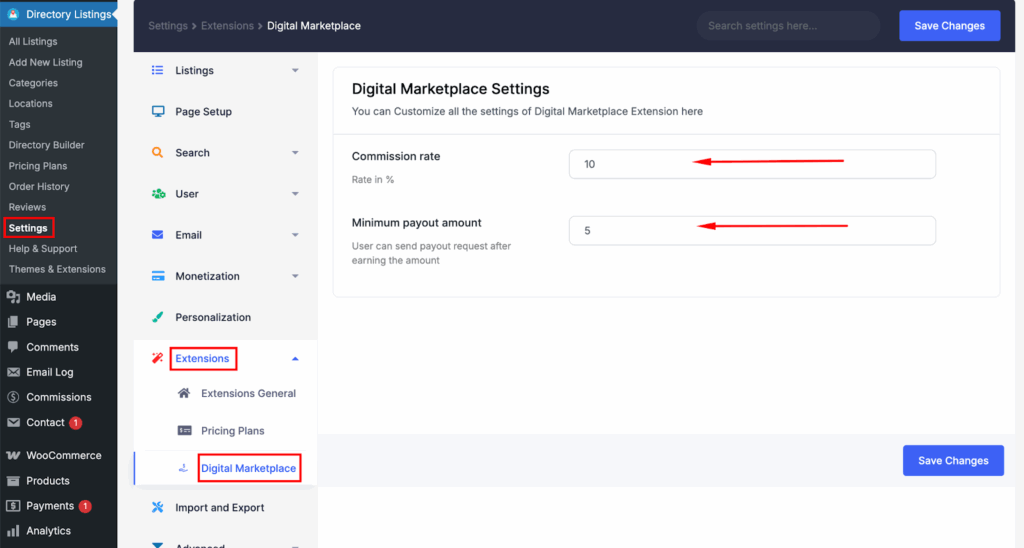
1. Commission rate: You can set the admin commission rate. For example, suppose you have set the commission rate to 10%, and a digital product worth $100 gets sold. The listing owner will get $90 and a $10 commission will be credited to the admin.

2. Minimum payout amount: You can choose a minimum payout amount to hold author funds until their total payout amount matches or exceeds the amount you’ve set. For example, if you have set the minimum payment amount as $50, the author will have to wait to request a payout until their earnings reach $50.

Builder Setup #

Follow these steps to configure and display the Digital Marketplace feature effectively within your directory builder:

1. Add File Upload to Add Listing Form:

  • Path: Directory Builder > Add Listing Form
  • Drag the File Upload custom field from Preset Fields into your preferred position.
  • Then click on the arrow ⬇️icon to see the “Digital Download“options.
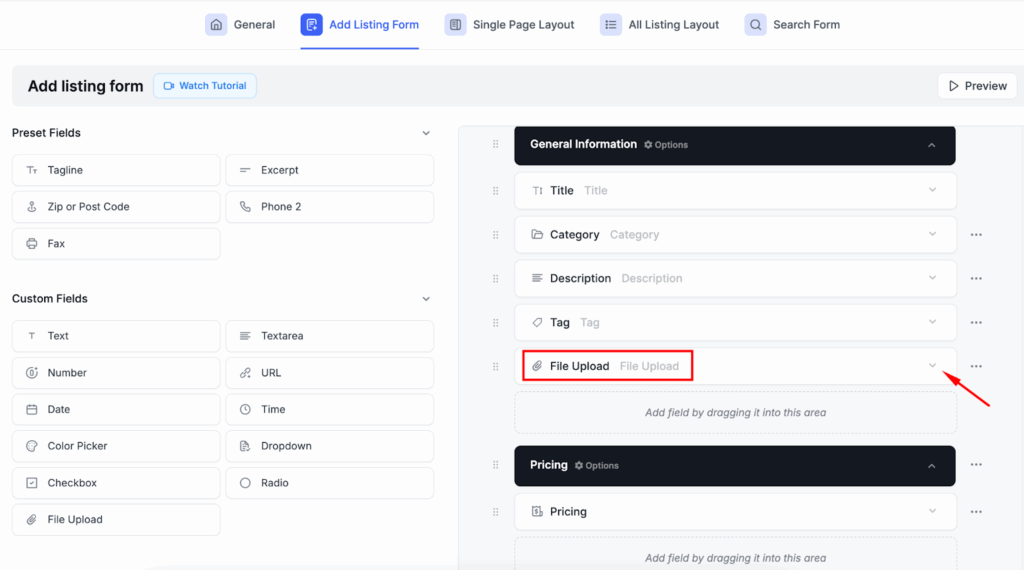
  • After click on the arrow icon you can see the “Digital Download“. Just click on toggle button it to enable the features. 
  • Enabling it will reveal 4 new options related to the marketplace.
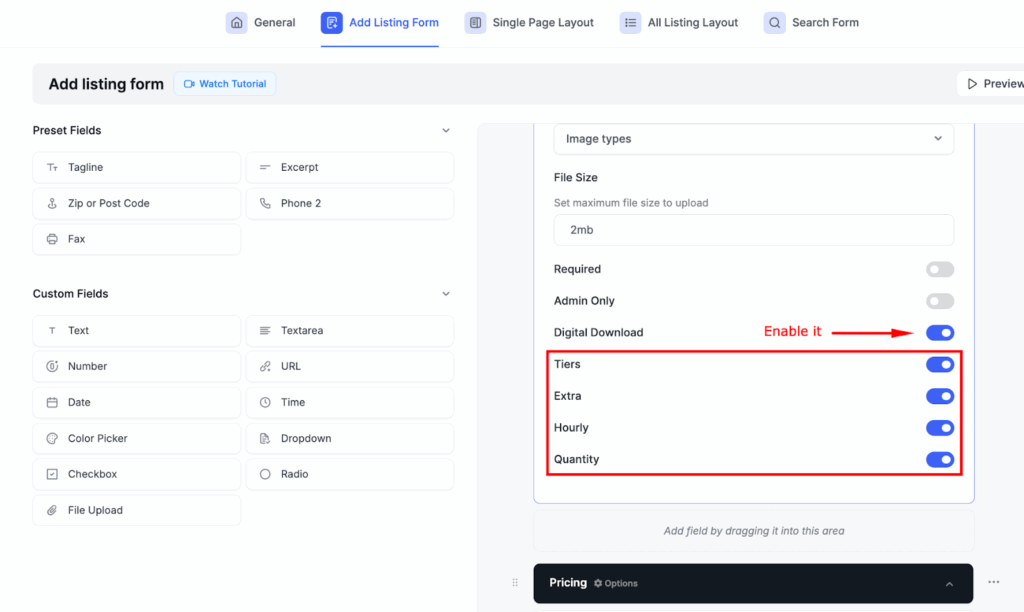
  • Tiers: It enables you to offer multiple product or service options to your customers, each with appropriate pricing.
  • Extra: Option to add unlimited extra paid services to the download. 
  • Hourly: Ability to check if the service/payment is hourly. 
  • Quantity: Option to set the number of items the user tends to purchase.

2. Show on Single Listing Pages:

  • Path: Directory Builder > Single Page Layout > Contents
  • Drag the Business Hours block into your desired position.
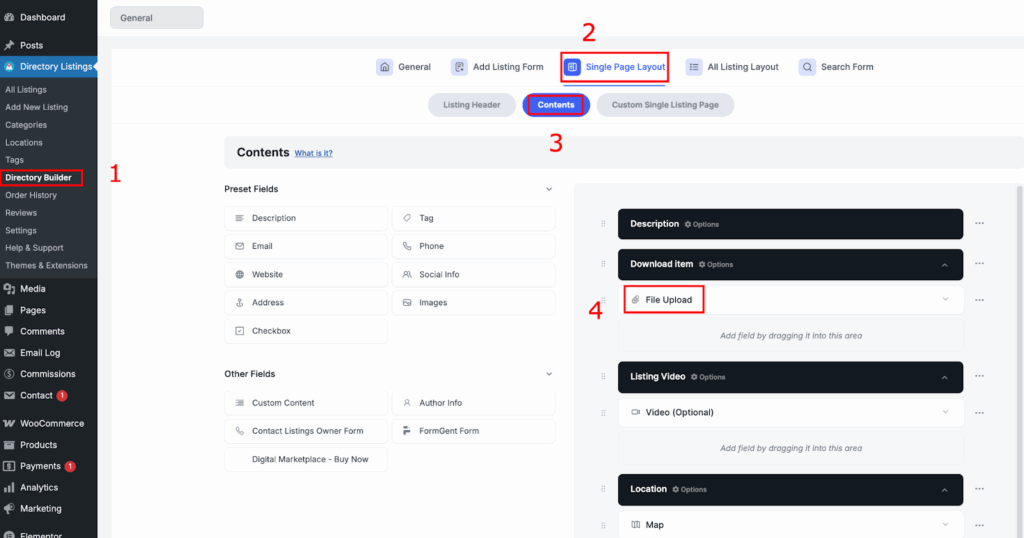
Sidebar setup #

After activation, the Business Hours widget should appear automatically in the Directorist Right Sidebar.

If not:

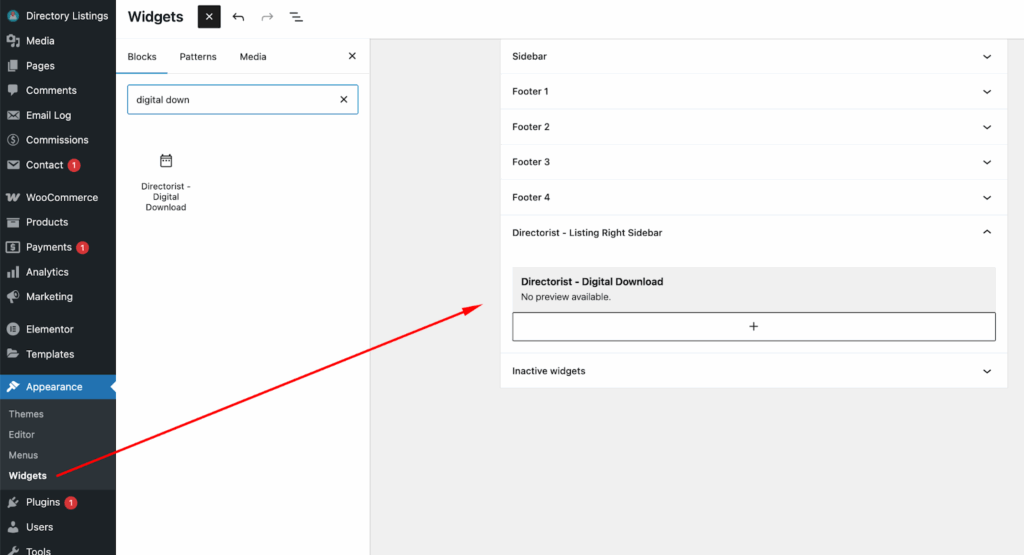
  1. Go to: Appearance > Widgets
  2. Click the “+” icon, search for Digital Downloads, and add it to the Directorist Right Sidebar.
  3. Drag to reorder if needed.

Creating a Digital Download File:
In the “Add listing form” at the “File upload field” users will have an extra toggle bar named “Digital Download”.
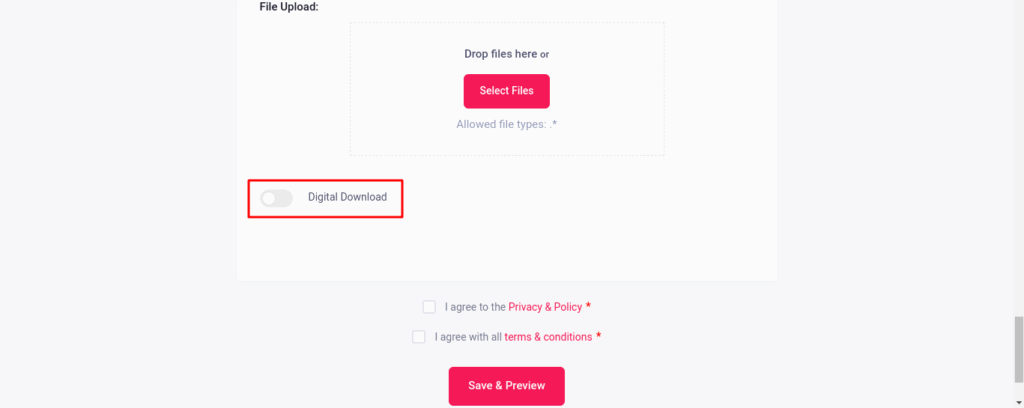
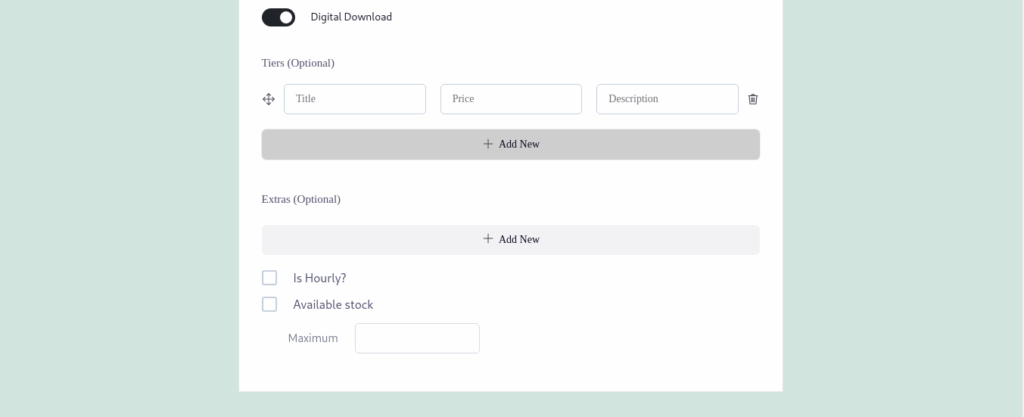
This option contains 4 fields. 

Tier: Users can add as many tiers as they want in their listings. In each tier, they have to input the title, price, and description

Extras: Users can add as many extras as they want. In each extra, they can input the title, price, and description. 

Is Hourly: This option will let users set the price hourly. If this option is checked, the price will be shown per hour. Availability Stock: Users can also set the available stock for their listing tier.
Buying a Digital Download File:

The end users will be able to buy the uploaded file from a listing.
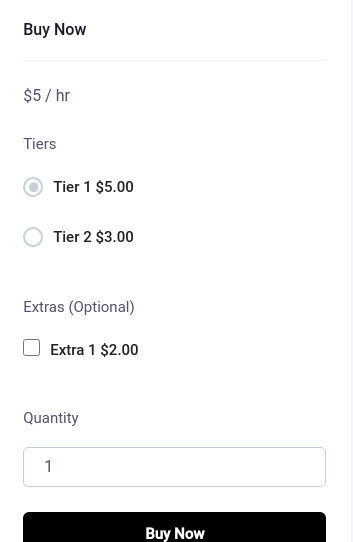
End users/Buyers can choose any tier that the vendors provided. The price will be set according to the tier. If no tier is created by the listing owner, then the listing price from the price field will be set there. Moreover, users can also choose extra and quantity.

Checkout:
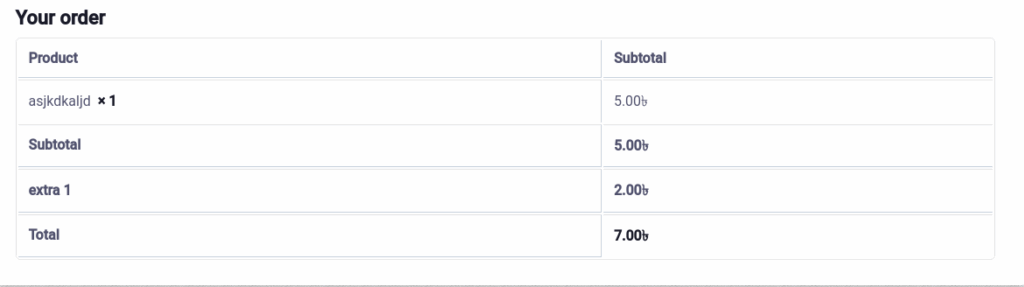
After clicking the “Buy Now” button, users will be redirected to the checkout page of Woocommerce. Their users have to provide the Billing Details and will be able to see the order Details.
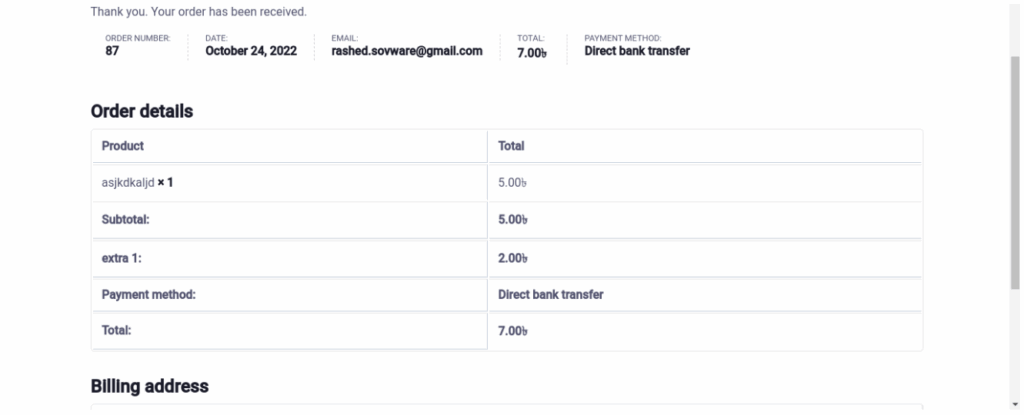
Then after placing the order users will be redirected to the order confirmation page, where users will be able to see the Order details and Billing address details.
Order process:

After an order is placed by the end users the listing owners will receive the earnings and moderate it from the User dashboard> Wallet
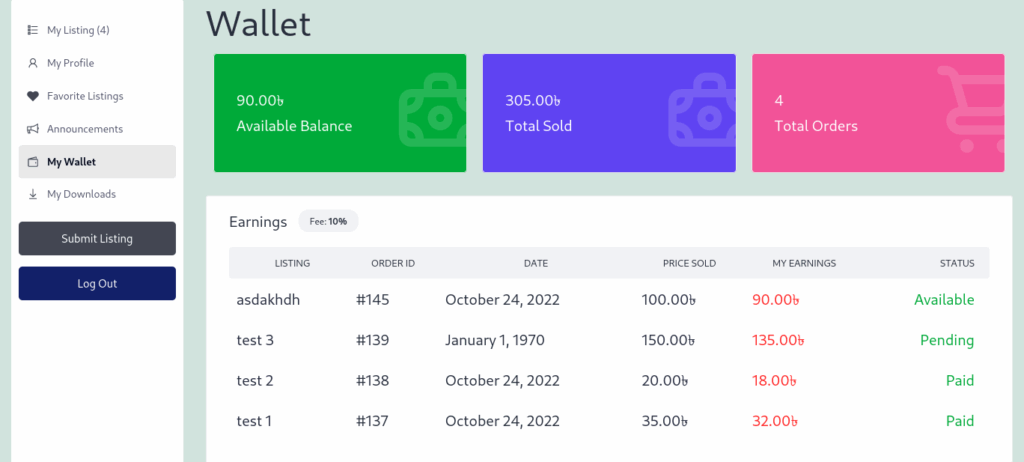
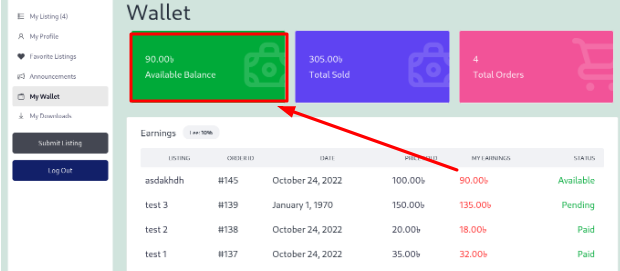
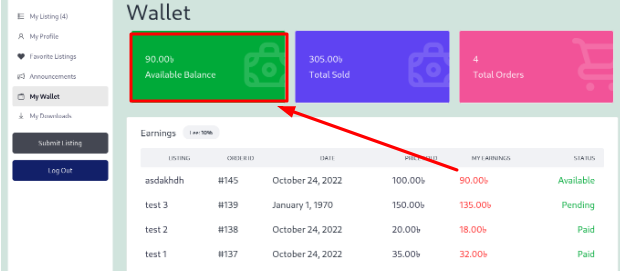
At the first part of the My Wallet, the Authors/Vendors will see their Available balance, Total sold, Total Order and Earnings.

You can see that the earning status is pending/paid/Available. Let us give a short brief on that.

Available: When an order is placed by the End users/Buyers, the earning status will be Available.

Pending: When a placed order is completed by the Admin from Woocommerce> Orders, the earning status will be Pending.

Paid: When a payout request is marked as paid by the admin, the status will be Paid. To complete the order, the admin has to navigate to Woocommerce> Order
Then if the order is received properly by the admin then he/she will make the order complete.
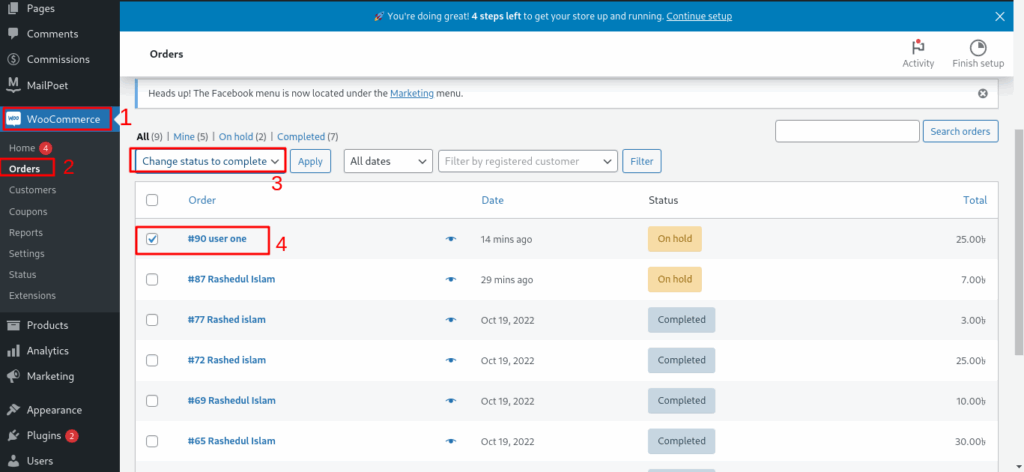
After the order is being completed by the admin, the vendors will be able to see their available balance and the Earning status will be changed from Pending to Available.
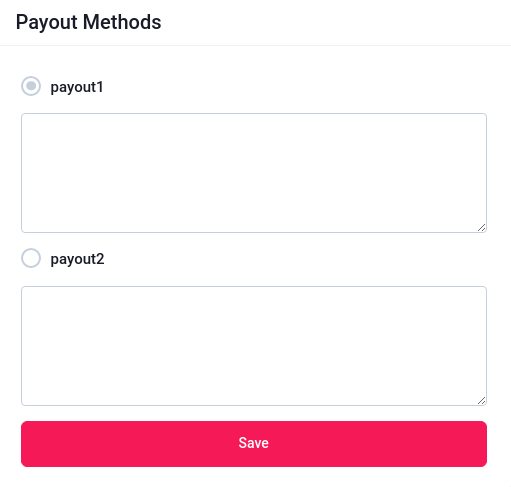
Payout Methods: After an order is completed by the admin then the listing owner/vendor can ask for a payout from the Admin according to the payout methods which are determined by the Admin.
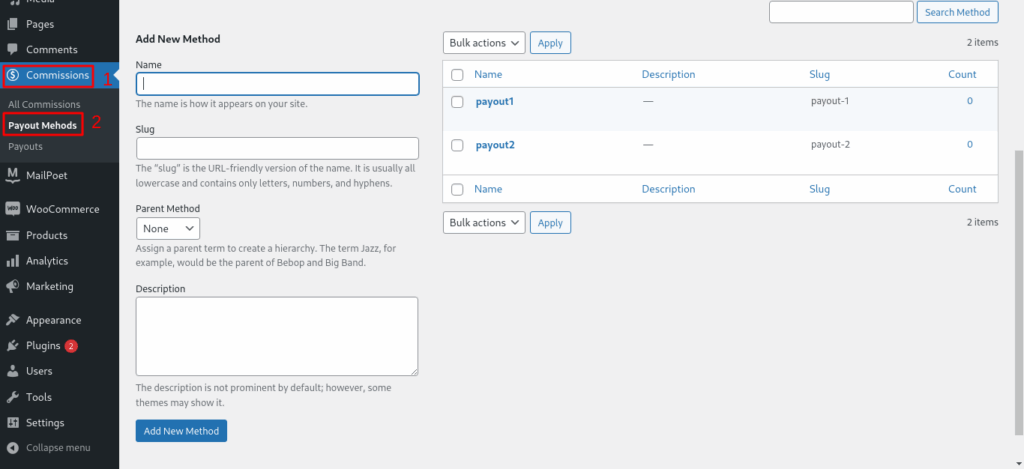
The admin can create the payout methods from Commission> Payout Methods.
After the listing owner/vendors ask for a payout with one of the payout methods, the Admin will receive the payout request in the Commission > Payouts
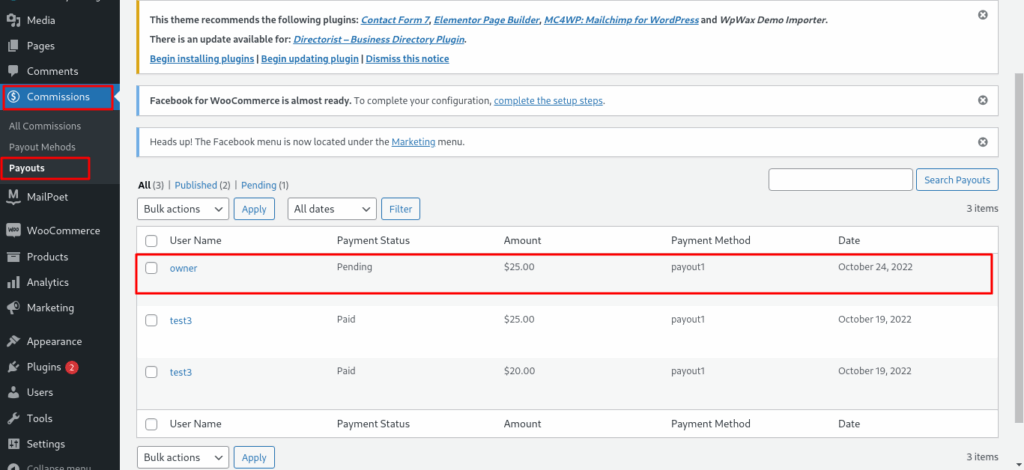
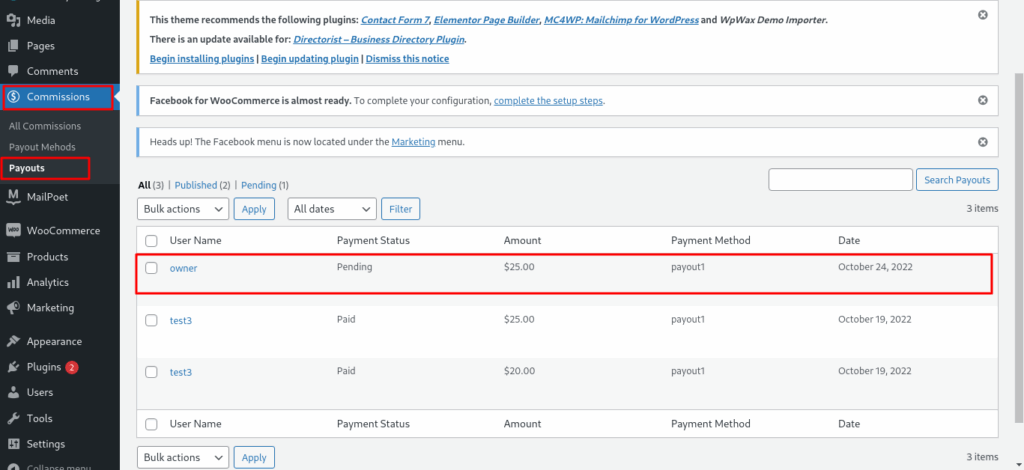
You can see that the payout status is pending. The admin will make the payment to the listing owner and will edit the payout to change the payout status.
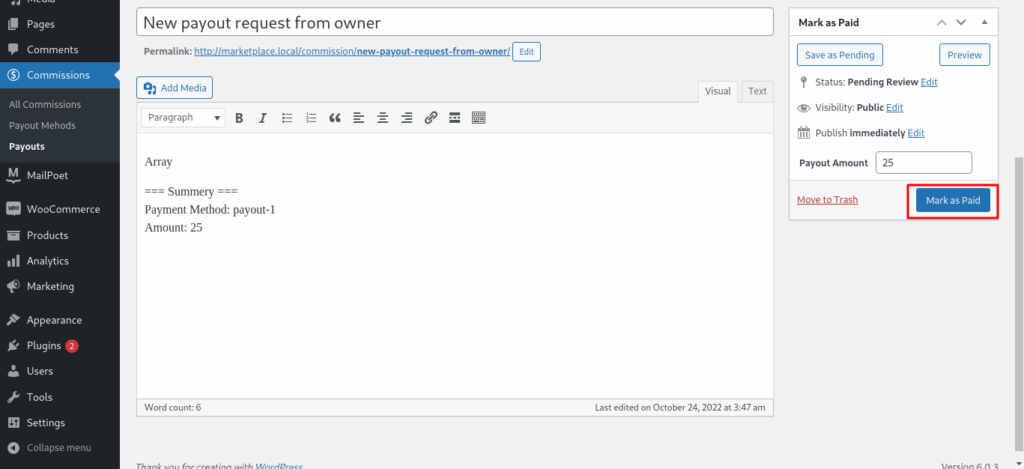
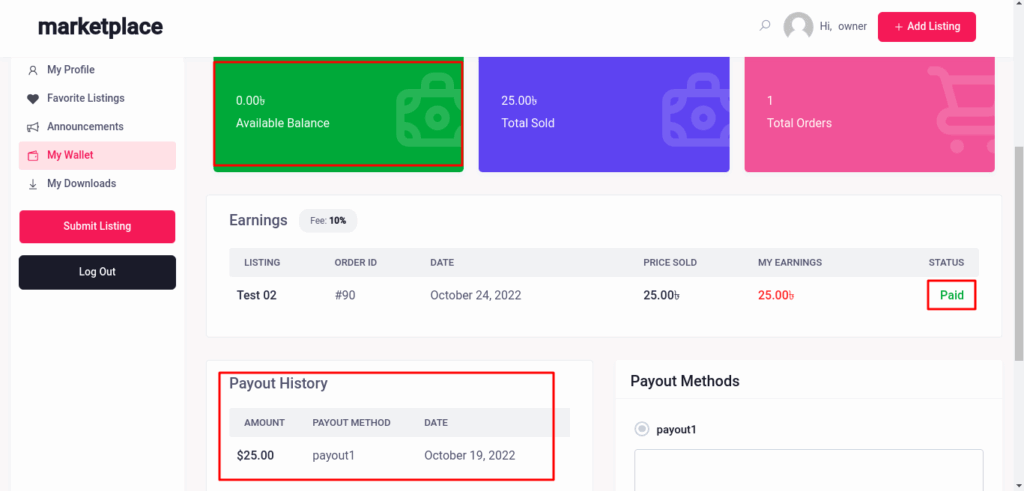
After the payout is marked as paid, the listing owner/vendor will see 3 changes in the User dashboard> Wallets.

As the payout is paid, so the earning status will be changed from Available to Paid. The payout price will be deducted from the available balance because the payout is paid so there will be no available balance in the wallet. 

The listing owner will be able to see the payout history. 
End Users/Buyers: The end users will be able to download the files from the User Dashboard> My downloads.

Before the order is completed by the Admin, the end users will not see anything in User Dashboard> My Downloads.
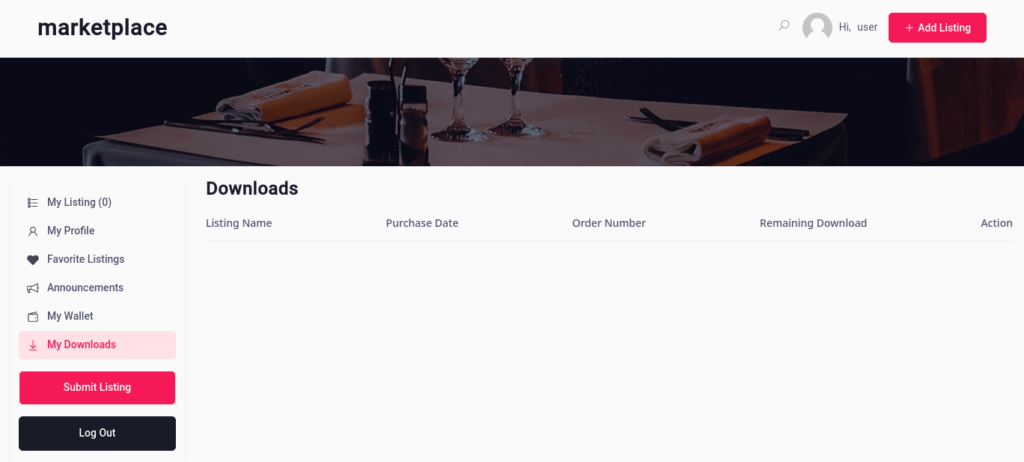
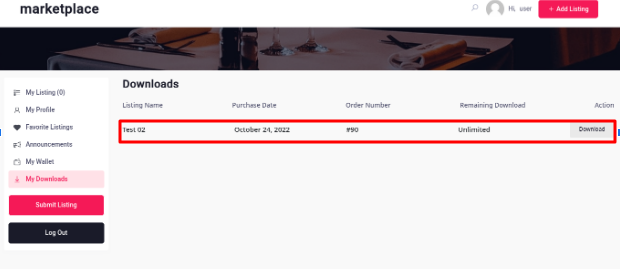
After the order is completed, the end users will be able to see the download option in their My Downloads from where they can download the files by clicking the Download button.
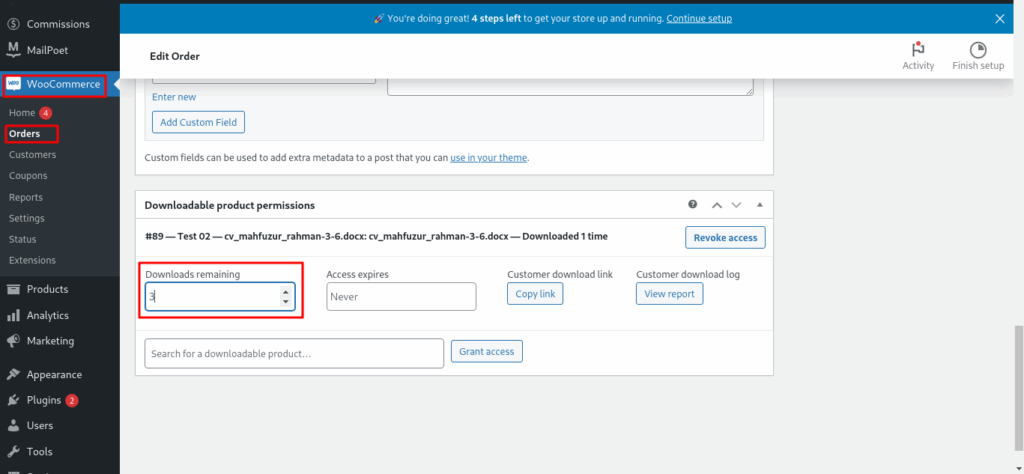
Admin can set the download limit from by editing the Order(Woocommerce>Order).
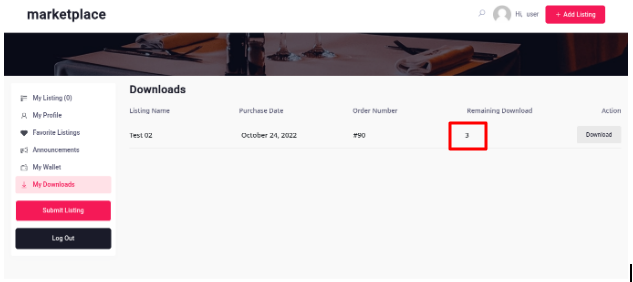
As a result, the end users will be able to download the files that specified number of times.
Commission: Admin can collect the commissions from each order. The commission amount will be set in the Settings, which has been shown earlier in the settings section. After making the order complete from the Woocommerce> Order, the commission will be listed in the WP Dashboard> Commissions> All commissions.
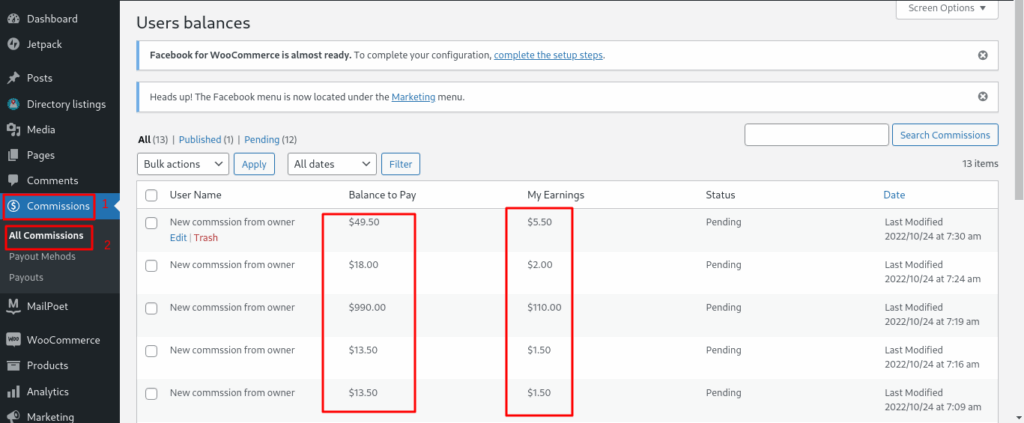
Admin can check the amount of Balance to pay and earnings for each order. 

What are your Feelings

Share This Article :

  • Facebook
  • X
  • LinkedIn
  • Pinterest
Still stuck? How can we help?

How can we help?

Updated on Jul 19, 2026 10:48 am
Listings with MapJob Manager
Table of Contents
  • Overview
  • Key Features
    • Installation & Configuration
    • Builder Setup
    • Sidebar setup
Directorist Directorist

Directorist

  • Integrations
  • Extensions
  • Mobile App
  • Roadmap
  • Features
  • Client Showcase

Themes

  • OneListing (FREE)
  • dClassified
  • dRestaurant
  • dRealestate
  • More

Quick Links

  • Custom Development
  • Documentation
  • Directory Ideas
  • Affiliate Program
  • Support Policy
  • Refund Policy
  • Done For You

Products

  • FormGent
  • HelpGent
  • Legal Page
  • Logo Showcase
  • More

Keep Updated

Subscribe to our email newsletter to receive updates.

Subscribe to our newsletter
A Product of
© Directorist 2026. All rights reserved.
  • Privacy Policy
  • Terms & Conditions
We use cookies to ensure the best browsing experience.