

Applies to: OneListing-Pro (premium). For the free OneListing theme, most steps are similar but some features/extensions are not included.
Quickstart (10 minutes) #
- Install Theme: Appearance → Themes → Add New → Upload and upload onelisting-pro.zip. Activate.
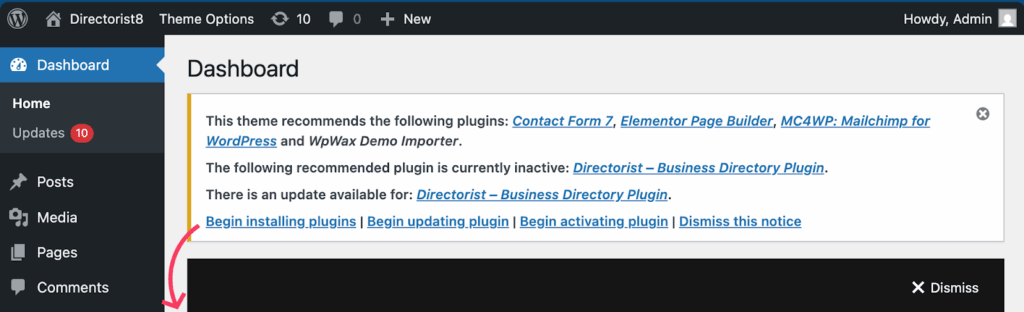
- Install Required Plugins: Appearance → Install Plugins → install/activate: Directorist and Elementor (required).
- Install Recommended Extensions (optional): Business Hours, Listings with Map, Social Login, Pricing Plans, Booking, Claim Listing, PayPal, Stripe, Contact Form 7, Mailchimp for WP.
- Import Demo: Tools → Demo Content Install (or Plugins → WpWax Demo Importer → Install Demo Contents).
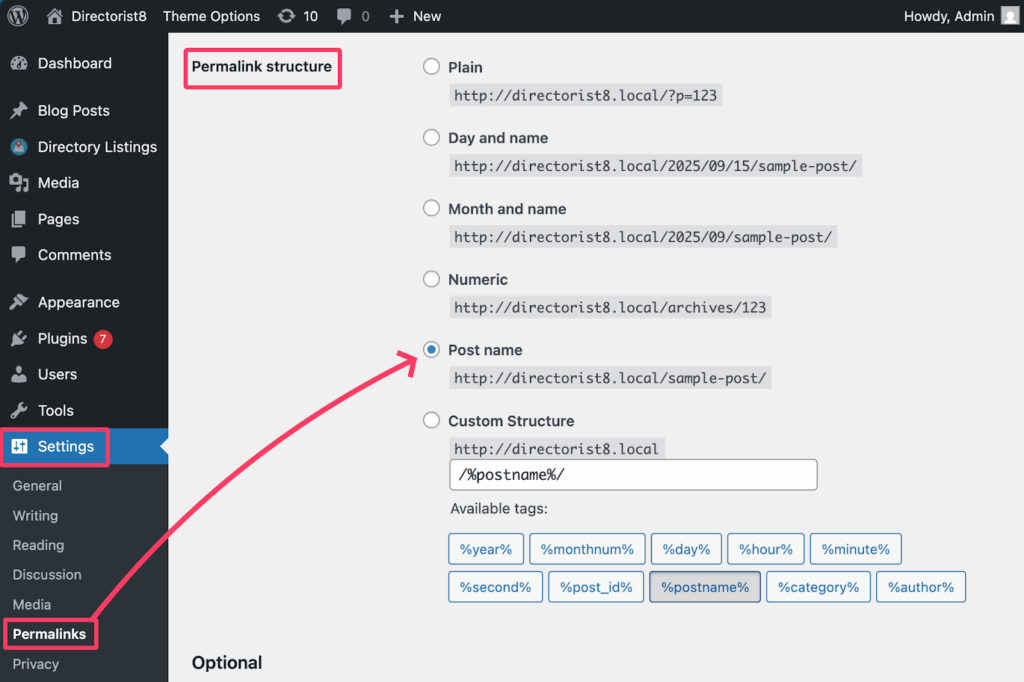
- Flush Permalinks: Settings → Permalinks → Save (no change needed).
- Set Menus & Widgets: Appearance → Menus (assign Primary), Appearance → Widgets (Footer widgets).
- Tweak Directory Builder: Directory Listings → Directory Builder (configure Add Listing, Single, All Listings, Search Forms).
- Launch.
Getting Started with Themes #
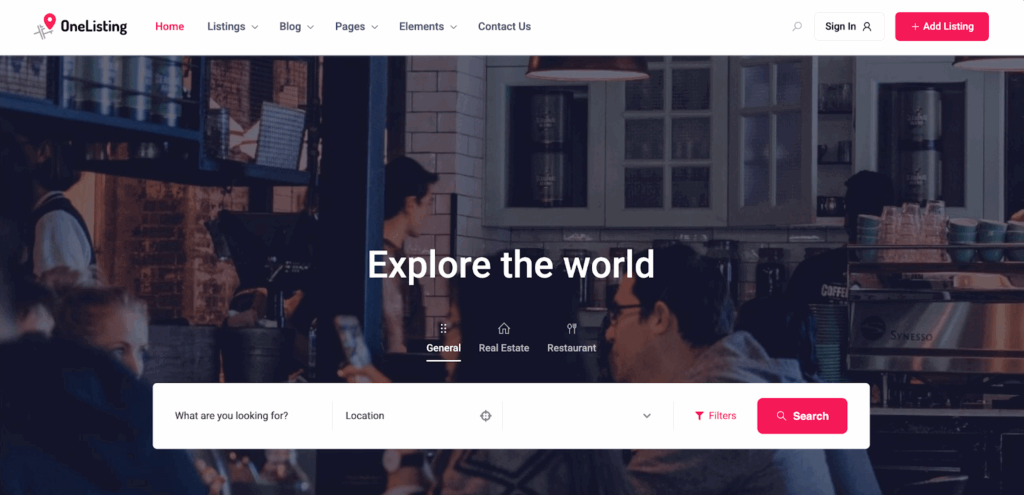
onelisting-pro is a general‑purpose directory theme for Directorist. It ships with a modern design, Elementor compatibility, and pre‑built directory layouts. The theme relies on the Directorist plugin and optionally on several official extensions for monetization, booking, maps, etc.
Overview of Our Themes #
Directorist offers multiple themes (e.g., OneListing (free), onelisting-pro, dList, dPlace, dCar, dRealEstate, etc.). onelisting-pro is the flexible, all‑rounder choice suitable for business directories, services, real estate, classifieds, and events.
Requirements #
WordPress: 5.0+ (latest stable recommended)
PHP: 7.2+ (7.4+ recommended for performance)
Database: MySQL 5.6+ or MariaDB 10.0+
Memory: WordPress memory limit 512MB+
Web server: Apache/Nginx with pretty‑permalinks enabled
SSL: Strongly recommended for payments and logins
Tip: Ask your host to increase memory_limit, max_execution_time (300s), upload_max_filesize (64M+), and post_max_size (64M+) if demo import times out.
Theme Installation Guide #
A) Through WordPress #
- Download the theme installation file from the download section of the dashboard page of the Directorist website. You need to login to the dashboard first.
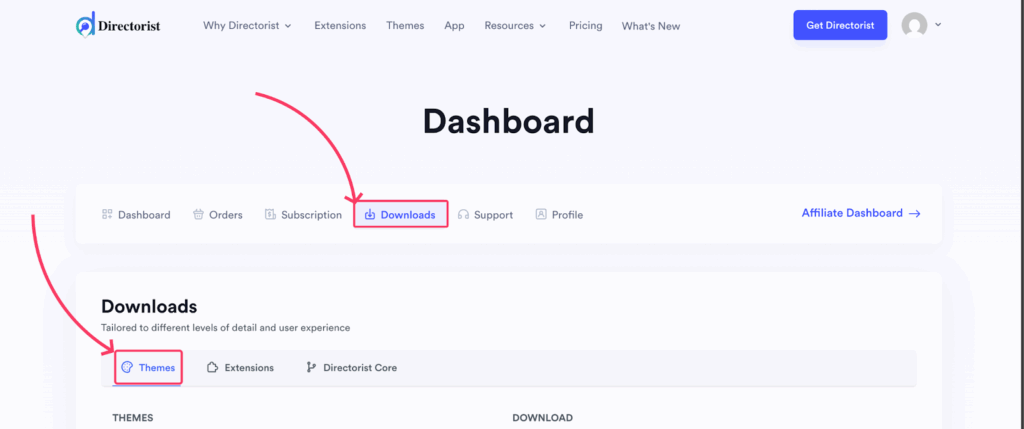
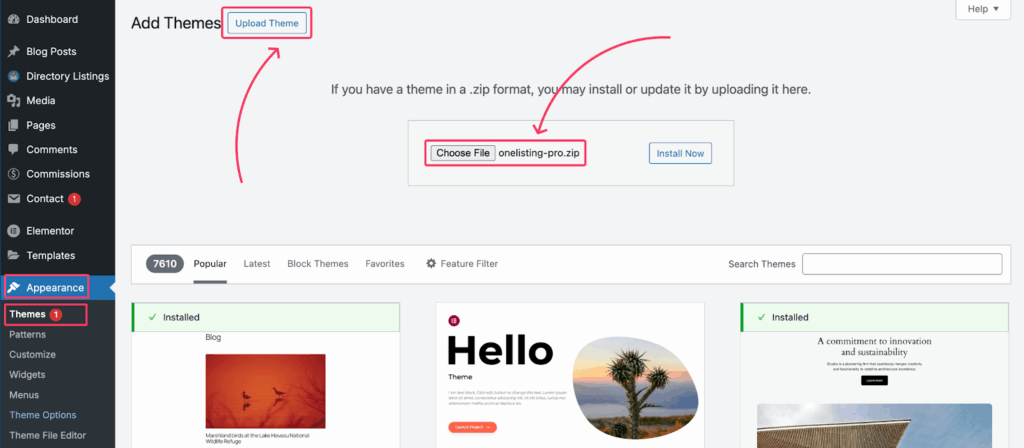
- Go to the admin panel of your website now, then navigate to Appearance → Themes → Add New → Upload Theme.
- Select onelisting-pro.zip → Install Now → Activate.
B) Through FTP/SFTP #
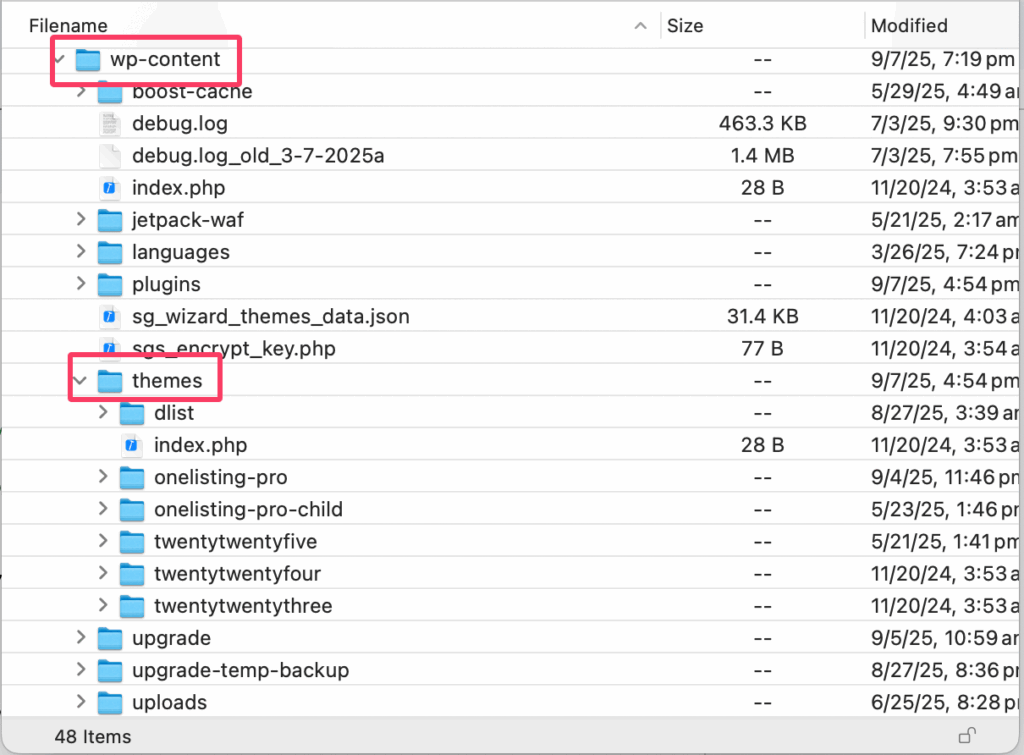
- Extract onelisting-pro.zip locally.
- Upload the theme folder to /wp-content/themes/
(e.g., /wp-content/themes/onelisting-pro/). - Go to Appearance → Themes and Activate.
Install Prepackaged Plugins — Full list #
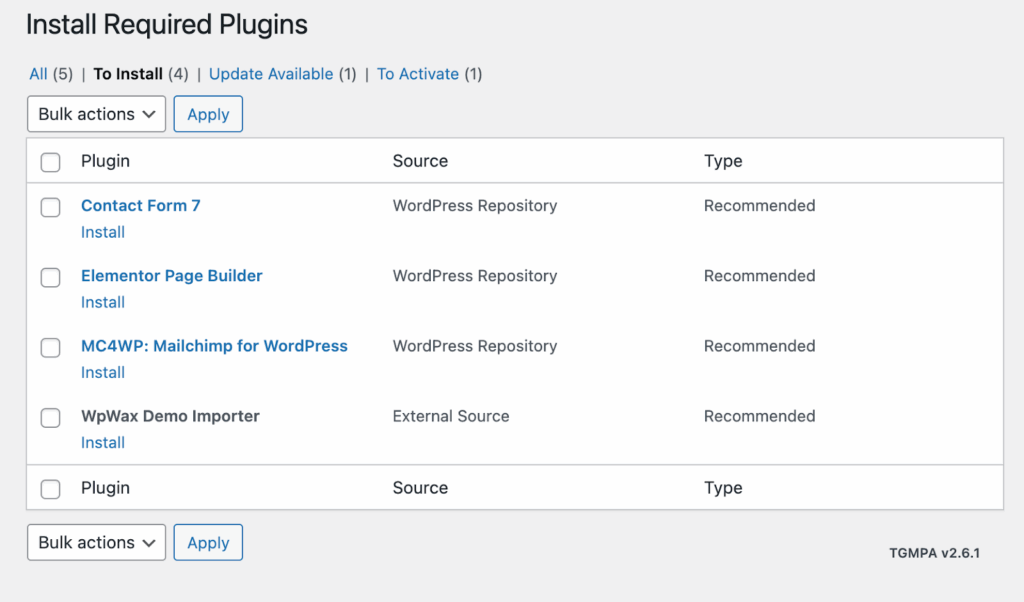
Go to Appearance → Install Plugins and install/activate:
- Required: Directorist, Elementor
- Demo: WpWax Demo Importer (deactivate after import)
- Utilities: Contact Form 7 (contact forms), MC4WP: Mailchimp for WordPress (newsletter)
- Optional Directorist Extensions: Please navigate to Directory listings > Themes & Extensions > Required Extensions and install/activate Business Hours, Listings with Map, Social Login, Pricing Plans, Booking, Claim Listing, PayPal Gateway, Stripe Gateway and other required extensions.
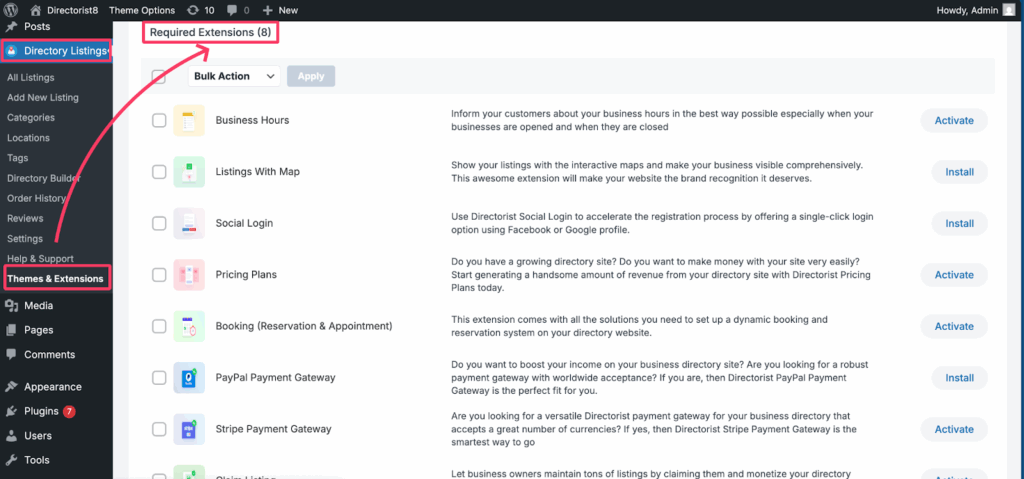
Note: Install all of the above to mirror the demo exactly.
#
Demo Content Import Guide #
A) One‑Click Import (Recommended) #
- Ensure all required/recommended plugins are active.
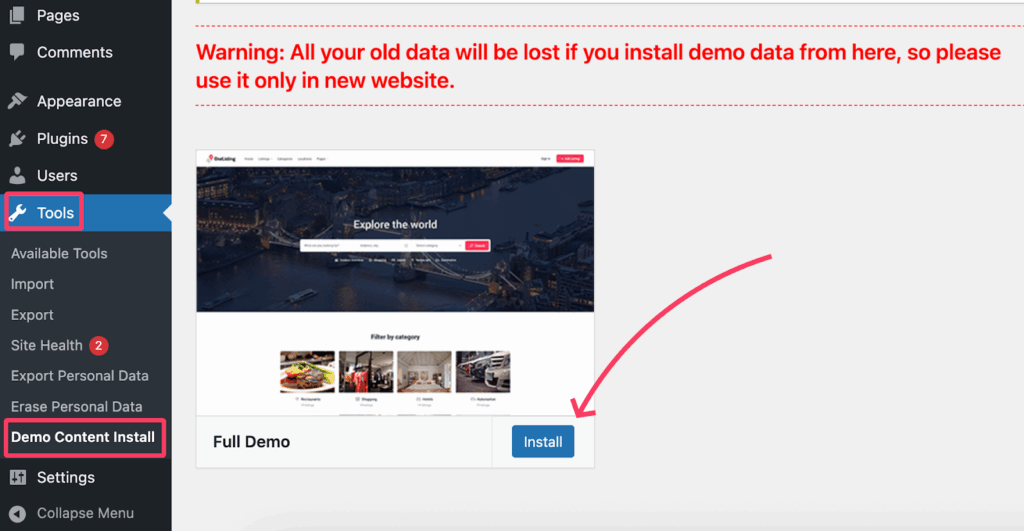
- Go to Tools → Demo Content Install (or Plugins → WpWax Demo Importer → Install Demo Contents).
- Click Install and wait for completion.
- Flush Permalinks: Settings → Permalinks → Select “Post name” → Save.
B) If Installation Fails #
- This is usually hosting‑level timeouts/limits. Try:
- Increase PHP limits (memory_limit, max_execution_time, upload_max_filesize, post_max_size).
- Clear browser/server caches and retry.
- Use a fresh site (import overwrites existing data).
- Increase PHP limits (memory_limit, max_execution_time, upload_max_filesize, post_max_size).
- Fallback (Manual Import): Use the One Click Demo Import plugin to import content.xml, widgets.wie, customize.dat; then paste the additional settings via Directorist → Settings → Import/Export → Import.
- Still stuck? Open a ticket with hosting or contact theme support (see Contact).
Warning: Demo import replaces content/settings. Use only on new sites.
Listing Setup #
- Run Directorist Setup: Directorist → Setup Wizard to create essential pages and defaults. [Directorist Core Doc link]
- General Pages: Verify Directory Listings → Settings → Pages, Links & Views are mapped (Add Listing, All Listings, Dashboard, Search, etc.). All Pages should be mapped perfectly. [Directorist Core Doc link]
- Monetization: Install Pricing Plans (WooCommerce or built‑in), configure plans and checkout pages. [Directorist Core Doc link]
- Maps: Install Listings with Map, add API keys (Google Maps/Mapbox) under Directorist → Settings. [Directorist Core Doc link]
- Booking/Appointment: Install Booking and configure availability calendars and slots. [Directorist Core Doc link]
- CSV Import (Migration): Directory Listings → Settings → Tools → Listings Import to bulk import listings from CSV. [Directorist Core Doc link]
- Email & Auth: Configure Social Login and email templates for submissions, approvals, expirations. [Directorist Core Doc link]
Appearance Settings #
Customization #
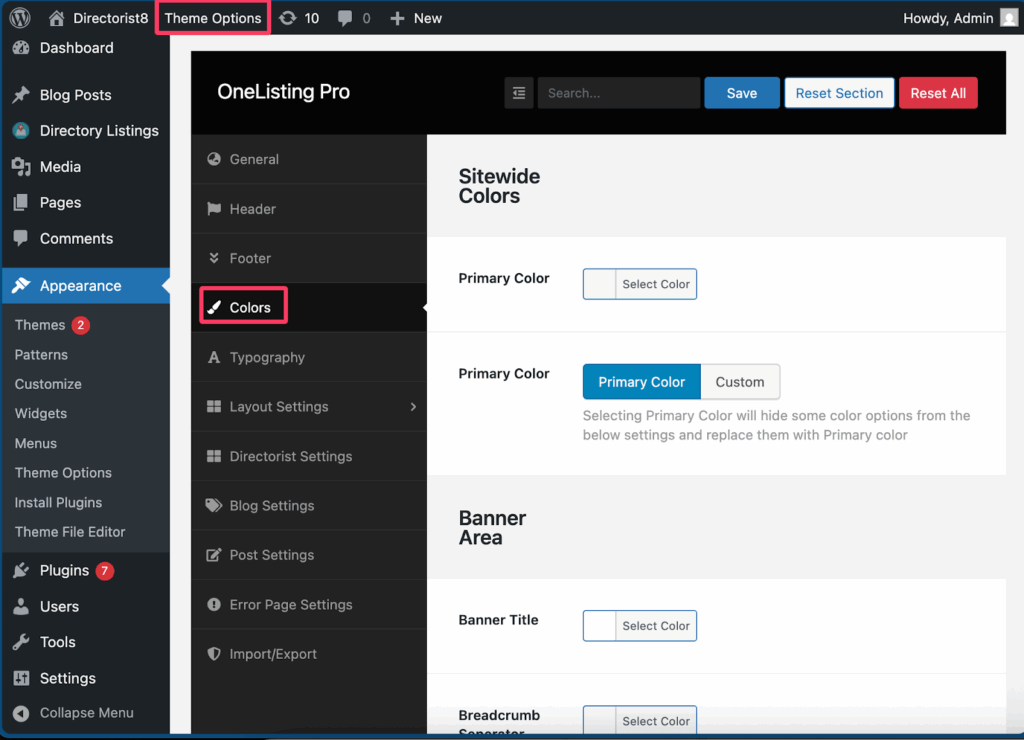
- Colors: Appearance → Theme Options → Colors. Choose preset or primary color and component colors.
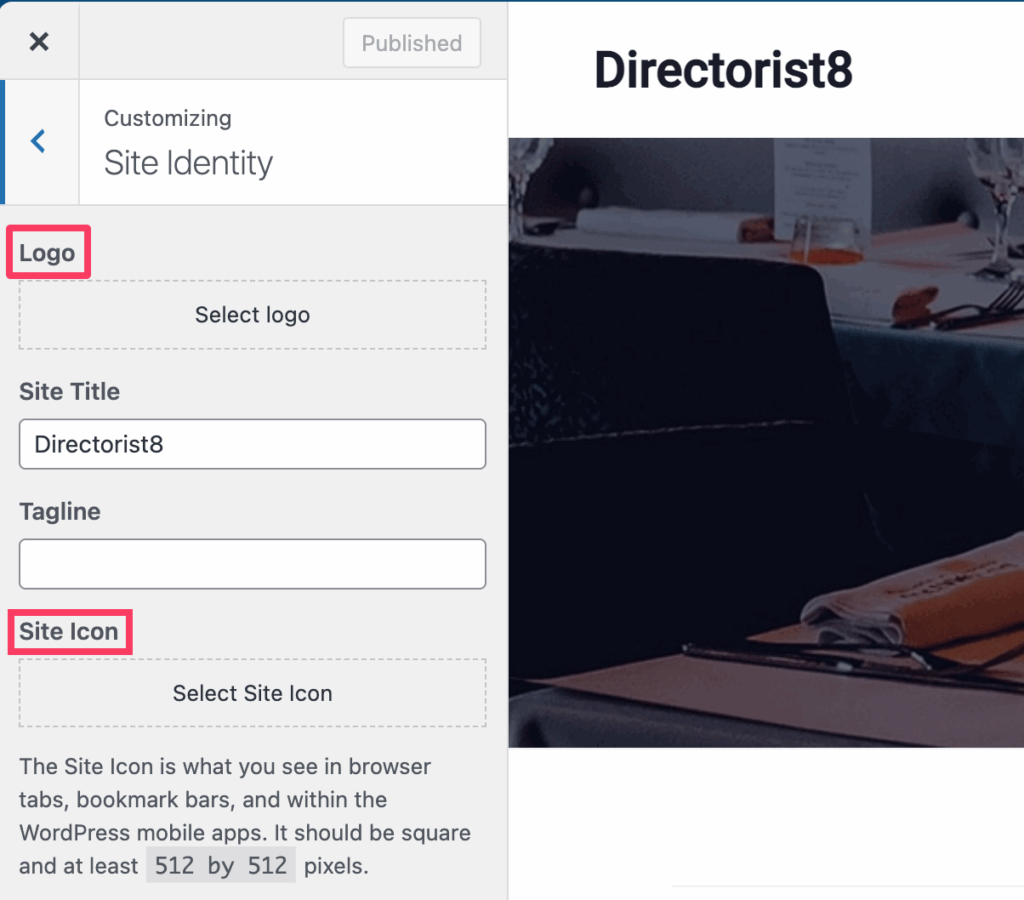
- Logo & Site Identity: Appearance → Customize → Site Identity. Upload logo, set Site Icon (favicon).
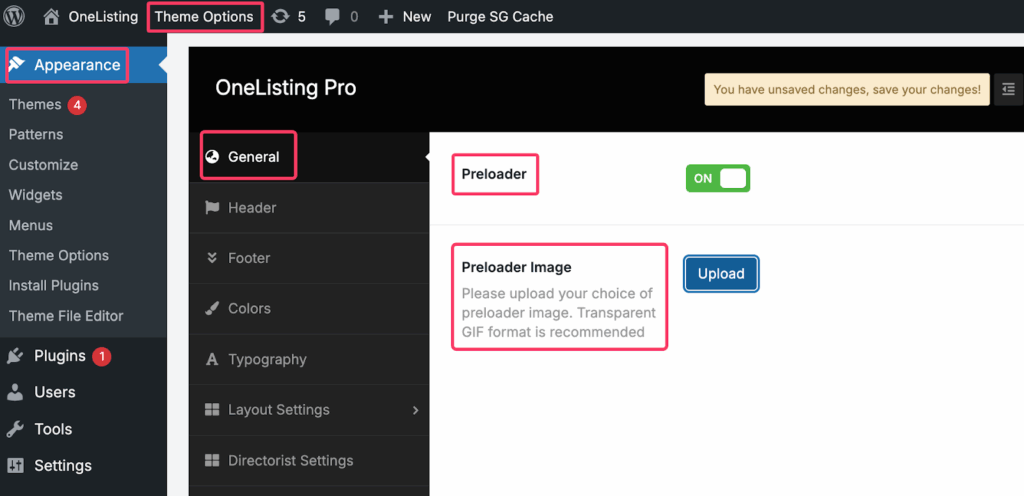
- Preloader: Theme Options → General. Enable/disable; upload transparent GIF if custom.
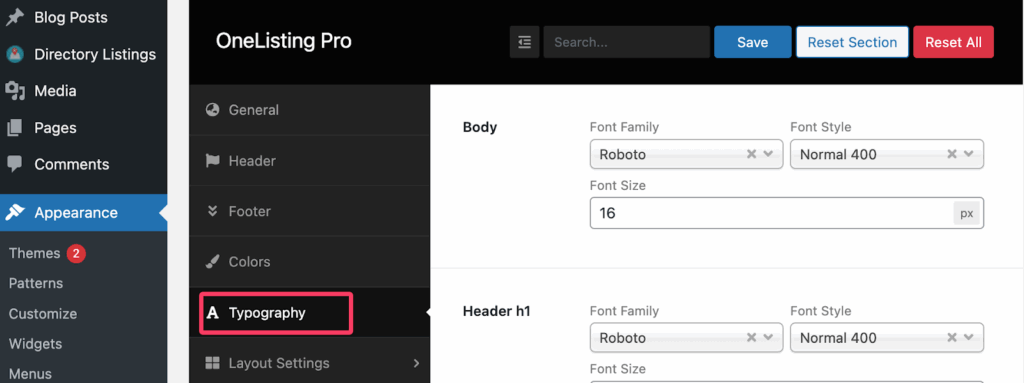
- Typography: Theme Options → Typography. Set body and heading fonts/sizes.
Menu #
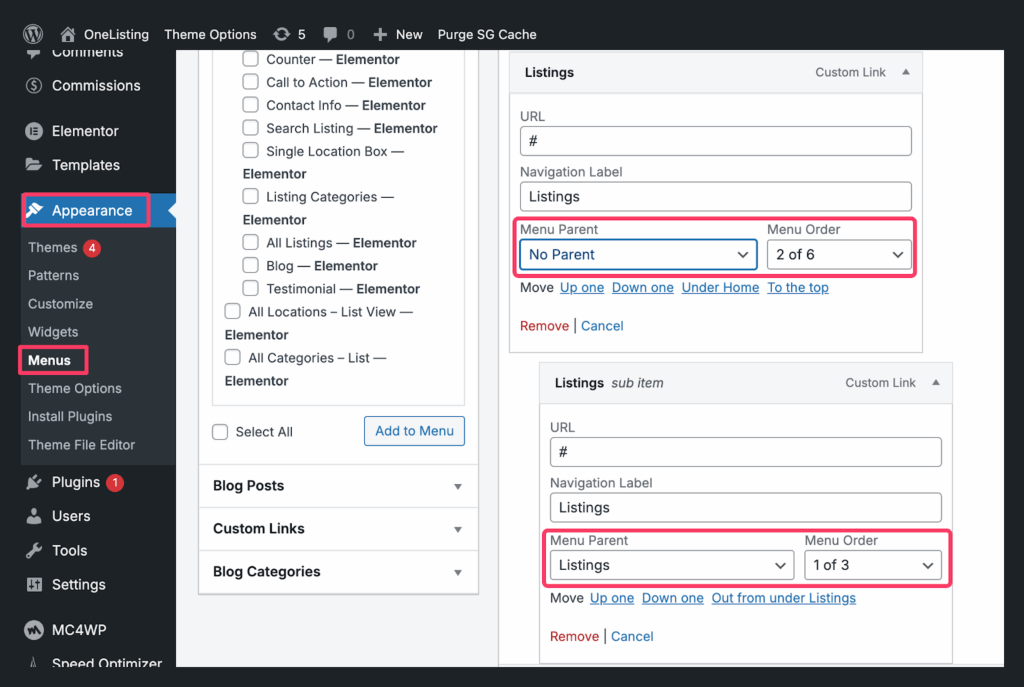
- Create menus at Appearance → Menus. Assign Primary location.
- Multi‑Column Menu: Please select the Menu Parent and Menu Order to manage the multi column menu properly.
Widgets #
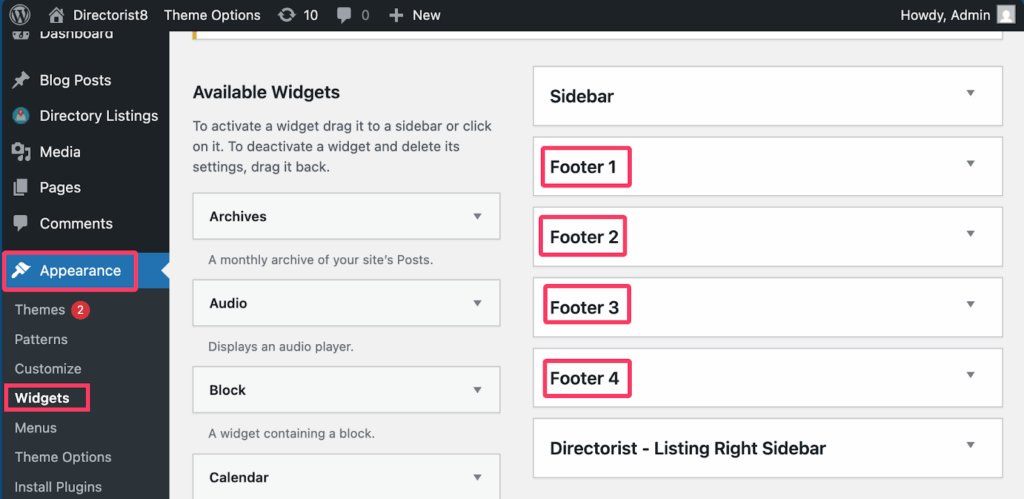
- Footer widget areas are available under Appearance → Widgets. Drag widgets to the desired footer columns.
Theme Options (explain all major tabs) #
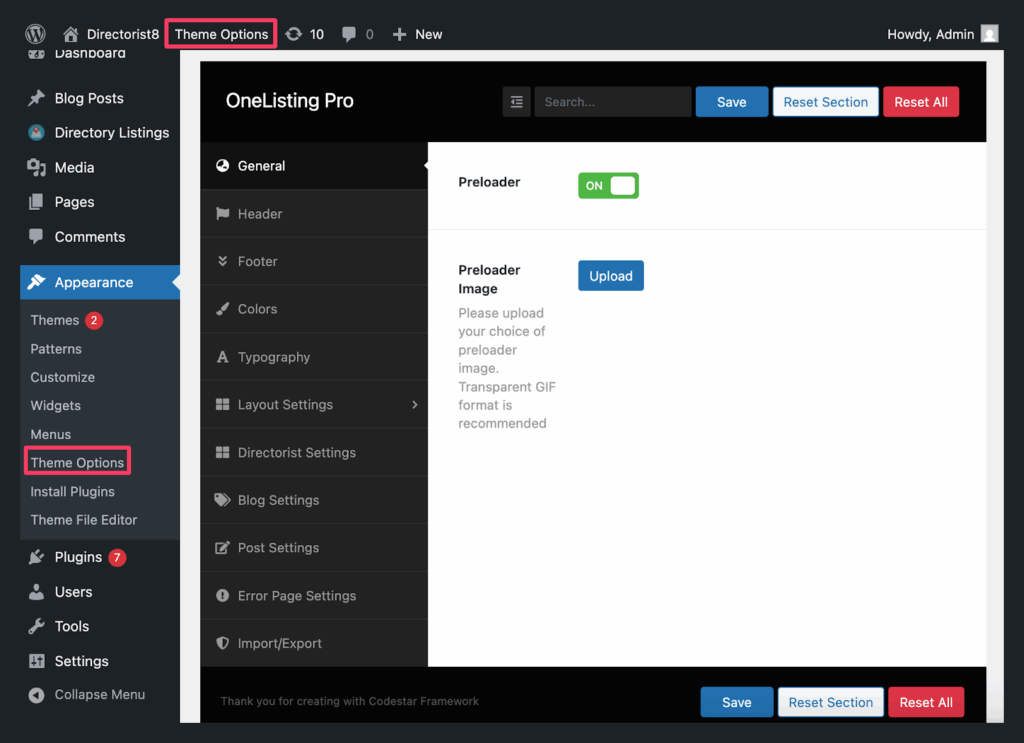
- General: Preloader toggle and you can upload a custom preloader gif image.
- Header: Choose header layout; toggle Header Search, Account, “Add Listing” button; configure global Banner (can be overridden per page).
- Layout Defaults: Set container width, sidebar positions, banner visibility, page/blog/post defaults.
- Blog Settings: Configure archives (layout, meta, excerpt, read‑more).
- Post Settings: Configure single posts (featured image, meta visibility, next/prev).
- Error Page Settings: Customize the 404 page (title, message, button).
Builder Settings (Directory Builder) #
Configure under Directory Listings → Directory Builder.
Add Listing (Form Builder) #
- Drag & drop default and Custom Fields into the Active Fields area.
- Mark fields Required, set visibility, placeholders, validation, and conditional logic (where applicable).
- Tip: To display a custom field on the single listing page, also add that field to Single Page Layout → Content (see below).
All Listings (Archive / Card Layout) #
- Customize All Listing Grid and List card designs under All Listing Layout.
- Add/remove card elements (thumbnail, title, rating, price, categories, location, favorite, badges).
- Configure the order and visibility per view for consistent UX.
Single Listing (Detail Page) #
- In Settings → Personalization, you may choose the Directorist Custom template for Single Listings.
- In Single Page Layout, arrange Header, Content (sections like Description, Gallery, Video, Amenities, Map, Reviews, Author, Contact), and Sidebar blocks.
- Surface any Custom Fields needed in the Content section.
Search Form #
- Build Basic and Advanced search forms under Search Forms.
- The Basic bar can include multiple fields (not just Text/Category/Location).
- Add field groups (price range, tags, custom meta) and ordering.
- Keep Basic minimal and push refinements into Advanced for speed.
Explain Child Theme #
Using a child theme preserves your customizations during parent theme updates.
Option 1 — Use the packaged child (if provided) #
- Upload onelisting-pro-child.zip via Appearance → Themes → Add New → Upload.
- Activate onelisting-pro Child.
- Keep the parent onelisting-pro installed (not active). Your edits go into the child theme.
Option 2 — Create a child theme manually #
/wp-content/themes/onelisting-pro-child/style.css
/*
Theme Name: onelisting-pro Child
Template: onelisting-pro
Text Domain: onelisting-pro-child
*/
/wp-content/themes/onelisting-pro-child/functions.php
<?php
add_action(‘wp_enqueue_scripts’, function () {
// Load parent and then child style
wp_enqueue_style(‘parent-style’, get_template_directory_uri() . ‘/style.css’);
wp_enqueue_style(‘child-style’, get_stylesheet_uri(), [‘parent-style’], wp_get_theme()->get(‘Version’));
});
Zip the onelisting-pro-child folder and upload via Appearance → Themes → Add New → Upload.
Option 3 — WP‑CLI #
wp scaffold child-theme onelisting-pro-child –parent_theme=onelisting-pro
Where to customize? Add templates, CSS/JS, and snippets to the child theme. Avoid editing the parent theme directly. Follow Directorist Customization Guide.
Translating Theme #
Use Loco Translate to localize:
- Install & activate Loco Translate.
- Loco Translate → Themes → onelisting-pro → New language → choose language and location (System).
- Click Sync once, then translate strings.
- Repeat for Plugins (Directorist + installed extensions) to translate interface strings across the site.
Updating Theme #
- Backup first (theme, plugins, database).
- Update via Upload (easiest): Appearance → Themes → Add New → Upload → select new zip → Install → Replace current with uploaded.
- Or via FTP: delete /wp-content/themes/onelisting-pro/ and upload the new folder.
- After update: update bundled plugins/extensions.
- Best practice: test updates on a staging copy before production.
Permalink Setup (fix 404) #
If you see 404 on listings or archives:
- Go to Settings → Permalinks and click Save (no changes needed).
- Ensure Directory Listings → Settings → Pages, Links & Views pages are properly assigned.
- If using multilingual or custom slugs, re‑save those settings and flush caches.
Contact #
- Product support: https://directorist.com/contact/
- Email (demo import issues): [email protected]
- Docs hub: https://directorist.com/documentation/
Appendix — Troubleshooting & Tips #
- Demo Import stalls: increase PHP limits; temporarily disable security/WAF rules; try manual import.
- Maps not showing: add API keys and enable correct map provider and billing; check console errors.
- Images look soft: use properly sized thumbnails; regenerate thumbnails after changing sizes.
- Slow directory: paginate archives; limit heavy widgets on the homepage; cache pages and enable object caching.
- Search UX: keep Basic search lean (3–5 fields); move filters to Advanced; use icons sparingly on cards.
- GDPR/Privacy: enable consent checkboxes on forms; update Privacy Policy.
- Child theme strategy: all template overrides and CSS belong in the child theme to survive updates.


