Holiday Revenue Starts Now. Save Up to 30%!

Build now. Be Ready for year-end demand.

OFFER ENDS IN

  • 00DAYS
  • 00HRS
  • 00MIN
  • 00SEC
Get Holiday-Ready →
Skip to content
  • Why Directorist
    Explore
    All Features Everything the plugin can do Solutions Directories you can build Integrations Plugins that work with Directorist Try Demo Click through real demo directories
    See the proof
    Comparison How we stack up against others Client Showcase Real sites built with Directorist
    Directorist AI
    Build your directory with AI

    Describe the directory you want and let AI build it for you.

    Try Directorist AI
  • Products
    Extensions

    Add powerful features

    Themes

    Ready-to-launch designs

    Templates

    Build pages faster

    Mobile App

    Native app for your directory

  • Resources
    Get help
    Documentation Product guides and how-tos Support Centre Get help from our team Contact Us Sales and general questions
    Learn
    Directorist Academy Courses on directory building Blog Tips, trends and growth ideas What's New Latest releases and fixes
    Company
    About Us Roadmap
    Hire us
    Custom Work, Handled

    Need a new build, custom feature, integration, fix, or ongoing maintenance? Tell us.

    See How It Works View Our Work
  • Pricing
  • Hire Us
Sign In Try For Free
Directorist
  • Why Directorist
    Explore
    All Features Everything the plugin can do Solutions Directories you can build Integrations Plugins that work with Directorist Try Demo Click through real demo directories
    See the proof
    Comparison How we stack up against others Client Showcase Real sites built with Directorist
    Directorist AI
    Build your directory with AI

    Describe the directory you want and let AI build it for you.

    Try Directorist AI
  • Products
    Extensions

    Add powerful features

    Themes

    Ready-to-launch designs

    Templates

    Build pages faster

    Mobile App

    Native app for your directory

  • Resources
    Get help
    Documentation Product guides and how-tos Support Centre Get help from our team Contact Us Sales and general questions
    Learn
    Directorist Academy Courses on directory building Blog Tips, trends and growth ideas What's New Latest releases and fixes
    Company
    About Us Roadmap
    Hire us
    Custom Work, Handled

    Need a new build, custom feature, integration, fix, or ongoing maintenance? Tell us.

    See How It Works View Our Work
  • Pricing
  • Hire Us
Sign In Get Directorist

Directorist Core

  • Directorist Settings
    • Directorist Settings Panel (General)
    • Directorist Settings Panel (Search)
    • Directorist Settings Panel (Users & Accounts)
    • Directorist Settings Panel (Monetization)
    • Directorist Settings Panel (Notifications)
    • Directorist Settings Panel (Site & pages)
    • Directorist Settings Panel (Extensions)
    • Directorist Settings Panel (Appearance)
    • Directorist Settings Panel (Import / Export)
  • Listings Management
    • Listing Rejection Flow
    • Adding a Listing
    • General Listing Settings
    • Guest Listing Submission
    • All Listing Settings
    • Single Listing Settings
    • Category & Location
    • Map Setting
    • Badges Setting
    • Review Setting
  • Directory Builder
    • Overview
    • Multiple Directories
    • Create with AI
    • General tab
    • Add Listing Form
    • Conditional Logic
    • Single Page Layout
    • FormGent Integration
    • All Listing Layout
    • Search Form
  • Monetization
    • Monetization Overview
    • Configurations
    • Managing Orders
  • Search and Filter Settings
    • Nearby Sort
    • Search Page
    • Advanced Filter Widget
    • Search Result Page
    • Advanced Search and Filter
  • Customization
    • Customize Appearance
    • Email Customization
    • Registration and Login
    • Author Page
  • Advanced Settings
    • Maintenance
    • Schema Markup
    • Search Engine Optimization (SEO)
  • Shortcodes Library
    • Using Shortcodes in WordPress
    • Directorist Shortcodes
    • Add Listing Form
    • All Listings Page
    • Single Category Page
    • Single Location Page
    • Tags Page
    • All Locations Page
    • Search Listings
    • Payment & Checkout Page
    • All Categories Page
    • Search Results
    • Login and Registration
    • User Dashboard
    • Author Profile
    • Search Results
  • Getting Started
    • Plugin Dashboard
    • Getting Started
    • Installation & Activation
    • Directorist Setup Wizard
    • Directorist Membership (Themes & Extensions)
    • Setting Up the Required Pages
    • Managing Categories
    • Managing Location
    • Manage Tags
    • Terms and Conditions Setup
    • Import and Export

Extensions

  • Installation
  • Activate/Renew License
  • Directorist Pay Per Lead
  • Directorist Gutenberg Integration
  • M-Pesa Payment Gateway
  • Mark as Sold
  • Directorist Ads Manager
  • Setting Up Directorist Live Chat
  • Directorist Coupons
  • Directorist – BuddyPress Integration
  • Setting Up Directory Linking
  • Job Manager
  • AddonsKit for Bricks
  • Mailchimp Integration
  • Directorist Announcement
  • Directorist Notifications Pro
  • Directorist Analytics
  • Directorist AI Search
  • Multi Directory Linking
  • Listing Importer
  • WooCommerce Pricing Plans
  • Business Hours
  • Universal Search
  • Search Alert
  • Advanced Review
  • PayPal Payment Gateway
  • Stripe Payment Gateway
  • Configuring the Authorize.net Payment Gateway
  • Listings Slider & Carousel Listing
  • WPML – Translation Guide
  • Listings with Map
  • Digital Marketplace
  • Job Manager
  • Claim Listing
  • Coupon
  • Image Gallery
  • Listing FAQs
  • Compare Listings
  • Directorist Mobile App 2.0
  • Booking
    • Installation & Configuration
    • Google Calendar Integration
    • Service Booking
    • Rental System
    • Event Booking
  • Pricing Plans
    • Directorist Pricing Plans Shortcode Guide
    • Migration Guide
    • Plan Creation and Full Workflow
    • Multiple Pricing Plans: Setup & How It Works
  • Divi Integration
    • Designing Single Listing Page with Divi
    • Designing All Listing Page with Divi
    • Getting Started with Divi Integration Extension
  • Elementor Integration
    • Getting Started with Directorist Elementor Integration

Themes

  • Getting Started with Theme
  • Quick Installation & Demo Import
  • Full Theme Setup & Customization

Tutorials

  • How to Build and Grow an Investors Directory
  • How to Make Money from Your Business Directory
  • How to Use Data to Build a Smarter and More Profitable Directory 
  • How to Build a Free University Directory
  • How to Translate Your Directory Theme and Plugin with Poedit
  • How to Create a Medical Directory Website
  • How to Make Your Directorist Website Multilingual

Developers Doc

  • Template Override
  • Action Hooks
  • Filter Hooks
  • API Reference
View Categories
  • Home
  • Docs
  • Directorist Core
  • Directory Builder
  • FormGent Integration

FormGent Integration

What is FormGent Integration? #

FormGent integration in Directorist allows you to place fully customizable forms directly inside your listing pages. Instead of using a fixed contact form, you can design your own form and control what information users submit.

This turns your listings into structured data collection points, not just static pages.

Why It Matters for Directorist Users #

Most directory sites rely on basic contact forms. These forms often miss important details, which leads to back-and-forth communication.

With FormGent:

  • You collect exactly the information you need
  • Listing owners receive more useful, structured responses
  • Visitors complete clear, guided input instead of writing random messages
  • You improve the overall quality of inquiries

This directly helps reduce friction and improves conversion from visitors to meaningful interactions.

Who Can Use This #

  • Available for all Directorist users
  • Works with the free version of FormGent
  • No premium requirement to get started

You can use it with the Directorist core plugin without additional cost.

Key Use Cases #

1. Service Inquiry with Custom Inputs #

Instead of a simple contact form, you can ask users specific questions like budget, requirements, or timeline. This helps listing owners receive more qualified inquiries.

2. Quote Requests #

Visitors can submit detailed requests directly from a listing. For example, a service provider can collect project details before responding.

3. Booking or Pre-screening Forms #

You can ask users for essential information before confirming availability or scheduling.

4. Feedback or Application Collection #

Listing owners can collect applications, surveys, or feedback without relying on external tools.

Step-by-Step Setup Guide #

Step 1: Go to Directory Builder #

From your WordPress dashboard:

  • Navigate to Directorist → Directory Builder

Step 2: Open Single Listing Layout #
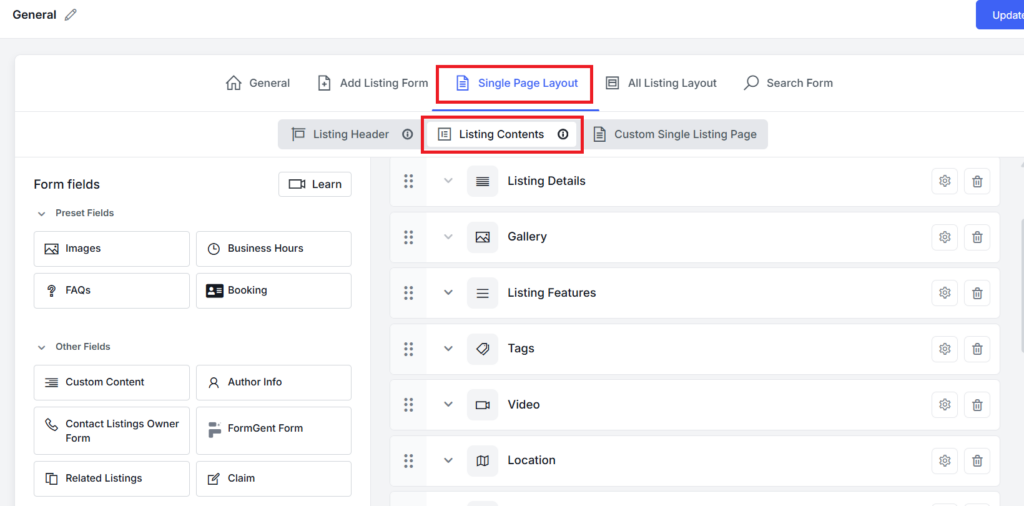
  • Click on Single Page Layout
  • Then select Listing Contents

Step 3: Add FormGent Field to a Section #
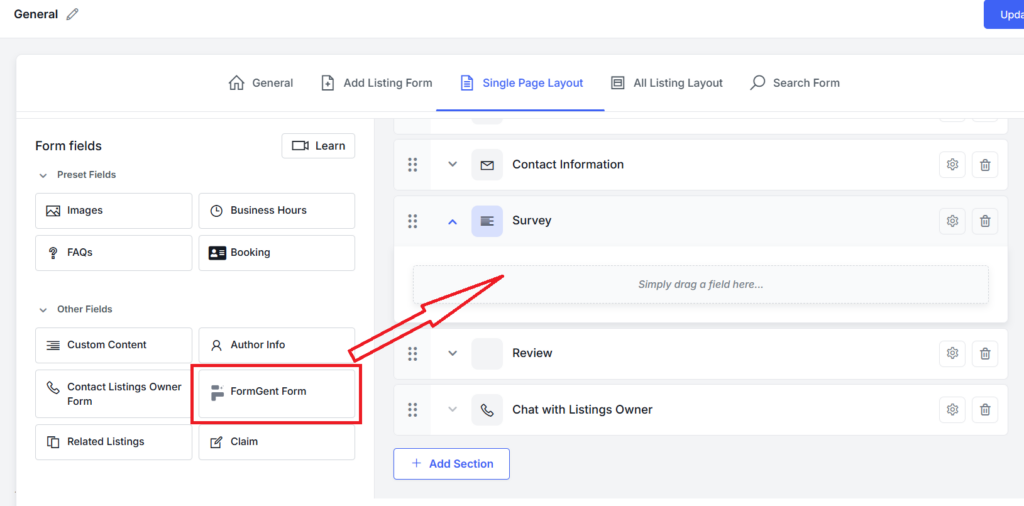
  • Create or select a section where you want the form to appear
  • Drag the FormGent Form field into that section

If FormGent is not installed:

  • You will see a prompt to install it
  • The system will automatically install the free plugin from the WordPress repository

This removes the need for manual setup.

Step 4: Select Your Form #
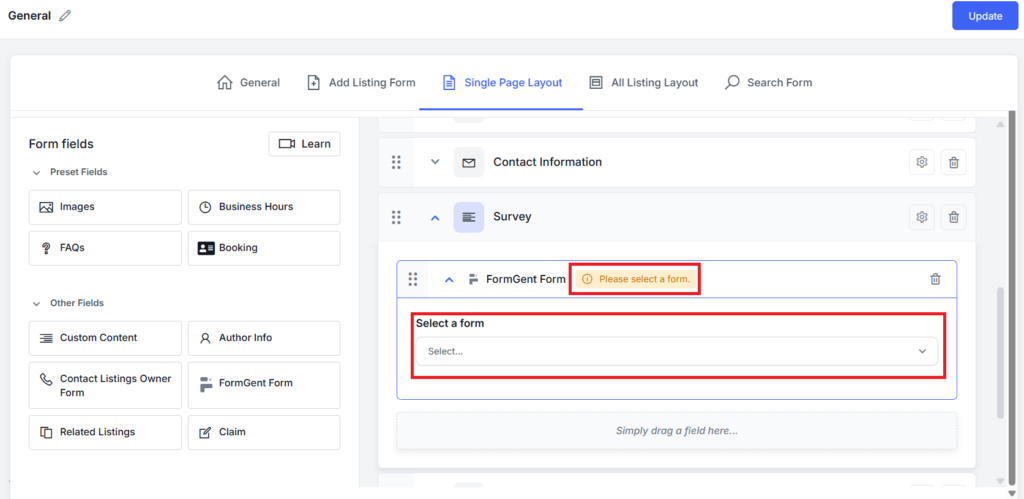
  • Click on the FormGent field settings
  • Choose your desired form from the dropdown
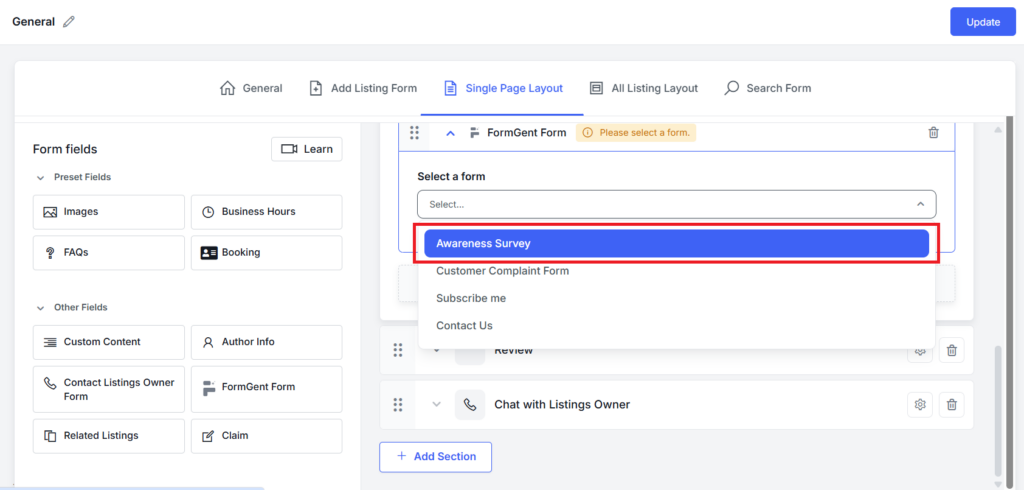
Make sure you have already created a form inside FormGent.

Step 5: Save Changes #
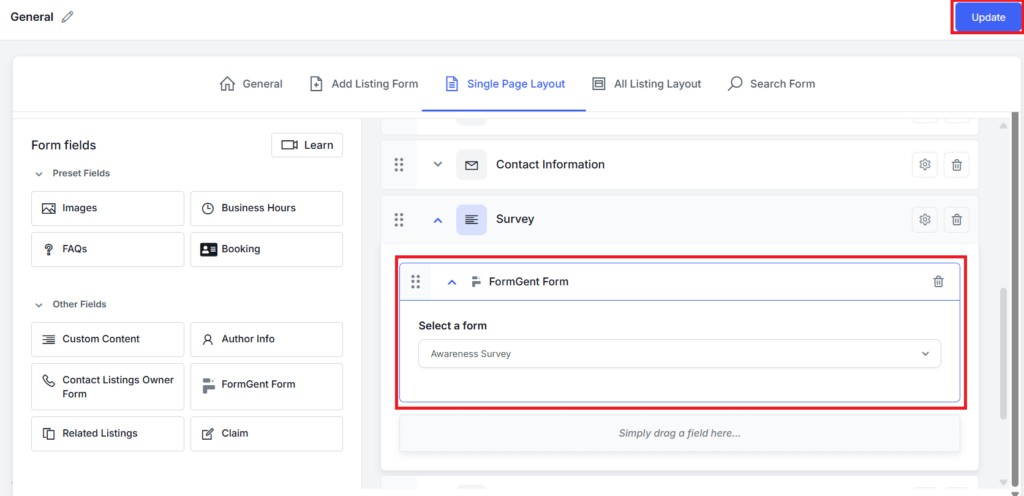
  • Click Update to save your layout

Once saved:

  • The form will appear inside your single listing page
  • Visitors can now submit responses directly from the list

You are not limited to one form or use case. You can place as many forms as you need inside one listing in different sections depending on your directory type.

How It Works for Listing Owners #

Once you add a FormGent form to your listing layout, it becomes part of the live listing page. Listing owners can receive and manage responses directly from their dashboard.

Viewing the Form on Listing Page #

  • Open any listing from the front end of your website
  • Make sure the listing belongs to the directory where you added the FormGent form
  • Make sure that the listing is published, not expired. Listing owners can see their expired listing but that will not be visible to end users.

Inside the Listing Content, the form will appear in the section where you placed it.
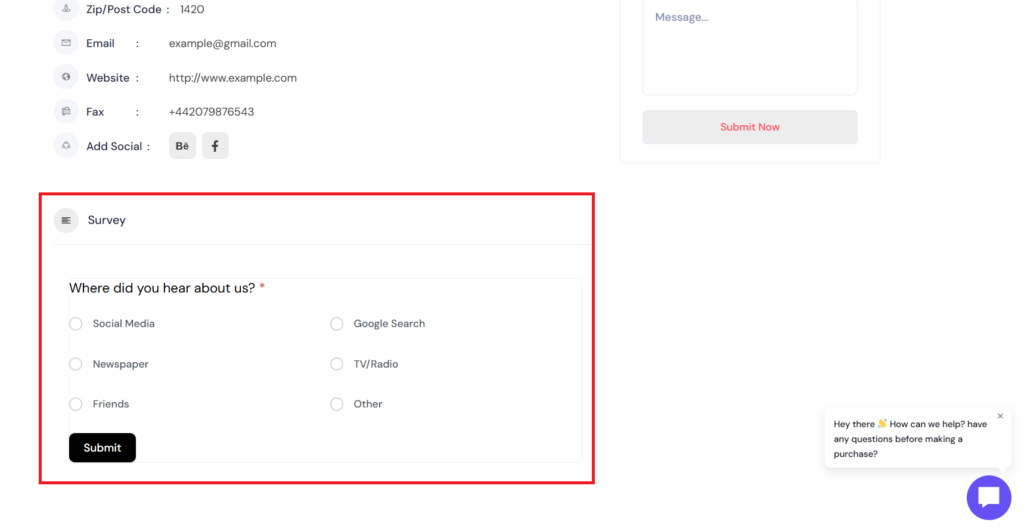
You can:

  • Fill out the form as a visitor
  • Submit a test response to check how it works

After submission:
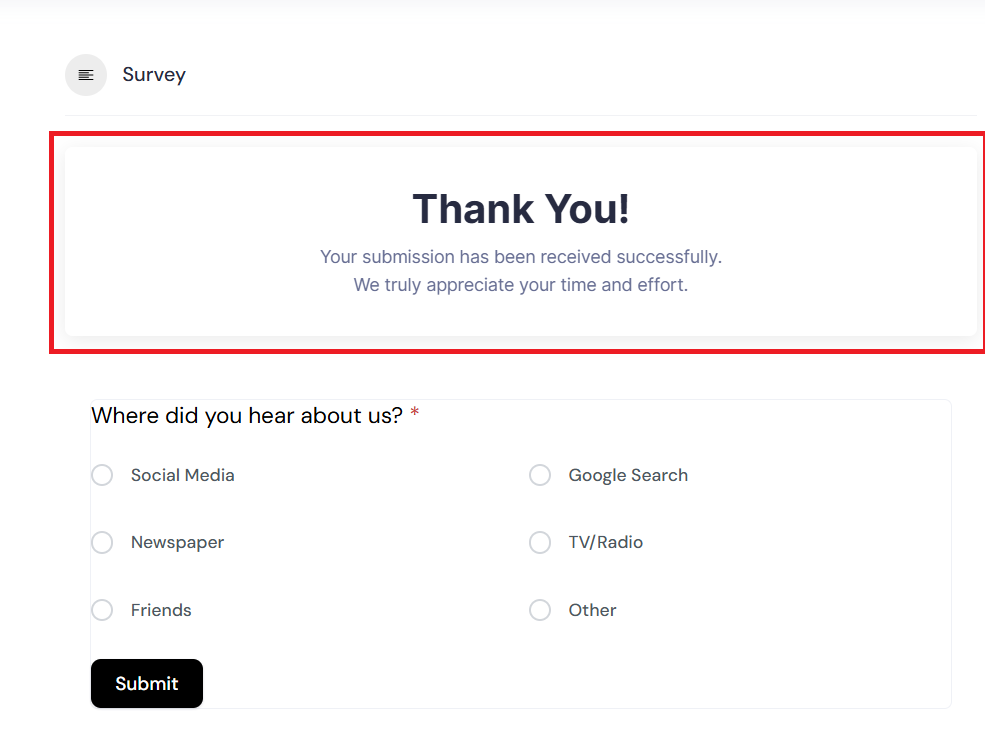
  • A success message will appear on the screen
  • This message comes from your FormGent confirmation settings

If you have configured:

  • A custom message → it will be shown
  • A redirect → users will be redirected to that page

Everything follows your FormGent form configuration.

Accessing Form Submissions (Listing Owner Dashboard) #

Listing owners can view and manage responses from their dashboard.

Step 1: Go to My Listings #
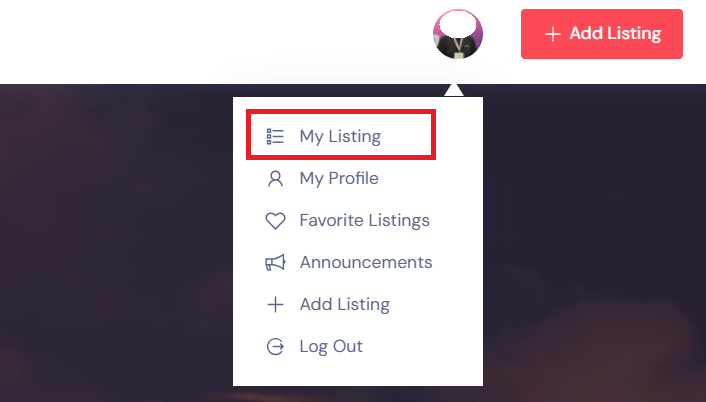
  • Click on your Account Avatar
  • Select My Listings

You will see a list of all your listings.

Step 2: Open Enquiries #
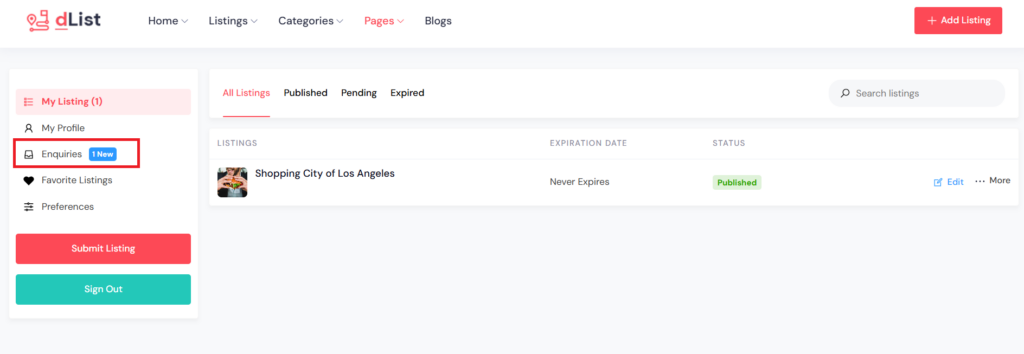
  • On the left side of each listing, click Enquiries
  • You will see a number in parentheses

This number shows how many responses are new or unread.

Step 3: Understand the Dashboard Overview #
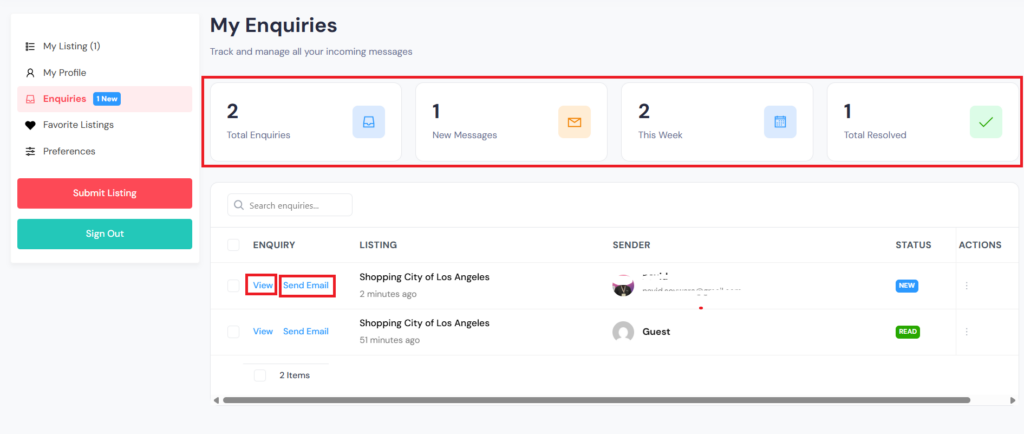
Inside Enquiries, you will see a summary:

  • Total enquiries
  • New (unread) enquiries
  • This week’s enquiries
  • Resolved enquiries

This helps listing owners quickly understand activity and response status.

Step 4: View Individual Responses #

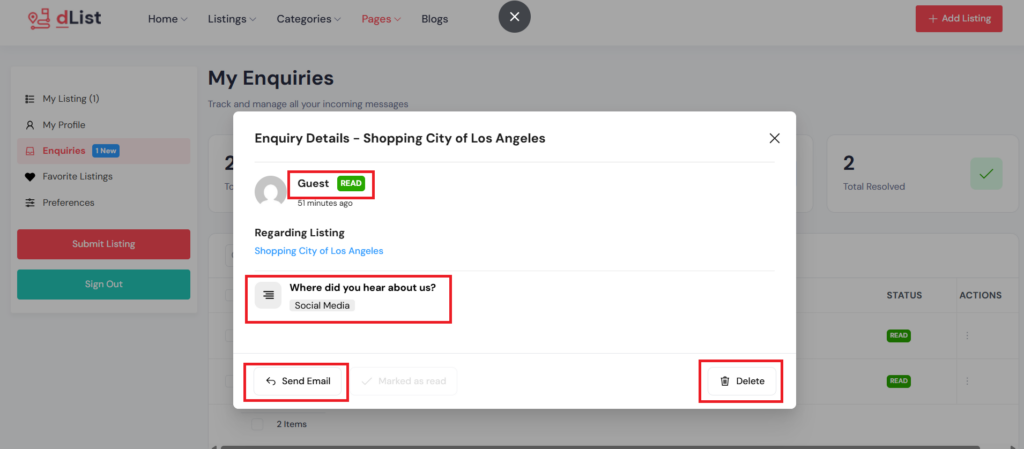
  • Each submission is listed below
  • Click View to open a response

A popup window will appear showing:

  • All submitted form data
  • User inputs in structured format

Step 5: Manage Responses #

From the response view, listing owners can:

  • Delete the submission
  • Send an email to the respondent

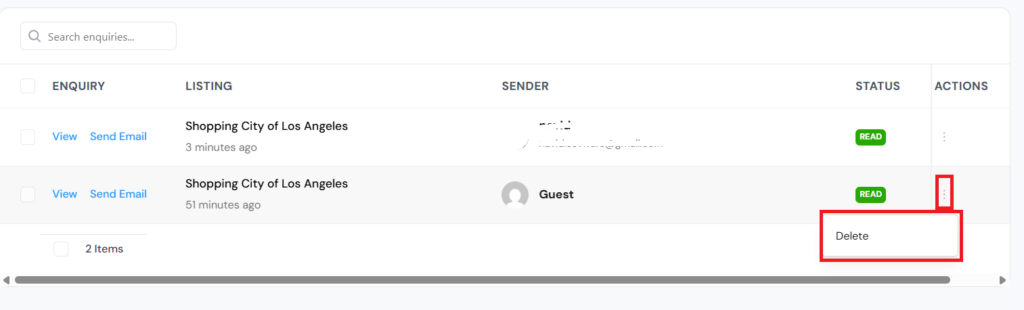
There is also a quick action menu on the right side where:

  • You can directly delete a response

Step 6: Response Status #

  • Once a response is viewed, it is marked as resolved

This helps keep the dashboard clean and makes it easy to track which enquiries still need attention.

This workflow ensures that:

  • Visitors can easily submit structured information
  • Listing owners can manage everything from one place
  • No external tools or inbox management is required

It keeps communication organized and directly tied to each listing.

How Directory Owners Access Form Submissions #

In addition to listing owners, directory owners have full access to all form submissions from the FormGent backend. This gives a broader view of user activity and overall performance.

Access All Form Entries #
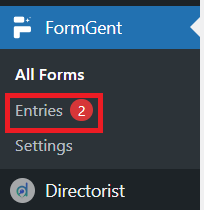
From your WordPress dashboard:

  • Go to FormGent → Entries

Here you will find all form submissions (entries) across your website.

You can:

  • View all responses in one place
  • Filter entries by specific forms
  • Manage and review submitted data

Best Way to View Specific Form Data #
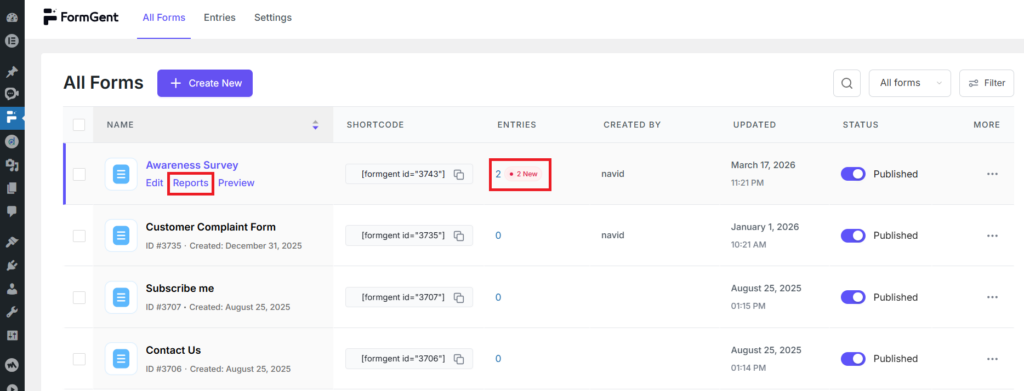
For more focused insights:

  • Go to FormGent → All Forms
  • Find the form you added to your listing
  • Hover over the form name
  • Click on Reports

This gives you a more structured and useful view of your data.

Understanding the Report Section #

Inside the report, you will see two tabs:

1. Summary #
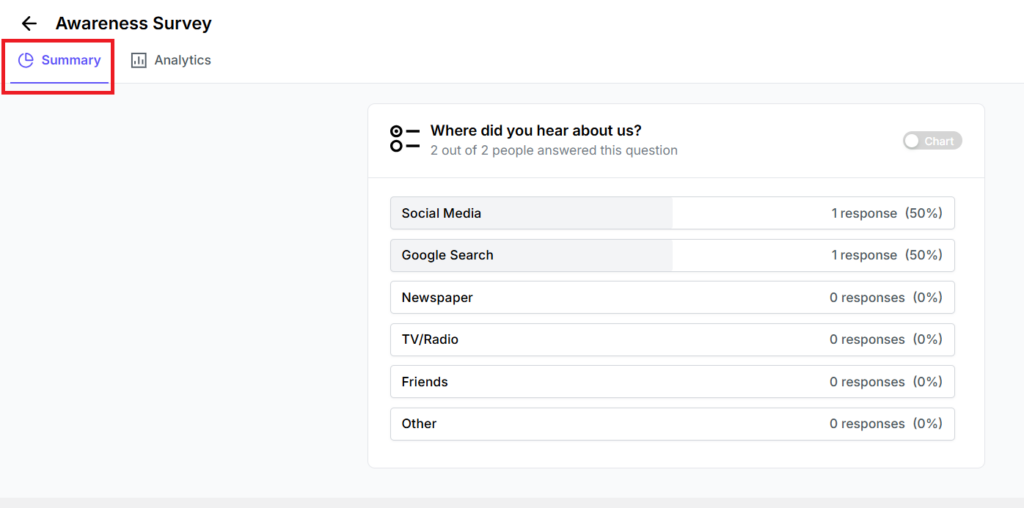
This section shows an overview of all responses.

  • You can review answers to each question
  • Click the Chart option beside a field to generate a visual representation
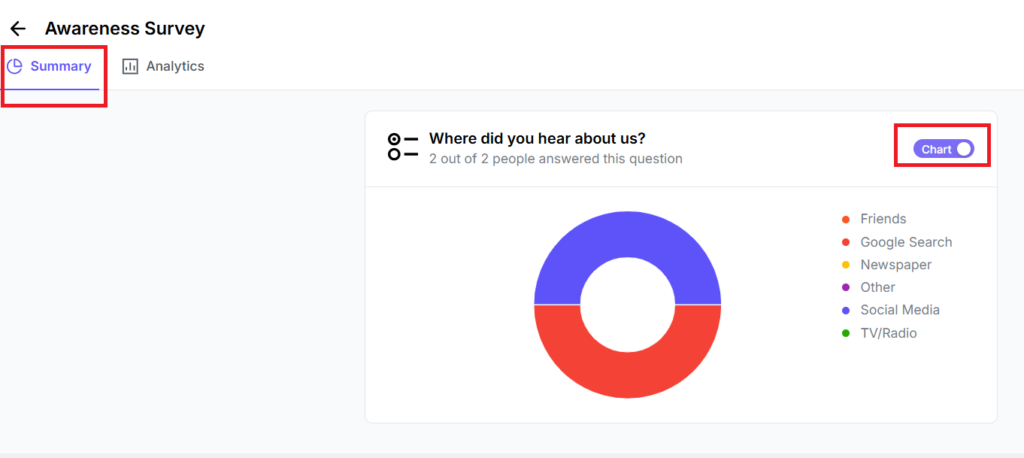
Note:

  • Charts depend on the field type
  • Structured inputs (like dropdowns, radio buttons, etc.) produce better visual summaries

This helps you quickly understand trends in user responses.

2. Analytics #
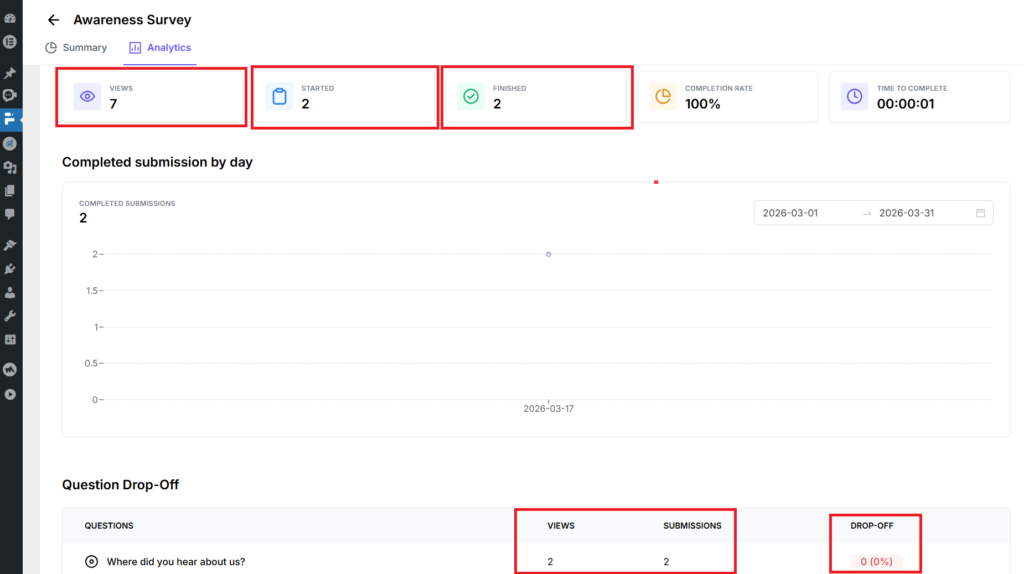
This section provides performance insights for your form:

  • Total form views
  • Number of starts
  • Completed submissions
  • Completion rate
  • Average completion time

You will also see:

  • Drop-off rates for each question

This shows where users are leaving the form, helping you identify friction points and improve form design.

Directory owners get a complete overview of all collected data, while listing owners manage their own enquiries.

This separation ensures:

  • Better control over data
  • Clear ownership of responses
  • Actionable insights at both listing and platform level

For deeper understanding of form behavior and reporting, refer to the FormGent documentation.

FormGent, Single Listing
What are your Feelings

Share This Article :

  • Facebook
  • X
  • LinkedIn
  • Pinterest
Still stuck? How can we help?

How can we help?

Updated on Mar 18, 2026 3:54 am
Single Page LayoutAll Listing Layout
Table of Contents
  • What is FormGent Integration?
  • Why It Matters for Directorist Users
  • Who Can Use This
  • Key Use Cases
    • 1. Service Inquiry with Custom Inputs
    • 2. Quote Requests
    • 3. Booking or Pre-screening Forms
    • 4. Feedback or Application Collection
  • Step-by-Step Setup Guide
    • Step 1: Go to Directory Builder
    • Step 2: Open Single Listing Layout
    • Step 3: Add FormGent Field to a Section
    • Step 4: Select Your Form
    • Step 5: Save Changes
  • How It Works for Listing Owners
    • Viewing the Form on Listing Page
    • Accessing Form Submissions (Listing Owner Dashboard)
      • Step 1: Go to My Listings
      • Step 2: Open Enquiries
      • Step 3: Understand the Dashboard Overview
      • Step 4: View Individual Responses
      • Step 5: Manage Responses
      • Step 6: Response Status
  • How Directory Owners Access Form Submissions
    • Access All Form Entries
    • Best Way to View Specific Form Data
    • Understanding the Report Section
      • 1. Summary
      • 2. Analytics
Directorist Directorist

Directorist

  • Integrations
  • Extensions
  • Mobile App
  • Roadmap
  • Features
  • Client Showcase

Themes

  • OneListing (FREE)
  • dClassified
  • dRestaurant
  • dRealestate
  • More

Quick Links

  • Custom Development
  • Documentation
  • Directory Ideas
  • Affiliate Program
  • Support Policy
  • Refund Policy
  • Done For You

Products

  • FormGent
  • HelpGent
  • Legal Page
  • Logo Showcase
  • More

Keep Updated

Subscribe to our email newsletter to receive updates.

Subscribe to our newsletter
A Product of
© Directorist 2026. All rights reserved.
  • Privacy Policy
  • Terms & Conditions
We use cookies to ensure the best browsing experience.