 Up to 35% Off!

Site & pages #
The Site & pages section maps Directorist features to WordPress pages and handles SEO meta tags, structured data for search engines, and maintenance tools. It has four tabs: Pages, SEO, Schema, and Maintenance.
Path: WP Admin → Directorist → Settings → Site & pages
1. Pages #
Directorist uses WordPress pages to display its features — each feature requires a page that contains the matching shortcode block. The Pages tab is where you tell Directorist which page on your site hosts each feature.
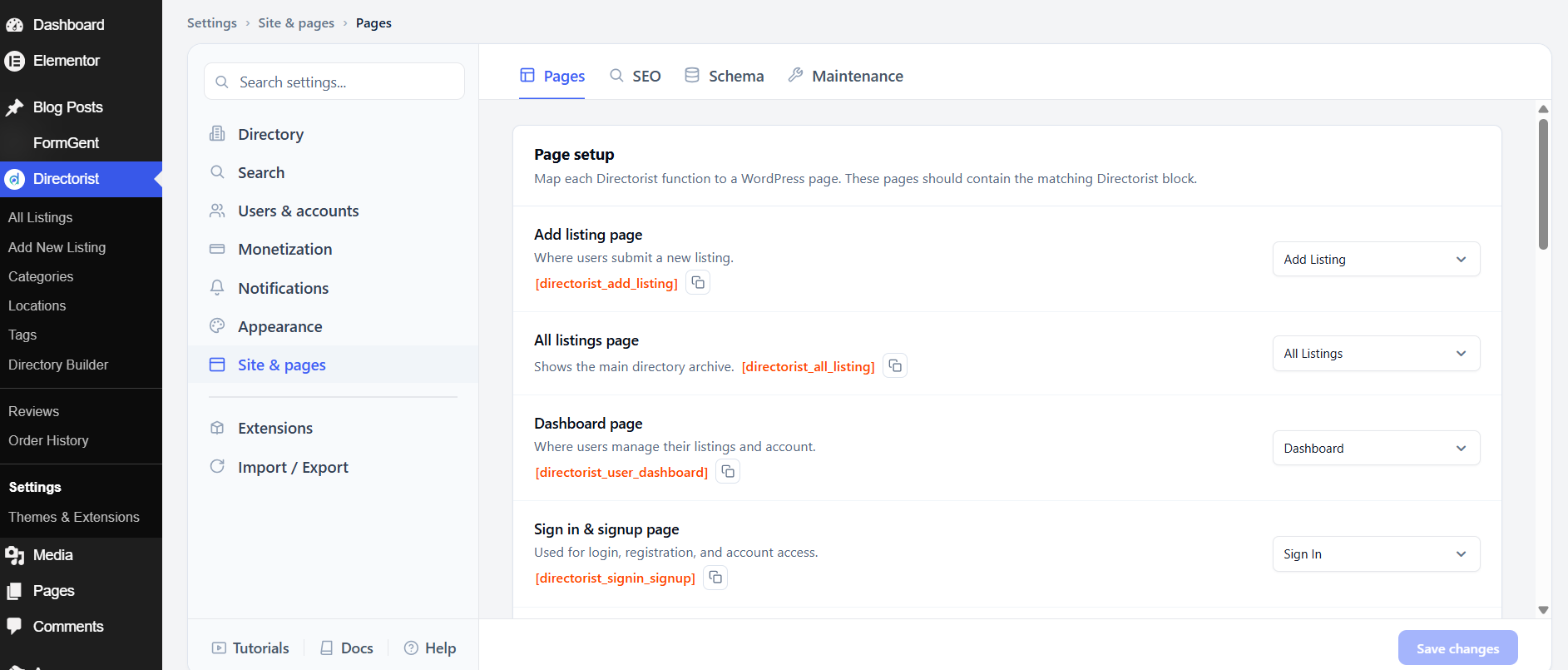
When you first install Directorist, it creates these pages automatically. If you ever delete or rename a page, come back here to update the mapping, or use Regenerate missing pages to recreate any that are missing.
The pages and their shortcodes are:
Add listing page ([directorist_add_listing]) — where users submit a new listing. Defaults to a page called Add Listing.
All listings page ([directorist_all_listing]) — shows the main directory archive. Defaults to All Listings.
Dashboard page ([directorist_user_dashboard]) — where users manage their listings and account. Defaults to Dashboard.
Sign in & signup page ([directorist_signin_signup]) — used for login, registration, and account access. Defaults to Sign In.
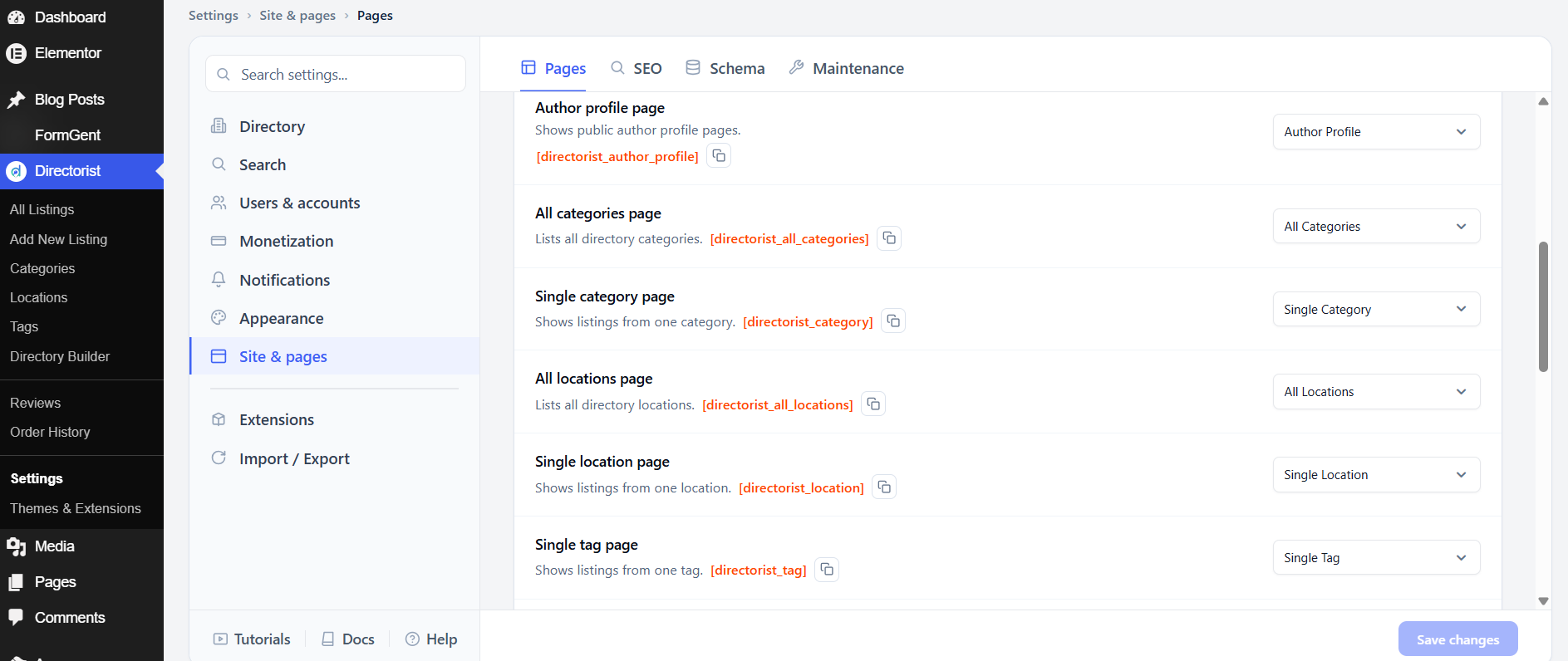
Author profile page ([directorist_author_profile]) — shows public author profile pages. Defaults to Author Profile.
All categories page ([directorist_all_categories]) — lists all directory categories. Defaults to All Categories.
Single category page ([directorist_category]) — shows listings from one category. Defaults to Single Category.
All locations page ([directorist_all_locations]) — lists all directory locations. Defaults to All Locations.
Single location page ([directorist_location]) — shows listings from one location. Defaults to Single Location.
Single tag page ([directorist_tag]) — shows listings from one tag. Defaults to Single Tag.
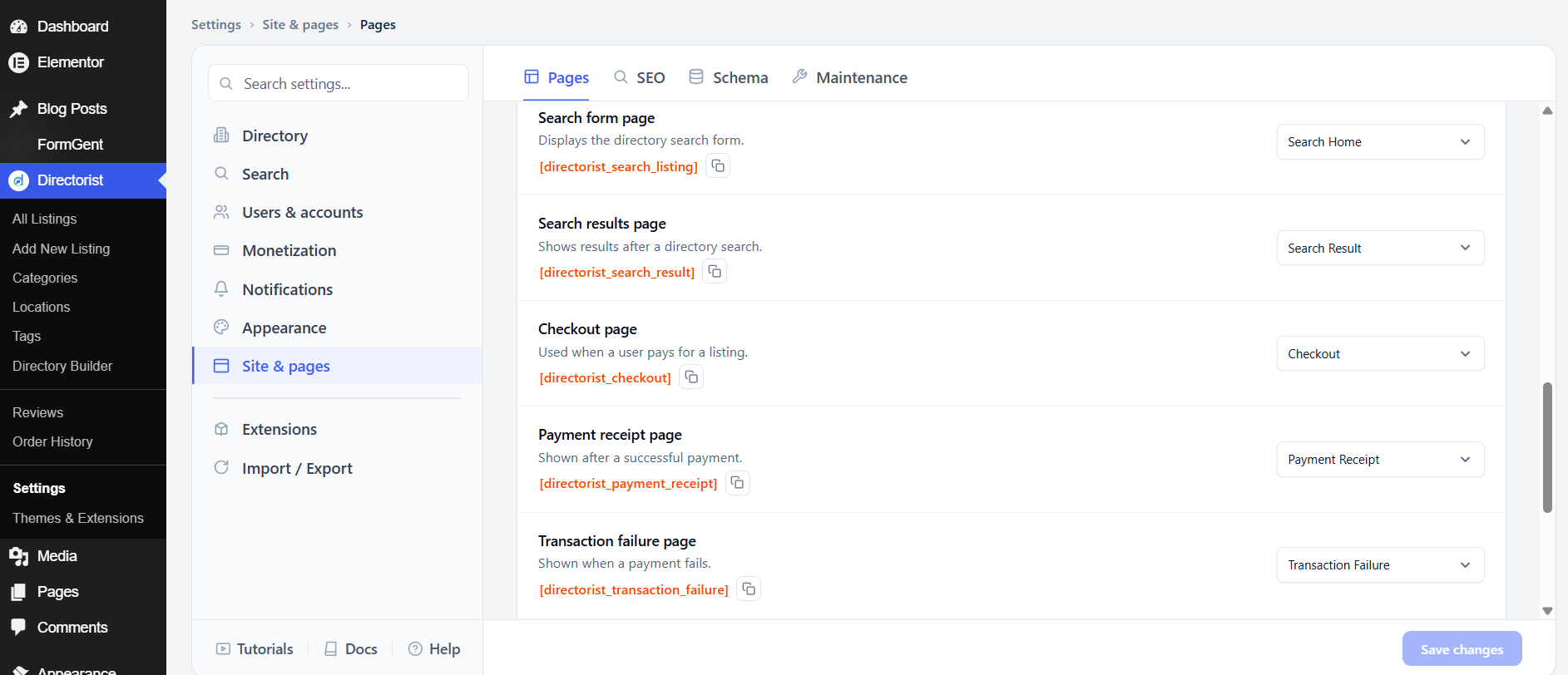
Search form page ([directorist_search_listing]) — displays the directory search form. Defaults to Search Home.
Search results page ([directorist_search_result]) — shows results after a search. Defaults to Search Result.
Checkout page ([directorist_checkout]) — used when a user pays for a listing. Defaults to Checkout.
Payment receipt page ([directorist_payment_receipt]) — shown after a successful payment. Defaults to Payment Receipt.
Transaction failure page ([directorist_transaction_failure]) — shown when a payment fails. Defaults to Transaction Failure.
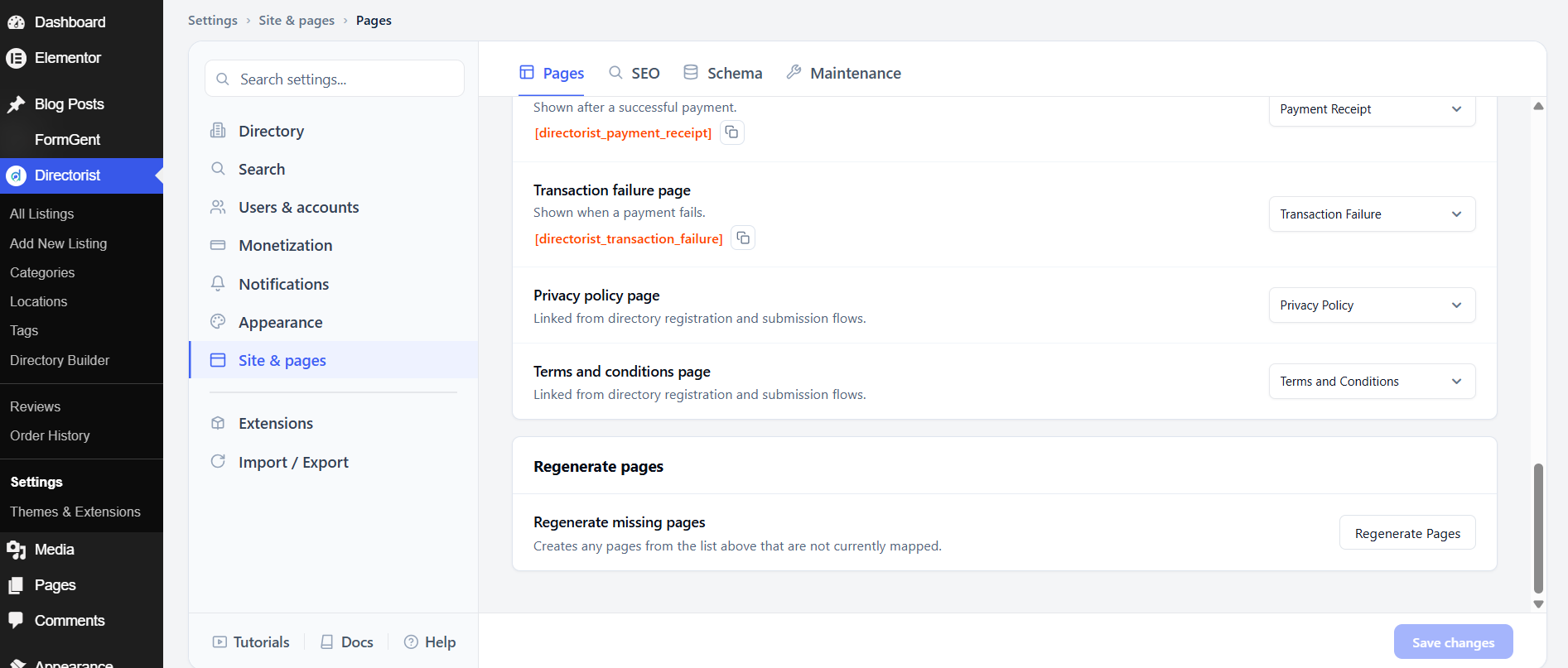
Privacy policy page — linked from registration and submission forms. Defaults to Privacy Policy. No shortcode needed — just a standard WordPress page.
Terms and conditions page — linked from registration and submission forms. Defaults to Terms and Conditions. No shortcode needed.
Regenerate missing pages
If any of the pages above are missing, click Regenerate Pages to have Directorist recreate them automatically with the correct shortcodes already in place.
After adjusting these settings, click Save changes.
2. SEO #
The SEO tab lets you set custom meta titles and descriptions for each Directorist page — the text that appears in Google search results and browser tab titles.
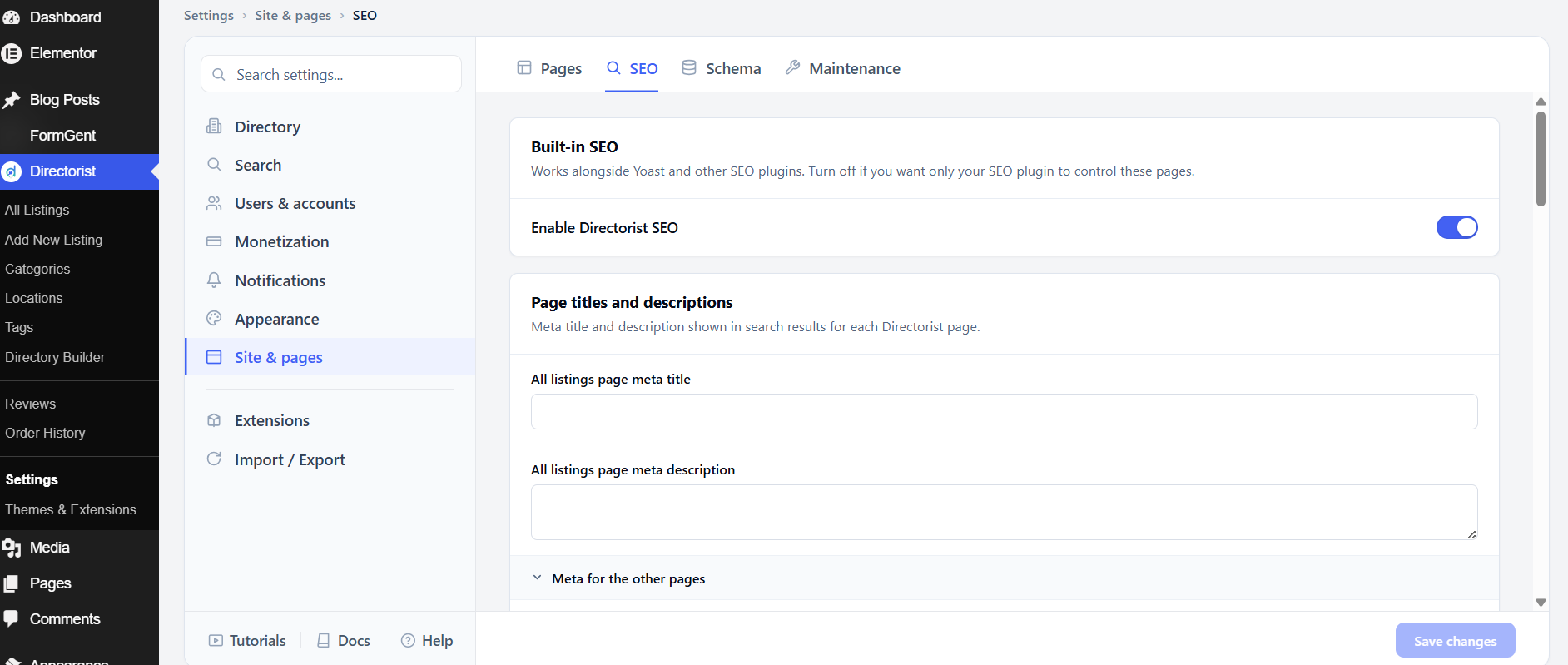
Enable Directorist SEO turns on Directorist’s own meta tag output. This is on by default. It works alongside SEO plugins like Yoast — Directorist outputs meta tags for its own pages, and Yoast handles the rest of your site. Turn it off if you want your SEO plugin to take full control of all Directorist pages.
Page titles and descriptions
Each Directorist page has a Meta title and Meta description field. Leave them blank if you are happy with what your theme or SEO plugin generates. Fill them in to override that output with your own text.
The pages you can customize are: All listings, Add listing, Dashboard, Author profile, All categories, Single category, All locations, Single location, Search page (the search form / search home), Search results, and Account page (sign in / sign up).
After filling in your meta content, click Save changes.
3. Schema #
The Schema tab adds structured data (JSON-LD) to your listing pages so they can appear with rich results in Google — for example, star ratings or address information shown directly in search results.
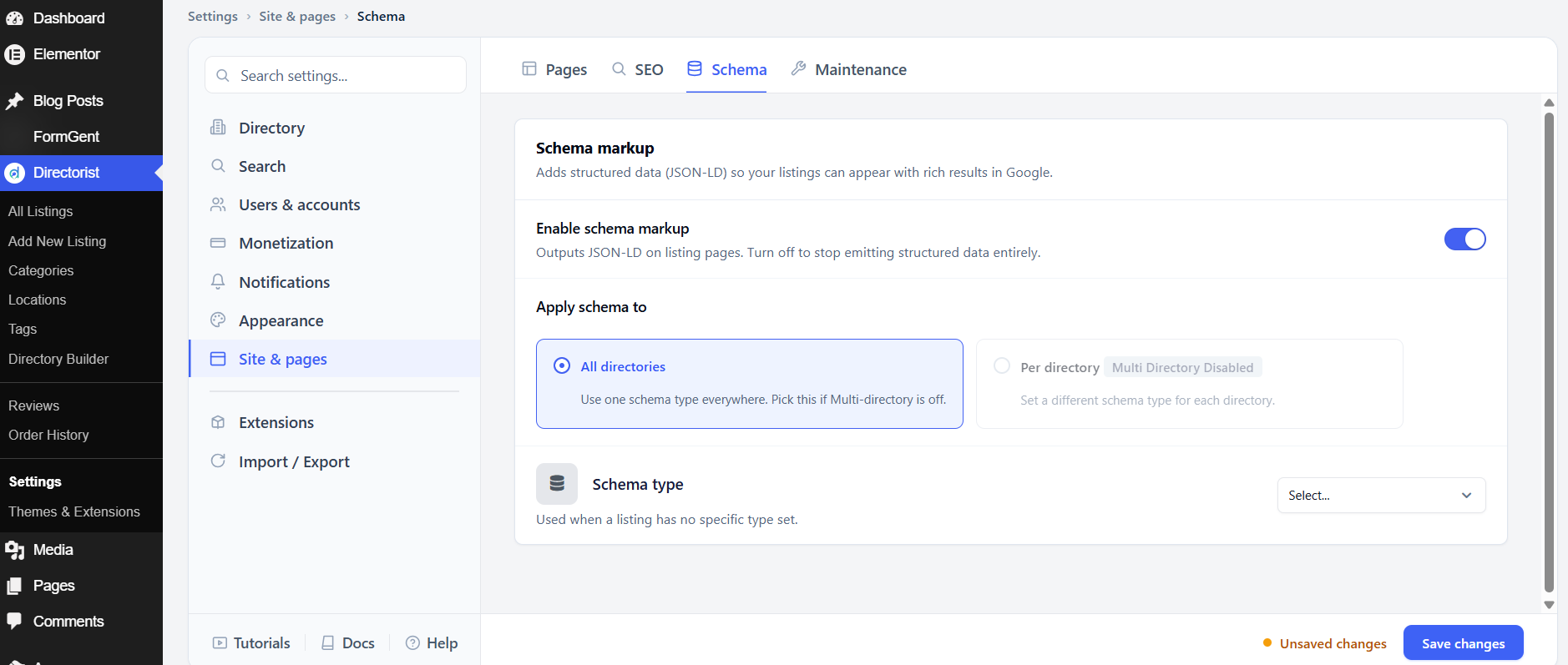
Enable schema markup turns on JSON-LD output on listing pages. This is on by default. Turn it off only if you are using a separate SEO plugin to handle structured data and want to avoid duplicate schema output.
Apply schema to controls whether one schema type is used across your whole directory or different types are used per directory type. Choose All directories to apply a single schema type everywhere — this is the recommended option if Multi-directory is off. Choose Per directory to set a different schema type for each directory type; this requires Multi-directory to be enabled.
Schema type sets the schema.org type used for listings — for example, LocalBusiness, Restaurant, Hotel, or JobPosting. Choose the type that best describes the content in your directory.
After adjusting these settings, click Save changes.
4. Maintenance #
The Maintenance tab contains caching, developer, and uninstall options.
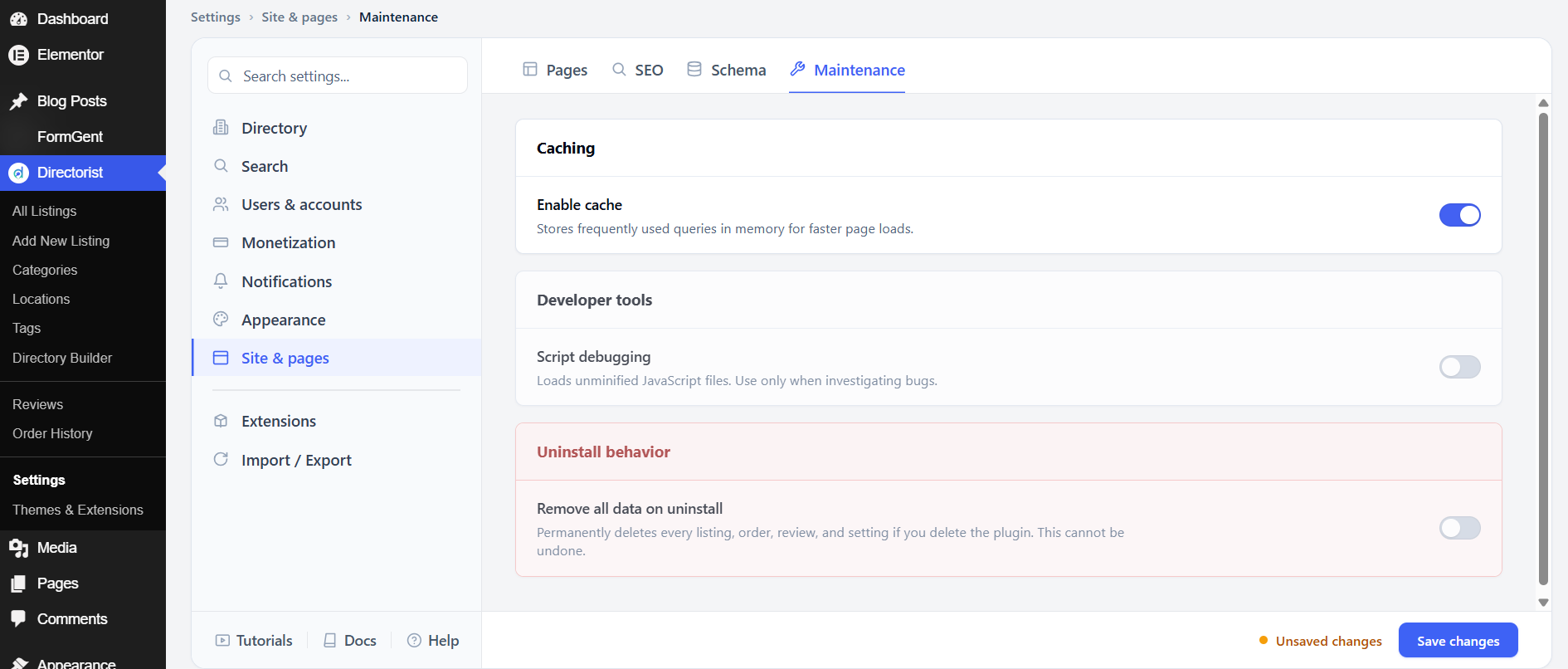
Caching
Enable cache stores frequently used database queries in memory, which speeds up page loads for visitors. This is on by default. Leave it on unless you are troubleshooting a caching conflict with another plugin.
Developer tools
Script debugging loads unminified JavaScript files instead of the compressed production files. This is off by default. Only turn it on when you are investigating a JavaScript bug — loading unminified scripts slows down your site and should not be left on in production.
Uninstall behavior
Remove all data on uninstall permanently deletes every listing, order, review, and Directorist setting when the plugin is deleted from WordPress. This is off by default. This action cannot be undone. Only enable it if you are completely removing Directorist from a site and want a clean database after uninstalling.
After adjusting these settings, click Save changes.


