BFCM Alert! Drop 1 just landed. See what’s new. Drop 2 lands in 00d 00h 00m Explore Drop 1 →
Skip to content
  • Why Directorist
    Explore
    All Features Everything the plugin can do Solutions Directories you can build Integrations Plugins that work with Directorist Try Demo Click through real demo directories
    See the proof
    Comparison How we stack up against others Client Showcase Real sites built with Directorist
    Directorist AI
    Build your directory with AI

    Describe the directory you want and let AI build it for you.

    Try Directorist AI
  • Products
    Extensions

    Add powerful features

    Themes

    Ready-to-launch designs

    Templates

    Build pages faster

    Mobile App

    Native app for your directory

  • Resources
    Get help
    Documentation Product guides and how-tos Support Centre Get help from our team Contact Us Sales and general questions
    Learn
    Directorist Academy Courses on directory building Blog Tips, trends and growth ideas What's New Latest releases and fixes
    Company
    About Us Roadmap
    Hire us
    Custom Work, Handled

    Need a new build, custom feature, integration, fix, or ongoing maintenance? Tell us.

    See How It Works View Our Work
  • Pricing
  • Hire Us
Sign In Try For Free
  • Why Directorist
    Explore
    All Features Everything the plugin can do Solutions Directories you can build Integrations Plugins that work with Directorist Try Demo Click through real demo directories
    See the proof
    Comparison How we stack up against others Client Showcase Real sites built with Directorist
    Directorist AI
    Build your directory with AI

    Describe the directory you want and let AI build it for you.

    Try Directorist AI
  • Products
    Extensions

    Add powerful features

    Themes

    Ready-to-launch designs

    Templates

    Build pages faster

    Mobile App

    Native app for your directory

  • Resources
    Get help
    Documentation Product guides and how-tos Support Centre Get help from our team Contact Us Sales and general questions
    Learn
    Directorist Academy Courses on directory building Blog Tips, trends and growth ideas What's New Latest releases and fixes
    Company
    About Us Roadmap
    Hire us
    Custom Work, Handled

    Need a new build, custom feature, integration, fix, or ongoing maintenance? Tell us.

    See How It Works View Our Work
  • Pricing
  • Hire Us
Sign In Get Directorist

Directorist Core

  • Directorist MCP
    • Getting Started with Directorist MCP
  • Directorist Settings
    • Directorist Settings Panel (General)
    • Directorist Settings Panel (Search)
    • Directorist Settings Panel (Users & Accounts)
    • Directorist Settings Panel (Monetization)
    • Directorist Settings Panel (Notifications)
    • Directorist Settings Panel (Site & pages)
    • Directorist Settings Panel (Extensions)
    • Directorist Settings Panel (Appearance)
    • Directorist Settings Panel (Import / Export)
  • Listings Management
    • Listing Rejection Flow
    • Adding a Listing
    • General Listing Settings
    • Guest Listing Submission
    • All Listing Settings
    • Single Listing Settings
    • Category & Location
    • Map Setting
    • Badges Setting
    • Review Setting
  • Directory Builder
    • Overview
    • Multiple Directories
    • Create with AI
    • General tab
    • Add Listing Form
    • Conditional Logic
    • Single Page Layout
    • FormGent Integration
    • All Listing Layout
    • Search Form
  • Monetization
    • Monetization Overview
    • Configurations
    • Managing Orders
  • Search and Filter Settings
    • Nearby Sort
    • Search Page
    • Advanced Filter Widget
    • Search Result Page
    • Advanced Search and Filter
  • Customization
    • Customize Appearance
    • Email Customization
    • Registration and Login
    • Author Page
  • Advanced Settings
    • Maintenance
    • Schema Markup
    • Search Engine Optimization (SEO)
  • Shortcodes Library
    • Using Shortcodes in WordPress
    • Directorist Shortcodes
    • Add Listing Form
    • All Listings Page
    • Single Category Page
    • Single Location Page
    • Tags Page
    • All Locations Page
    • Search Listings
    • Payment & Checkout Page
    • All Categories Page
    • Search Results
    • Login and Registration
    • User Dashboard
    • Author Profile
    • Search Results
  • Getting Started
    • Plugin Dashboard
    • Getting Started
    • Installation & Activation
    • Directorist Setup Wizard
    • Directorist Membership (Themes & Extensions)
    • Setting Up the Required Pages
    • Managing Categories
    • Managing Location
    • Manage Tags
    • Terms and Conditions Setup
    • Import and Export

Directorist AI

  • Getting started and settings
  • Connections and credits
  • Create and improve directories
  • Generate and edit listings
  • Import listings with AI
  • Generate and style page layouts
  • Gutenberg, Elementor and Divi
  • Visitor chatbot
  • Chat appearance
  • Listings for AI
  • Limits, data and troubleshooting

Extensions

  • Directorist Events
  • Installation
  • Activate/Renew License
  • Directorist Pay Per Lead
  • Directorist Gutenberg Integration
  • M-Pesa Payment Gateway
  • Paystack Payment Gateway
  • Mark as Sold
  • Directorist Ads Manager
  • Setting Up Directorist Live Chat
  • Directorist Coupons
  • Directorist – BuddyPress Integration
  • Setting Up Directory Linking
  • Job Manager
  • AddonsKit for Bricks
  • Mailchimp Integration
  • Directorist Announcement
  • Directorist Notifications Pro
  • Directorist Analytics
  • Directorist AI Search
  • Multi Directory Linking
  • Listing Importer
  • WooCommerce Pricing Plans
  • Business Hours
  • Universal Search
  • Search Alert
  • Advanced Review
  • PayPal Payment Gateway
  • Stripe Payment Gateway
  • Authorize.net Payment Gateway
  • Listings Slider & Carousel Listing
  • WPML – Translation Guide
  • Listings with Map
  • Digital Marketplace
  • Job Manager
  • Claim Listing
  • Coupon
  • Image Gallery
  • Listing FAQs
  • Compare Listings
  • Directorist Mobile App 2.0
  • Booking
    • Installation & Configuration
    • Google Calendar Integration
    • Service Booking
    • Rental System
    • Event Booking
  • Pricing Plans
    • Directorist Pricing Plans Shortcode Guide
    • Migration Guide
    • Plan Creation and Full Workflow
    • Multiple Pricing Plans: Setup & How It Works
  • Divi Integration
    • Designing Single Listing Page with Divi
    • Designing All Listing Page with Divi
    • Getting Started with Divi Integration Extension
  • Elementor Integration
    • Getting Started with Directorist Elementor Integration

Themes

  • dCarList 
  • dTour Theme
  • Importing dTour Templates
  • Getting Started with Theme
  • Quick Installation & Demo Import
  • Full Theme Setup & Customization

Tutorials

  • How to Build and Grow an Investors Directory
  • How to Make Money from Your Business Directory
  • How to Use Data to Build a Smarter and More Profitable Directory 
  • How to Build a Free University Directory
  • How to Translate Your Directory Theme and Plugin with Poedit
  • How to Create a Medical Directory Website
  • How to Make Your Directorist Website Multilingual

Developers Doc

  • Template Override
  • Action Hooks
  • Filter Hooks
  • API Reference
View Categories
  • Home
  • Docs
  • Extensions
  • Directorist AI Search

Directorist AI Search

Directorist’s built-in search matches visitor queries against listing titles and descriptions. It works – but it only finds what it can literally read. A visitor searching “emergency pipe repair” won’t find your plumber listings unless those exact words appear somewhere in the text.

Directorist AI Search is a premium extension that changes how your results are found. It processes queries contextually, matching intent rather than just words, and works inside your existing search fields – whether you’re using the standard Directorist search or Universal Search across multiple directories.

This guide walks through everything you need to get it running.

Before You Start #

Two requirements to check before setup:

  • Directorist account logged in. AI Search is a premium extension – it won’t function without you logging into your Directorist account.
  • Your site must be on a live public domain. AI Search does not work on localhost, .local, .test, or any private/development environment. Complete setup and testing on your live site.

Step 1: Activate the Extension #

Go to Your WordPress Dashboard > Directorist > Themes & Extensions and install + activate the AI search extension.

Or download the extension from your dashboard, upload it from Plugins > Add Plugin > Upload and once installed, activate it.
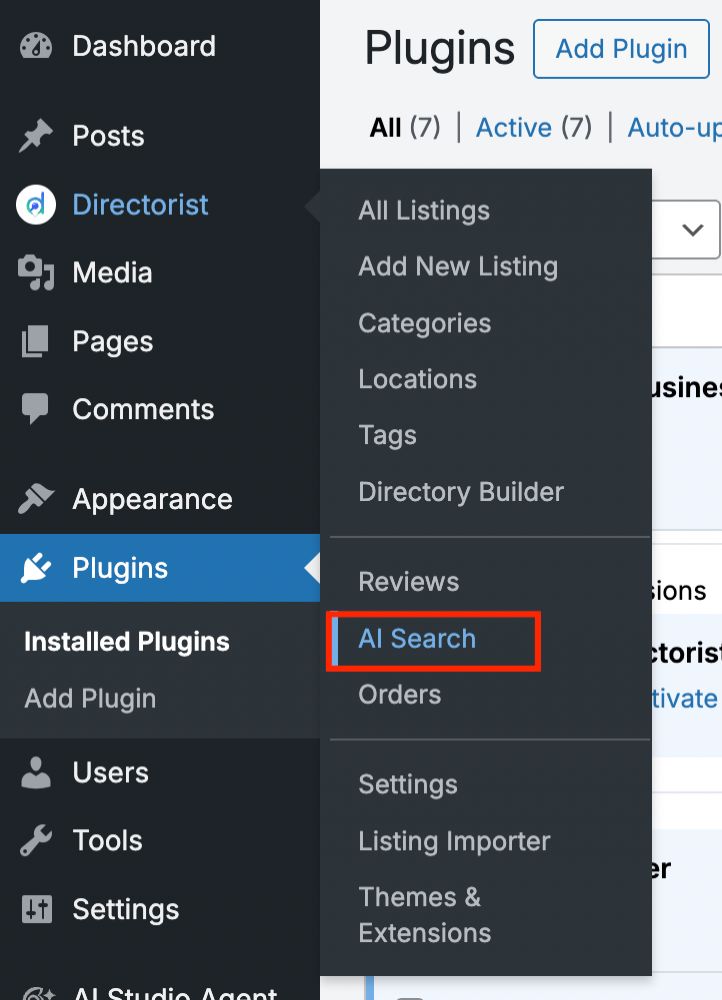
Once active, the Directorist menu will show an AI Search item. Click it to open the AI Search screen.

Step 2: Connect Your Directorist Account #

You’re not logged in to your Directorist account, you’ll see a login prompt:
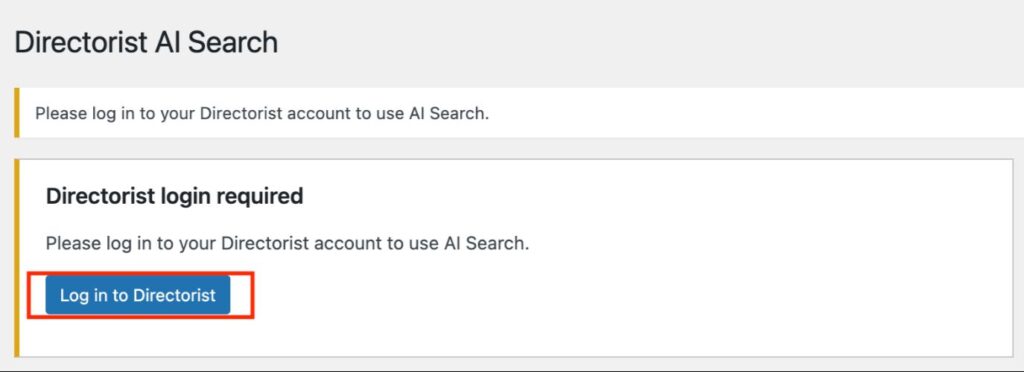
Log in to your Directorist Account.

This links your site to the Directorist backend. The extension provisions your site API key automatically once the connection is confirmed. You won’t need to manage API keys manually.

Step 3: Configure AI Search Settings #

Go to Directorist > Settings > Extensions > AI Search.

You’ll find four settings here. Review each one before you start indexing.

API Timeout
How long your server waits for the AI Search service to respond, in seconds. The default is 5. Leave this as-is unless searches are timing out.

Minimum Search Score
The relevance threshold for normal listings to appear in AI Search results. A value of 30 means a listing needs to be at least 30% relevant to a query before it shows up. You can adjust this after testing – raising it narrows results, lowering it broadens them.

Featured Minimum Search Score
The same type of threshold, but applied to featured listings. This is typically set lower than the Minimum Search Score so that featured listings get broader visibility in results – which is the purpose of featuring them.

Automatic Re-Indexing on Listing Update
When enabled, any change to a listing – its content, categories, location, tags, or custom fields – automatically schedules it for re-indexing. Keep this on. Without it, updated listings can fall out of sync with the AI Search index.

Debug Logging
Writes API diagnostics to the WordPress debug log. Leave this off unless you’re actively troubleshooting a problem.

Click Save Changes when done.

Step 4: Index Your Listings #

Go to Directorist > AI Search and open the Listings tab.

At the top of the screen, a status summary shows how many listings fall into each category: All, Indexed, Not Indexed, Needs Re-index, Failed, and Deleted.

On a fresh setup, all listings will show as Not Indexed. Listings that are not indexed will not appear in AI Search results.

Index all listings at once #

Click Index All to queue every listing for indexing in one action. This is the fastest way to get started.

Index selected listings #
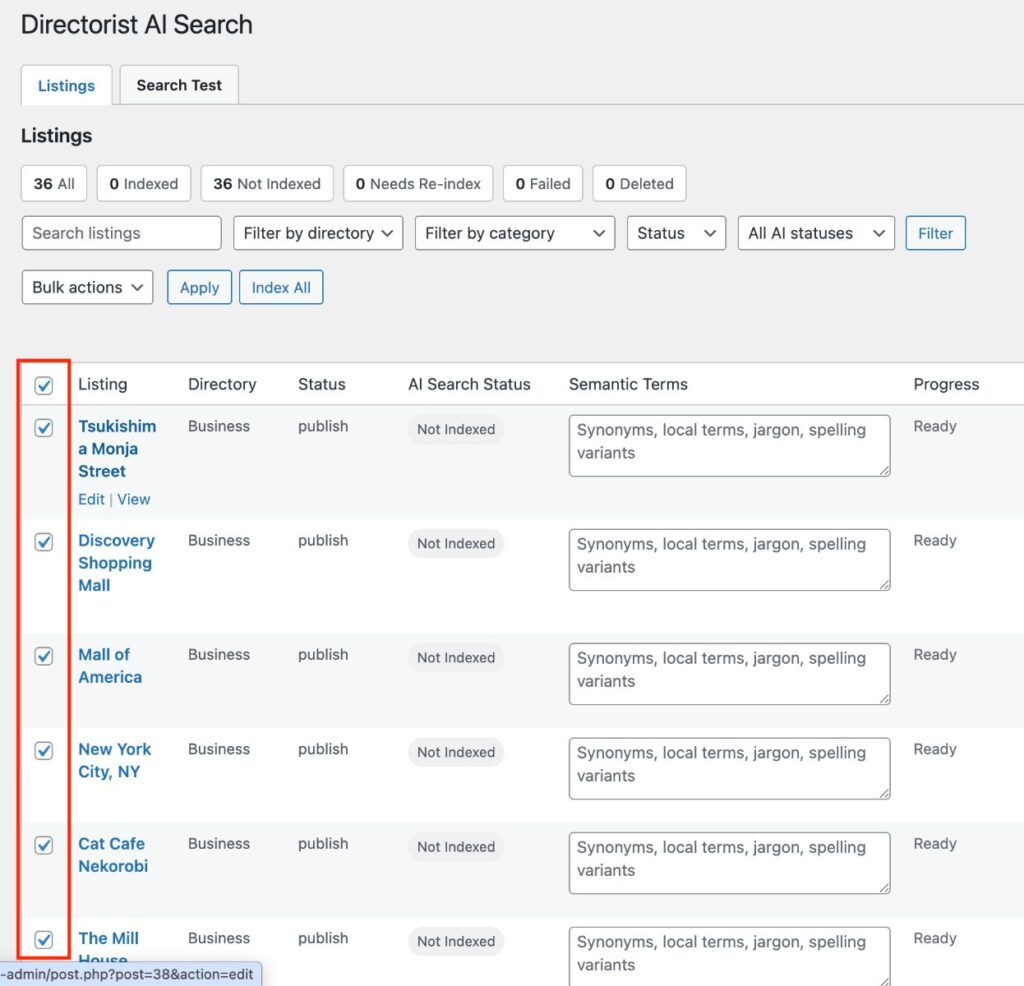
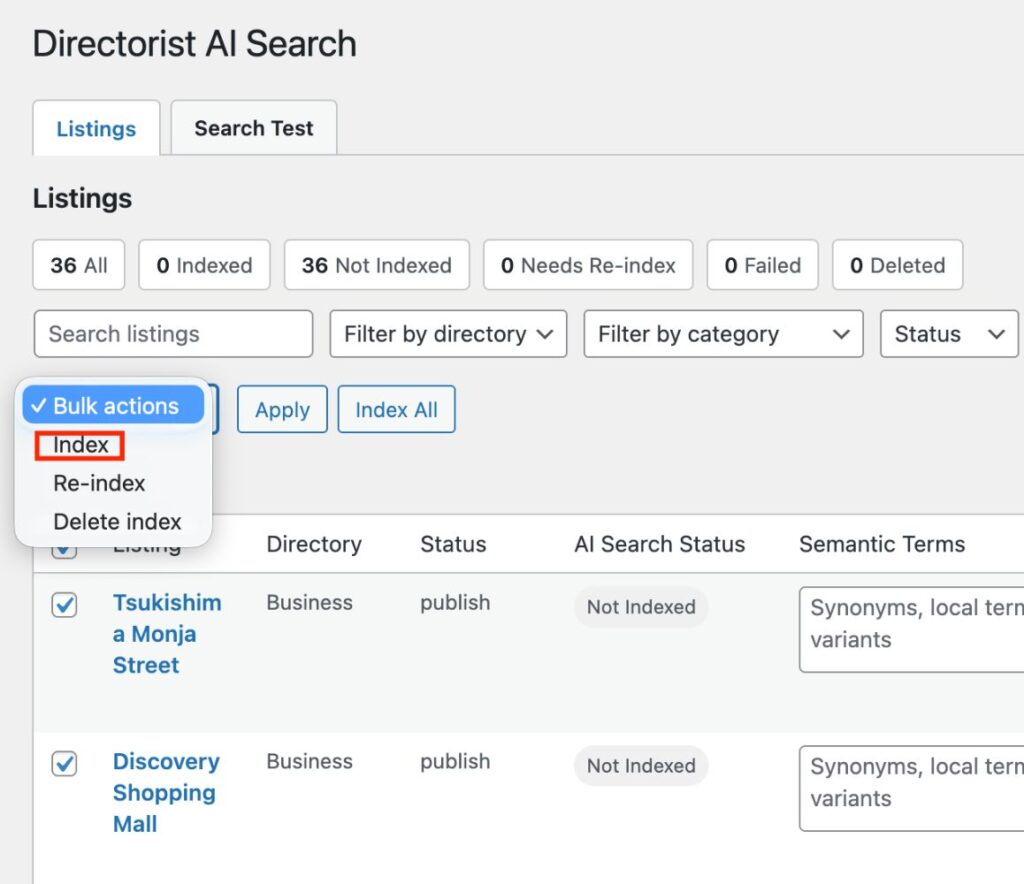
Check the boxes next to the listings you want to index, open the Bulk Actions dropdown, select Index, and click Apply.
Index a single listing #

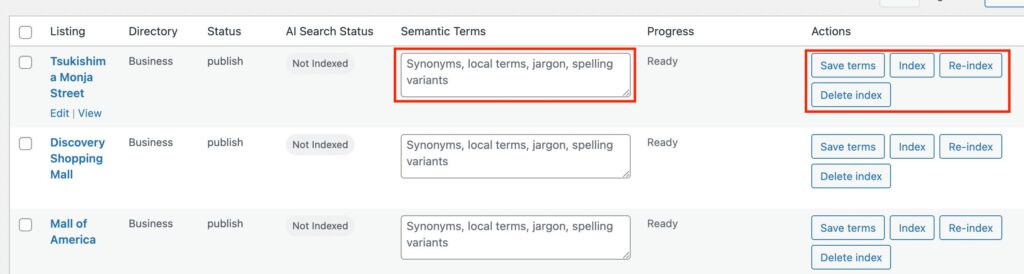
Find the listing in the table and click the Index button in its Actions column.
Once indexed, each listing’s AI Search Status will update. The statuses you may see:
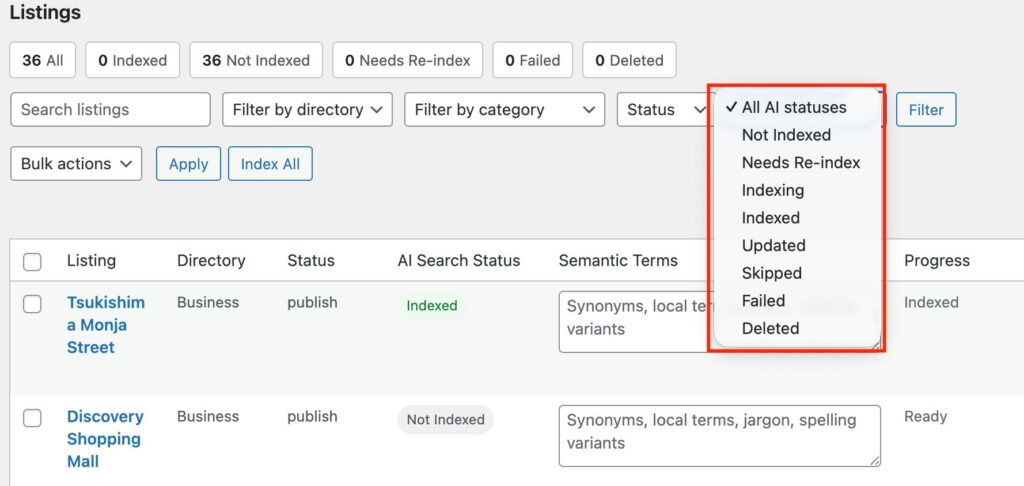
StatusWhat it means
Not IndexedListing has not been sent to AI Search yet
IndexingCurrently being processed – wait and refresh
IndexedSuccessfully indexed and searchable
UpdatedSynced and updated by the AI Search service
Needs Re-indexSemantic terms changed after indexing – click Re-index
SkippedThe AI Search service skipped this listing – check the message shown
FailedIndexing failed – check setup, enable Debug Logging if needed
DeletedIndex was removed – re-index if the listing should appear in results

Step 5: Add Semantic Terms (Optional but Recommended) #

Each listing has a Semantic Terms field in the Listings tab. This is where you can add words and phrases that help AI Search understand how visitors might describe that listing – without changing anything visible on the public listing page.

Good semantic terms include synonyms, local phrases, abbreviations, industry terminology, and alternate spellings that your visitors are likely to search but that don’t already appear in the listing title or description.

Example: A listing titled “Green Leaf Dental Clinic” might have semantic terms like: dentist, dental care, teeth cleaning, emergency dentist, family dentist, oral health

To add semantic terms:

  1. Find the listing in the Listings tab
  2. Type your terms into the Semantic Terms field
  3. Click Save terms

The listing will be re-indexed with the new terms automatically.

Step 6: Test Your Search Results #
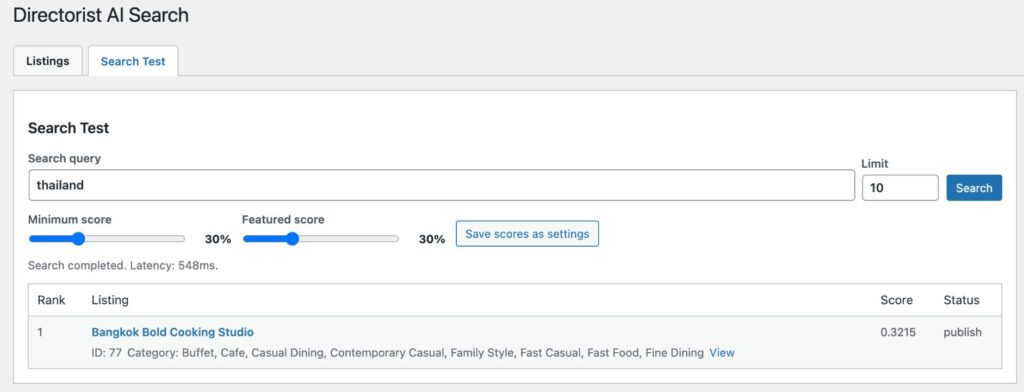
Before relying on AI Search in front of visitors, test it from the admin. Go to the Search Test tab within the AI Search screen.

Enter a search query, set a result limit, and click Search.
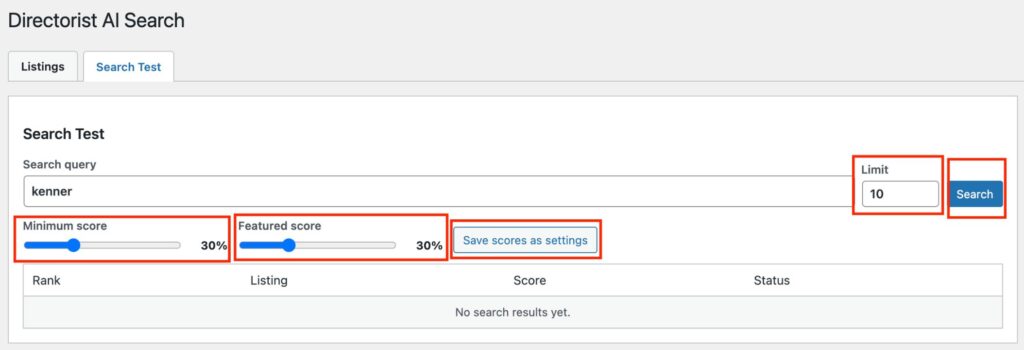
Results show each matching listing’s rank, relevance score, and publish status. The screen also shows request latency, so you can see how quickly the AI service is responding.
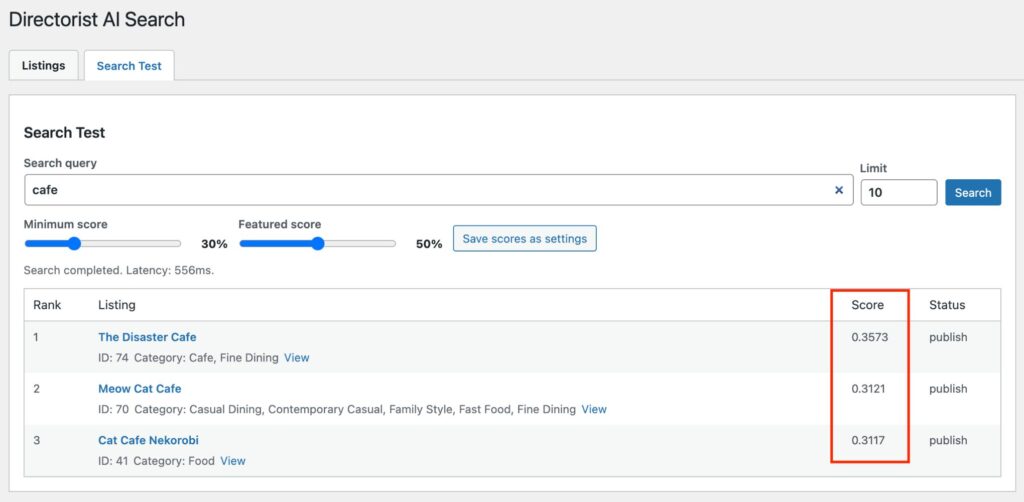
Reading the scores: A score of 0.3215 means the listing is approximately 32% relevant to the query. Any listing below your Minimum Search Score threshold won’t appear in results.

Adjusting thresholds in Search Test:
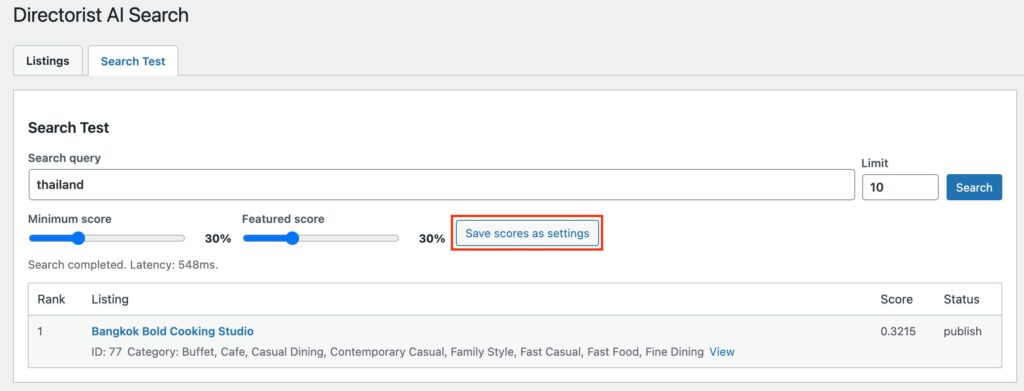
Use the Minimum score and Featured score sliders to test different thresholds against real queries. When you find settings that produce the right balance:

  • Click Save scores as settings to apply them sitewide
What Visitors See #

On the frontend, AI Search attaches to the existing Directorist keyword search field. Visitors don’t interact with it differently – they use the same search bar they always have.

When a visitor types terms and hit search, the see improved results based on your configuration.

Keeping Your Index Current #

If Automatic Re-Indexing on Listing Update is enabled, the index stays current without manual work. Any listing that changes – content, metadata, category, location, or directory type – is automatically scheduled for re-indexing.

If you make bulk changes or add a large batch of new listings, use Index All from the Listings tab to ensure everything is up to date.

AI Search, Delete Index, Index, Semantic Search
What are your Feelings

Share This Article :

  • Facebook
  • X
  • LinkedIn
  • Pinterest
Still stuck? How can we help?

How can we help?

Updated on Aug 31, 2026 11:02 am
Directorist AnalyticsMulti Directory Linking
Table of Contents
  • Before You Start
  • Step 1: Activate the Extension
  • Step 2: Connect Your Directorist Account
  • Step 3: Configure AI Search Settings
  • Step 4: Index Your Listings
    • Index all listings at once
    • Index selected listings
    • Index a single listing
  • Step 5: Add Semantic Terms (Optional but Recommended)
  • Step 6: Test Your Search Results
  • What Visitors See
  • Keeping Your Index Current
Directorist Directorist

Product

  • Features
  • Solutions
  • Extensions
  • Integrations
  • Mobile App
  • Roadmap

Popular

  • OneListing (Free)
  • dClassified
  • dRestaurant
  • dRealestate
  • All Themes
  • Templates

Services

  • Done For You
  • Custom Development
  • Portfolio
  • Contact Sales

Resources

  • Documentation
  • Blog
  • Directorist Academy
  • Directory Ideas
  • What's New

Quick Links

  • About Us
  • Client Showcase
  • Support Policy
  • Refund Policy
  • Affiliate Program

Keep Updated

Subscribe to our email newsletter to receive updates.

Subscribe to our newsletter
© Directorist 2026 A product of
Also by wpWax FormGent HelpGent
  • Privacy Policy
  • Terms & Conditions
We use cookies to ensure the best browsing experience.