
Conditional Logic in the Add Listing Form allows you to dynamically show or hide fields based on user input. This helps you create clean, intelligent forms and improve the listing submission experience.
Use this feature to display only relevant fields depending on listing type, category, price model, or any custom field value.
Overview #
With Conditional Logic, you can:
- Show or hide fields dynamically
- Reduce clutter in the submission form
- Improve user experience
Conditional Logic works inside the Add Listing Form Builder and applies to frontend listing submission.
Where to Find It #
- Go to Directorist → Directory Builder
- Click on the Add Listing Form tab
- Click on any field to edit it
- Scroll to Conditional Logic
- Toggle it ON
How It Works #
Once enabled, you can define rules using:
- Action: Show or Hide
- Field: Select another field from the form
- Condition: Define how the value should be evaluated
- Value: Enter or select the comparison value
You can also define how multiple conditions behave using:
- All Conditions (AND)
- Any Condition (OR)
Available Conditions #
Depending on the field type, you can use:
- is
- is not
- contains
- does not contain
- empty
- not empty
- greater than
- less than
- greater than or equal
- less than or equal
- starts with
- ends with
Step by Step: Create Conditional Logic in Add listing form #
Step 1: Open Field Settings
Click the field where you want to apply conditional logic.
Step 2: Enable Conditional Logic
Toggle the Conditional Logic switch.
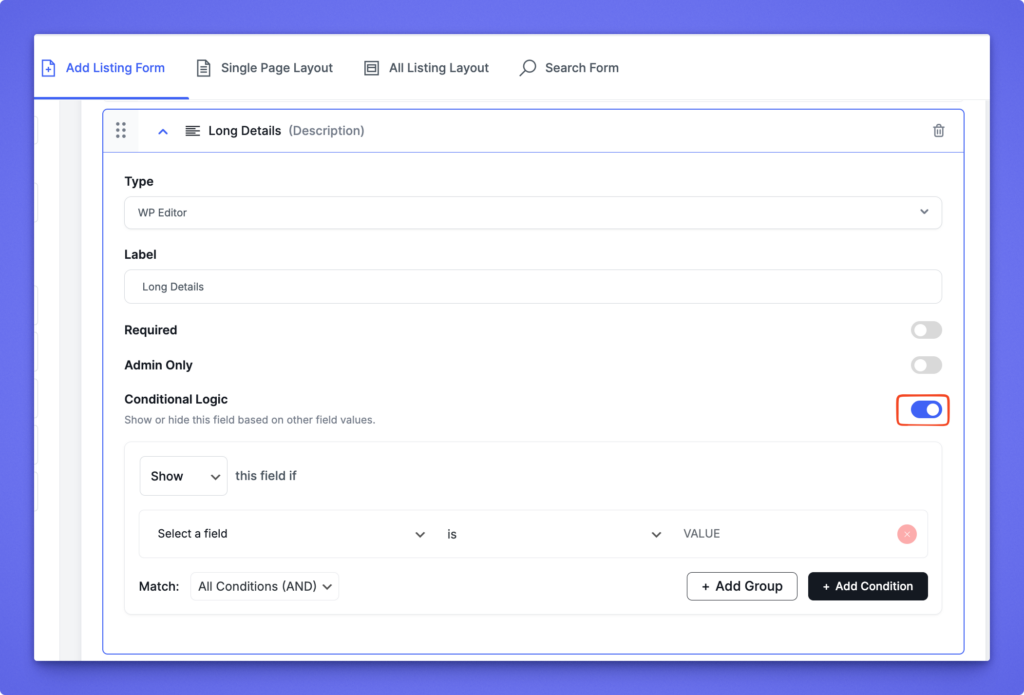
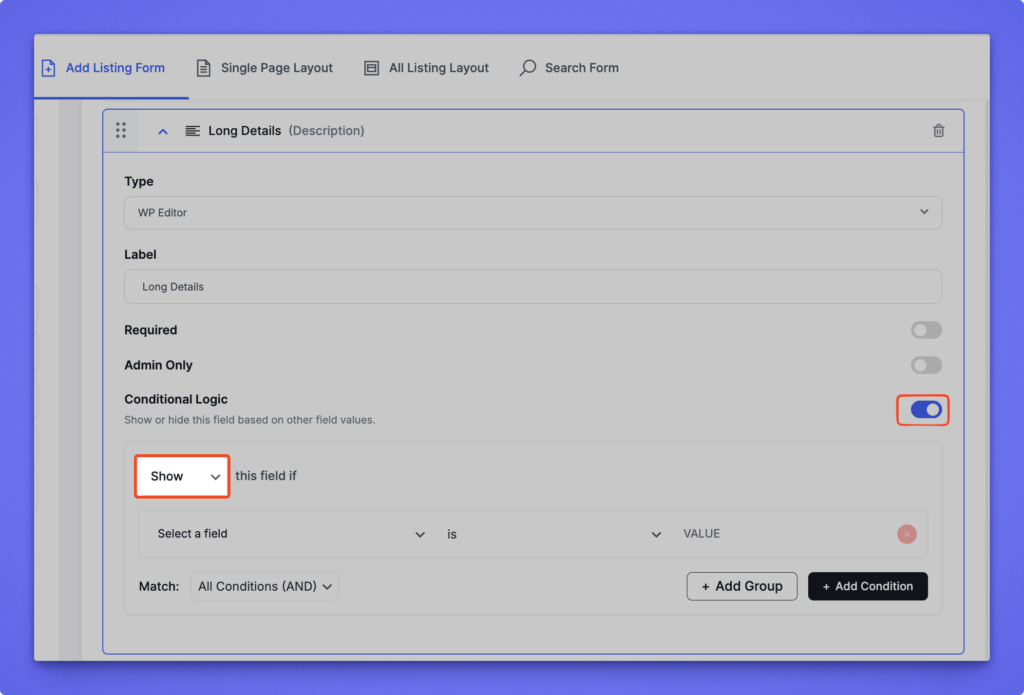
Step 3: Choose Action
Select:
- Show this field if
or - Hide this field if
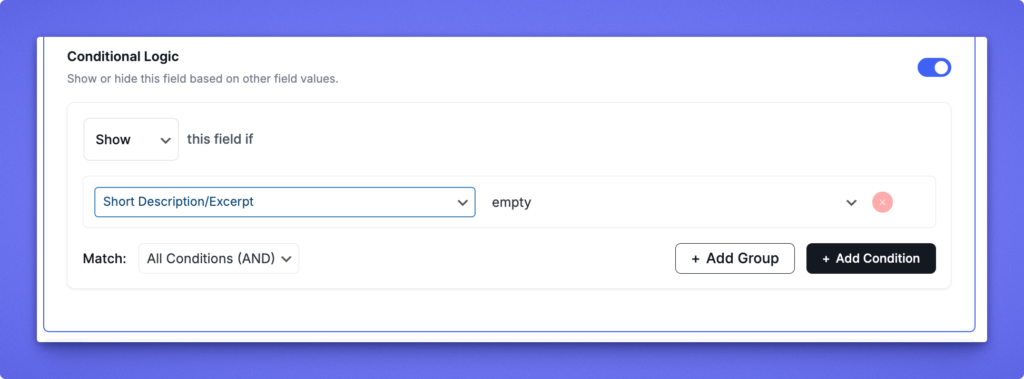
Step 4: Select Field and Condition
- Choose the field that will control the logic
- Select a condition operator
- Enter or select the value
Step 5: Update Changes
Update the form and test from the frontend Add Listing page.
Example 1: Hide Short Description/Excerpt if Long deatils is not empty #
Condition:
- Hide “Short Description/Excerpt“
- If “Long Details” is not empty
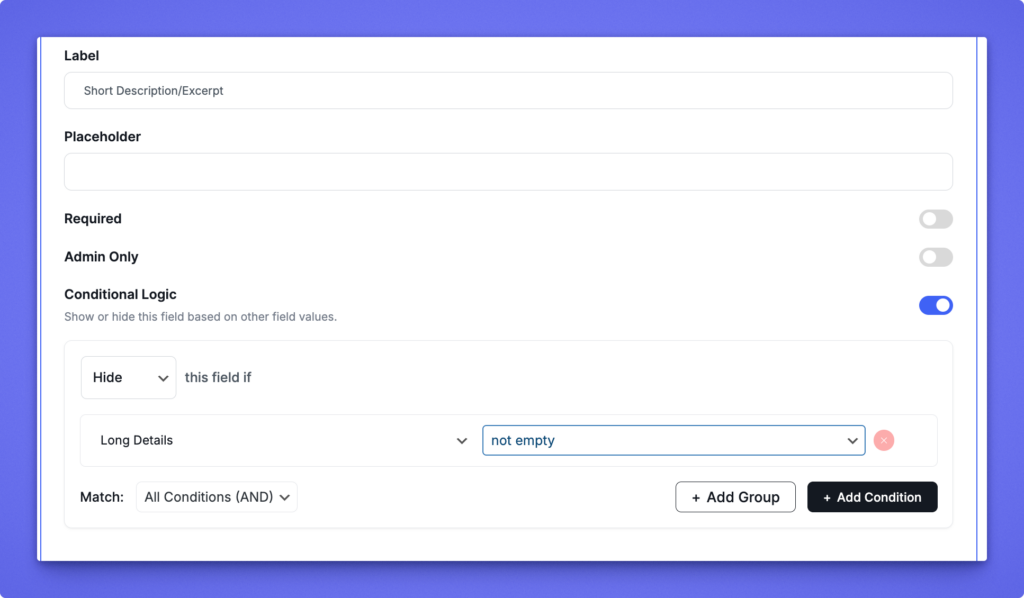
Result:
If you add anything on long details field they do not need to add short description/ Excerpt.
Conditional Logic in Search Form #
Conditional Logic in the Search Form allows you to dynamically show or hide search filters based on other search field values. This helps you create a cleaner and more relevant search experience.
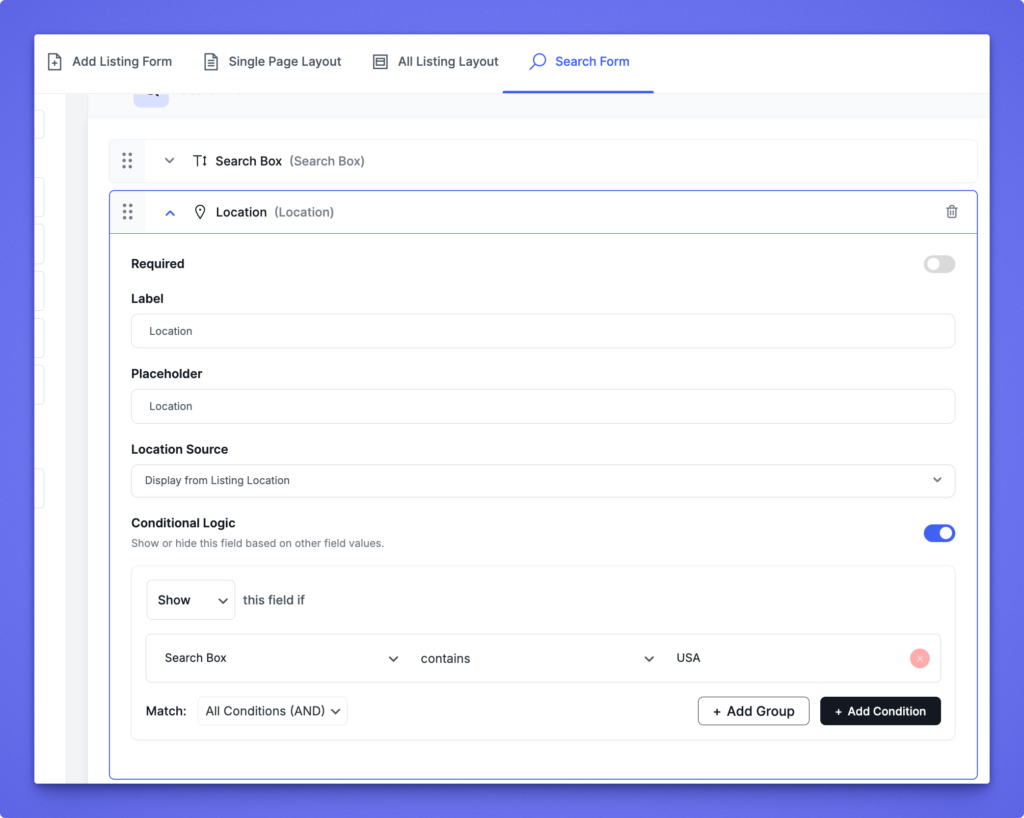
Exact Example From Screenshot
Field: Location
Rule Configuration:
- Action: Show
- Condition:
- Field: Search Box
- Operator: contains
- Value: USA
- Match: All Conditions (AND)
Result
The Location search field will only appear if the user types USA in the Search Box.
If the Search Box does not contain “USA”, the Location field will remain hidden.


