


The Directorist Divi Builder Integration lets you design Directorist directory pages using dedicated Divi modules. Instead of placing shortcodes manually, you use the Divi Visual Builder and Divi Theme Builder to build listing archives, search layouts, category and location sections, listing cards, author profile and single listing pages — all visually, without writing code.
This is useful for WordPress site owners who want visual control over their directory layout, Directorist users who need more flexibility than the default templates offer, Divi users who want to keep everything inside one builder, and agencies building custom directory websites for clients.
Before You Start #
Make sure these are installed and active before proceeding:
| Requirement | Details |
|---|---|
| WordPress | 6.9 or higher |
| PHP | 7.4 or higher |
| Directorist | Required. The integration will not load without it. |
| Divi | The Divi theme, a Divi child theme, or the Divi Builder plugin. |
You should also prepare your Directorist setup first:
- Create at least one directory type.
- Add listing categories and locations if your directory uses them.
- Publish a few test listings so you can verify layouts as you build.
- Configure custom fields in Directorist if you want to display custom listing data in your Divi layouts.
- Activate any Directorist extensions you plan to use alongside Divi — such as Booking, Claim Listing, FAQ, Live Chat, or Job Manager.
Install and Activate #
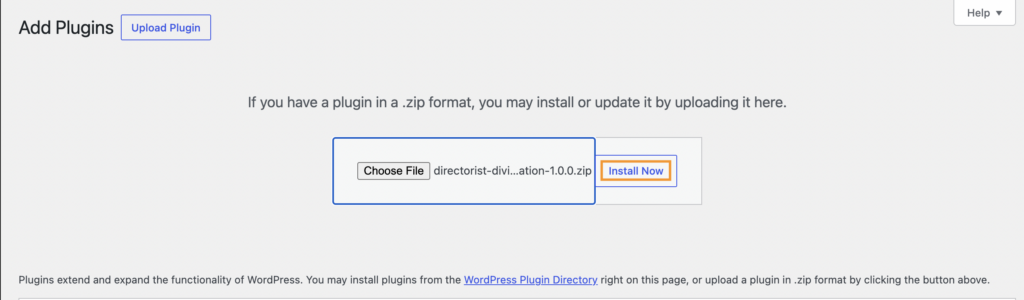
- Go to Plugins → Add New.
- Upload the Directorist Divi Builder Integration ZIP file.
- Click Install Now, then Activate.
- Confirm that both Directorist and Divi are also active.
If either Directorist or Divi is missing, WordPress will show an admin notice explaining which dependency is absent. Install and activate the missing plugin, then reload the admin page.
Build a Listings Archive Page #
Use this workflow when you want a page that shows multiple listings together with search, filters, sorting, view switching, and pagination.
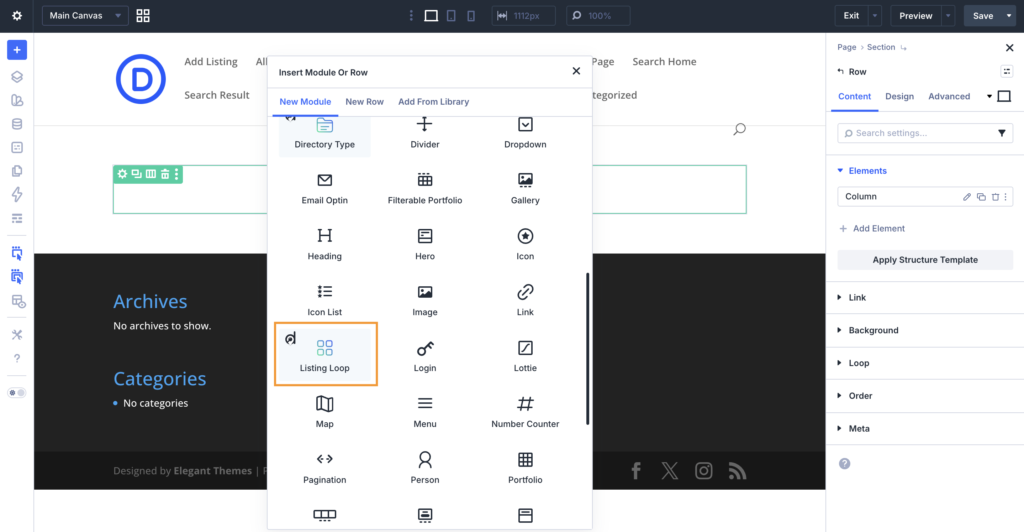
- Create or edit a WordPress page.
- Open the Divi Visual Builder.
- Add the Listing Loop module.
- Configure the listing query in Listing Loop → Content Settings.
- Save and view the page on the frontend to confirm listings appear.
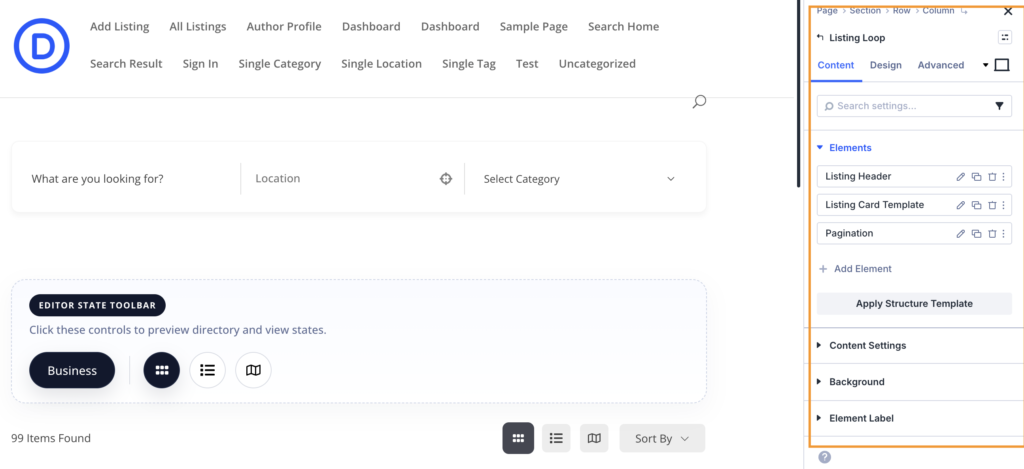
The Listing Loop provides the query and passes listing data to its child modules. By default it includes:
- Directory Type
- Search
- Listing Header
- Listing Card Template
- Pagination
Keep all archive modules inside the same Listing Loop so they share the same listing results. Moving them outside will break the connection between search, results, and pagination.
Listing Loop Settings #
| Setting | What It Does | Notes |
|---|---|---|
| Directory Types | Limits the archive to selected directory types. | Leave empty to show all directory types. |
| Select Default Directory | Chooses which directory type loads first. | Useful on multi-directory sites. |
| Default View | Sets the initial view mode. | Choose grid, list, or map. |
| Listings Per Page | Controls how many listings appear per page. | Use a lower number for image-heavy layouts. |
| Pagination Type | Numbered pagination or infinite scroll. | Numbered pagination works well for most directories. |
| Featured Only | Shows only featured listings. | Useful for featured listing sections on a homepage. |
| Popular Only | Shows only popular listings. | Useful for popular listing highlights. |
| Logged In Only | Restricts listings to logged-in users. | Use for private or member-only directories. |
| Query Type | Normal filtering or hand-picked listings. | Use hand-picked for curated showcase sections. |
| Category, Location, Tag | Filters listings by taxonomy. | Use for focused landing pages targeting one niche or area. |
Customize the Listing Header #
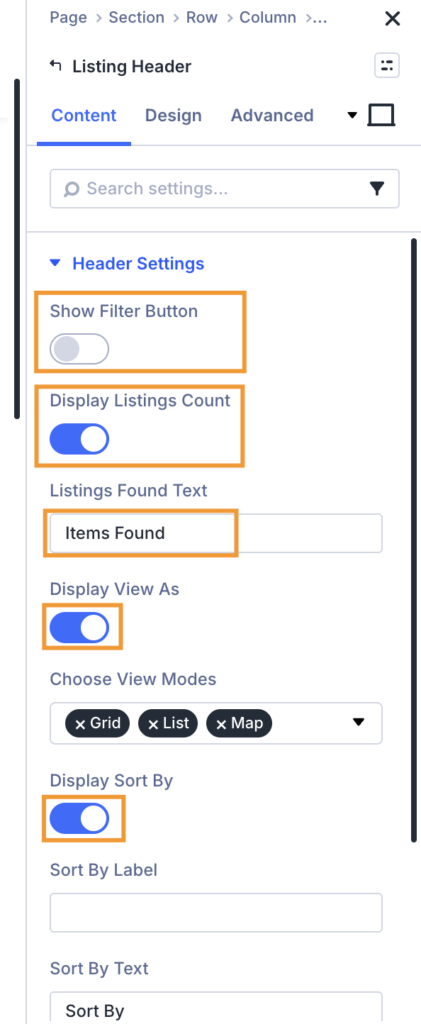
The Listing Header module sits inside the Listing Loop and controls the bar above your archive results. Place it above the Listing Card Template.
It can display the listing count, view mode switcher (grid, list, map), sort dropdown, and a filter button that opens the filter form.
| Setting | What It Does |
|---|---|
| Listings Found Text | The text displayed after the listing count. |
| Display Listings Count | Shows or hides the result count. |
| Choose View Modes | Selects which view buttons appear. |
| Display View As | Shows or hides the view switcher. |
| Display Sort By | Shows or hides the sort dropdown. |
| Sort By Text | Changes the sort dropdown label. |
| Show Filter Button | Adds a filter button to the header. |
| Filter Button Text | Changes the filter button label. |
Add Search and Filters #
The integration includes two search-related modules for archive pages:
| Module | Use It For |
|---|---|
| Search | A basic search form — keyword, category, and location fields. |
| Listing Filter | An advanced or sidebar filter form with support for custom fields, price range, tags, and more. |
Both modules read the active directory type automatically. If you set a default directory in the Listing Loop, these modules use it on first load. When a visitor switches directory types, both modules update to match.
The Search module works well as a hero search at the top of the page. The Listing Filter works better in a sidebar column beside the Listing Loop, giving visitors persistent access to narrow results without a separate modal.
Design Listing Cards #
The Listing Card Template module sits inside the Listing Loop and controls what each individual listing card looks like. This is where you decide what information to show — and in what order — for every listing in the results.
- Open the Listing Card Template module.
- Choose the directory and view mode you want to design for.
- Set the number of columns for grid view.
- Add, remove, and reorder listing field modules inside the card.
- Style each module using Divi’s design controls.
| Setting | What It Does |
|---|---|
| Select Directory | Chooses the directory type you are designing for. |
| Select View Mode | Lets you compose separate card layouts for grid, list, and map view. |
| Number of Columns | Controls the column count in grid view. |
| Map Height | Sets the height of the map when using map view. |
| Map Zoom Level | Controls map zoom from 1 to 18. |
| Empty Listings Text | The message shown when no listings match the current query. |
Listing Card Modules #
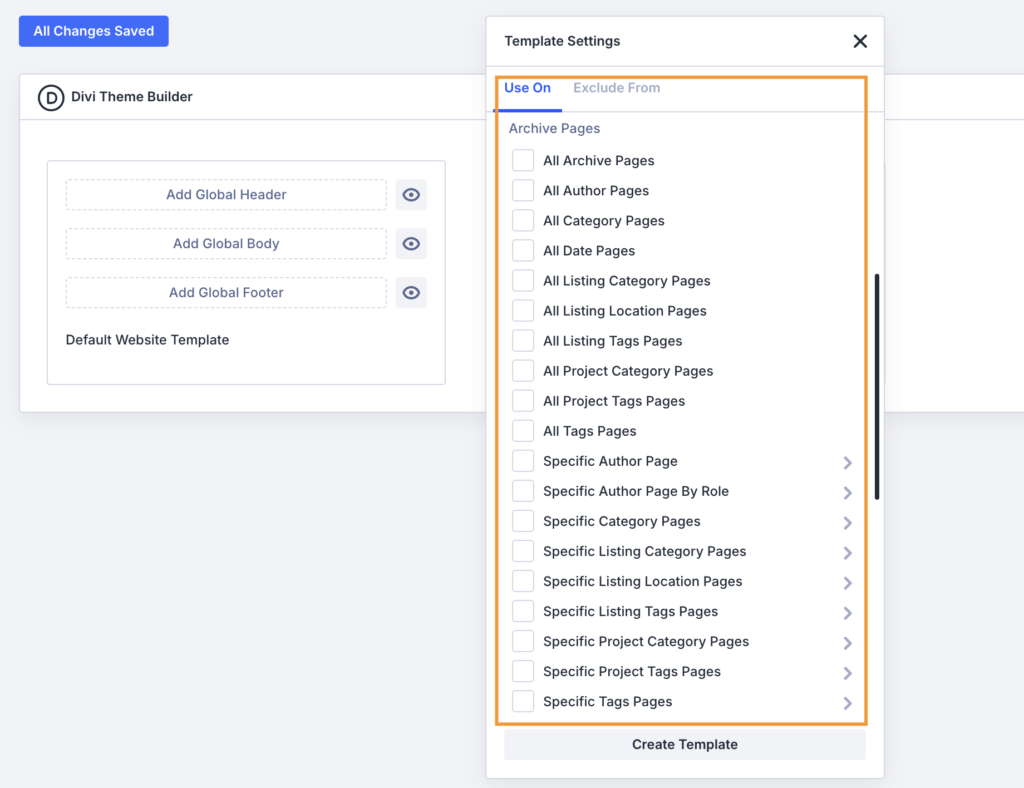
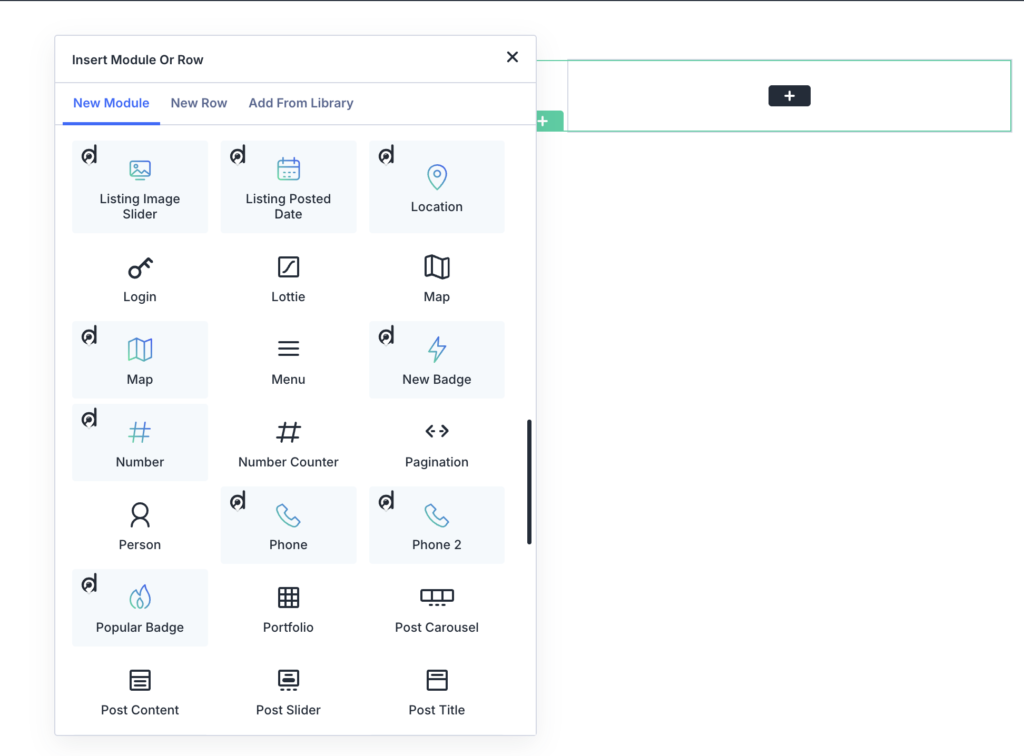
These modules can be added inside a listing card:
| Module | Displays |
|---|---|
| Images Slide | Listing preview image or image slider. |
| Title | Listing title. |
| Tagline | Listing tagline. |
| Author | Listing author name. |
| Description | Full listing description. |
| Excerpt | Listing excerpt. |
| Rating | Listing rating. |
| Price | Listing price. |
| Featured Badge | Featured listing indicator. |
| New Badge | New listing indicator. |
| Popular Badge | Popular listing indicator. |
| View Count | Number of times the listing has been viewed. |
| Favourite Badge | Favorite / save button. |
| Category | Listing category. |
| Location | Listing location. |
| Listing Tag | Listing tags. |
| Address | Address field. |
| Zip | Zip or postcode. |
| Phone | Primary phone number. |
| Phone 2 | Secondary phone number. |
| Fax | Fax number. |
| Email address. | |
| Website | Website URL. |
| Listing Posted Date | Published or posted date. |
Custom Field Modules #
Use these modules when you want to display Directorist custom fields inside a card or single listing layout:
| Module | Field Type |
|---|---|
| Text Field | Text custom field. |
| Listing Textarea | Textarea custom field. |
| Number | Number custom field. |
| URL | URL custom field. |
| Date | Date custom field. |
| Time | Time custom field. |
| Dropdown Field | Select/dropdown custom field. |
| Radio Field | Radio button custom field. |
| Checkbox Field | Checkbox custom field. |
| Listing Color | Color custom field. |
| Listing File | File upload custom field. |
For each custom field module, select the field in the module settings. The field must belong to the selected directory type, and the listing must have a saved value for that field. Test with real listings — the Visual Builder preview may not always show field values.
Build a Single Listing Template #
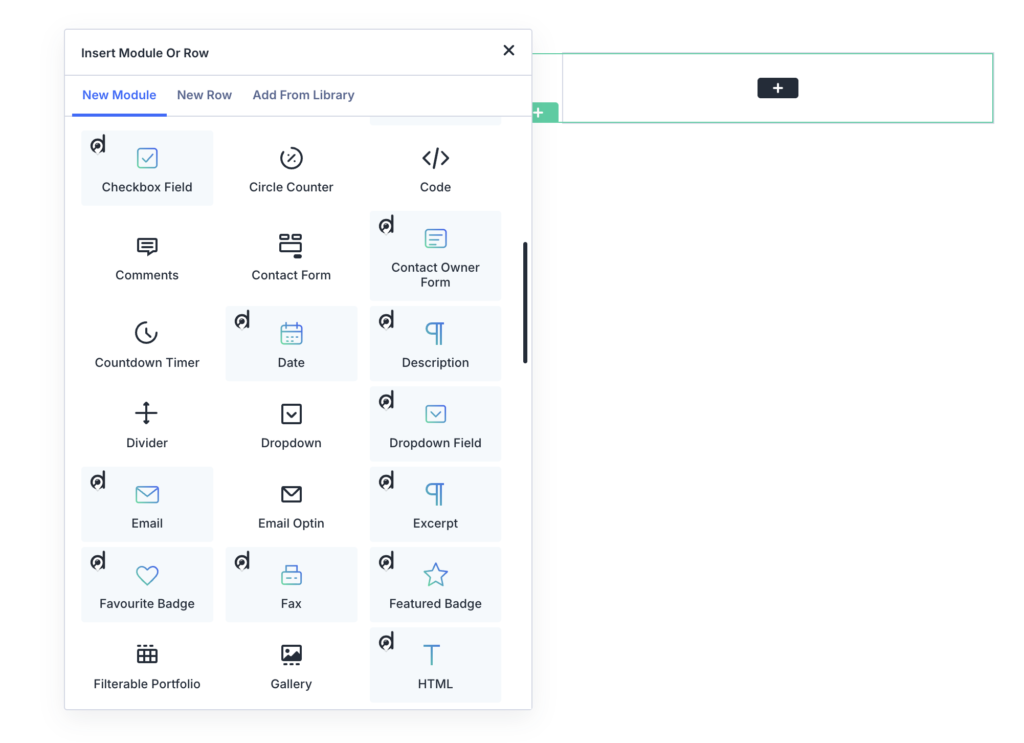
Use the Divi Theme Builder when you want to design the page a visitor sees when they open one listing. A Theme Builder template applies your design automatically to every listing, pulling each listing’s own data into the layout.
- Go to Divi → Theme Builder.
- Click Add New Template.
- Under the assignment conditions, select the Directorist listing post type (
directorist_listing). To target only one directory type, add the condition Listings with Specific Directory Type and select the directory. - Click Add Custom Body and build the layout with Directorist single listing modules.
- Save the template and open a real listing on the frontend to verify.
The template will apply to every listing that matches the assigned conditions.
Single Listing Modules #
| Module | Use It For |
|---|---|
| Images Slider | Full listing photo gallery. |
| Map | Listing location map. |
| Video | Listing video embed. |
| Social Info | Social media profile links. |
| Social Share | Share buttons for Facebook, X, LinkedIn, WhatsApp, Pinterest, and Email. |
| Report Abuse | A form visitors can use to report a listing. |
| Contact Owner Form | A contact form directed to the listing owner. |
| Review | Listing reviews and ratings. |
| Related Listings | A slider of related listings. |
| Back Button | A back or navigation button. |
You can also use all listing card modules (Title, Tagline, Address, Phone, custom fields, badges, etc.) inside a single listing template. The same modules work in both contexts.
Display Directory Types #

The Directory Type module displays all available directory types with icons and links, letting visitors choose which type of directory to browse. It is most useful on multi-directory sites.
You can control horizontal alignment, icon position, gap between items, and icon size. If no directory types exist, the module displays a “No directory types found” message.
Display All Categories #
The All Categories module shows listing categories in a grid, list, paginated, or slider layout.
| Setting | What It Does |
|---|---|
| View | Grid or list layout. |
| Display Mode | Pagination or slider. |
| Columns | Number of grid columns. |
| Categories Per Page | How many categories appear per page or slide. |
| Show Image | Displays the category background image. |
| Show Icon | Displays the category icon. |
| Show Listing Count | Shows the number of listings in each category. |
| Logged In Only | Restricts the module to logged-in users. |
| Redirect Page URL | The page logged-out users are sent to. |
| Directory Types | Filters categories to one or more directory types. |
| Show “All” Tab | Adds an All tab when directory type navigation is active. |
Display All Locations #
The All Locations module shows listing locations in a grid, list, paginated, or slider layout.
| Setting | What It Does |
|---|---|
| View | Grid or list layout. |
| Display Mode | Pagination or slider. |
| Columns | Number of grid columns. |
| Locations Per Page | How many locations appear per page or slide. |
| Show Image | Displays the location image. |
| Show Listing Count | Shows the number of listings in each location. |
| Logged In Only | Restricts the module to logged-in users. |
| Redirect Page URL | The page logged-out users are sent to. |
| Directory Types | Filters locations to one or more directory types. |
| Show “All” Tab | Adds an All tab when directory type navigation is active. |
Optional Extension Modules #
Some Divi modules only appear when the related Directorist extension is installed and active. If a module is missing from the builder, check whether its required plugin is active.
| Divi Module | Required Plugin |
|---|---|
| Universal Search Form | Directorist Universal Search |
| Universal Search Result | Directorist Universal Search |
| Booking | Directorist Booking |
| FAQ | Directorist FAQs |
| Digital Marketplace | Directorist Digital Marketplace |
| FormGent Form | FormGent |
| Image Gallery | Directorist Gallery |
| Link Directory | Directorist Directory Linking |
| Compare Badge | Directorist Compare Listing |
| Live Chat | Directorist Live Chat |
| Claim Listing | Directorist Claim Listing |
| Job Salary | Directorist Job Manager |
| Job Type | Directorist Job Manager |
| Job Position | Directorist Job Manager |
| Job Deadline | Directorist Job Manager |
| Job Apply Form | Directorist Job Manager |
Verify Your Build #
After finishing a page or template, run through this checklist on the frontend:
- Confirm listings appear on the archive page.
- Test directory type switching if you have multiple types.
- Test the search form and filter.
- Test grid, list, and map view if all three are enabled.
- Test the sort dropdown.
- Test pagination or infinite scroll.
- Open a single listing and confirm its template loads correctly.
- Check the mobile layout in Divi’s responsive preview and on a real device.
Common Issues #
Directorist modules do not appear in the Divi Builder #
Check that Directorist is active, Divi (theme, child theme, or Builder plugin) is active, and the Divi version is compatible with the module library this integration uses. If a specific module is missing, check whether its required extension is installed and active.
A dependency notice appears in WordPress admin #
The integration could not find Directorist, Divi, or both. Install and activate the missing plugin, then reload the admin page.
Listings do not appear on the archive page #
Common causes: no published listings exist, the selected directory type has no listings, the active category or location filter has no matching listings, Featured Only or Popular Only is enabled but nothing qualifies, or Logged In Only is on and you are viewing the page while logged out.
Custom field values do not show #
Confirm the field exists in the selected directory type, the correct field is selected in the Divi module settings, the listing you are testing has a saved value for that field, and you are viewing a real listing — not just the Visual Builder placeholder.
Map view does not display correctly #
Check that the Directorist map provider is configured, listings have location data, and your Google Maps API key is valid if you use Google Maps. Also check whether caching or JavaScript optimization plugins are blocking Directorist map scripts.
Search or filter results do not update #
The archive uses AJAX to update results instantly. If nothing refreshes after a search or filter action: clear the page cache and browser cache, temporarily disable JavaScript defer or delay settings, and confirm the Search, Listing Header, Listing Card Template, and Pagination modules are all inside the same Listing Loop module.
Developer Notes #
This integration registers Directorist components as Divi modules and renders them through Directorist’s own template system.
Hooks #
| Hook | Purpose |
|---|---|
directorist_divi_integration_before_load | Fires before the integration loads, after dependencies are confirmed. |
directorist_divi_integration_after_load | Fires after the integration has fully loaded. |
directorist-divi-integration_rest_response_filter | Allows overriding REST responses in the routing layer. |
directorist-divi-integration_rest_permission_filter | Allows overriding REST permission checks in the routing layer. |
directorist_map_card_content | Lets you customize the popup card content on map view. |
Archive AJAX #
The archive uses the directorist_divi_instant_search AJAX action to handle search, filtering, sorting, view switching, and pagination without page reloads. All requests require the directorist_divi_nonce nonce.
REST Routes #
The plugin registers REST routes under the directorist/divi namespace. These routes serve module preview data and builder responses for the Divi editor. Treat them as internal — they are not a public API unless your project explicitly builds on them.
Template Overrides #
Many modules render output through Directorist’s template helper methods. If you override Directorist templates in a child theme or through Directorist’s supported override paths, test your Divi layouts after each template change to confirm nothing is broken.


