

Monetization #
The Monetization section controls paid listings and how payments are collected. It has three tabs: Currency, Featured listings, and Payment gateways.
Path: WP Admin → Directorist → Settings → Monetization
1. Currency #
The Currency tab controls how prices are displayed to visitors across your directory and which currency is used when a customer actually pays at checkout.
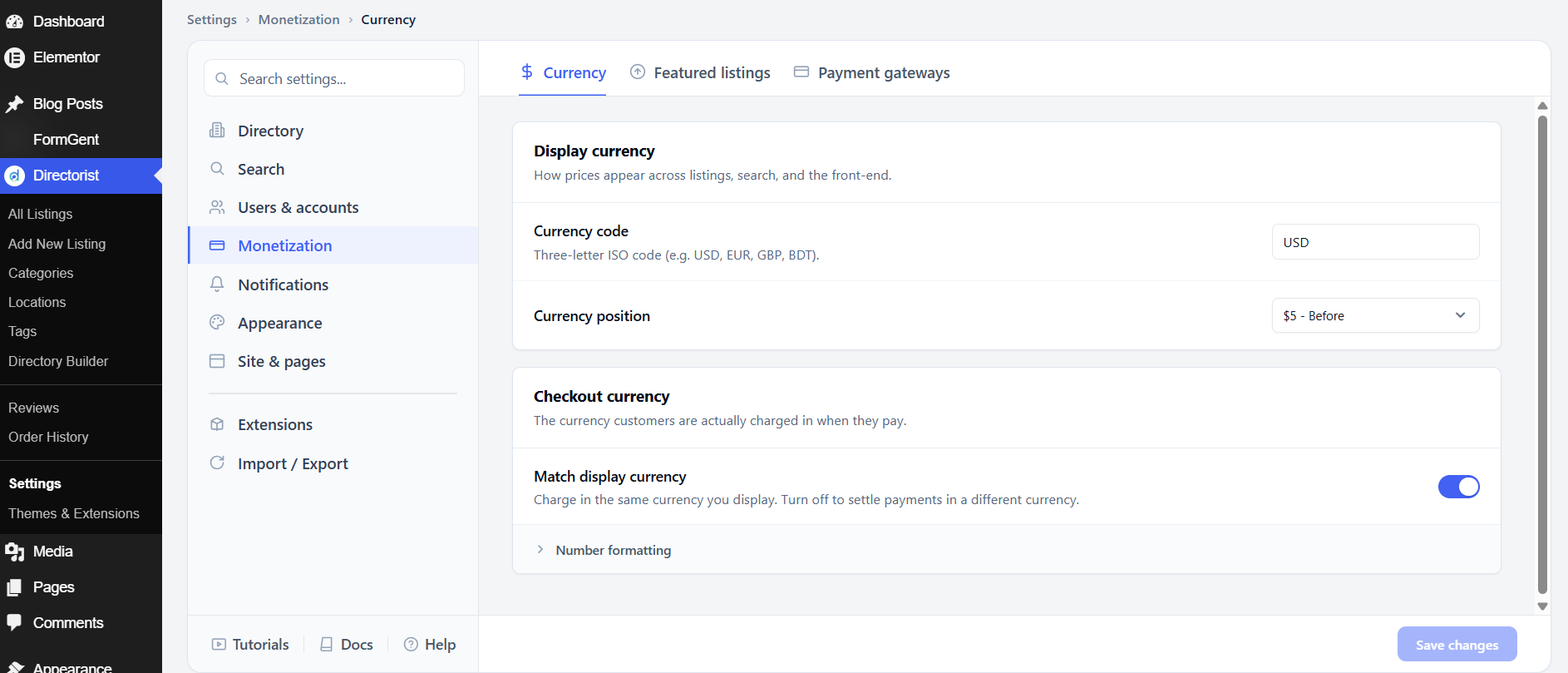
Display currency #
This group of settings controls how prices look on the front-end — on listing cards, search results, and anywhere a price appears.
Currency code sets which currency symbol and code Directorist uses to display prices. Enter a standard three-letter ISO code — for example, USD for US dollars, EUR for euros, GBP for British pounds, or BDT for Bangladeshi taka. The default is USD. Change this to match the currency your directory operates in.
Currency position controls where the currency symbol appears relative to the price. The default is $5 – Before, which places the symbol before the number (e.g., 50).Otheroptionsmayplacethesymbolafterthenumber(e.g.,5050). Other options may place the symbol after the number (e.g., 50 50).Otheroptionsmayplacethesymbolafterthenumber(e.g.,50) or add spacing. Choose the format standard for your region.
Checkout currency #
This group controls the currency customers are actually charged in when they complete a payment — which may differ from the display currency.
Match display currency is on by default. When enabled, customers are charged in the same currency shown on the front-end — the simplest and most transparent setup. Turn it off only if your payment gateway settles in a different currency than the one you display to visitors. For example, you might display prices in a local currency but settle payments in USD through your gateway.
Number formatting is a collapsed section below. Expand it to configure how prices are formatted — for example, the decimal separator, thousands separator, and number of decimal places shown.
After adjusting these settings, click Save changes.
2. Featured listings #
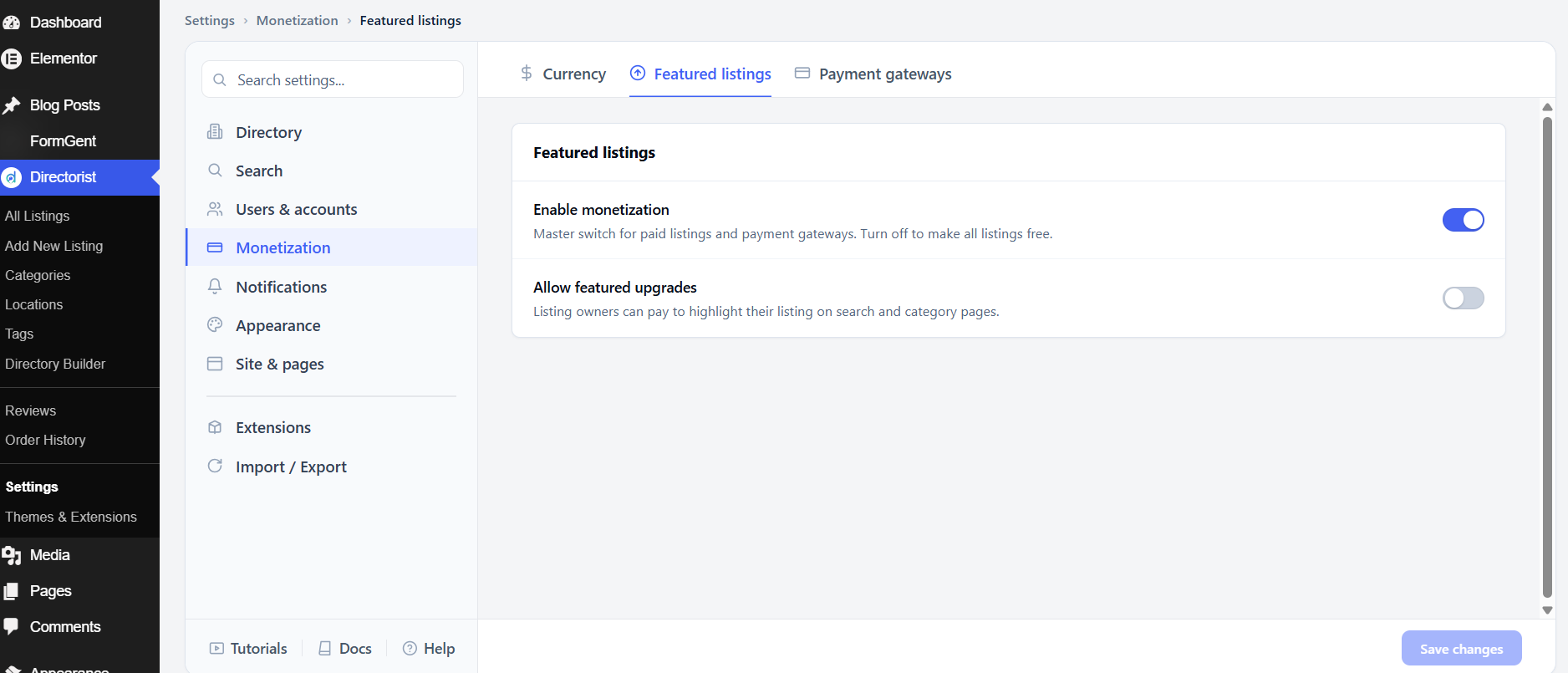
Enable monetization is the master switch for all paid features in Directorist. This is on by default. Turn it off to make your directory completely free — no payment options will appear to users, and no gateways will be active. Turn it back on any time you want to start accepting payments.
Allow featured upgrades lets listing owners pay to have their listing marked as featured, which highlights it in search results and category pages. This is off by default. Enable it once you have set up a payment gateway and are ready to charge for featured placement.
After adjusting these settings, click Save changes.
3. Payment gateways #
The Payment gateways tab is where you choose which payment methods are available at checkout.
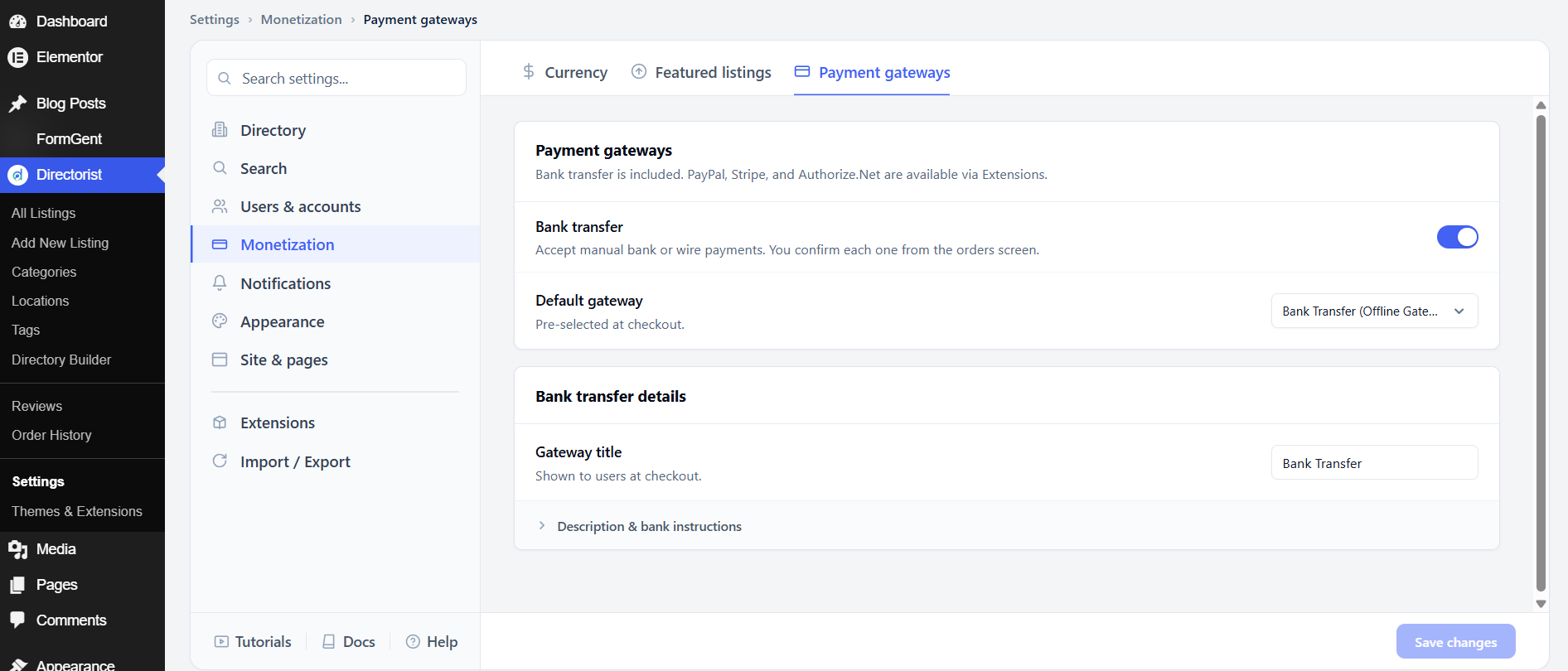
Bank transfer is the only built-in payment method. It accepts manual bank or wire transfers — when a user chooses this at checkout, you receive a notification and manually confirm the payment from the orders screen. It is on by default. Additional gateways — PayPal, Stripe, and Authorize.Net — are available as extensions from the Extensions section.
Default gateway sets which payment method is pre-selected when a user reaches checkout. The default is Bank Transfer. If you install and activate other gateways, you can change this to whichever method your users prefer.
Bank transfer details
Gateway title is the name shown to users at checkout. The default is Bank Transfer. Change it to something clearer if needed, such as Direct Bank Payment.
Description & bank instructions is an expandable section where you add the payment instructions users see after choosing bank transfer — for example, your account number, sort code, and reference instructions. Expand it and fill in your bank details.
After adjusting these settings, click Save changes.


