

Import / Export #
The Import / Export section lets you move listing data and Directorist settings between sites — useful when migrating to a new host or duplicating a directory setup.
Path: WP Admin → Directorist → Settings → Import / Export
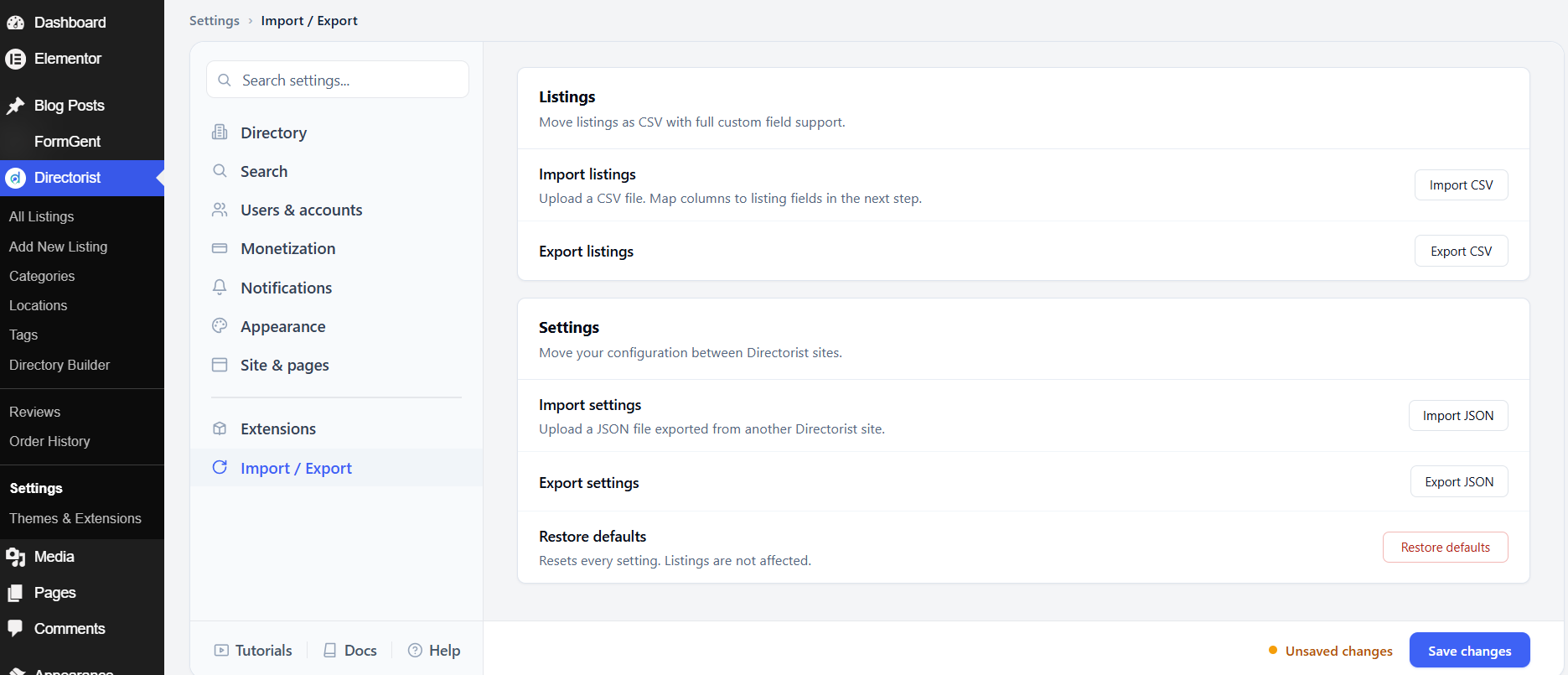
Listings
You can import and export listings as CSV files with full custom field support.
To import listings, click Import CSV and upload a CSV file. Directorist will let you map each column in your file to the corresponding listing field in the next step.
To export all current listings, click Export CSV. The file can be opened in Excel or any spreadsheet tool, edited, and re-imported.
Settings
You can also import and export your Directorist configuration as a JSON file.
To export your settings, click Export JSON. Save the file somewhere safe — you can use it to quickly set up another Directorist site with the same configuration.
To import settings from another Directorist site, click Import JSON and upload the exported file. This overwrites your current settings, so use it carefully.
Restore defaults
Restore defaults resets every Directorist setting to its original default value. Your listings, orders, and reviews are not affected — only the settings are reset. Click Restore defaults to run. This cannot be undone.


