

The All Listings page is the one your visitors use most, it’s where they search, filter, and browse everything in your directory. This article walks through building that page’s design with real Divi modules, starting from either the page Directorist already created for you, or a blank one.
If you haven’t read Getting Started with Divi Integration Extension yet, read that first. It covers why the page you already have is running on a shortcode, not a Divi design, and why that matters.
Step 1: Choose Your Starting Point #
Option A – Edit the existing page. #
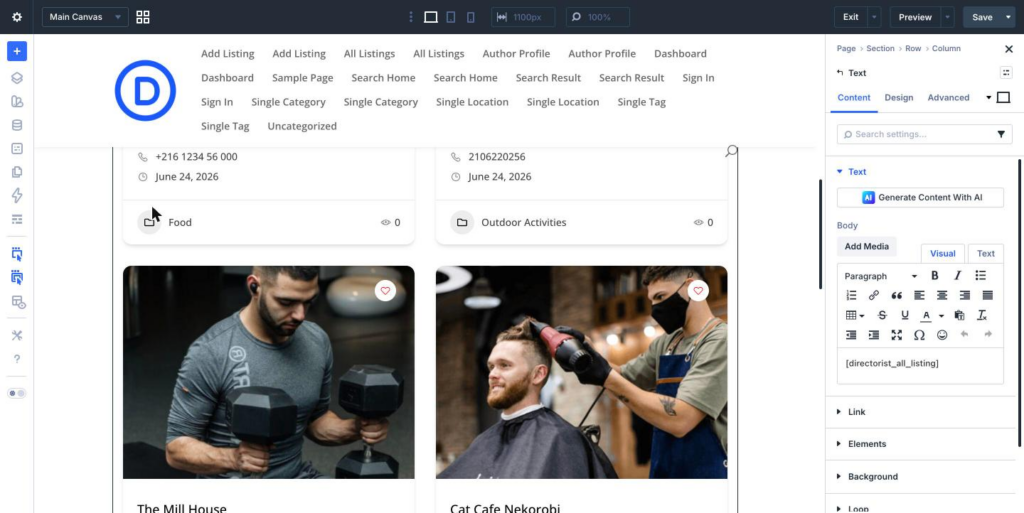
Open the All Listings page from Setup Wizard, switch it to the Divi Builder, delete the Text module holding the [directorist_all_listing] shortcode, and insert the Listing Loop module where it was.
Option B – Start from a blank page. #
Create a new WordPress page, name it All Listings (New) and open the Divi Visual Builder, and build the archive yourself.
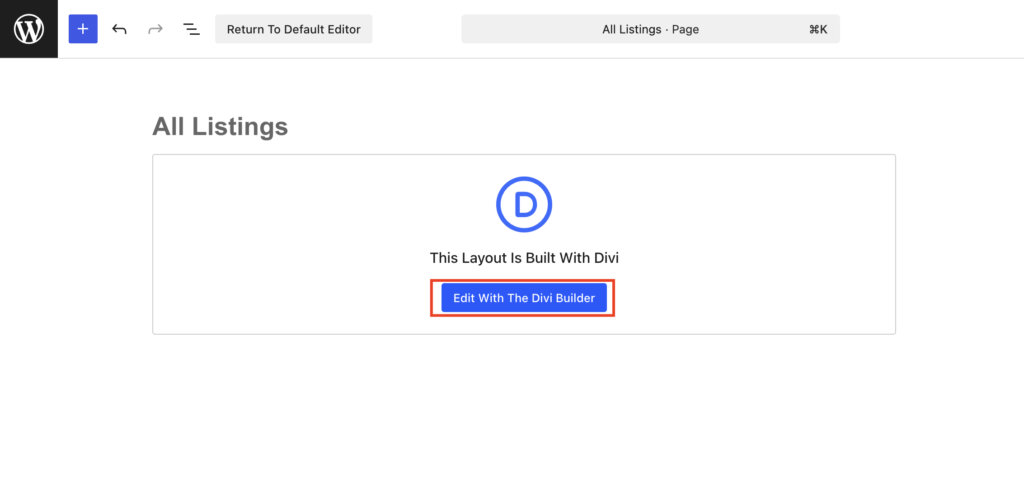
Either way, the end result is the same structure. This article follows Option A, since it’s what most people will actually do.
Step 2: Understand the Listing Loop #
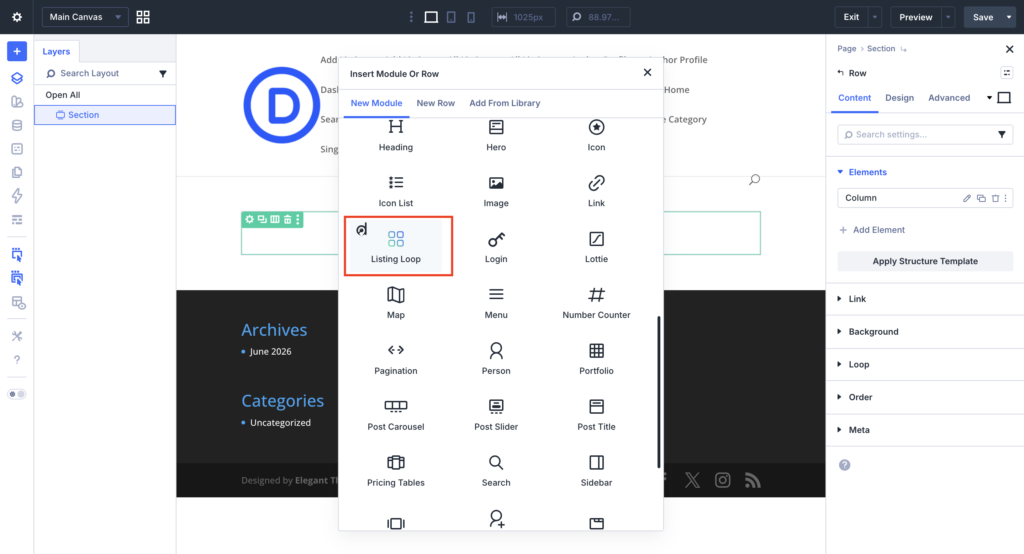
The Listing Loop is the foundation of the whole page. It runs the listing query and makes the results available to everything placed inside it.
As soon as you add it, the loop renders with its default internal pieces already in place:
- Directory Type – tabs for switching between directory types, useful if you run more than one.
- Search – keyword, location, and category fields.
- Listing Header – the bar showing result count, view switcher (grid, list, map), and sort dropdown.
- Listing Card Template – controls what each individual listing card looks like.
- Pagination – numbered pages or infinite scroll.
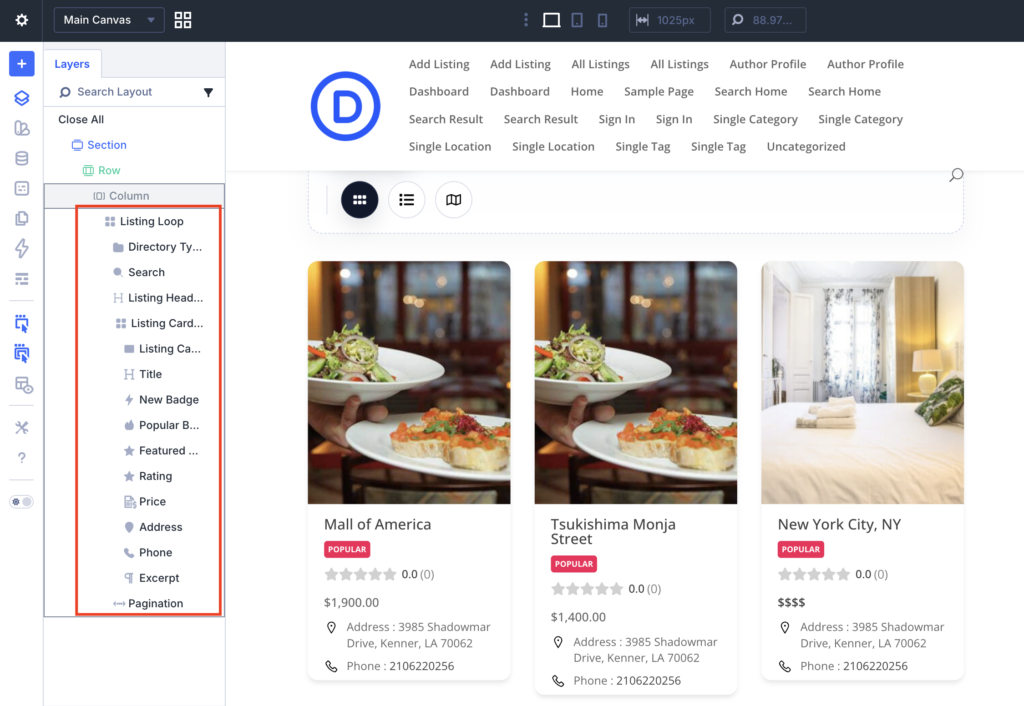
Directory Type is also a separate module you can place above or next to the Listing Loop, it also exists as a piece inside it. Search, Listing Header, and Pagination, they’re built to live inside the Loop, not as standalone modules elsewhere on the page. Only two archive modules are different, All Categories and All Locations can be placed anywhere on any page, independent of the Listing Loop entirely.
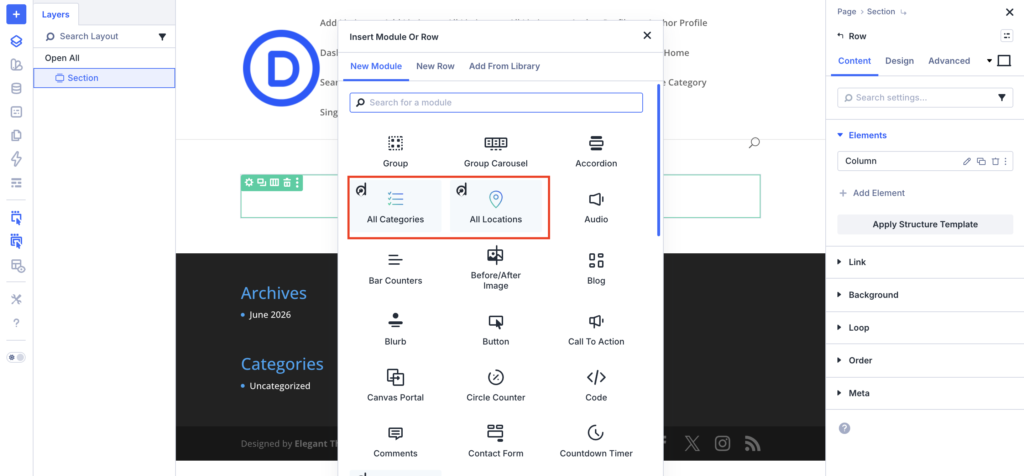
Step 3: Configure the Loop #
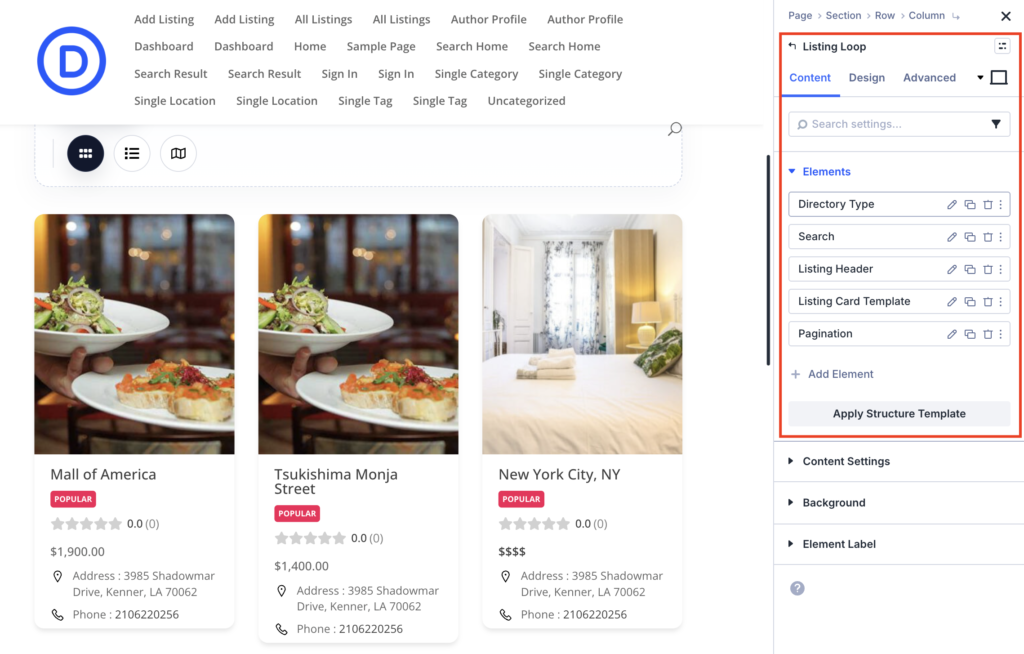
Select the Listing Loop itself and check its Content tab settings:
| Setting | What It Does |
|---|---|
| Directory Types | Filters the archive to selected directory types. Leave empty to show all. |
| Select Default Directory | Sets which directory type loads first on multi-directory sites. |
| Default View | Sets the initial view — grid, list, or map. |
| Listings Per Page | Controls how many listings appear at once. |
| Pagination Type | Numbered pagination or infinite scroll. |
| Featured Only / Popular Only | Restricts the archive to featured or popular listings. |
| Logged In Only | Restricts listings to logged-in visitors. |
| Category / Location / Tag | Pre-filters by taxonomy, useful for a focused landing page. |
Step 4: Design the Listing Header #
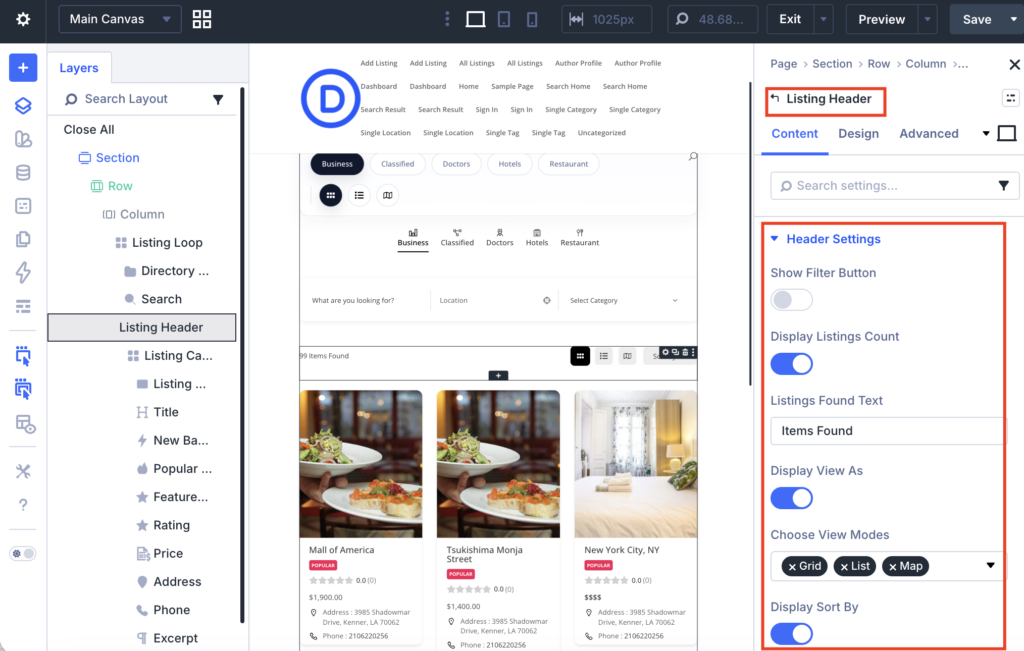
Select Listing Header. In its Content tab, turn individual pieces on or off: the result count text, the view switcher, the sort dropdown. If you only want a grid view with no map or list toggle, turn those off here. Then use the Design tab to match the header’s typography and spacing to the rest of your site.
Step 5: Design the Listing Card Template #
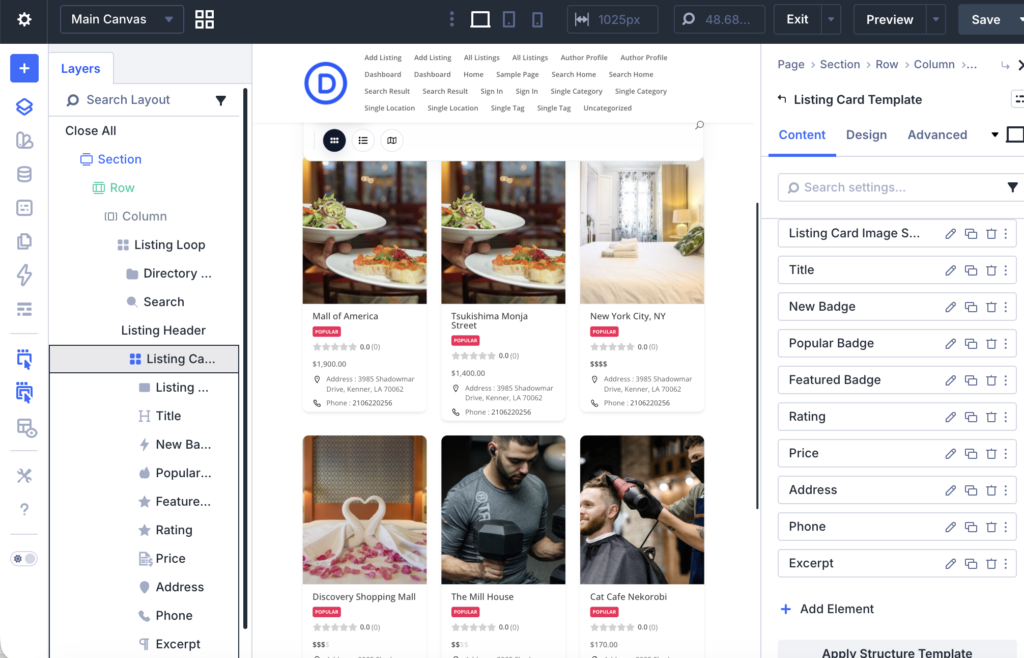
This is where most of the actual design work happens. Select Listing Card Template and open the layer panel underneath it. You’ll see individual field modules already placed: Title, Rating, Price, Address, Phone, badges, and more, depending on what the default layout included.
Each of these is independently selectable and stylable, same Content, Design, and Advanced tabs as any other Divi module.
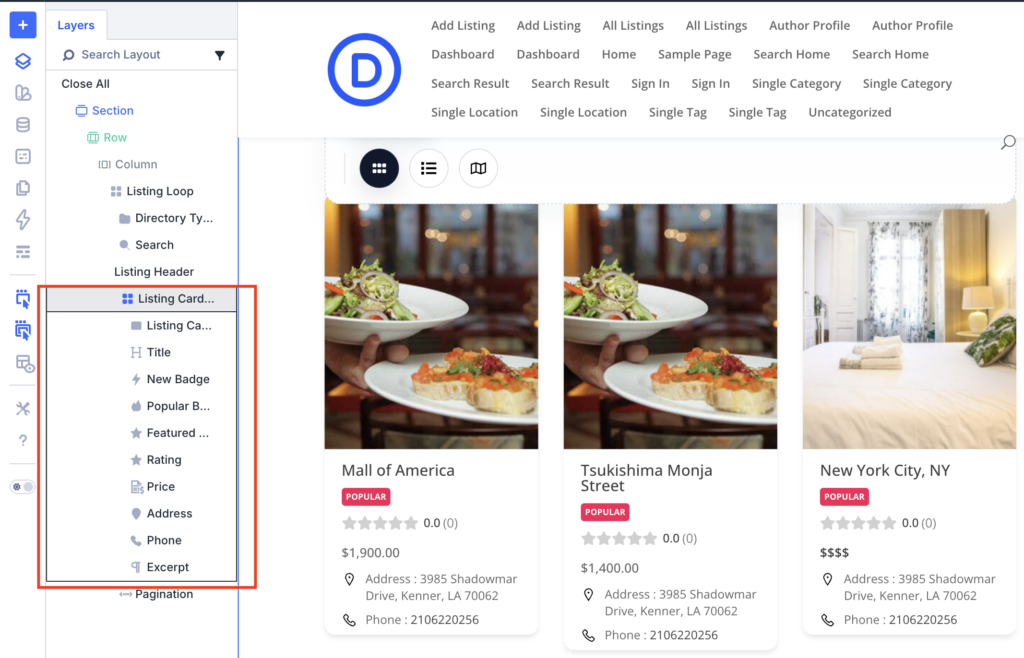
One rule to know before you start rearranging things: field modules stay inside the card. You can reorder Title, Rating, Price, and the rest within the Listing Card Template, but you can’t drag one out to sit directly under the Listing Loop on its own. A Title module has no listing to pull data from unless it’s inside a card (or the Map or Related Listings module), so Divi won’t let it exist outside that structure. If a module “won’t move” the way you expect, that’s why.
Adding More Fields #
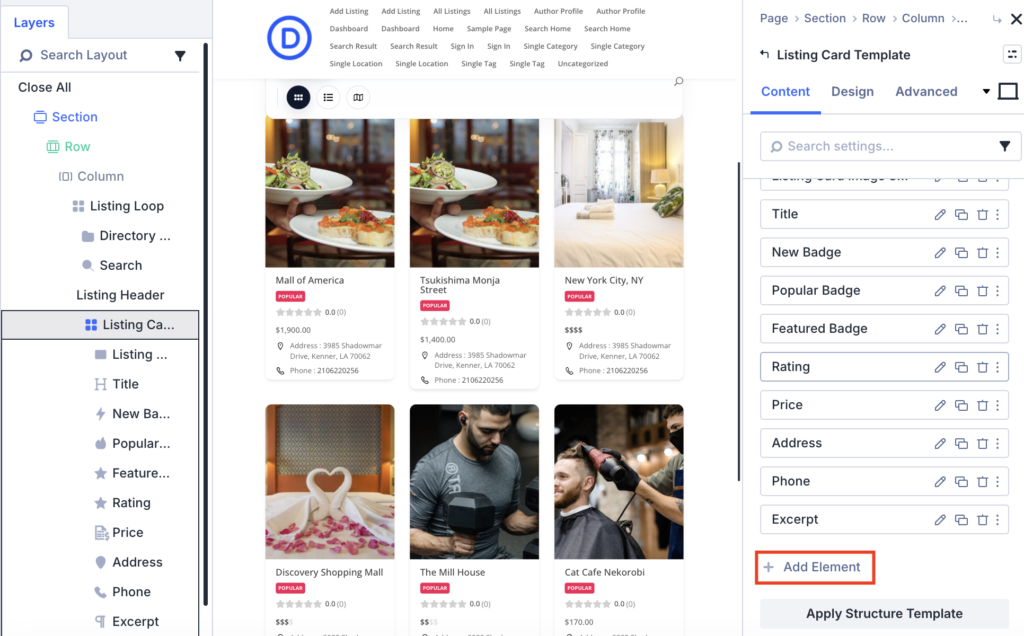
Click Add Element on the Listing Card Template, and the list you get isn’t fixed. It’s pulled directly from the directory type you’re designing for, including any custom fields you’ve added. A few fields are left out because they don’t make sense inside a card layout (a full embedded map, for instance), but almost everything else shows up here automatically.
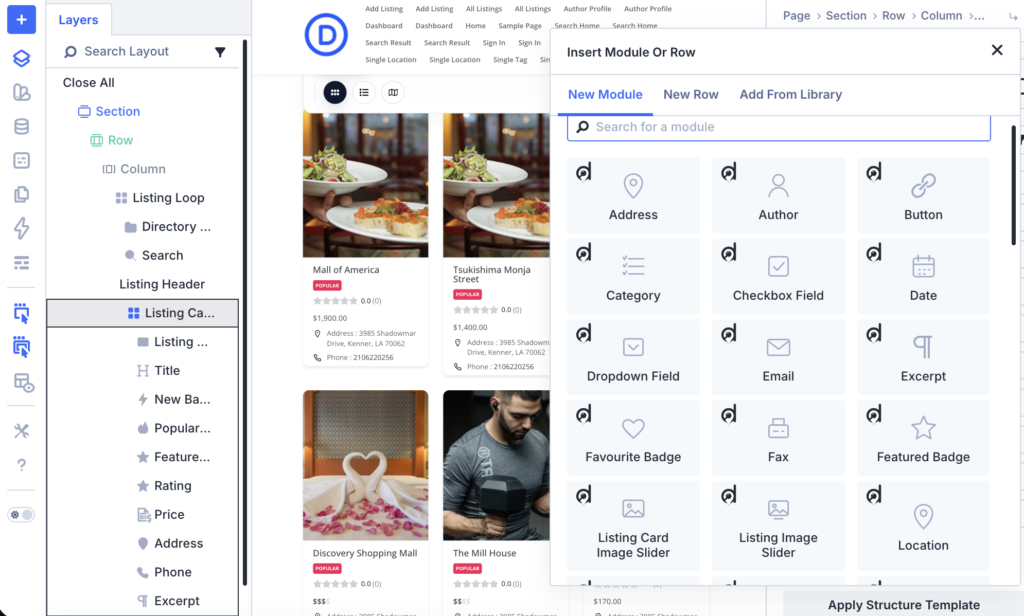
If you’re building a restaurant directory, that might mean adding Cuisine Type or Price Range. If it’s real estate, maybe Bedrooms or Square Footage. Add whatever matters for your directory, then style each one until the card looks the way you want.
Step 6: Handle Missing Data Gracefully #
Not every listing will have every field filled in. If a listing owner never added a phone number, you don’t want an empty line breaking the card’s layout.
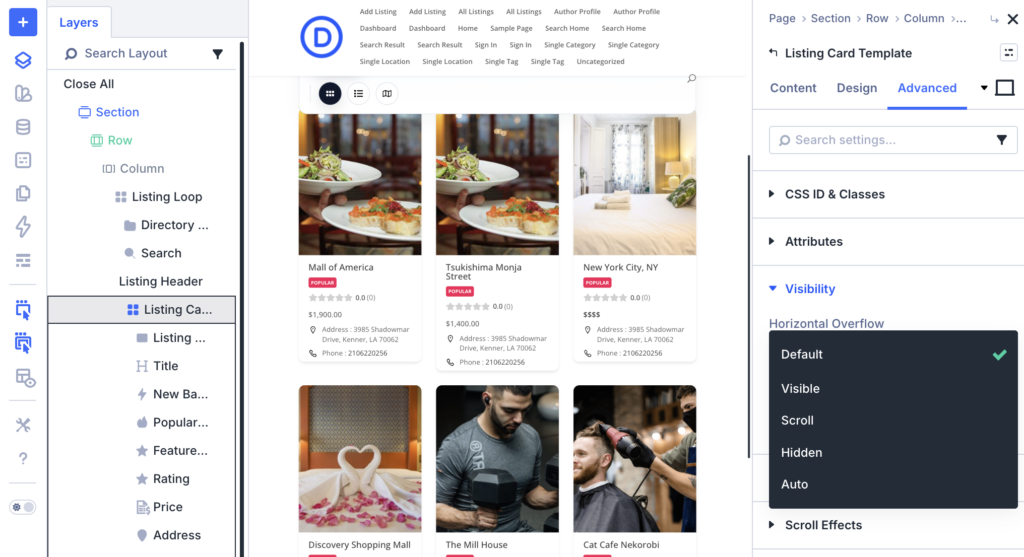
On any field module, open the Advanced tab, find Conditions, and set it to hide the module when the field has no saved value. Do this for optional fields like phone, email, or social links, so cards adjust automatically per listing.
Step 7: Save and Verify #
Save your changes, then check the real page on the frontend, not just the builder preview:
- Listings appear on the page.
- Directory type switching works, if you have more than one type.
- Search and filters return correct results.
- Grid, list, and map views all display correctly, if you enabled more than one.
- Sort dropdown works.
- Pagination or infinite scroll works.
- Mobile layout looks right, check Divi’s responsive preview and a real device.
Common Issues #
Listings don’t appear. Check for published listings, an active filter with no matches, or Featured/Popular Only enabled with nothing qualifying.
A custom field doesn’t show a value. Confirm the field belongs to the directory type you’re designing for, and that you’re testing with a real listing, not the builder’s placeholder preview.
Search or filters don’t update. The archive uses AJAX for search and filtering. If results don’t refresh, clear page and browser cache, and confirm all archive modules (Search, Listing Header, Listing Card Template, Pagination) are still inside the same Listing Loop. Moving one outside the loop breaks the connection between them.
What’s Next #
Designing Single Listing Page with Divi covers building the page a visitor sees when they open one specific listing, using the Divi Theme Builder instead of the Visual Builder.


