 Up to 35% Off!

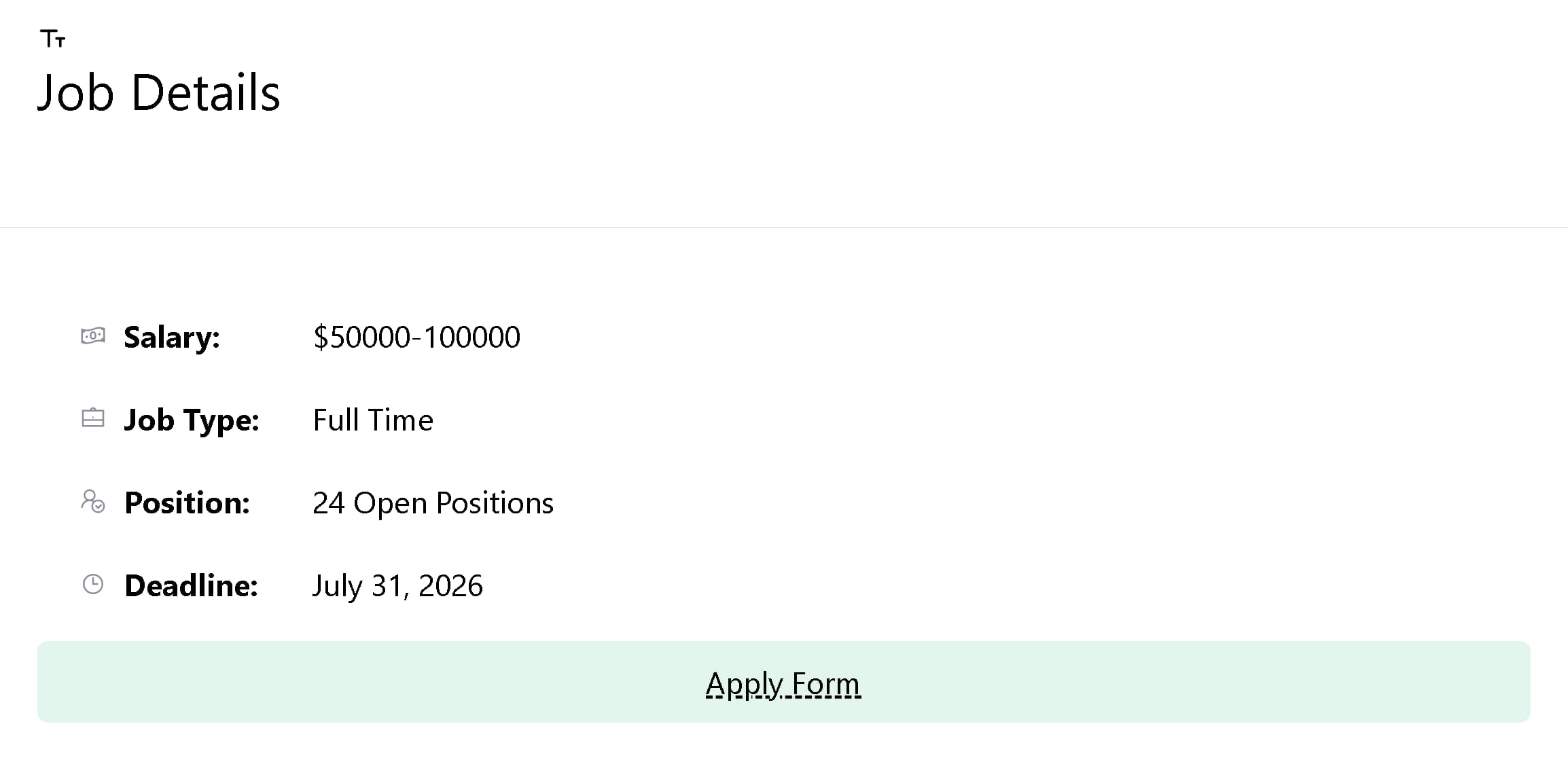
The Job Manager extension adds job-specific fields (Job Type, Salary, Open Positions, Deadline) and a custom job application form to any Directorist directory type. Job seekers apply through a dedicated form, and the listing owner receives the application by email.
Prerequisites #
- Directorist (core) must be installed and active. Job Manager deactivates itself and shows a warning notice if Directorist isn’t active.
- The Directorist Job Manager extension must be installed and active.
Path: WP Admin → Plugins → Installed Plugins
For Admins: Adding Job Fields to a Directory #
Step 1 – Add job fields to the submission form #
- Go to Directorist → Directory Builder
- Select the directory type you want to add job fields to.
- Open the Add Listing Form tab.
- Add any of the following widgets as required: Job Manager: Job Type, Job Manager: Salary, Job Manager: Open Positions, Job Manager: Deadline, Job Manager: Application Form.
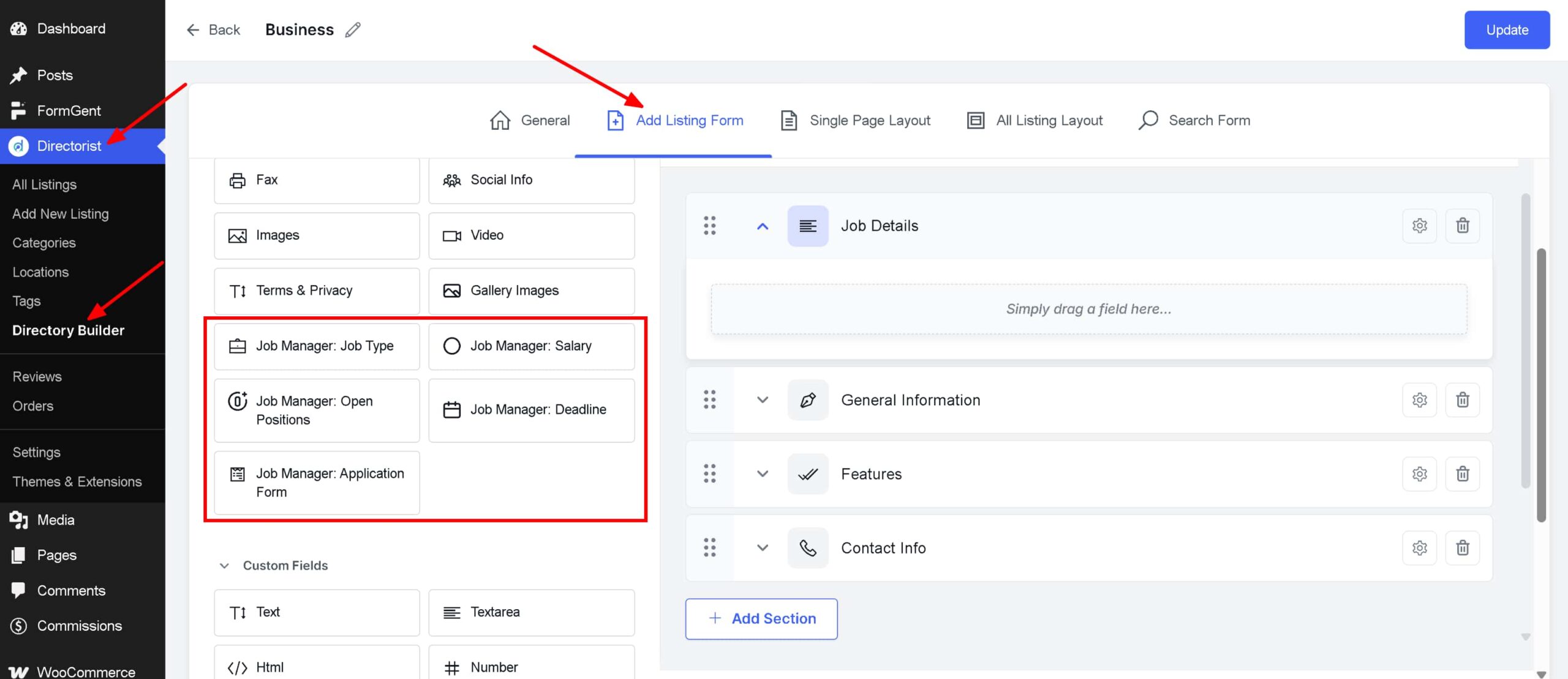
Path: WP Admin → Directorist → Directory Builder → [Directory Type] → Add Listing Form
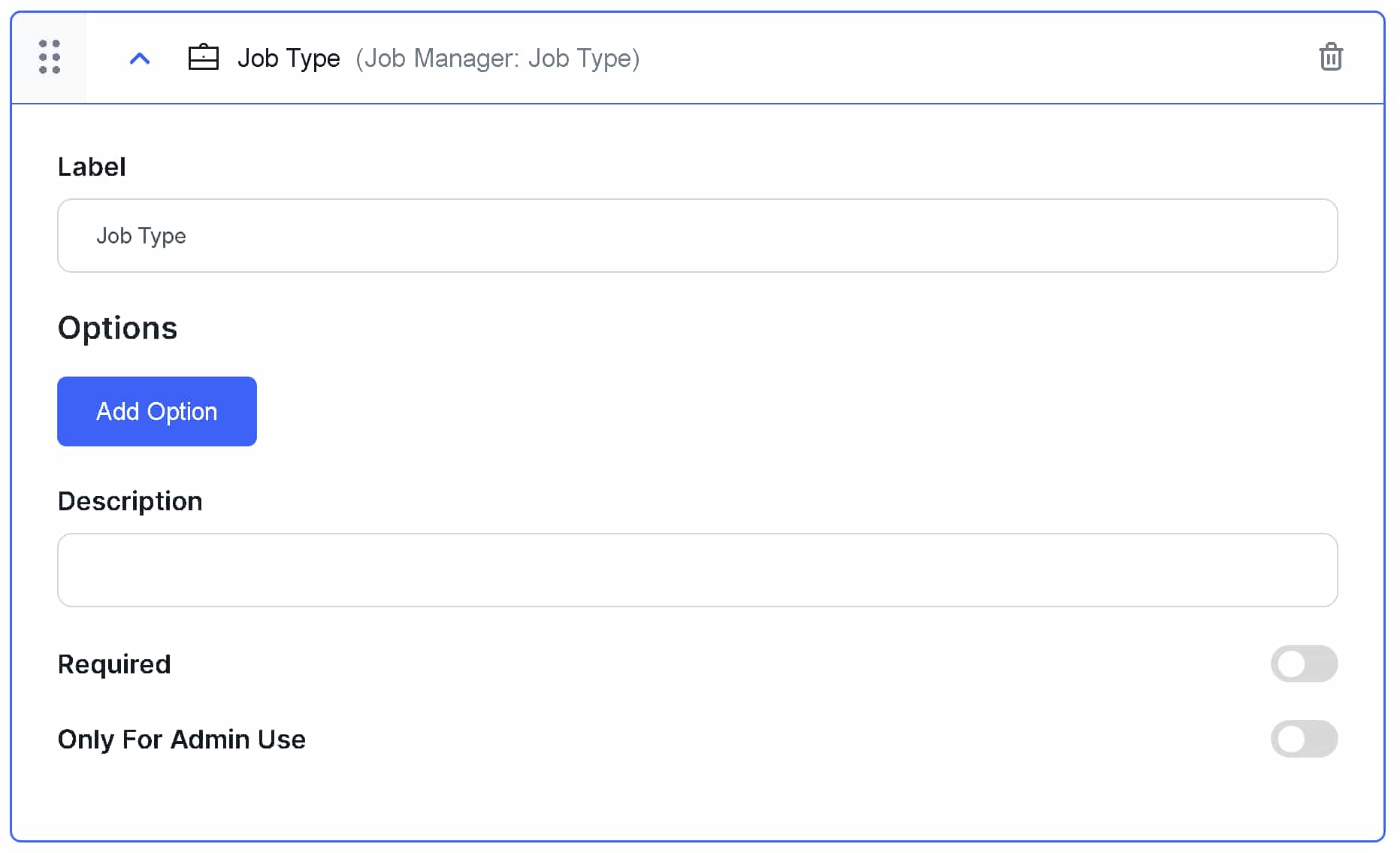
If you add the Job Manager: Job Type widget, set its Options (each with an Option Value and Option Label, for example Full-Time / Part-Time / Remote) so listing owners have choices to pick from.
Step 2 – Add job filters to the search form (optional) #
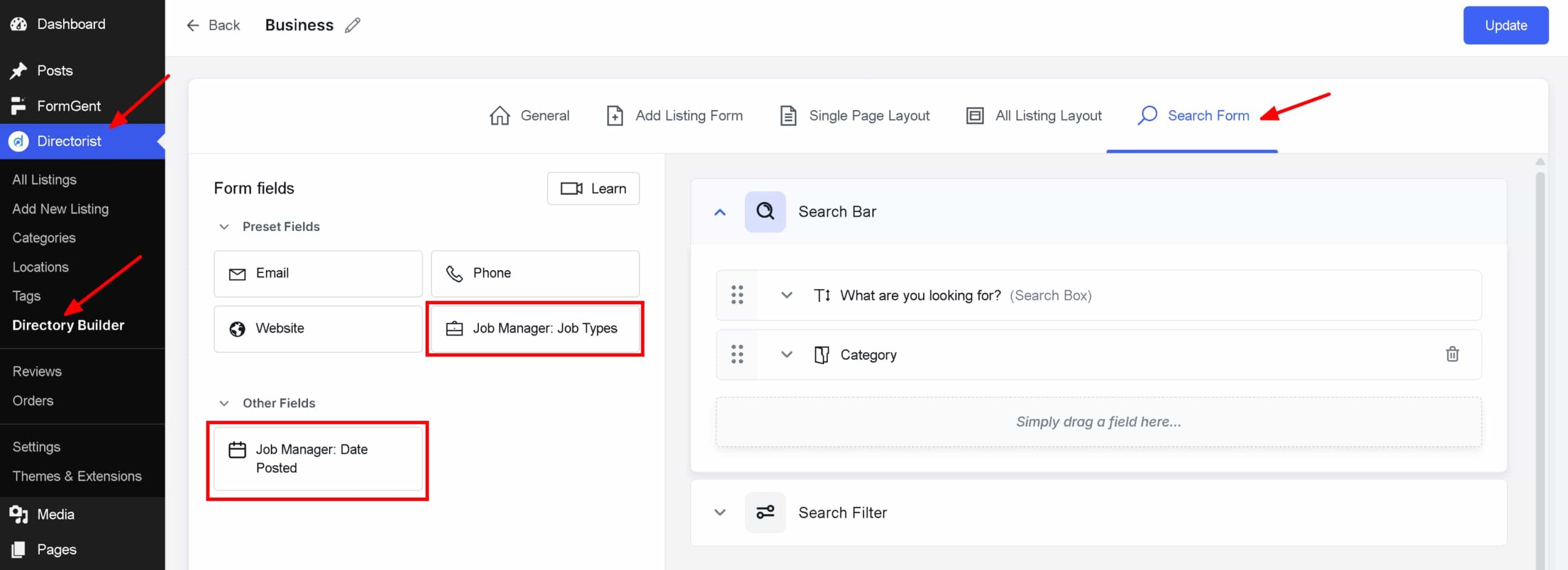
- Open the Search Form tab for the same directory type.
- Add the Job Manager: Job Types widget to let visitors filter by job type.
- Add the Job Manager: Date Posted widget to let visitors filter by how recently a job was posted.
Path: WP Admin → Directorist → Directory Builder → [Directory Type] → Search Form
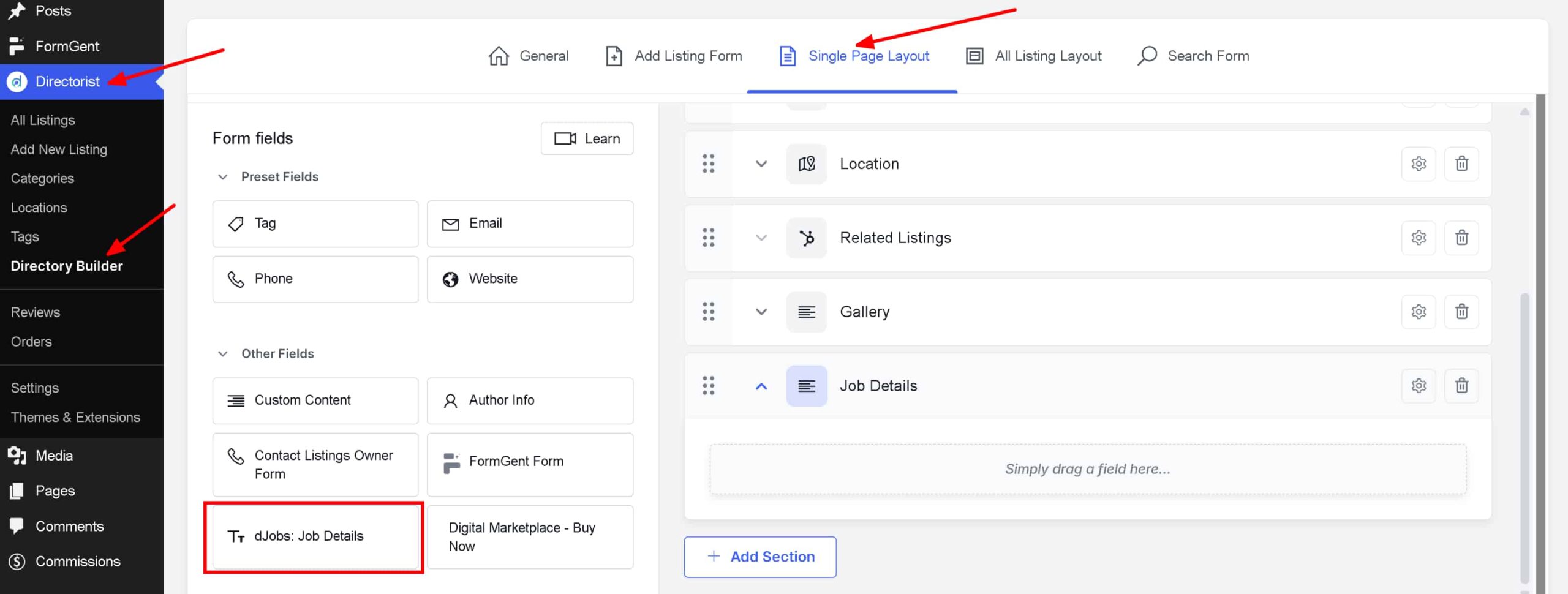
Step 3 – Add the Job Details section to the single listing page #
- Open the Single Listing Page tab.
- Add the dJobs: Job Details section to the layout.
Path: WP Admin → Directorist → Directory Builder → [Directory Type] → Single Listing Page
Step 4 – Set up the Job Apply Form preview page #
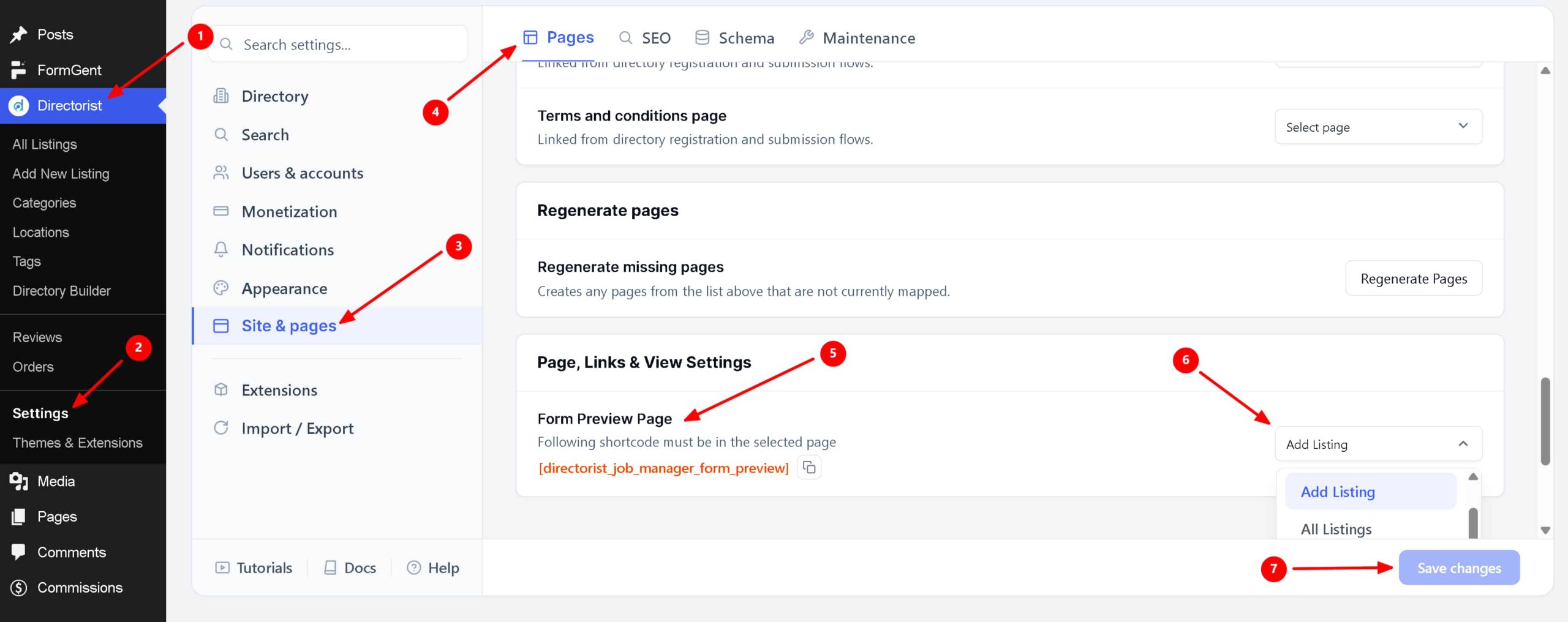
Job Manager automatically creates a page titled Job Apply Form with the shortcode [directorist_job_manager_form_preview] when the extension activates. Confirm it’s selected as the Form Preview Page:
- Go to Directorist → Settings → Site & pages
- Click the Pages tab.
- Confirm Form Preview Page is set to the page containing the
[directorist_job_manager_form_preview]shortcode.
Path: WP Admin → Directorist → Settings → Pages → Form Preview Page
Step 5 – Customize the application email (optional) #
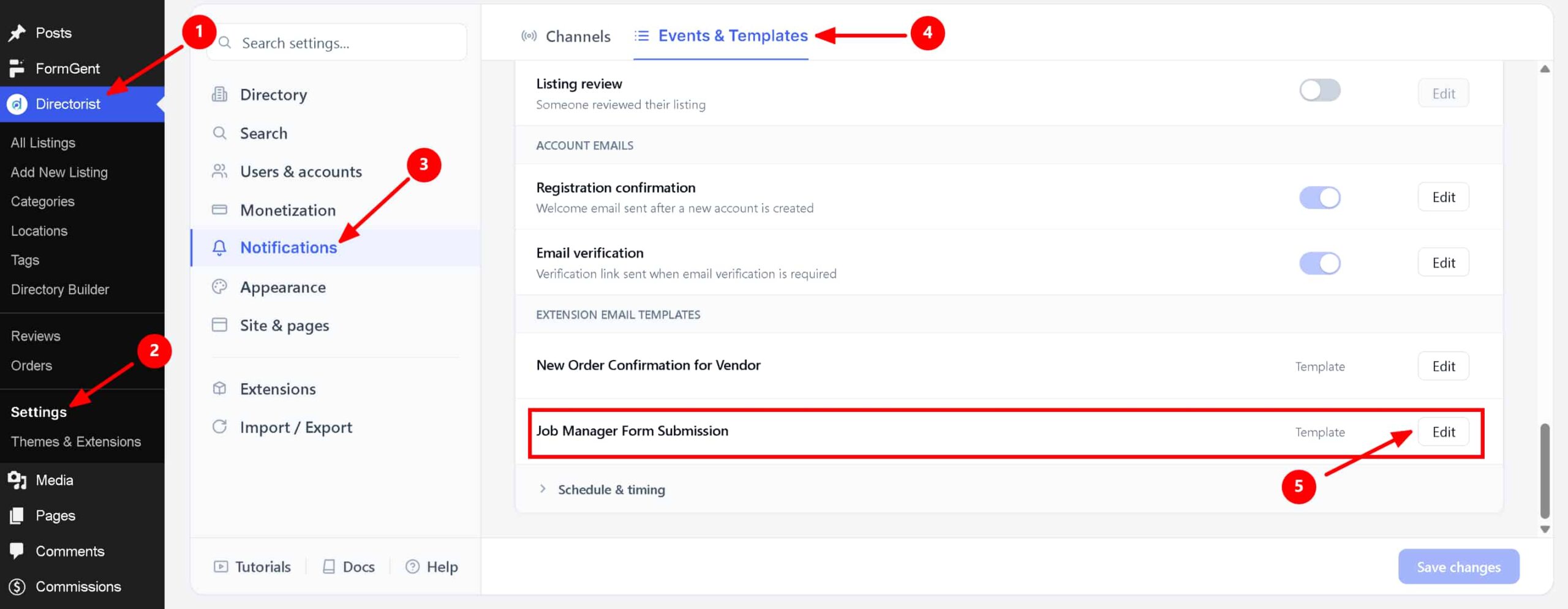
- Go to Directorist → Settings → Notifications → Events & Templates
- Find the Job Manager Form Submission section.
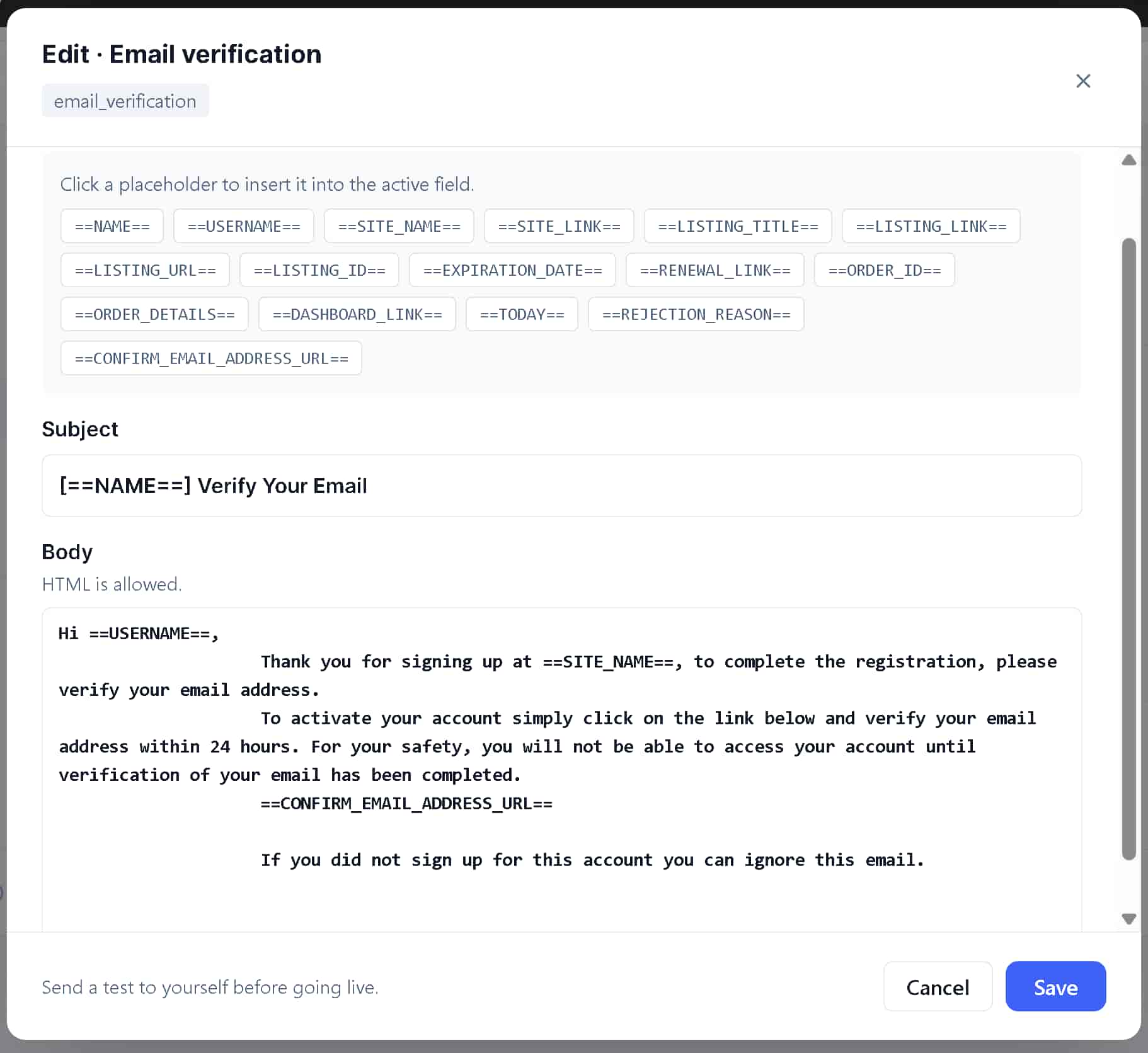
- Edit Email Subject and Email Body. The body must include
==SUBMISSION_DATA==to show what the applicant submitted, and can also use==NAME==,==LISTING_TITLE==,==LISTING_URL==,==NOW==, and==SITE_NAME==.
Path: WP Admin → Directorist → Settings → Email Templates → Job Manager Form Submission
For Listing Owners: Filling In Job Details and Building the Application Form #
Step 1 – Fill in the job fields #
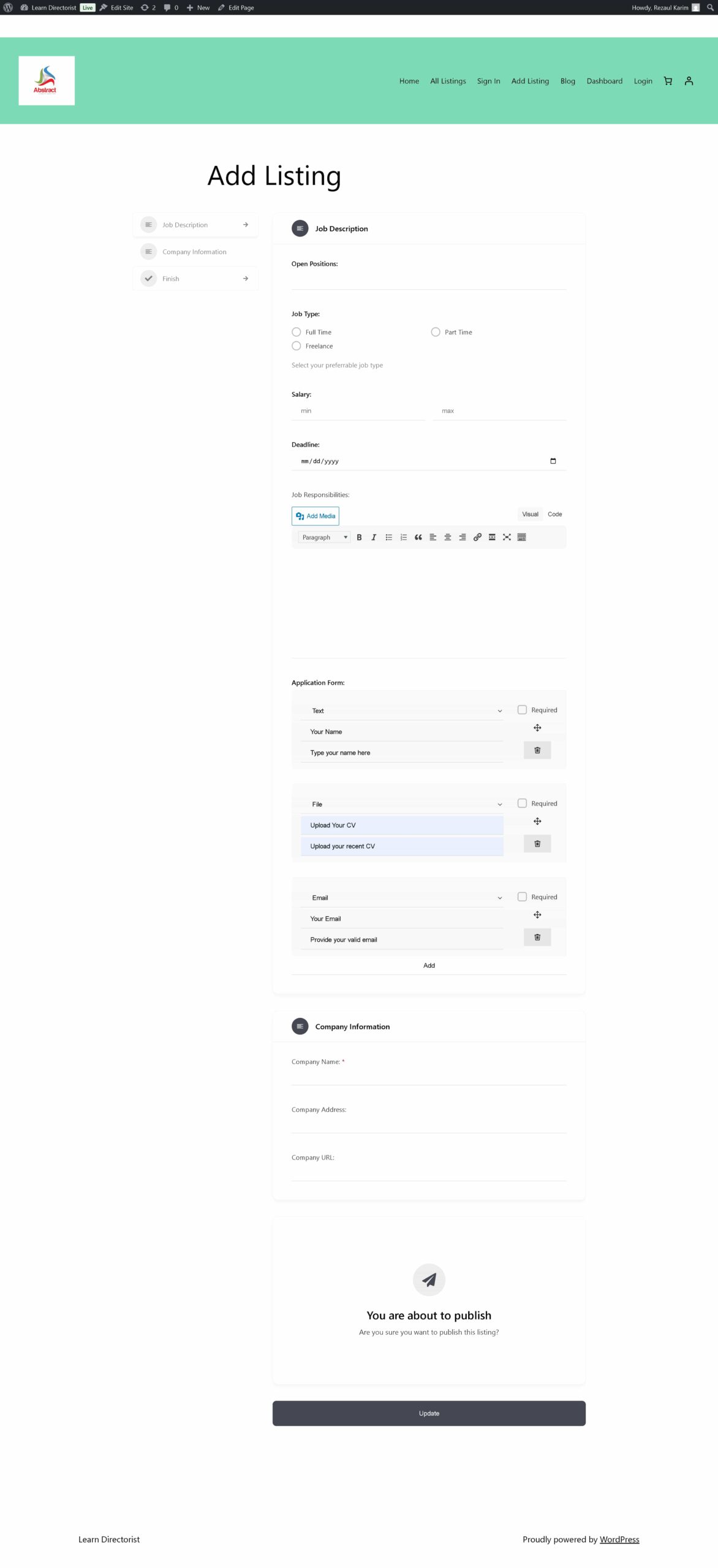
- Open the Add Listing or Edit Listing form.
- Fill in whichever job fields the admin added: Job Type, Salary (minimum and maximum), Open Positions, and Deadline.
Step 2 – Build the application form #
- In the Application Form field, click Add to add a form field.
- Choose a field type: Text, Textarea, Email, URL, Number, or File.
- Enter a Label and Placeholder for the field.
- Check Required if the field must be filled in before submitting.
- Drag fields to reorder them, or click the trash icon to remove one.
- Repeat for each field the application should collect.
For Job Seekers: Applying to a Job Listing #
Step 1 – Open the application form #
- On the listing’s single page, click Apply Now (the button text is configurable by the admin, so it may read differently on some sites).
Step 2 – Fill out and submit the application #
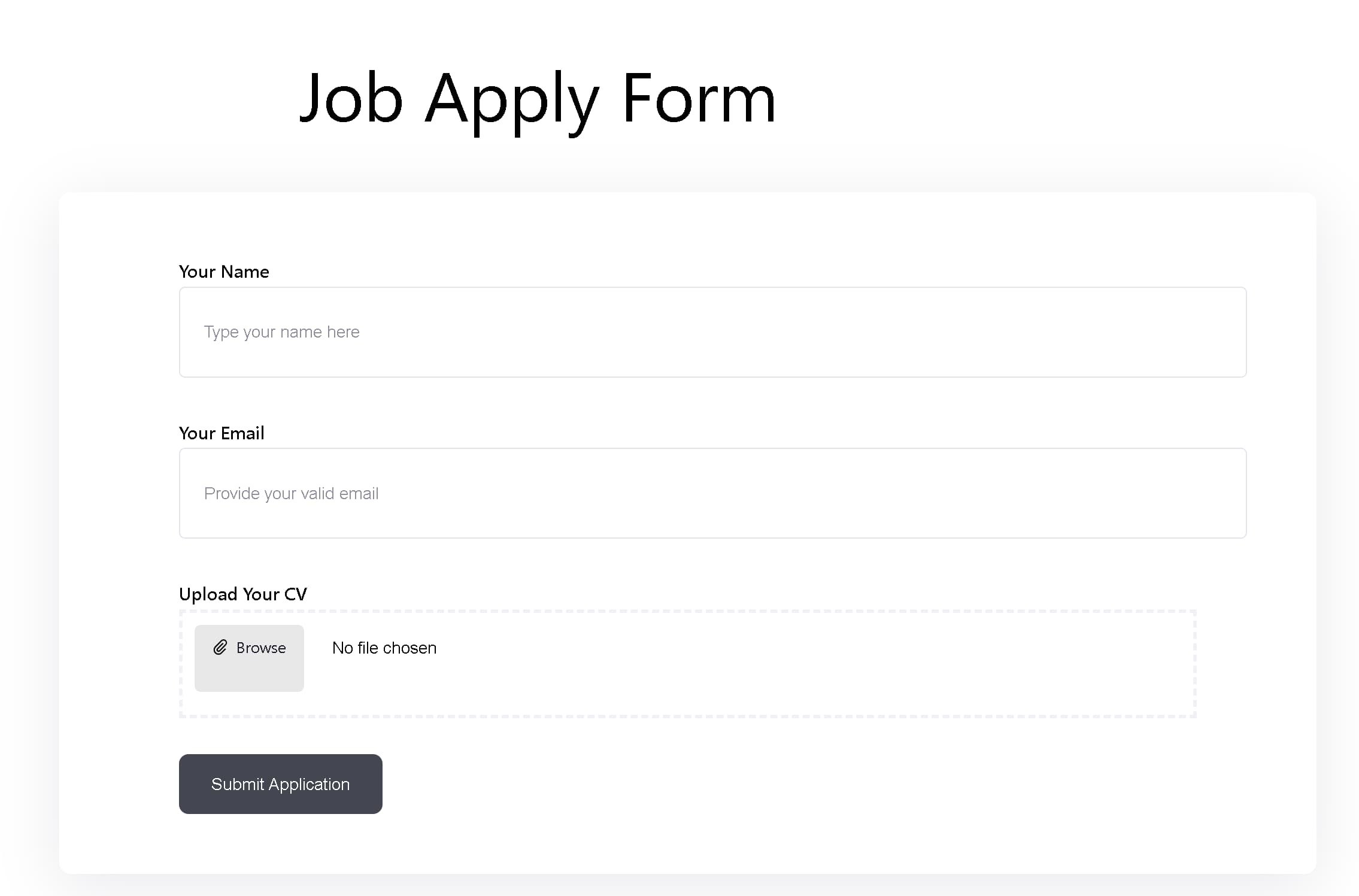
- Fill in the fields the listing owner set up.
- Submit the form.
A confirmation message appears once the application is submitted successfully. The listing owner receives an email with the submitted details; the application is only accepted if the listing is currently published. Note that for email notification, a WordPress SMTP tool is required.


